FliFlik LOGO
Free Screen Recorder

Record Your Screen Capture, Create, Share

A simple, powerful screen recorder for tutorials, presentations, gameplay, and everyday work. Capture your screen, record your voice, and create high-quality videos in just a few clicks.

Available for:

Full-featured Free Screen Recording Software

Everything you need to record your screen, with flexible options and high-quality output.

Start Recording

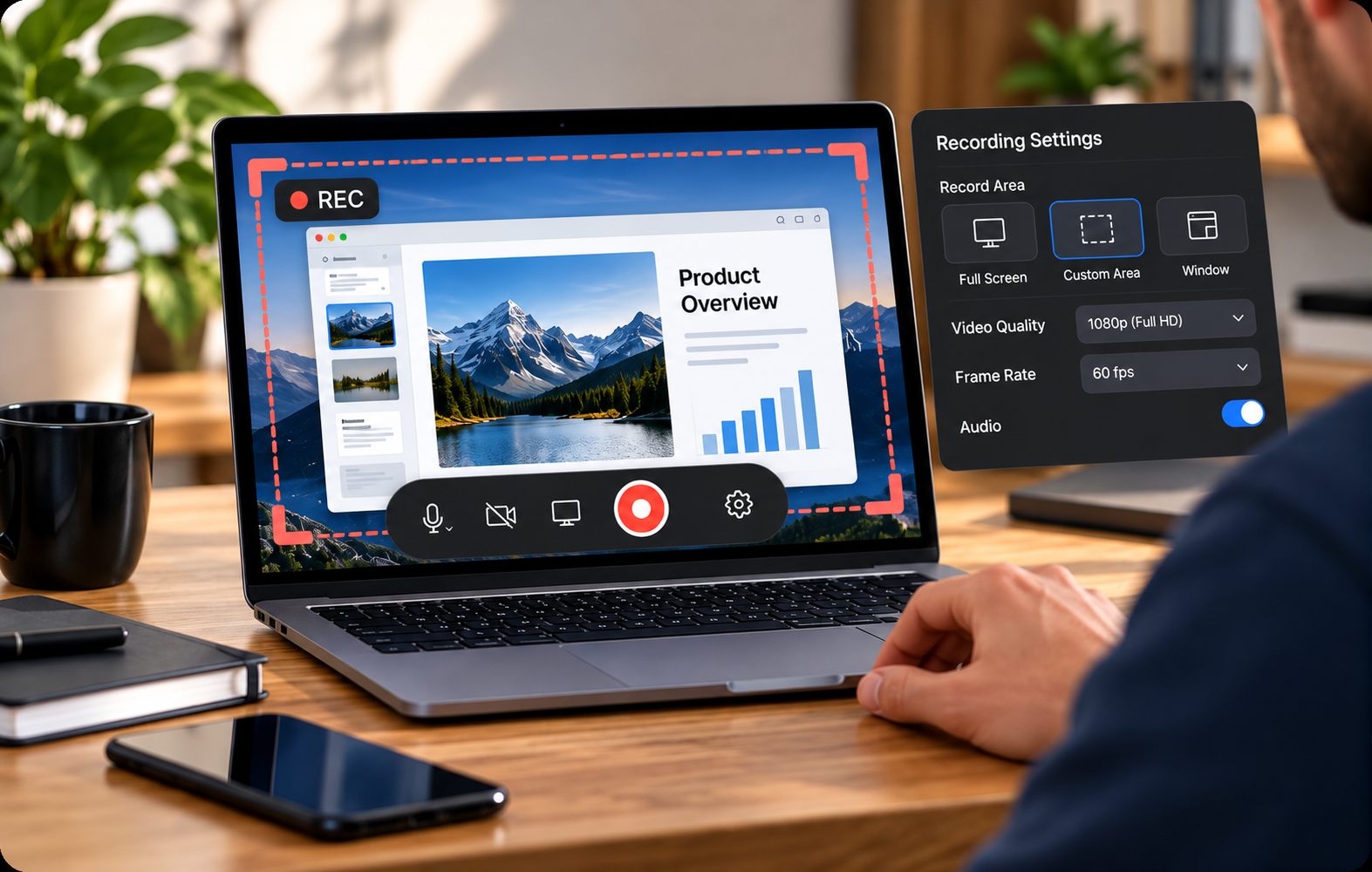
Record Your Screen with Ease

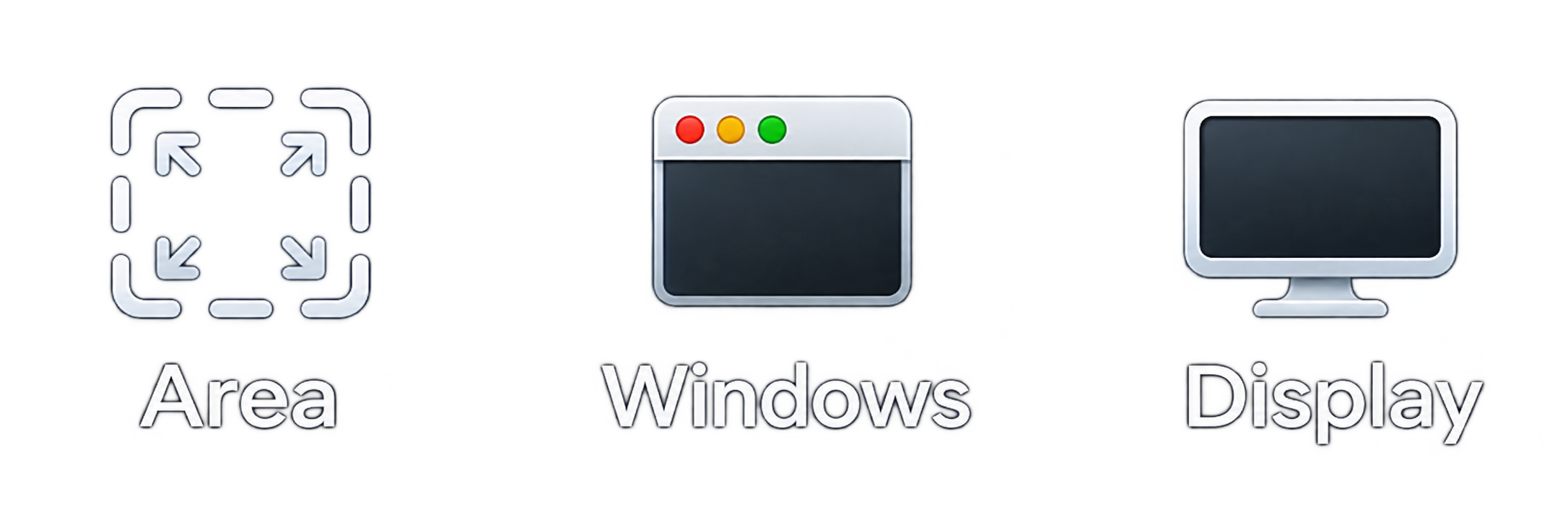
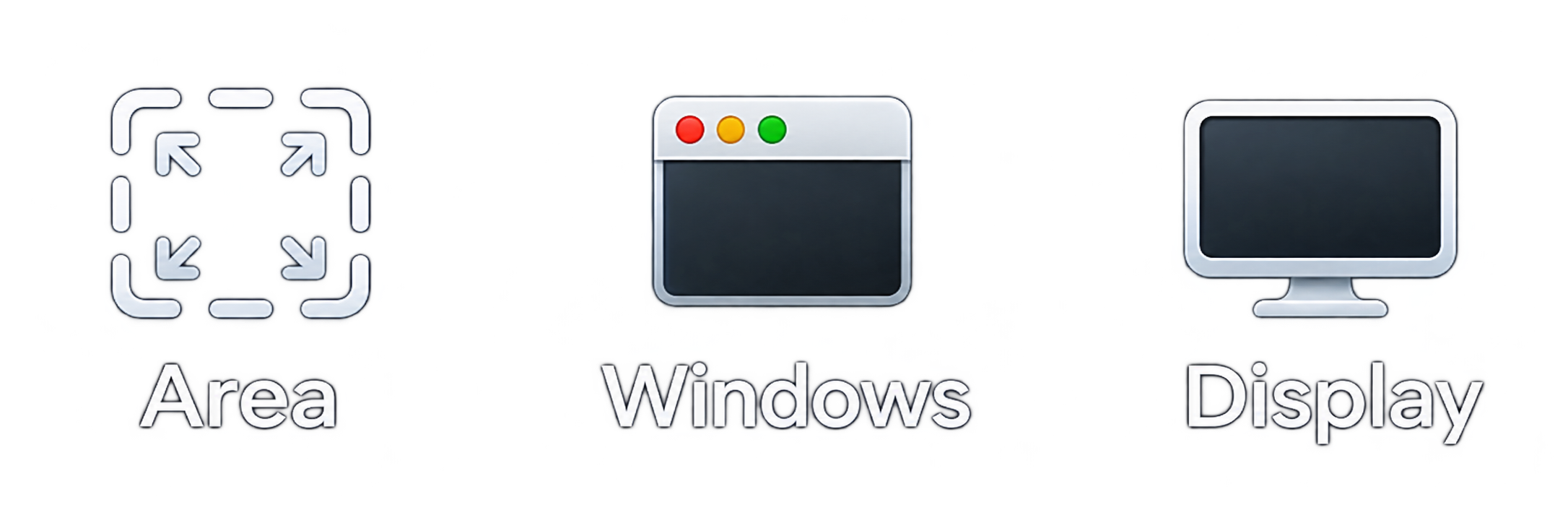
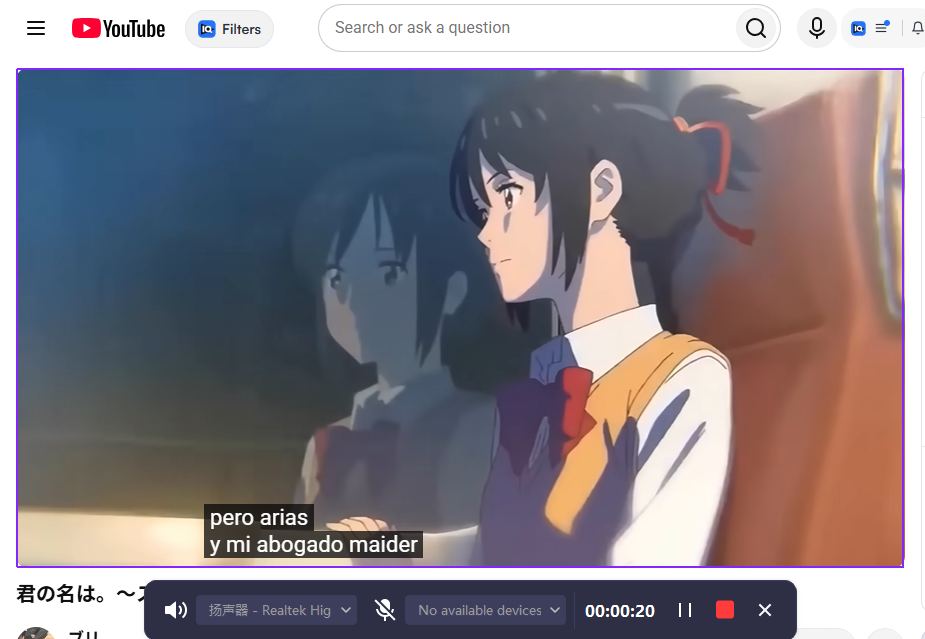
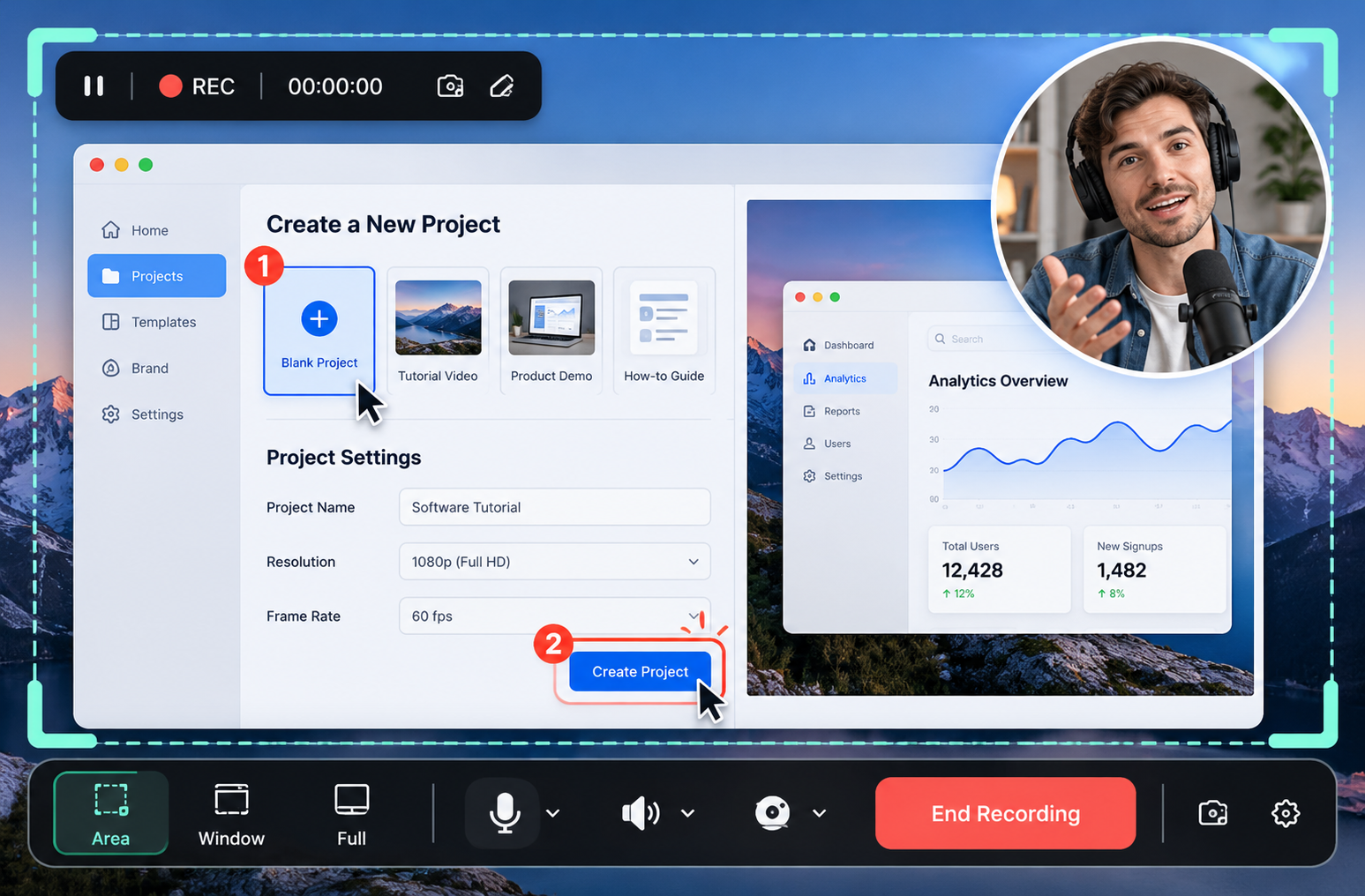
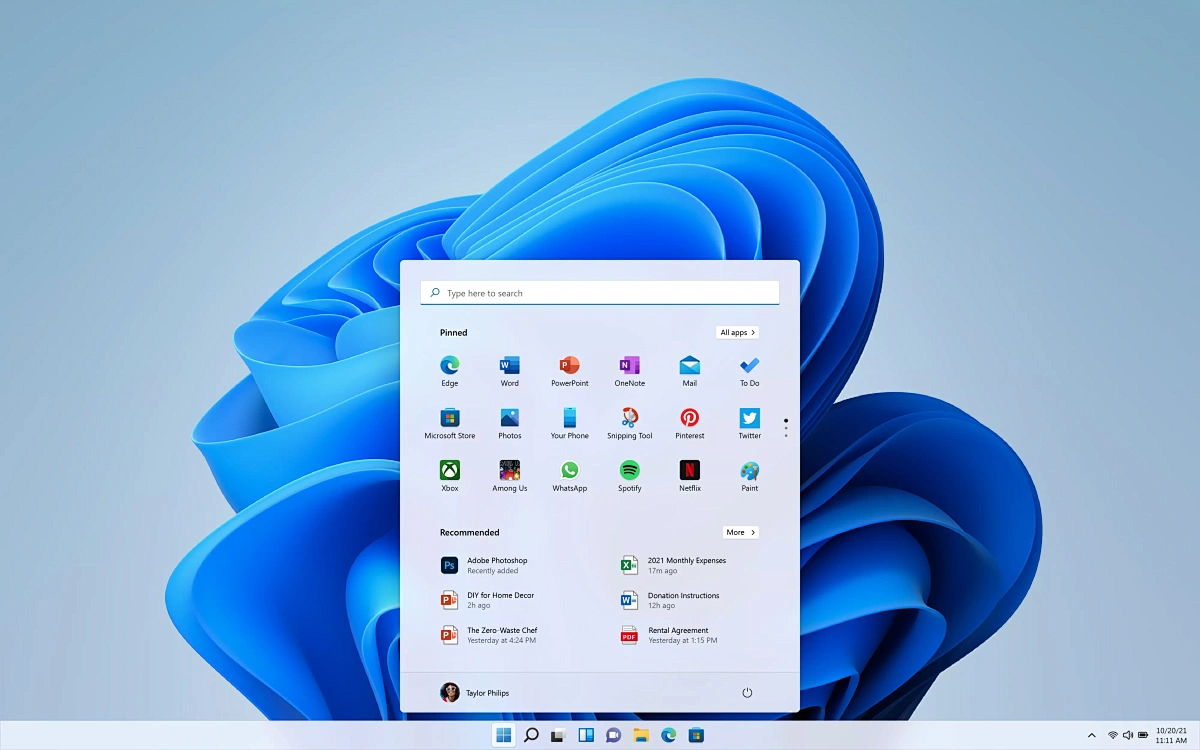
Capture your entire screen, a specific application window, or a selected area, depending on your workflow. Whether you're walking someone through a new tool, demonstrating a process, or saving a presentation, Fliflik Screen Recorder helps you capture the details that matter. Start a recording, focus on your task, and create a video that's easy to review and share.

Start Recording
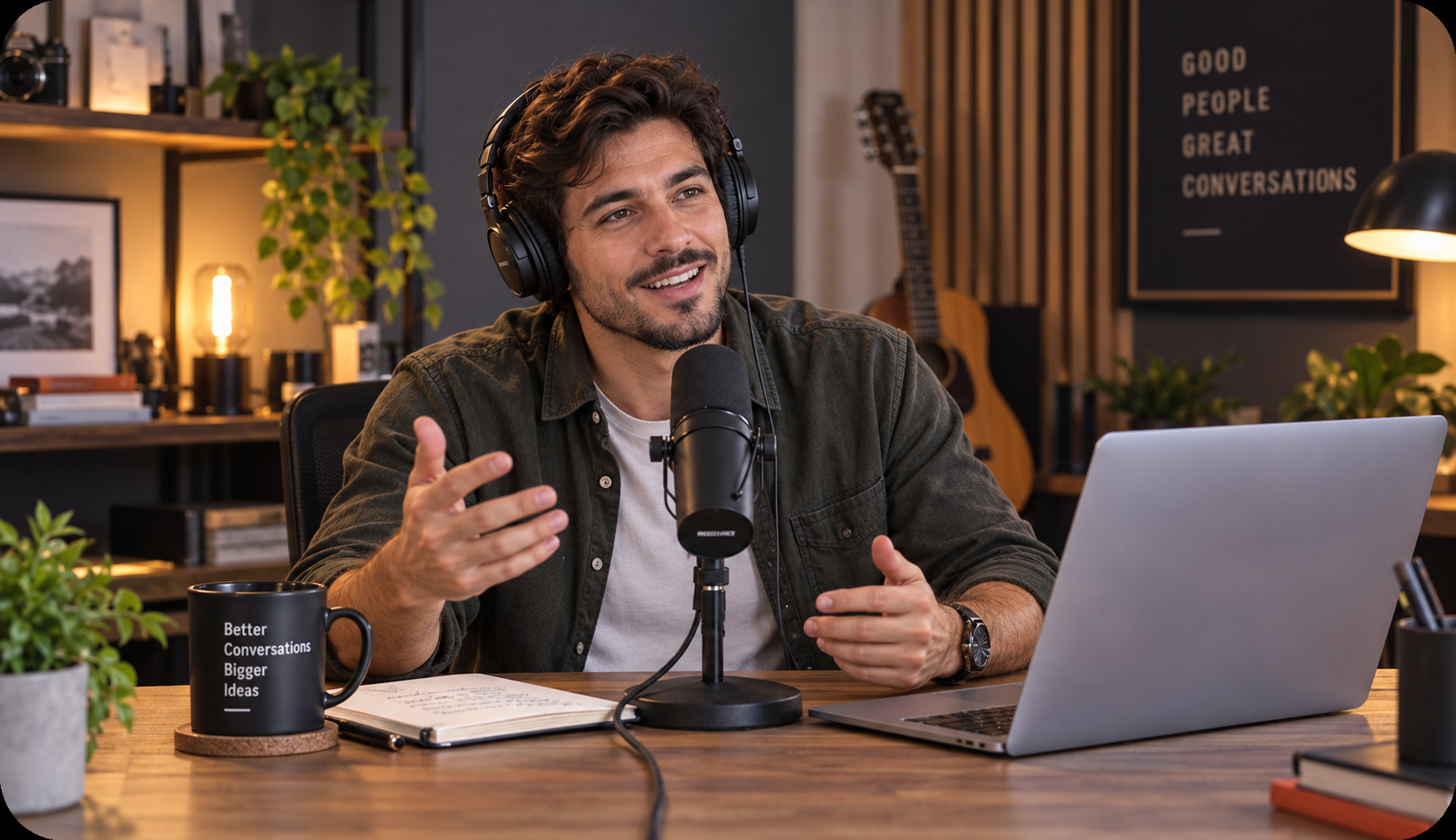
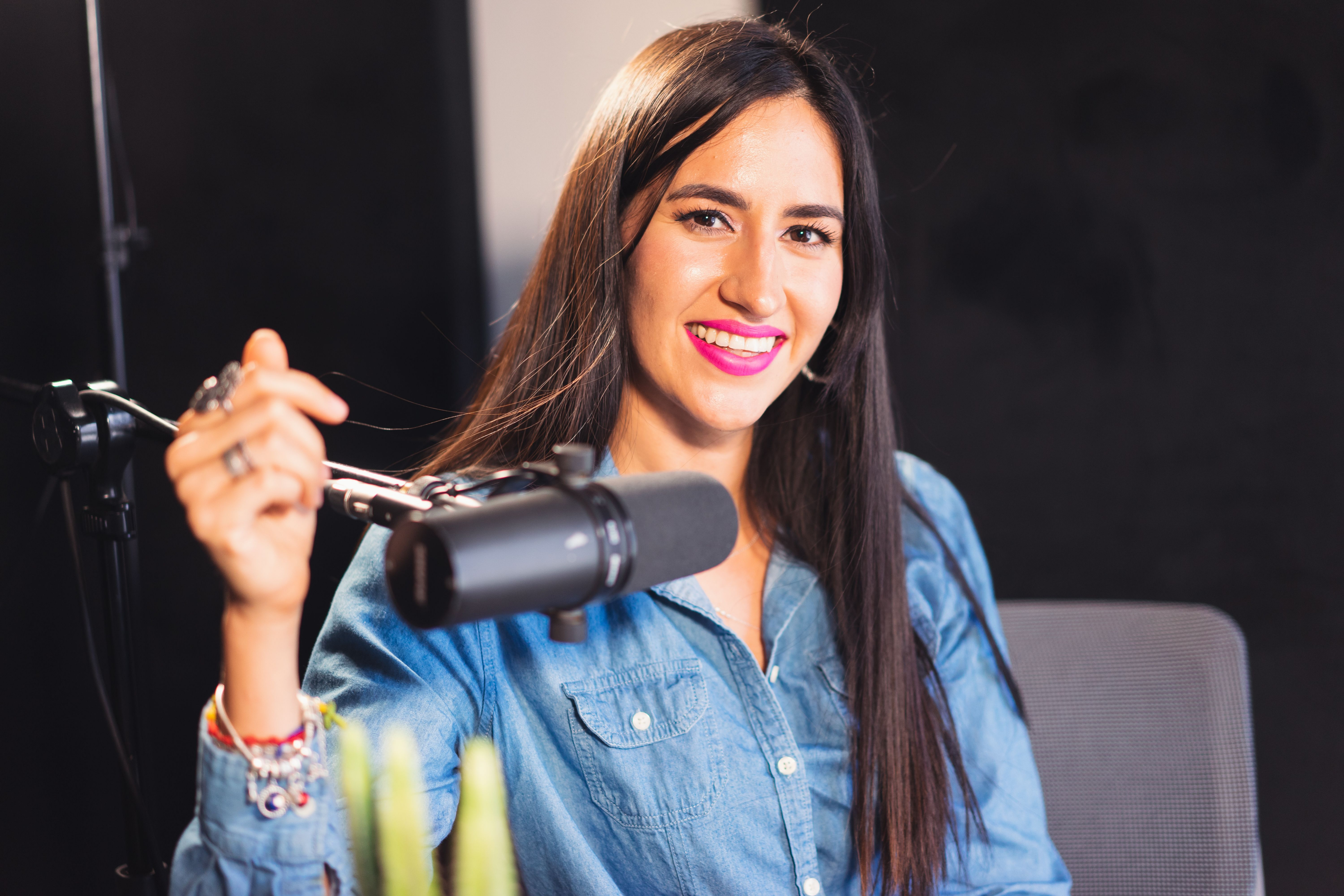
Record Your Screen with Crystal-Clear Audio

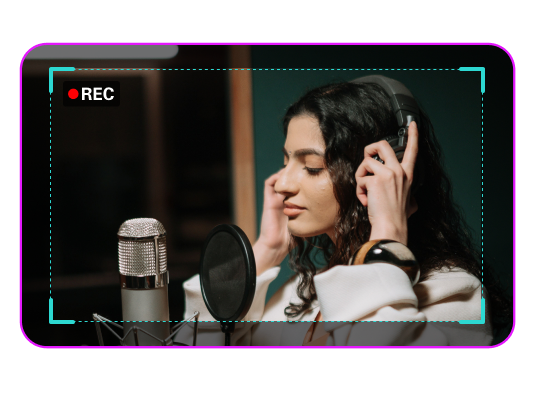
Great screen recordings need more than visuals. Capture your voice while demonstrating software, explaining a process, or presenting an idea. With microphone recording and supported system audio capture, you can create more complete tutorials, walkthroughs, and product demos without relying on separate audio recordings.

Coming Soon

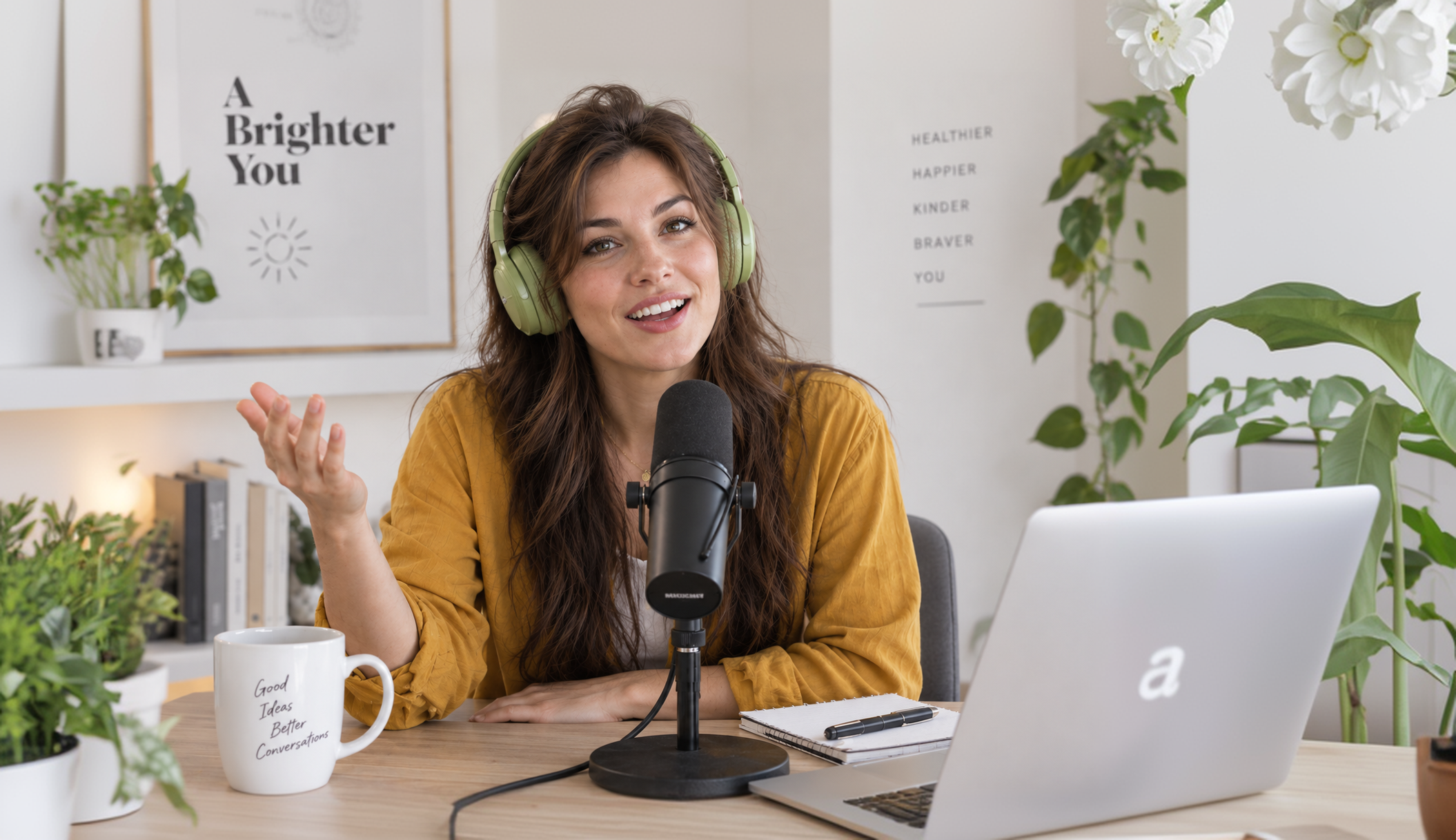
Add Your Webcam to Screen Recordings

Make your tutorials and presentations feel more personal with screen and webcam recording. Show your face while explaining what's happening on screen, guide viewers through important steps, and create engaging training videos or product demonstrations. Webcam recording is especially useful for educators, content creators, remote teams, and anyone who wants to put a human touch on a screen recording.

Save Clear, High-Quality Recordings

Keep important details visible in your screen recordings, from small interface elements to step-by-step demonstrations. Choose the available recording settings that fit your device and project, then save your video for editing, sharing, or future reference. Whether you're creating a quick walkthrough or a longer tutorial, clear visuals help your audience follow along with confidence.

How To Record Your Screen With Audio?

With these 3 easy steps, you can quickly and seamlessly capture any screen content you need.

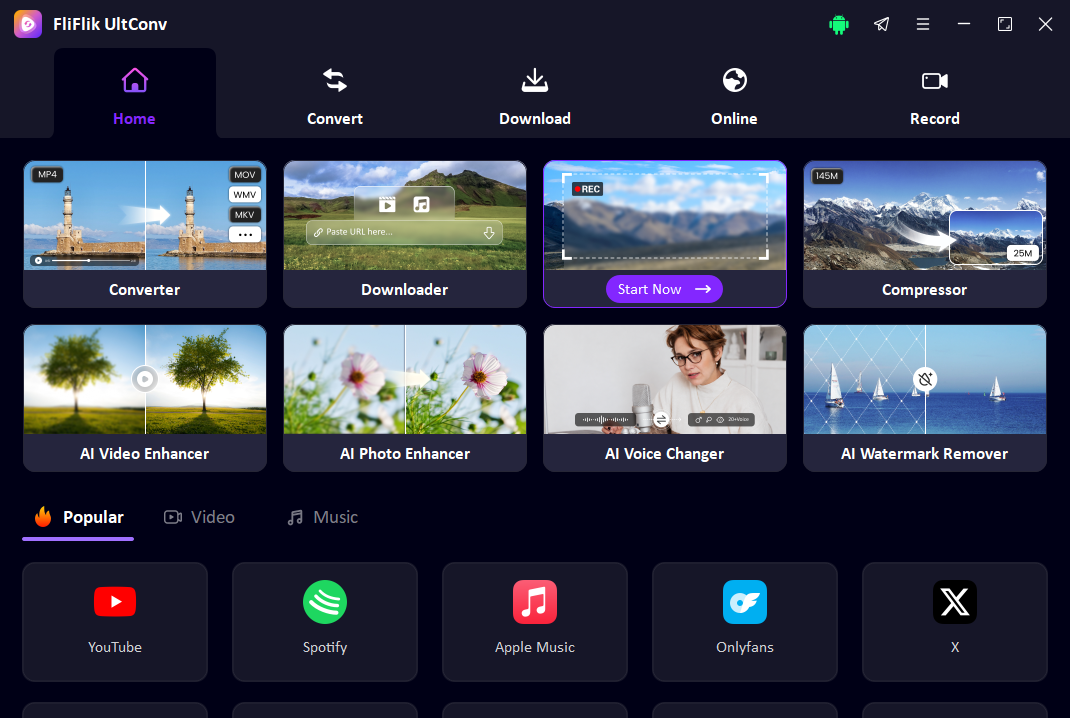
Step 1. Launch Screen Recorder
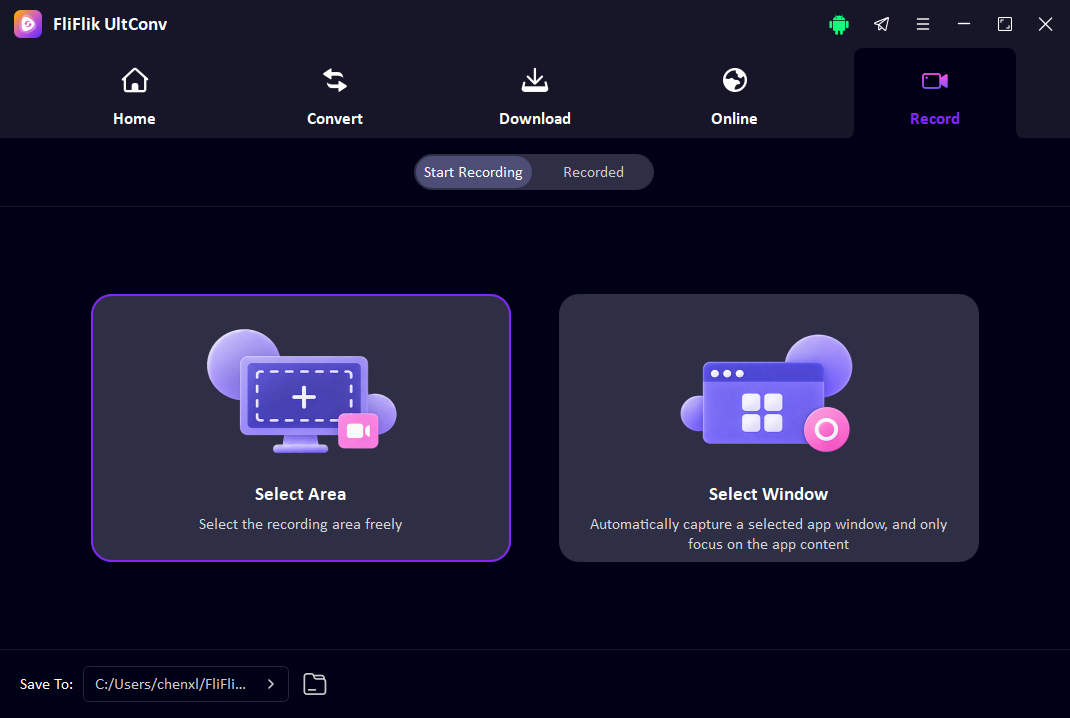
Step 2. Select Recording Area
Step 3. Start Recording

Screen Recorder Built for Any Case

Whether you're teaching online, recording a software tutorial, running training, or capturing gameplay and product demos, FliFlik Screen Recorder handles it all—HD capture, watermark-free sharing, anywhere.

Tutorial Creators

Record your screen step by step to create software tutorials, how-to videos, and practical guides that help viewers learn faster.

Teachers & Students

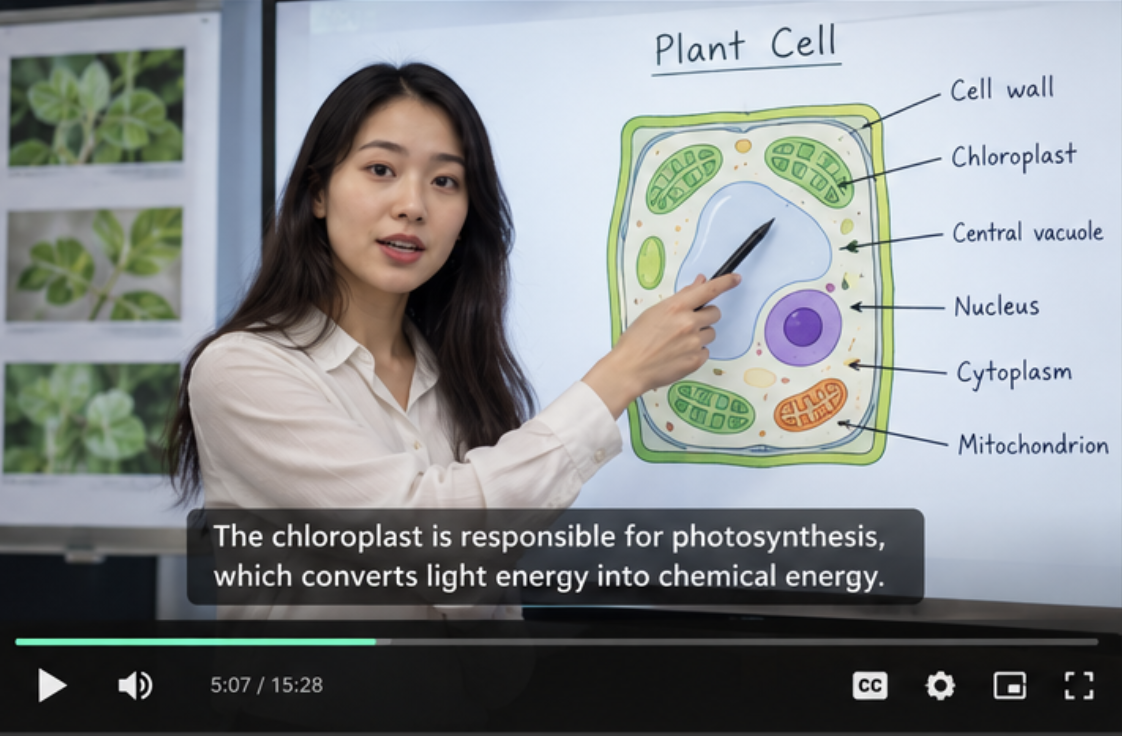
Capture online lessons, explain complex topics, and create study materials you can revisit whenever you need a refresher.

Product Demos

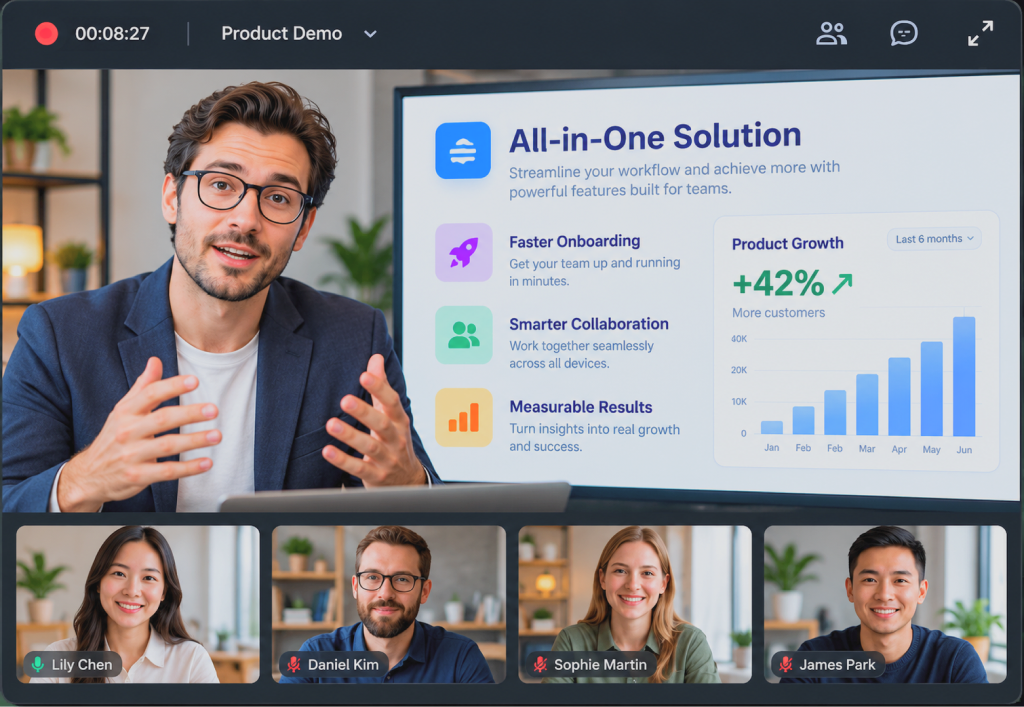
Showcase product features, walk customers through workflows, and create clear demonstrations for onboarding and sales presentations.

00:00:25

Remote Teams

Record project updates, explain tasks, and document processes so teammates can review important information on their own schedules.

Start Recording

Gamers & Streamers

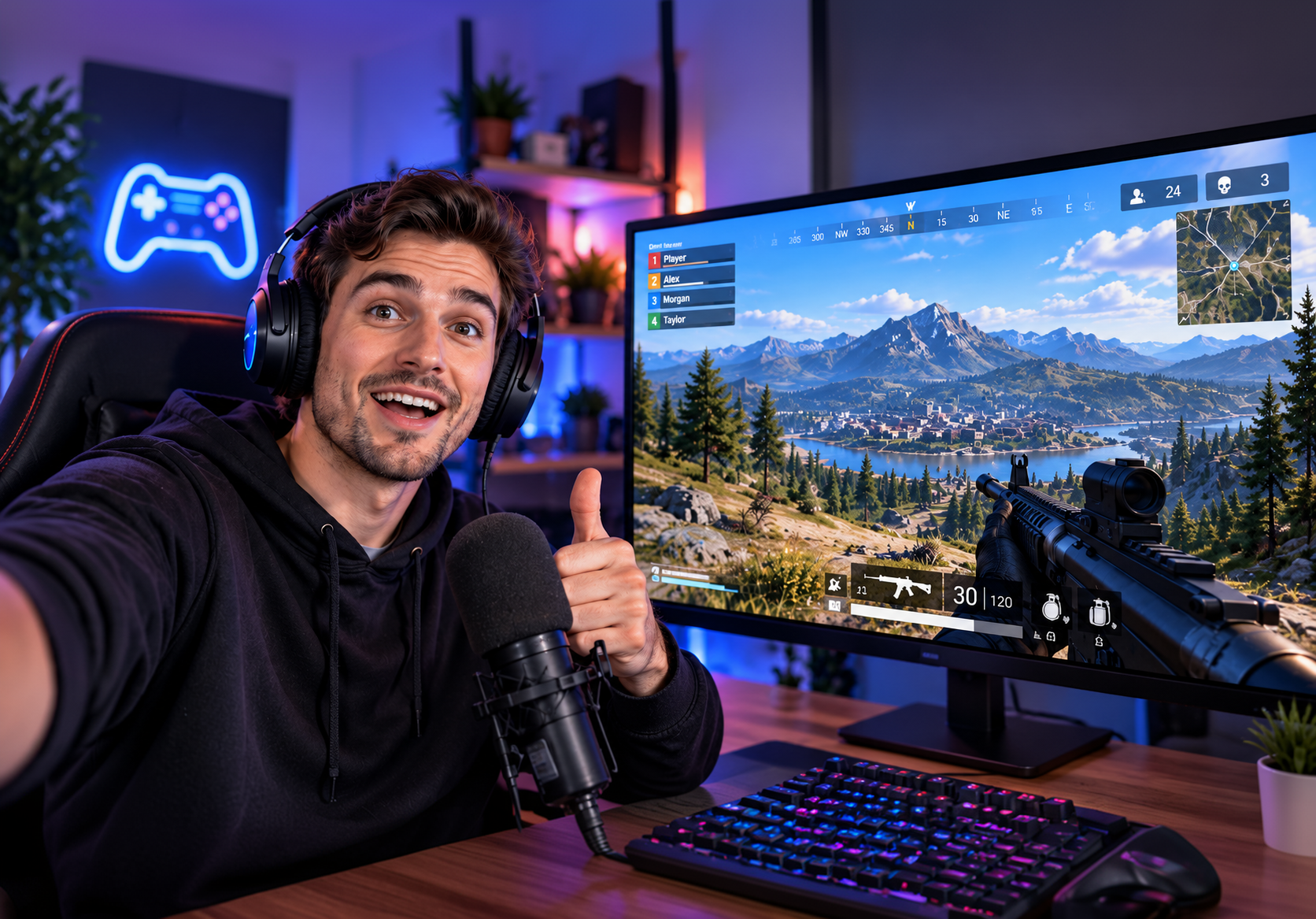
Capture gameplay moments, demonstrate strategies, and save memorable sessions for highlight videos or personal archives.

Developers & Support Teams

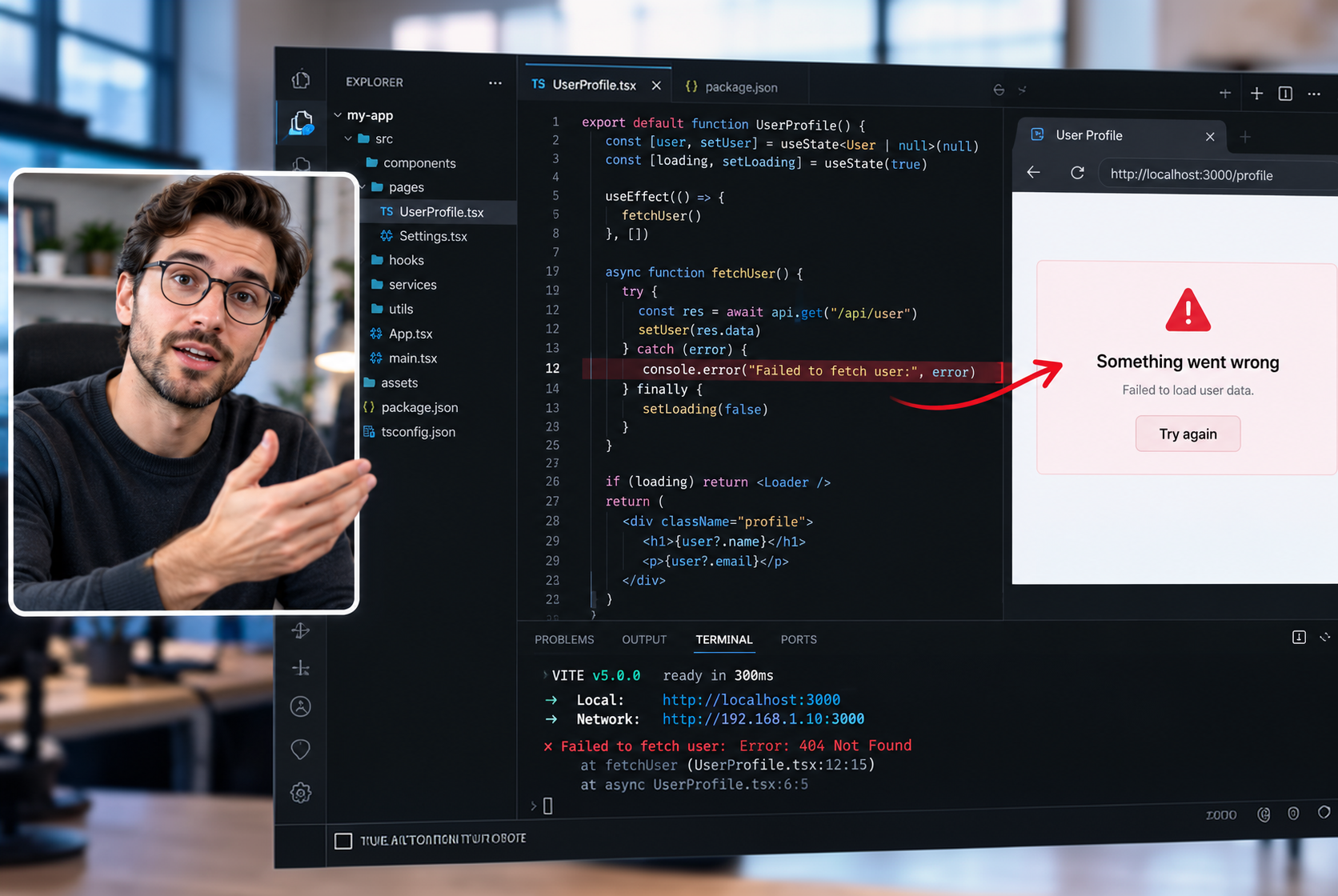
Record bugs, reproduce technical issues, and show exactly what happened on screen to make troubleshooting easier.

Emily Parker

I needed a simple way to record software tutorials, and this screen recorder makes the process much easier. I can focus on explaining each step instead of dealing with complicated settings.

——Emily Parker

James Wilson

Recording presentations is much more convenient when I can capture my screen and narration together. It helps me create clear walkthroughs that colleagues can review whenever they need them.
——James Wilson

Michael Thompson

FliFlik Screen Recorder is useful for demonstrating bugs and documenting technical issues. Being able to show exactly what happened on screen can make troubleshooting much easier to understand.

——Michael Thompson

FliFlik Screen Recorder FAQs

2. How Do I Record My Screen?
3. Can I Record My Screen with Audio?
4. Can I Record My Screen and Webcam at the Same Time?
5. Can I Record a Specific Window Instead of My Entire Screen?
6. Is Screen Recording Safe?
FliFlik Screen Recorder for PC/Mac

Record Your Screen. Capture Every Detail.