

 By
 9 minutes read
Descript is not your typical video and audio editor. In this Descript review, we look at what happens when you edit recordings by changing a transcript instead of working entirely on a timeline. Descript also brings together AI transcription, screen recording, captions, audio cleanup, and generative editing tools. That combination can be convenient for podcasts and talking-head videos, but how well does it work when you need accurate transcripts, clean cuts, and consistent results? Below, we examine its editing workflow, features, pricing, and user-reported issues to help you decide whether it’s worth using.

 Quick Verdict
Descript is a good fit for podcasters, YouTubers, and creators who regularly edit spoken content. Text-based editing saves time, but transcription errors, occasional awkward cuts, and AI credit limits can get in the way.
- Part 1. What Is Descript and How Does It Work?
- Part 2. Descript Key Features Reviewed
- Part 3. How to Edit and Transcribe a Video with Descript
- Part 4. Descript Pricing: Is the Free Plan Enough?
- Part 5. Descript Pros and Cons: Is It Worth It?
- Part 6. A Simpler Way to Transcribe Videos with FliFlik Free Video Transcriber
- Conclusion
Content Table:
Part 1: What Is Descript and How Does It Work?

Descript is an audio and video editor where you edit a recording by editing its transcript. It’s made for creators, podcasters, and marketers who want to record, transcribe, and edit without spending all day on a video timeline.
It’s pretty easy to use. You upload a file you already have, or you record right inside Descript. It makes a transcript and matches each word to the right spot in the audio and video. So when you delete a sentence or move text around, the media moves with it. It also has AI tools that remove filler words, clean up audio, and make captions. When you’re done, you export the full video or audio.
Part 2: Descript Key Features Reviewed
Descript packs recording, transcription, text-based editing, and AI cleanup into one application. Its biggest advantage is how the features work together: you can record or import footage, find the part you need in the transcript, make changes, and create captions without moving the project between separate programs.
1. Text-Based Video and Audio Editing
Text-based editing is the main reason many creators try Descript. You don’t have to scrub through a long recording to find the start of a sentence: you can locate it in the transcript, delete the words you don’t need, or move an entire section. The matching audio and video follow those changes.
It pays off most for podcasts, interviews, online lessons, and talking-head videos, where repeated lines, false starts, and long pauses are common. You can clean up the conversation quickly, then use the timeline to refine transitions that need a more precise cut.

Descript’s Remove Filler Words tool identifies hesitations such as “um” and “uh” and can remove them from a recording. For recurring interviews and podcasts, that saves repeated manual cuts. The feature now works in English, Spanish, German, French, Portuguese, and Italian, following an August 2026 update. It is useful for tidying spoken audio, although removing every hesitation can make a conversation sound abrupt.

Accurate transcript words do not always mean accurate word timing. In a Descript community update, a team member acknowledged that a transcription-model change had affected word alignment in some projects. This could leave audio fragments behind or cause Remove Filler Words and Shorten Word Gaps to make awkward cuts. The team said the model had been updated to improve alignment.
2. AI Transcription and Captions
Descript automatically transcribes uploaded or recorded audio and video. It can also identify different speakers, label their dialogue, and turn the transcript into captions. You can correct the text inside the editor, and the changes stay connected to the corresponding media. This makes it easier to prepare subtitles without creating them separately.
Descript supports transcription in 25+ languages, including English, French, German, Hindi, Spanish, and Portuguese. Each file uses one spoken language; Chinese, Japanese, and Russian are not currently supported for speech transcription. Translation and dubbing use separate language options, while transcripts can be exported as text or subtitle files.
Automatic transcription still has weak spots with names, technical terms, accents, and overlapping speech. In a group discussion, for example, repeated phrases or two people talking at once can lead to an incorrect speaker label even when most of the transcript is readable.
For interviews and multi-speaker recordings, speaker transitions and interrupted sentences deserve closer attention. Errors in those spots can affect not only the written transcript but also any edits made through it and the captions exported afterward.

Captions can contain the right words but appear at the wrong moment if alignment drifts. Playing the finished section with captions enabled makes it easier to spot timing problems around interruptions and speaker changes.
If you only need text or subtitles from an existing video, try FliFlik Free Video Transcriber. It lets you transcribe a video without setting up a full editing project. The steps are covered in Part 6.
3. Screen and Webcam Recording
Descript also lets you record your screen, webcam, and audio without switching to another recording app. You can capture a product demonstration, record a course lesson, or make a talking-head video. It also supports remote recording with guests through its Rooms feature.

The useful part is what happens after recording. Your footage can go straight into the Descript editor, where the software creates a transcript. You can then remove unwanted sections, correct mistakes, add captions, and clean up the audio in the same workspace. You don’t have to record in one program, transcribe in another, and then move everything into a separate editor.
This workflow is particularly useful for creators who frequently produce tutorials, interviews, or presentation videos. The recording tool is only one part of the appeal; the real benefit is moving straight from a new recording into transcript editing and captions. If you just need an occasional screen capture, you may not use the broader editing suite.
4. AI Audio and Video Editing Tools
Descript includes several AI tools that can help clean up recordings and reduce editing time. Studio Sound removes background noise and improves voice quality, which can be useful when you’re recording in a room that isn’t properly treated for audio. AI Speech can generate or replace spoken lines without re-recording the whole take, which is useful for fixing a missed or misread sentence.
Another feature is Underlord, Descript’s AI co-editor. You can prompt it to arrange scenes, surface useful clips from a longer recording, or apply edits across a project. For repetitive tasks, that can reduce manual work. More complex sequences can still require adjusting individual choices inside the editor.
Real-world feedback shows some variation in how these tools perform. In a Studio Sound discussion, one user said they keep the intensity around 30%, while others described robotic voices, dropouts, or volume shifts at higher settings. The intensity setting can affect how natural the result sounds.
In a separate Underlord thread, a user reported spending credits on edits that were not useful. A Descript team member confirmed that Underlord was still in beta and asked for a project link so the team could review the feedback internally. These reports illustrate a practical trade-off of AI-assisted editing: experimentation can cost credits even when the final output needs more work.

Part 3: How to Edit and Transcribe a Video with Descript
Descript lets you edit a video and its transcript in the same project. So, you can upload an existing recording or record a new one directly in the software. Once the file is ready, follow these steps:
▼ Steps to Edit and Transcribe a Video with Descript
-
Open Descript and create a new project. Upload your video or choose the recording option if you want to capture your screen or webcam.
![upload files descript]()
-
Wait for Descript to process the file and generate a transcript. It will also identify speakers where possible. Check the text for incorrect words, names, and speaker labels before editing.
-
Edit the video through the transcript. Delete words or sentences you don’t need, move sections, or use the Remove Filler Words tool to cut unnecessary speech. You can also adjust the video on the timeline if a cut needs more attention.
![edit video in descript]()
-
Add captions if needed, then review the video from start to finish. Pay attention to cuts around pauses and removed words, as automatic edits can sometimes make speech sound unnatural.
-
When you’re happy with the result, export the edited video or audio in your preferred format.


Part 4: Descript Pricing: Is the Free Plan Enough?
Descript has a Free plan and three paid options: Hobbyist, Creator, and Business. The paid prices below are per person, per month; the lower rates require annual billing. Pricing and plan limits were checked against the official pricing page in November 2026.
| Plan | Annual billing | Monthly billing | Media hours | AI credits |
|---|---|---|---|---|
| Free | $0 | $0 | 1 hr/month | 100 one-time |
| Hobbyist | $16/month | $24/month | 10 hrs/month | 400/month |
| Creator | $24/month | $35/month | 30 hrs/month | 800/month |
| Business | $50/month | $65/month | 40 hrs/month | 1,500/month |
The Free plan is useful for testing text-based editing, transcription, and captions on short projects. Video exports are limited to 720p and include a watermark. Its 100 AI credits are a one-time allocation rather than a monthly refill, so it is not designed for frequent AI-assisted edits.
Hobbyist includes 10 media hours per month and watermark-free 1080p exports, while Creator increases the allowance to 30 hours and adds 4K export. Media hours cover imported and recorded files processed in Descript, not just the duration of finished videos. Media hours and AI credits are separate limits: Underlord, Studio Sound, and other AI features may use credits even if you have media hours remaining. Hobbyist may suit individual creators with lighter workloads; Creator is worth considering for heavier projects, 4K output, or greater AI usage.
Eligible students, educators, and nonprofits can apply for Descript’s Education/Nonprofit plan, which includes Hobbyist features for $8 per editor per month with annual billing or $12 with monthly billing.
Part 5: Descript Pros and Cons: Is It Worth It?
- Text-based editing makes it easier to cut and rearrange spoken content.
- Automatic transcription, speaker labels, and captions reduce manual work.
- Screen recording, audio cleanup, and AI editing tools are available in one platform.
- Useful for recurring podcasts, interviews, and talking-head video projects.
- Transcripts and automatic edits still need proofreading and manual fixes.
- AI tools use credits, which can become limiting with frequent use.
- Free exports include a watermark and are limited to 720p.
- New users need time to get comfortable with the editing workflow and its different tools.
Final Verdict
Descript is worth considering if you regularly edit podcasts, interviews, or YouTube videos with a lot of dialogue. Its biggest benefit is not simply the AI features; it is the ability to find, trim, and reorganize spoken content directly from a transcript. Hobbyist is a reasonable starting point for lighter projects, while Creator adds more media hours, AI credits, and 4K exports. If you primarily record your screen or export a transcript now and then, you may not use enough of its editing features to justify the subscription.
Part 6: A Simpler Way to Transcribe Videos with FliFlik Free Video Transcriber
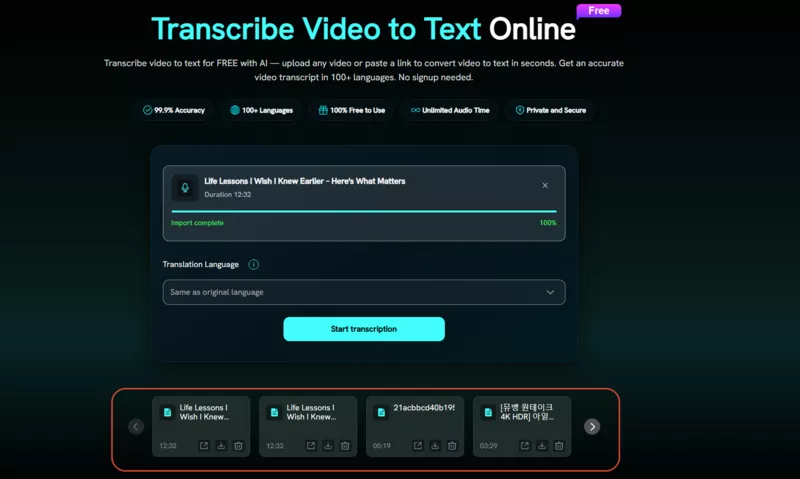
Descript makes sense when editing videos through a transcript is central to your workflow. But plenty of people don’t need a full video editor. If you just want to turn a lecture, interview, or tutorial into text or subtitles, FliFlik Free Video Transcriber offers a simpler way to do it.
Upload a video or audio file, or paste a supported URL, and transcribe speech in 100+ languages. You can review the transcript with clickable timestamps, edit names or speaker labels, and export TXT, SRT, or VTT files for captions, notes, or content repurposing. No timeline to manage, no complicated editing tools to learn.

- Transcribe video and audio files or supported video links in 100+ languages.
- Review and edit transcripts with timestamps and speaker labels, then export TXT, SRT, or VTT files.
- Generate AI summaries, mind maps, and key questions to turn recordings into useful notes.
- Record, convert, and compress videos on desktop with FliFlik UltConv.
- Video-to-text transcription is coming to the UltConv desktop app.
▼ How to Transcribe Video to Text with FliFlik
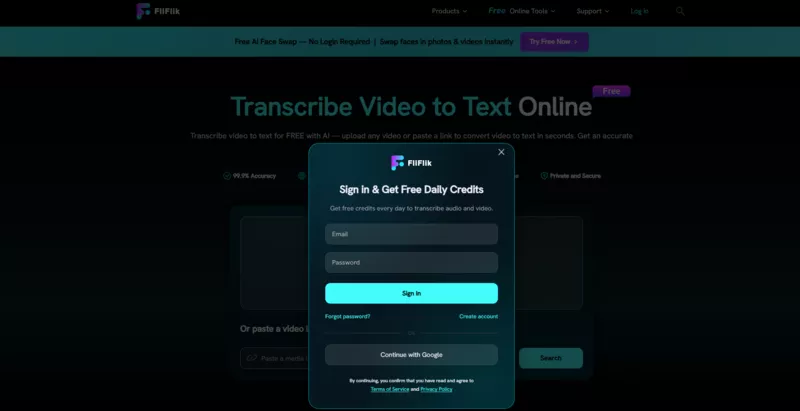
Open the tool and sign in. Open FliFlik Free Video Transcriber in your browser and log in to your account.
![sign in to video transcriber]()
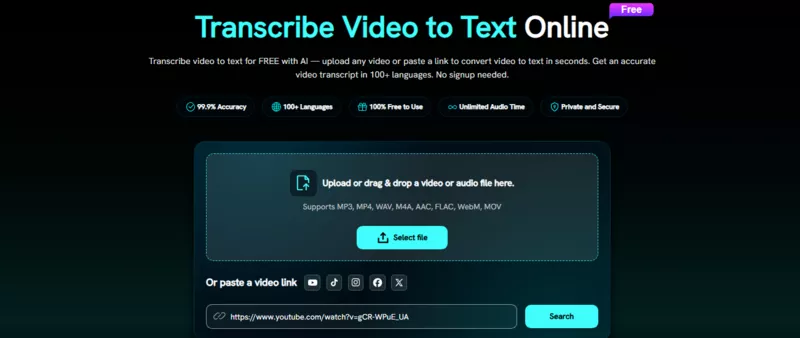
Add your video. Upload a local video file or paste a supported video link.
![upload video or paste url]()
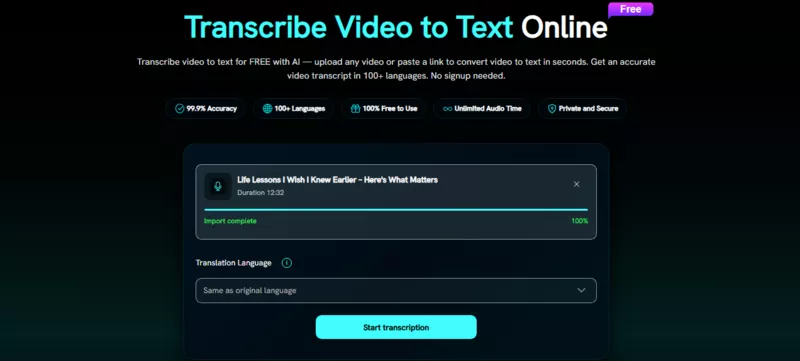
Choose the transcription language. Select the language spoken in the video, then click Start Transcription to process it.
![select video transcription language]()
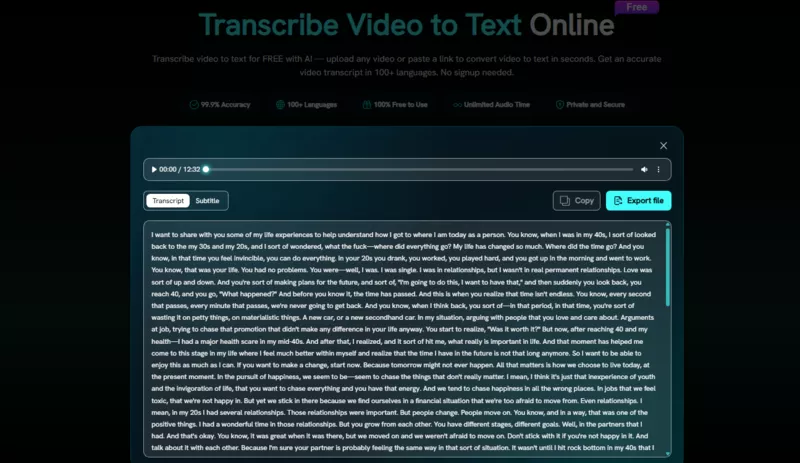
Review the transcript. Preview the text alongside the corresponding audio and check names or technical terms against the source video.
![preview and export video transcript]()
Copy or export the result. Copy the transcript or choose Export File to download TXT, SRT, or VTT. You can also return to your transcription history to share, download, or delete a previous result.
![manage video transcription history]()
Conclusion
Descript makes the most sense for creators who regularly edit spoken-word videos: transcript-based cuts, captions, recording, and AI cleanup all live in one workspace. The trade-offs are its learning curve, occasional transcript or cut corrections, and the limits of lower-priced plans. If you only need to turn an existing video into text or export subtitles, FliFlik Free Video Transcriber offers a focused way to do that without opening a full editing project.