

 By
 8 minutes read
Typing out a video by hand takes forever. Video transcription software does it in minutes. Simply upload a file or paste a link, and the tool will turn that content into text you can copy, edit, search, and reference, or export as subtitles.
But the best video transcription software isn’t the same for everyone. Some tools work for quick YouTube scripts. Others work for dense, long files, meetings, and precision. And many free video transcription software tools come with limits. That’s a lot to compare. This guide compares 10 tools that transcribe video to text in 2026.

Part 1. Top 10 Video Transcription Software in 2026 (Free & Paid)
Here’s a quick look at each video-to-text transcription software before the full reviews.
| Software | How It Works | Free Access | Export Formats | Language Support |
|---|---|---|---|---|
| FliFlik Free Video Transcriber | Online video and audio transcription | Free online tool | TXT, DOCX, PDF, SRT, VTT, CSV | 100+ languages |
| Descript | Transcribes and edits video through text | 60 media minutes/month | DOCX, TXT, MD, SRT, VTT, and more | 25 languages |
| TurboScribe | Online AI transcription tool | 3 files/day, up to 30 minutes each | PDF, DOCX, TXT, CSV, SRT, VTT | 98+ languages |
| Sonix | Transcription, translation, and speaker identification | 30 free minutes | DOCX, PDF, TXT, SRT, VTT | 54+ languages |
| VEED | Online video editor with automatic subtitles | Free plan with watermark | SRT and VTT on paid plans | 125+ languages |
| Happy Scribe | Online transcription and subtitle tool | 10-minute file trial | SRT, VTT, text | 150+ languages |
| Notta | Transcribes recordings and meetings | 120 minutes/month; 3-minute recording limit | TXT, DOCX, PDF, XLSX, SRT on paid plans | 58 transcription languages |
| Rev | AI and human transcription services | 45 AI minutes/month | DOCX, PDF, TXT, SRT, VTT | 37 languages for AI |
| Subtitle Edit | Desktop subtitle editor with transcription tools | Free and open-source | 300+ subtitle formats | Depends on transcription engine |
| MacWhisper | Offline transcription app for Mac | Free version available | TXT, SRT, VTT | 100 languages |
 Secure Download
1. FliFlik Free Video Transcriber – Best for Quick Online Video Transcription

FliFlik Free Video Transcriber is a web-based tool that works well for quick scripts or reference notes from public YouTube clips. You can upload a video from your computer or paste a supported link to generate a transcript. Once it’s ready, you can review and edit the text before exporting it as TXT, DOCX, PDF, SRT, VTT, or CSV. It supports 100+ languages and saves you the time of typing the transcript and timestamps yourself.
- No sign-up for public YouTube URLs
- Fast timestamped text in the browser
- Translates YouTube transcripts into 100+ languages
- Not built for multi-speaker studio editing or compliance captions
Pricing & Free Plan: Free online extraction for public YouTube videos. No account or credit card.
2. Descript – Best for Text-Based Video Editing

Descript pairs transcription with a document-style editor. Delete or move a sentence and the video changes with it. It suits creators who edit talking-head videos, podcasts, and interviews. It’s not the pick if you only want a plain text dump.
- Text-to-timeline editing and speaker labels on every plan
- Exports DOCX, TXT, MD, SRT, and VTT
- Up to about 95% accuracy on clean audio
- Free plan gives 60 media minutes a month and 100 one-time AI credits
- Free video exports are limited to 720p
- One language per file
Pricing & Free Plan: Free is $0 with 60 media minutes a month, 100 one-time AI credits, 5 GB storage, and 720p export. Paid plans (Hobbyist, Creator, Business) run about $16–$50 a month billed annually, or $24–$65 monthly.
3. TurboScribe – Best for Long Videos and Batch Transcription

TurboScribe runs on the Whisper model. It’s built for long recordings and big queues. It fits researchers, podcasters, and analysts with long lectures or dozens of files. It’s not a live meeting bot.
- High accuracy in Whale mode, with 98+ languages
- Unlimited plan takes files up to 10 hours or 5 GB, and 50 files per batch
- Exports PDF, DOCX, TXT, CSV, SRT, and VTT
- Free plan allows 3 files a day, 30 minutes each, one upload at a time, in a slower queue
- Translation (134+ languages) and bulk folder export need a paid plan
Pricing & Free Plan: Free is $0 for 3 transcripts a day, up to 30 minutes each. Unlimited is $10/month billed annually ($120/year), or $20 billed monthly.
4. Sonix – Best for Multilingual Transcription

Sonix focuses on multilingual work across 54+ languages. It has custom dictionaries and searchable archives. It’s a good fit for international teams, media archives, and agencies that want a structured browser editor.
- Transcribes and translates in 54+ languages, with custom dictionaries and speaker labels
- Exports DOCX, PDF, TXT, SRT, VTT, and burned-in subtitles
- API and Zapier automation on eligible plans
- Free access is a one-time 30-minute trial
- Translation and burned-in subtitles use up your transcription hours
- Heavy use needs paid minutes or a subscription
Pricing & Free Plan: New accounts get 30 free minutes. Paid options include Pay As You Go and subscription tiers (Core, Advanced, Pro).
5. VEED – Best for Social Media Captions

VEED is an online video editor with fast auto-subtitles, animated captions, and keyword highlights in 125+ languages. It’s best for short-form social creators who want styled captions burned into the video, not big transcript archives.
- Quick timeline subtitles in 125+ languages
- Caption styling and easy line-by-line edits
- No heavy local install
- Free exports are watermarked and capped at 720p
- Downloading VTT, SRT, or TXT files, or removing the watermark, needs an upgrade
- Free AI allowances are limited
Pricing & Free Plan: Free is $0 for testing, with watermarked 720p exports and tight limits. Paid plans (such as Lite, Basic, Creator, and Pro) remove the watermark and add higher resolution and AI quotas.
Secure Download
Secure Download
6. Happy Scribe – Best for Subtitles and Translation

Happy Scribe is a browser workspace for subtitles, translation, and transcription in 150+ languages. It suits localization, video captions, and team proofreading. The free file quota is short, though.
- Wide language coverage with an audio-linked editor
- Standard SRT and VTT exports
- Top-up credits and optional human proofreading
- Free file transcription is a one-time 10-minute trial, with watermarked MP4 exports
- Paid plans cap monthly AI minutes
Pricing & Free Plan: Free includes unlimited meeting recordings (up to 45 minutes each) and the 10-minute file trial. Paid plans (Basic, Pro, Business) add monthly AI minutes, with optional $0.20/min top-ups.
7. Notta – Best for Meetings and Video Transcription

Notta is a meeting note-taker that also transcribes uploaded files and adds AI summaries. It works for short clips and paid meeting workflows. The free per-recording cap is very tight.
- Clean web and mobile apps with speaker ID and AI summaries
- Paid plans take recordings up to 5 hours
- Exports TXT, DOCX, PDF, XLSX, and SRT
- Free plan allows only 3 minutes per recording, within 120 minutes and 50 uploads a month
- Long videos don’t work on the Free plan
- Exports and translation are paid only
Pricing & Free Plan: Free is $0 with 120 minutes a month, a 3-minute max per recording, and 50 uploads. Pro starts at $8.17/month billed annually for 1,800 minutes a month.
8. Rev – Best for Human Transcription

Rev is known for human transcription with a 99%+ accuracy guarantee. It also offers faster AI transcription and captions. It’s best for legal, broadcast, accessibility, or high-stakes audio with heavy accents or crosstalk.
- Human orders come with a 99%+ accuracy guarantee, typically within 12 hours
- No extra charge for multiple speakers or tough audio
- Supports broadcast caption formats like SCC, MCC, and TTML
- Human transcription starts around $1.99/min
- Free AI plan is 45 minutes a month, English only, up to 5 files at a time
- Human service covers fewer languages than AI
Pricing & Free Plan: Free includes 45 AI minutes a month, English only. Per-minute AI is about $0.25/min. Human transcription starts at $1.99/min.
9. Subtitle Edit – Best for Free Subtitle Editing

Subtitle Edit is a free, open-source (MIT) desktop editor for Windows, macOS, and Linux. It works offline and can connect to Whisper or other speech engines. It’s best for power users who convert subtitle formats, fix timing and line breaks, and keep media local.
- Completely free, with no subscription or per-seat fees
- Supports 300+ subtitle formats, plus waveform and shot-change syncing
- Works offline
- Steeper learning curve and a desktop-style interface
- Speech-to-text speed and accuracy depend on your machine and engine
- No cloud team review workflow
Pricing & Free Plan: Free and open-source, with no paid tier or subscription.
10. MacWhisper – Best for Private Transcription on Mac

MacWhisper runs Whisper and other local models on your Mac, so your files stay private. It’s best for Mac users who want offline work and a one-time license instead of a subscription.
- Runs locally in 100 languages
- One-time Pro license on the direct site, no recurring fee
- Free exports TXT, SRT, and VTT. Pro adds DOCX, PDF, MD, and HTML
- Apple platforms only
- Batch transcription, YouTube/URL import, translation, and speaker recognition need Pro
- Speed and accuracy depend on your Mac hardware
Pricing & Free Plan: Free is $0 with local file transcription and TXT, SRT, and VTT export. Pro is a one-time license around €64 on macwhisper.com, with lifetime updates. The Mac App Store version uses separate subscription pricing.
Part 2. How to Transcribe Video to Text Online with FliFlik Video Transcriber
If you need to turn a video into text, FliFlik Free Video Transcriber lets you do it online without installing software. You can upload a video from your computer or paste a supported link from platforms like YouTube, TikTok, Vimeo, X, or Facebook. The tool automatically transcribes the spoken words and lets you edit and export the result in different formats, including TXT, DOCX, PDF, SRT, VTT, and CSV. You can also choose from 100+ languages and use speaker recognition to identify different speakers. Here’s a closer look at its main features and how to use it.

- Add a video from your computer, or paste a supported video link
- Choose from 100+ languages for your transcript.
- Turn spoken audio into text, with timestamps.
- Spot different speakers in supported recordings.
- Copy the transcript, or download it as TXT, DOCX, PDF, SRT, VTT, or CSV.
- See your past transcripts, and share, download, or delete them.
▼ How to Transcribe Video to Text Using FliFlik Video Transcriber
The process is simple. You just need a video file or a supported media link. Follow these steps to get your transcript.
-
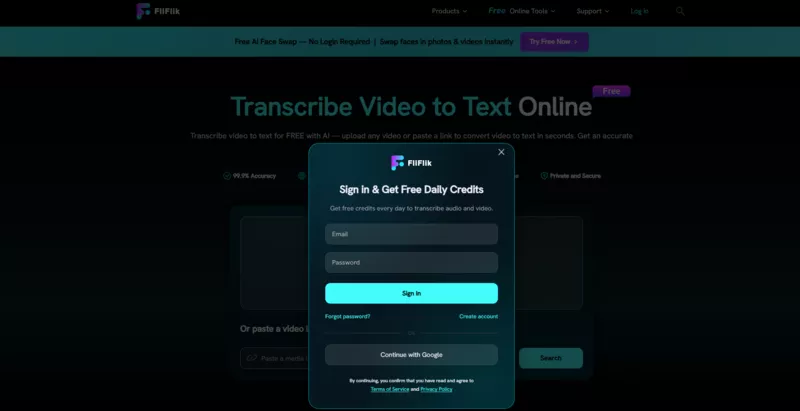
Open FliFlik Free Video Transcriber in your browser. Sign in to your account if prompted.
![fliflik video transcriber sign in]()
-
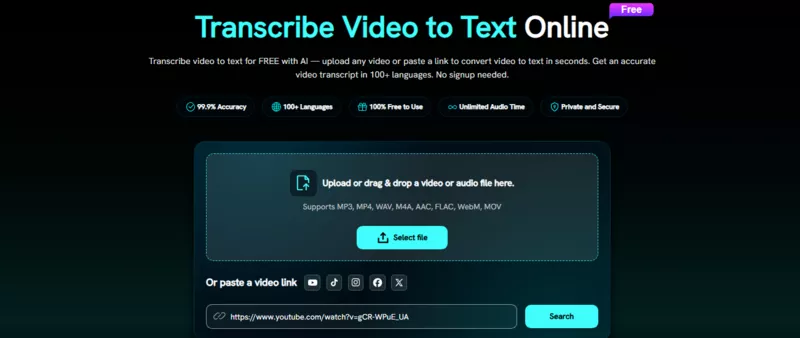
Upload a video from your computer or paste a supported video link into the box. The tool supports formats such as MP4, MOV, MP3, WAV, and M4A.
![fliflik video transcriber upload]()
-
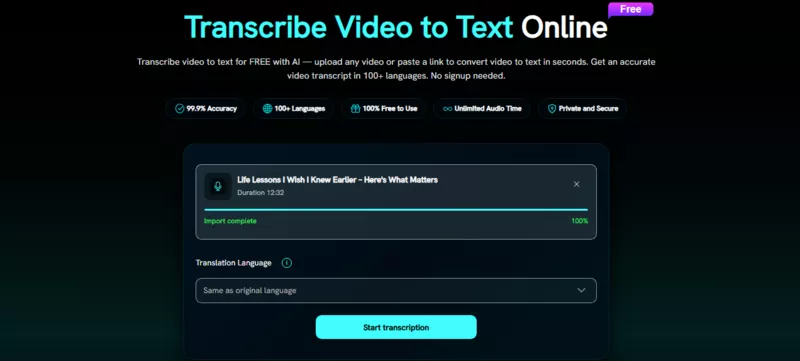
Select the language spoken in the video. Choose the original language or another supported option if needed, then check your selection before continuing.
![fliflik video transcriber select language]()
-
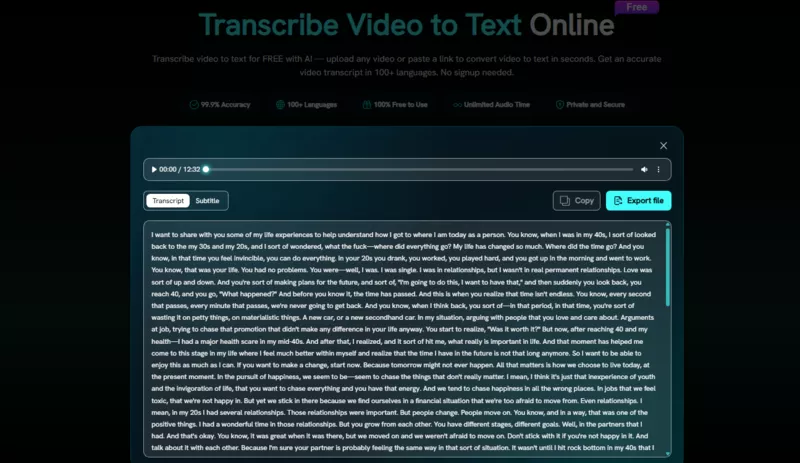
Click Start Transcription and wait for the tool to process your video. Once the transcript is ready, review the text, speaker labels, and timestamps. You can correct any mistakes before exporting.
![fliflik video transcription results]()
-
Click Export File and choose your preferred format. Select SRT or VTT for subtitles, TXT for plain text, or one of the other available document formats. You can also copy the text directly.
![fliflik subtitle export srt vtt]()
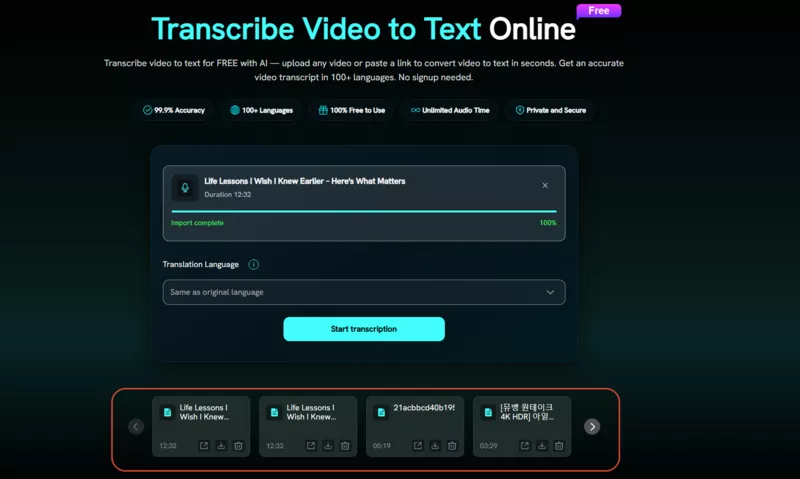
You can find your previous transcripts below the transcription area. From there, you can download, share, or delete them whenever needed.
Part 3. FAQs About Video Transcription Software
FliFlik Free Video Transcriber is a handy solution to convert your videos to text online. It supports 100+ languages and offers transcript exports in TXT, DOCX, PDF, SRT, VTT, and CSV formats.
Conclusion
The best video transcription software makes it easier to turn spoken content into text without typing everything yourself. Whether you’re working with lectures, interviews, meetings, or online videos, the right tool can save time and make the content easier to review and reuse. If you need a free online option, FliFlik Free Video Transcriber lets you upload a video or paste a supported link, generate a transcript, and export it as TXT, DOCX, PDF, SRT, VTT, or CSV. You can also edit the text before downloading it. It’s overall the best option for all of your transcription needs.