

 By
By  5 minutes read
UltConv Amazon Prime Video Downloader is a desktop tool designed to download Amazon Prime movies, TV shows, documentaries, anime, rentals, and purchased videos to Windows or Mac computers. With this Amazon Prime video downloader, you can save supported titles as local MP4 or MKV files, choose the available video quality, preserve audio tracks and subtitles, and enjoy your favorite content without relying on a continuous internet connection.
- Download movies and TV shows from Amazon Prime Video in up to 1080p or higher quality when available.
- Save Amazon Prime videos as widely compatible MP4 or MKV files.
- Batch download multiple episodes or an entire TV season.
- Keep available audio tracks, subtitle languages, and metadata.
- Watch downloaded Prime Video content offline on different devices.
Whether you want to prepare entertainment for a trip, avoid buffering, or keep purchased content available for convenient offline viewing, this guide will show you how to install, activate, configure, and use UltConv Amazon Prime Downloader on PC or Mac.
Contents
Part 1. How to Register and Activate UltConv Amazon Prime Video Downloader
To unlock all features of UltConv, install the software on your Windows PC or Mac and activate it with a valid license key. This section walks you through the installation and activation process step by step.
How to Download and Install UltConv?
-
Open your browser and visit the official UltConv Amazon Prime Video Downloader page on the FliFlik website.
-
Click the Free Download button for Windows or macOS. Make sure you select the version that matches your computer.
FREE DOWNLOAD![secure download]() Secure Download
FREE DOWNLOAD
Secure Download
FREE DOWNLOAD![secure download]() Secure Download
Secure Download
-
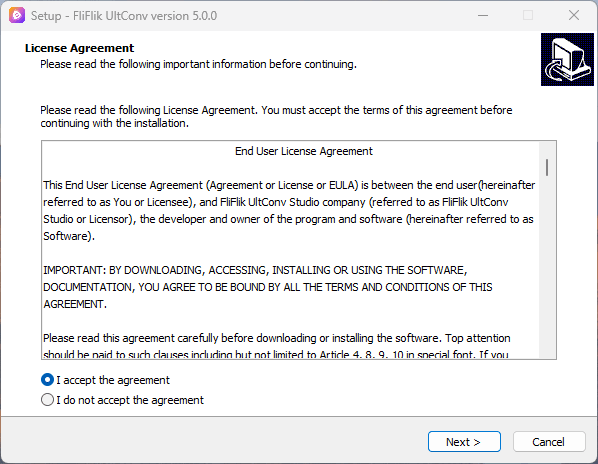
After the installer finishes downloading, open the file and follow the installation instructions for your operating system.
- Windows: Double-click the downloaded .exe file, accept the terms, choose an installation path, and click Install.
- Mac: Open the downloaded .dmg package and drag the UltConv icon into the Applications folder.
-
Follow the on-screen instructions to choose your preferred language and installation location. Wait for the setup process to finish.
-
Click Start Now to launch UltConv. You can also open it later from the Start Menu on Windows or the Applications folder on Mac.

How to License and Unlock UltConv Amazon Prime Downloader?
UltConv provides a free trial for testing its core functions. Activating the registered version removes trial restrictions and unlocks complete Amazon Prime movie downloader features, including full-length downloads and additional quality options.
-
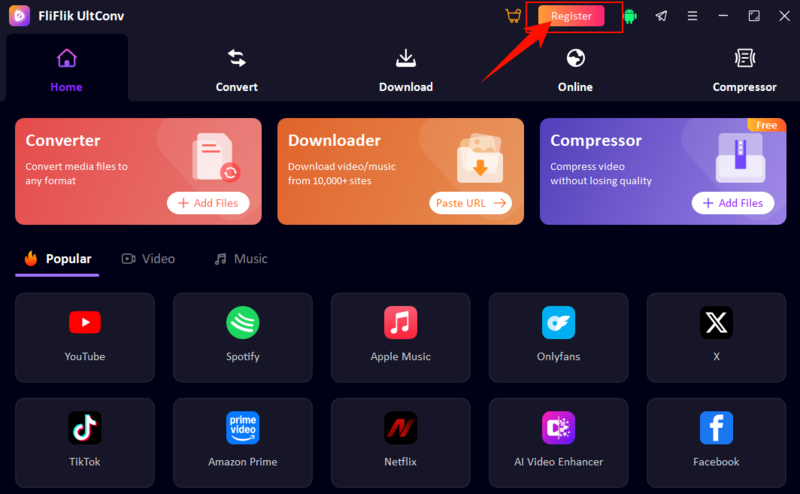
Step 1: Launch UltConv and click the Register or Activate option in the main interface.
-
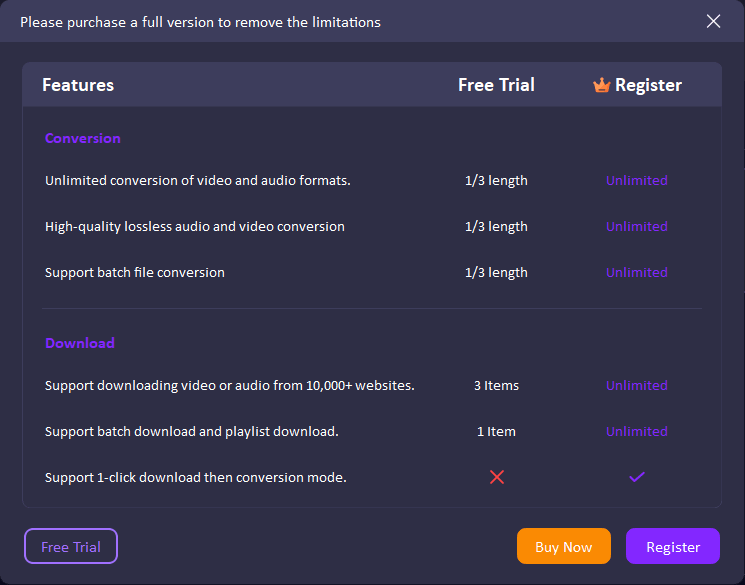
Step 2: A registration window will appear. Review the differences between the free trial and the registered version.
-
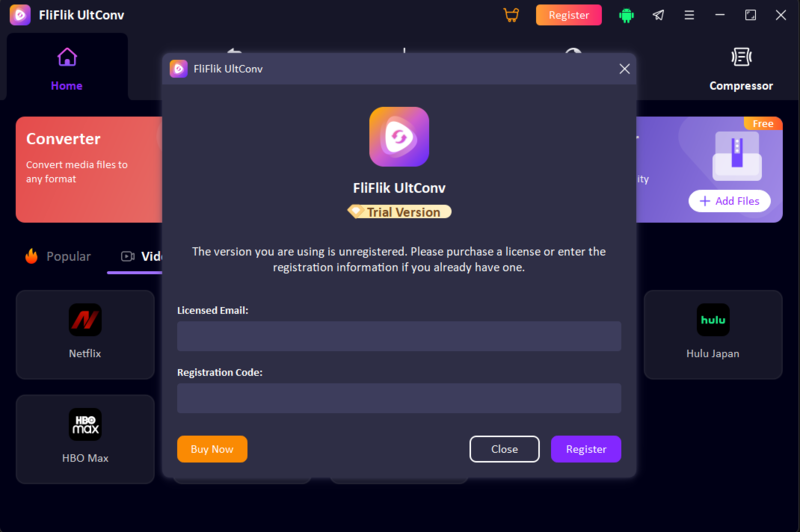
Step 3: Enter the licensed email address and registration code you received after purchasing UltConv. Copy the information carefully and remove any extra spaces before or after the code.
-
Step 4: Click Register to verify your license. Once activation is successful, the full downloading features will become available automatically.
-
Step 5: If you have not purchased a license, click Buy Now in the registration window and choose a suitable plan. Your licensed email and registration code will be sent to you after purchase.


How to Fix Registration or Activation Issues
If UltConv cannot verify your registration information, try these common solutions:
- Check Your Licensed Email and Code: Make sure the email address and activation code are entered exactly as provided.
- Remove Extra Spaces: Extra spaces before or after the registration code may cause activation to fail.
- Check Your Internet Connection: UltConv needs an active connection to verify the license online.
- Disable VPN or Security Software Temporarily: A VPN, proxy, firewall, or antivirus program may block the verification request.
- Confirm the License Status: Check that your code has not expired or reached its device activation limit.
- Restart UltConv: Close the software completely, reopen it, and try the registration process again.
How to Adjust Amazon Prime Video Download Settings
Before downloading, UltConv allows you to customize the Amazon Prime video based on your viewing needs:
- Video Quality: Choose 1080p, 720p, or another available resolution.
- Format: Select MP4 for wider compatibility or MKV for keeping multiple tracks.
- Audio: Choose your preferred audio language when multiple tracks are available.
- Subtitles: Embed subtitles into the video, save them separately as an SRT file, or download the video without subtitles.

Part 2. How to Download Amazon Prime Movies and TV Shows with UltConv
After installing and activating the software, follow the steps below to download Amazon Prime Video content to your PC or Mac. UltConv includes a built-in Prime Video browser, so you can log in, search for content, adjust the output settings, and manage downloads in one interface.
▼ Steps to Download Amazon Prime Video with UltConv:
-
Step 1: Download, install, and open UltConv Amazon Prime Video Downloader on your Windows or Mac computer.
FREE DOWNLOAD![secure download]() Secure Download
FREE DOWNLOAD
Secure Download
FREE DOWNLOAD![secure download]() Secure Download
Secure Download
-
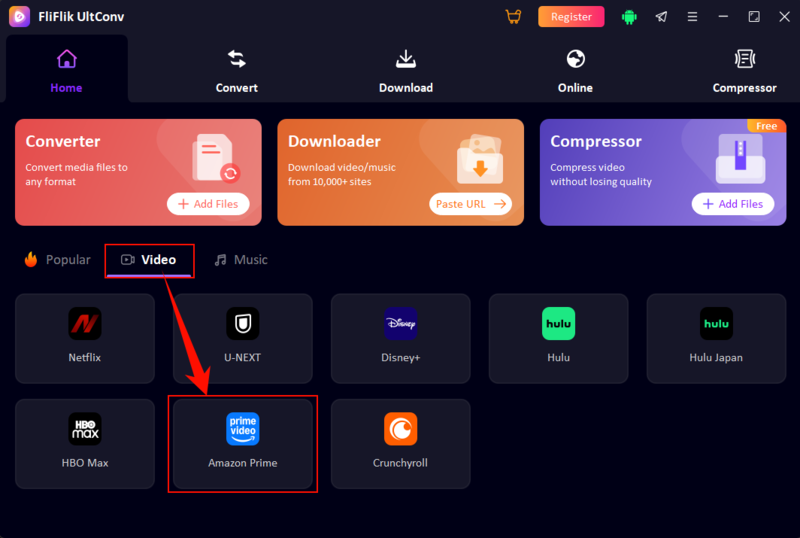
Step 2: On the Home screen, find the Prime Video icon under the Popular section and click it to open Amazon Prime Video in UltConv’s built-in browser.
-
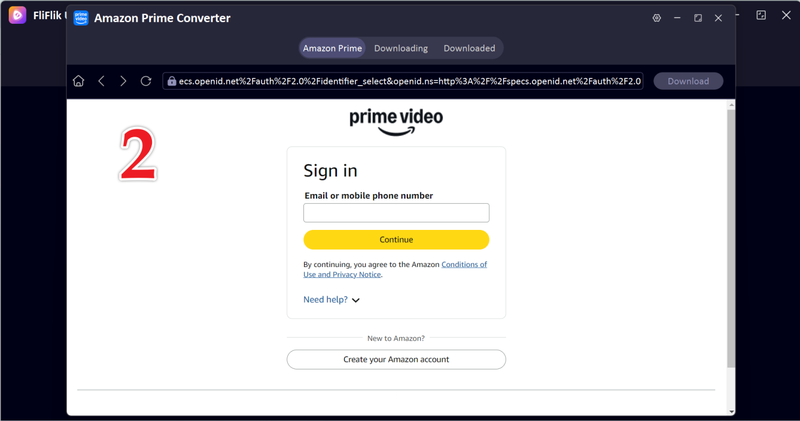
Step 3: Sign in to your Amazon account through the built-in Prime Video browser. Enter the email address and password associated with your account, then complete any verification request that appears.
You need access to the selected title through your own Amazon account. UltConv can process content available through your subscription, rental, or purchase where supported.
-
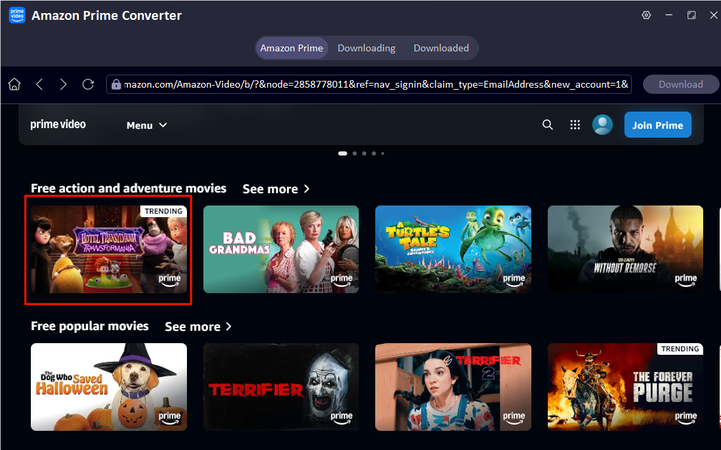
Step 4: Browse Prime Video or use the search bar to find the movie, TV show, documentary, anime, rental, or purchased title you want to save.
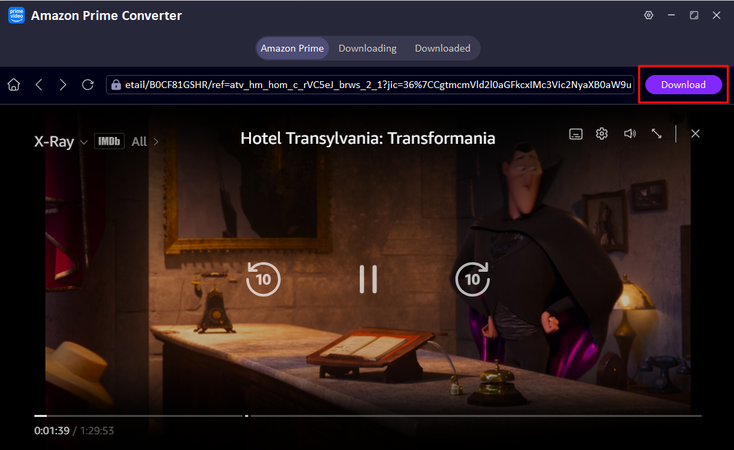
Open the video detail page and allow UltConv to detect and analyze the available stream. If detection does not begin automatically, play the video briefly or use the download button provided in the built-in browser.
-
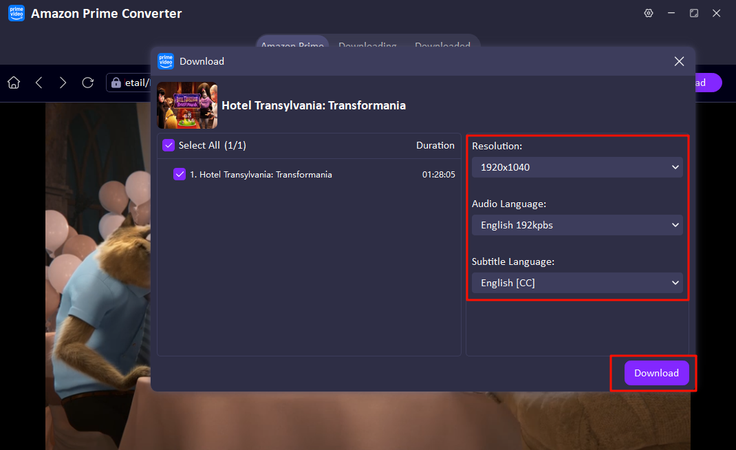
Step 5: After analysis, select the episodes you want to download. For a TV series, you can choose one episode, multiple episodes, or a complete season.
Choose the output format, resolution, audio language, and subtitle options. MP4 is a suitable default for broad device compatibility, while MKV is useful for keeping multiple tracks in a single file.
-
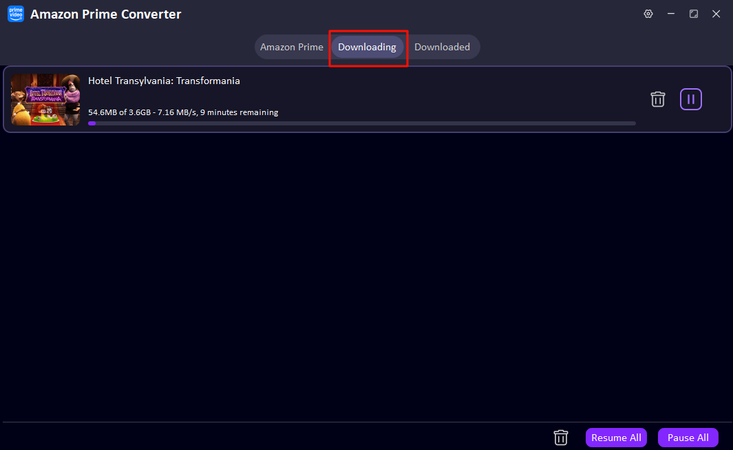
Step 6: Click Download to begin saving the selected Prime Video content. You can monitor the speed, remaining time, and progress from the downloading list.
-
Step 7: Once the process finishes, go to the Downloaded section. Click the folder icon to locate the local MP4 or MKV file on your computer and play it with a compatible media player.


Tips to Fix Amazon Prime Login or Download Issues
If the Amazon Prime page does not load or UltConv cannot detect a video, try the following:
- Make sure your Amazon email address and password are entered correctly.
- Complete two-step verification or other Amazon security checks when prompted.
- Confirm that the selected title is available through your subscription, rental, or purchase.
- Use a stable internet connection while signing in and analyzing the video.
- Temporarily disable a VPN or proxy if the Prime Video page is not loading correctly.
- Update UltConv to the latest version to maintain compatibility with Prime Video.
- Clear the built-in browser cache or restart UltConv if the page becomes unresponsive.
- Make sure your computer has enough available storage for the selected movie or season.
FAQs
Conclusion
UltConv Amazon Prime Video Downloader brings installation, activation, download settings, title selection, and file management into one desktop workflow. After setting up the software, sign in with an Amazon account that can access the selected title, choose the available format, resolution, audio, and subtitle options, and start the download. Use downloaded files only for authorized personal viewing and in accordance with applicable terms and copyright rules.
 Secure Download
Secure Download
Secure Download