

 By
 7 minutes read


You’ll run into two subtitle formats when working with videos: SRT and VTT. Both show timed text on screen, but they work differently. SRT is straightforward. Works on basically every video player and platform out there. VTT, also known as WebVTT, gives you way more options. You can control where subtitles sit, style them, and add web features. Lots more flexibility.
So which one do you pick? We’ll break down SRT vs VTT here. Show you what each one does. Compare the key differences. By the end, you’ll know which format actually works for what you’re trying to do.

- Choose SRT if you need a simple subtitle file with broad compatibility across video editors and media platforms.
- Choose VTT if you’re adding captions to an HTML5 website or need features such as text positioning and web-based styling.
Content Table:
- Part 1. What Are SRT and VTT Subtitle Files?
- Part 2. SRT vs VTT: What Are the Key Differences?
- Part 3. How to Create SRT or VTT Subtitle Files with FliFlik
- Part 4. SRT and VTT Conversion: Steps and Common Issues
- Part 5. VTT vs SRT: Which Format Should You Use?
- Part 6. FAQs About SRT and VTT Files
- Conclusion
Part 1. What Are SRT and VTT Subtitle Files?
SRT and VTT are two common plain-text subtitle formats. Both store subtitle text and timestamps, but they use slightly different syntax and support different features. SRT is widely used for local video files and editing software, while VTT is designed primarily for web-based video.
What Is an SRT File?
An SRT (SubRip Subtitle) file contains subtitle text, timestamps, and numbered caption entries. It is a simple format that can be created, opened, or edited with an ordinary text editor such as Notepad or TextEdit.
- You can open and edit an SRT file in almost any text editor.
- Each subtitle entry normally has a cue number.
- It uses a comma before milliseconds, such as 00:00:01,500.
- It supports basic text formatting in compatible players.
- It does not require a file header.
Typical Use Case: SRT is commonly used for video editing, offline playback, social media uploads, and local subtitle files.
What Is a VTT (WebVTT) File?
A VTT (Web Video Text Tracks) file, commonly called WebVTT, is a subtitle format developed for web video and HTML5 players. It supports captions as well as additional options for subtitle positioning, alignment, styling, and metadata.
- The file begins with the WEBVTT header.
- It uses a period before milliseconds, such as 00:00:01.500.
- Cue numbers are optional.
- It supports positioning, alignment, regions, comments, and styling in compatible web players.
Typical Use Case: VTT is commonly used for website videos, HTML5 players, online courses, and other browser-based content.
SRT vs VTT: Quick Comparison
| Feature | SRT (.srt) | VTT (.vtt) |
|---|---|---|
| Full Name | SubRip Subtitle | WebVTT |
| Header | Not required | Requires WEBVTT |
| File Type | Plain text | Plain text |
| Cue Numbers | Usually required | Optional |
| Styling | Basic | Supports CSS styling |
| Text Positioning | Not supported | Supported |
| Extra Features | Basic subtitles | Comments and extra track options |
| Best For | General video use | Websites and web players |
Part 2. SRT vs VTT: What Are the Key Differences?
The main difference in VTT vs SRT is the level of control each format provides. The details below explain these differences.
What Do SRT and VTT Files Look Like?
The example below uses the same subtitle text and timing in both formats. The visible differences are the cue number, the WEBVTT header, and the punctuation used before milliseconds.

The SRT file uses numbered cues and commas in its timestamps, while the VTT file begins with a WEBVTT header and uses periods.
File Structure and Timestamps
SRT and VTT files have similar structures but differ in a few key details. SRT files start with numbered subtitle entries, while VTT files begin with a required WEBVTT header. Cue numbering in VTT is optional. Their timestamp formats also differ:
- SRT: Uses a comma (00:01:23,456).
- VTT: Uses a period (00:01:23.456).
Subtitle Styling and Positioning
In SRT files, you can format text using bold or italic, yet there is no possibility to adjust subtitle positioning. In VTT files, you can use CSS styling, identify speakers, align text, and position cues. Note that VTT styling depends on the player. A file may contain positioning and styling information, but if the player does not support these options, it will simply ignore them.
Compatibility and Additional Features
SRT files are compatible with almost all desktop media players, video editors, and online platforms; therefore, this format is suitable for general subtitles. VTT is created for web videos and works with an HTML5 <track> element. Additionally, VTT includes some extra features like NOTE comments, styling blocks, and different text track types.
Part 3. How to Create SRT or VTT Subtitle Files with FliFlik
If you don’t already have a subtitle file, you can create one from your video using the FliFlik Free Video Transcriber. It lets you upload a video from your computer or paste a supported video link. The tool then generates a transcript that you can review and export as TXT, DOCX, PDF, SRT, VTT, or CSV. This is useful when you need subtitles for a video but don’t want to type every line and timestamp yourself. It supports more than 100 languages, and you can select the language for transcription. You can also edit the generated text before exporting it.

- Add a video from your computer, or paste a supported video link
- Choose from 100+ languages for your transcript.
- Turn spoken audio into text, with timestamps.
- Spot different speakers in supported recordings.
- Copy the transcript, or download it as TXT, DOCX, PDF, SRT, VTT, or CSV.
- See your past transcripts, and share, download, or delete them.
▼ How to Generate SRT or VTT Subtitles from a Video
-
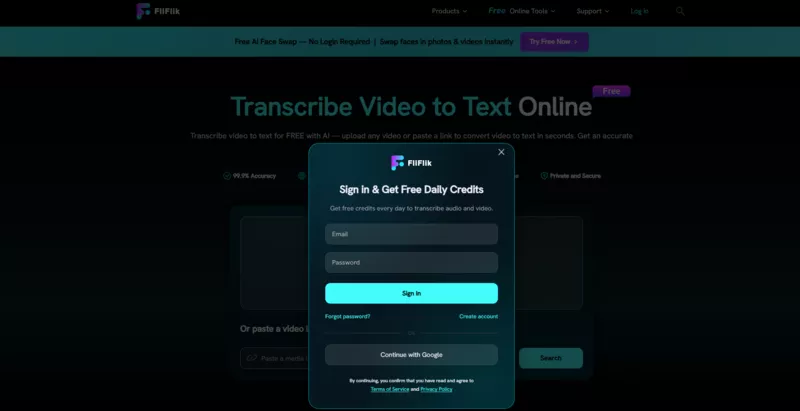
Open FliFlik Free Video Transcriber in your browser to get started. Sign in if prompted.
![fliflik video transcriber sign in]()
-
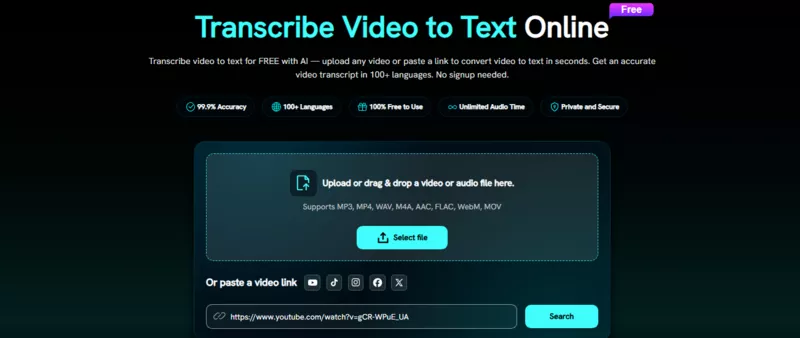
Choose whether to upload a video file from your computer or paste a supported video link.
![fliflik video transcriber upload]()
-
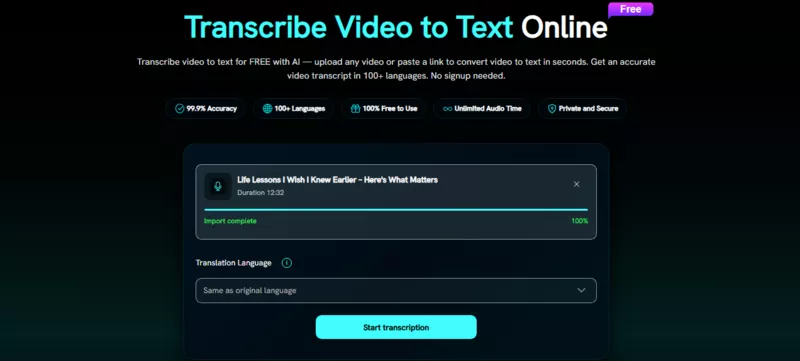
Select the language spoken in your video. Check the selection before starting transcription.
![fliflik video transcriber select language]()
-
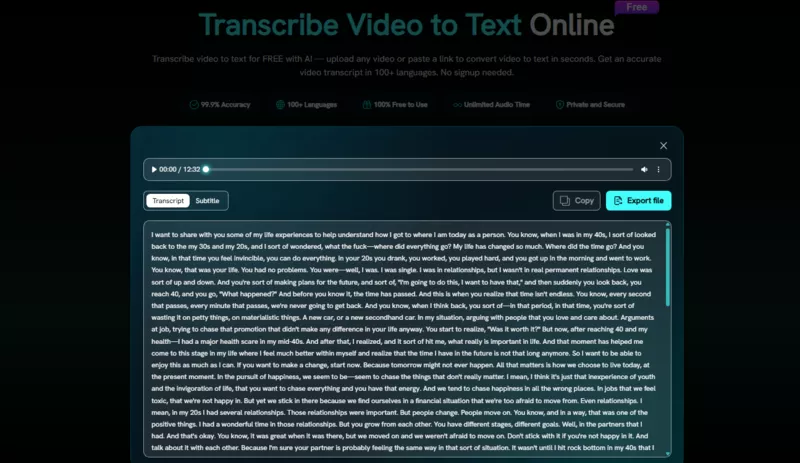
Click Start Transcription and let the tool process your video. When it’s ready, review the transcript and check the wording, speaker labels, and timestamps. You can correct any mistakes before exporting.
![fliflik video transcription results]()
-
Click Export File and choose the format you need. Select SRT if you’re preparing subtitles for a video editor or platform that supports it. Choose VTT if you’re adding captions to an HTML5 website or web player. You can also copy the transcript or download it as a TXT file.
![transcription history]()
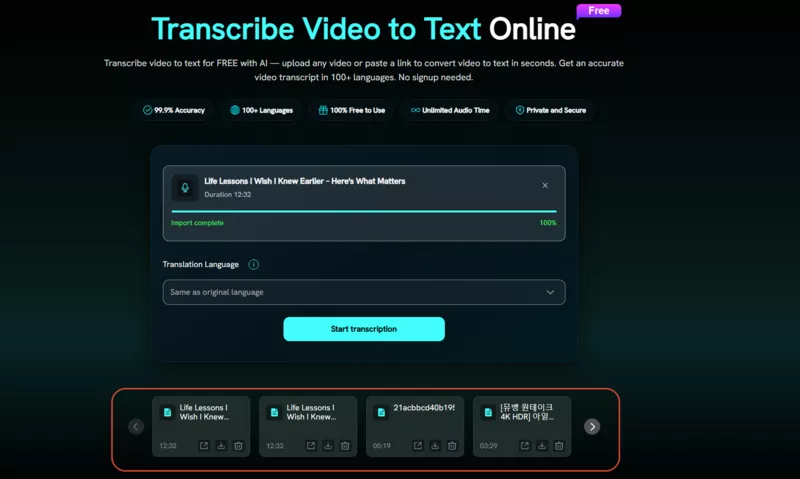
- You can find your previous transcripts below the transcription area. From there, you can download, share, or delete a file when needed.
Part 4. SRT and VTT Conversion: Steps and Common Issues
If you already have a subtitle file, you don’t need to transcribe your video again. You can convert an existing SRT file to VTT or change a VTT file into SRT using Nikse Subtitle Edit Online.
How to Convert SRT to VTT
Follow these steps to convert an SRT file into WebVTT format.
-
Step 1: Open Subtitle Edit Online in your browser. Click the Open button in the toolbar (or press Ctrl+O) and select your SRT file.
-
Step 2: Once the file loads, check the subtitle text and timestamps. Make sure the lines are in the correct order and that the timing looks right.
![srt subtitle preview]()
-
Step 3: Choose WebVTT from the Format dropdown.
-
Step 4: Click Save in the toolbar (or press Ctrl+S) to download the converted .vtt file to your computer.

How to Convert VTT to SRT
You can use the same tool to convert a VTT file into SRT.
-
Step 1: Open Subtitle Edit Online and click Open in the toolbar (or press Ctrl+O) to select your VTT file.
-
Step 2: Review the subtitles and timestamps to make sure everything looks correct.
-
Step 3: Choose SubRip from the Format dropdown.
-
Step 4: Click Save in the toolbar (or press Ctrl+S) to download the new SRT file, then test it in your video player or editing software.
- Converting VTT to SRT can remove some information. Custom text positioning, CSS styling, and other WebVTT-specific features may not carry over because SRT doesn’t support them in the same way.
Why Do Subtitles Look Wrong After Conversion?
Sometimes, a converted subtitle file may not look as expected. Here are a few common issues and how to fix them.
- Repeated or overlapping subtitles: Check the timestamps and remove duplicate entries.
- Missing styles or incorrect positioning: SRT doesn’t support all VTT styling and positioning options. Adjust them in your video editor or keep the VTT file.
- Subtitles not showing or displaying incorrectly: Check the file format, timestamp syntax, text encoding, and video player compatibility. VTT files need a WEBVTT header, while SRT files use numbered entries.
- Garbled characters: If letters or non-English subtitles display incorrectly, open the file in a text editor and save it with UTF-8 encoding.
Part 5. VTT vs SRT: Which Format Should You Use?
The best format depends on where you plan to use your subtitles. Some platforms accept both SRT and VTT, while others work better with one format. Here’s a quick guide to help you choose.
| Platform / Use Case | Recommended Format | Why |
|---|---|---|
| YouTube | SRT | YouTube supports both SRT and WebVTT for subtitle uploads. |
| Vimeo | VTT | Vimeo supports both SRT and WebVTT subtitle files. |
| CapCut Desktop/Web | SRT | CapCut supports importing SRT subtitle files. |
| Adobe Premiere Pro | SRT | Premiere Pro supports SRT caption files and lets you edit captions on a timeline. |
| HTML5 Website Videos | VTT | WebVTT works with the HTML5 video track element. |
For YouTube and Vimeo Videos
SRT and VTT are both supported by YouTube, but SRT is simple to create for basic subtitles. Vimeo supports both SRT and WebVTT. Make sure to encode using UTF-8 so your special characters show up properly.
For Video Editing in CapCut and Premiere Pro
SRT is a practical choice for importing external subtitles into CapCut (desktop and web) and Adobe Premiere Pro. You can edit subtitle text, adjust timing, and customize captions within the editors. CapCut mobile does not support direct subtitle file imports.
For Websites and HTML5 Video Players
VTT is the better option for videos on websites as it is native to HTML5 <track>. It supports positioning and styling of captions in browsers that support this functionality. Some other web players support SRT, but it is not native to HTML5 text tracks.
Part 6. FAQs About SRT and VTT Files
Q1. Are SRT and VTT files the same as closed captions?
Not exactly. SRT and VTT are file formats that can store closed captions. Closed captions include spoken words and relevant sounds, such as [music playing] or [door slams].
Q2. Can I add SRT or VTT subtitles to an MP4 video?
Yes, you can add subtitles to an MP4 video using a video editor or supported media tool. Soft subtitles are added as a separate track that viewers can turn on or off, while hardcoded subtitles are burned directly into the video and remain visible.
Q3. Does converting SRT to VTT affect subtitle accuracy?
Typically, not. An accurate conversion leaves the subtitle text and timestamps exactly the same, but alters the file structure. For example, it inserts the expected WEBVTT header and adjusts the timestamp separator from a comma to a period.
Conclusion
In short, SRT vs VTT both allow you to insert time-based subtitles into videos, but there’s a reason to use one over the other. SRT is easier to use for simple video editing, and VTT is more complicated to set up, but it is more appropriate to insert into websites with HTML5 videos and web video players. Whether you use one format or the other depends on the platform you wish to use the subtitles on. If you wish to create subtitles based on a video, FliFlik’s free subtitle generator lets you create a transcript from a video and export it as an SRT or VTT subtitle file. Also, you can take an existing subtitle file and convert it to a different format with Subtitle Edit Online.