

 By
By  7 minutes read
FliFlik UltConv Fansly Downloader for Android is a powerful and intuitive tool, which is crafted to help you save premium videos and images from Fansly to your Android device with ultimate ease. Whether you’re looking to back up your favorite creators’ posts, private messages, or pay-per-view (PPV) content, this robust software ensures a 10x faster, high-fidelity, and completely secure offline viewing experience.
- Download Fansly videos in 4K, 1080p, and MP4 format
- Remove DRM protection from supported Fansly videos
- Batch download multiple videos from creator profiles
- Built-in browser for direct Fansly login and downloading
- Background downloading with auto-resume support
This guide will explain how to set up the tool, activate it, and start using it.
Part 1. How to Download and Install UltConv Fansly Downloader for Android?
Getting UltConv installed on your Android phone is quick and straightforward. Just follow the steps below to download the app safely and complete the setup process.
-
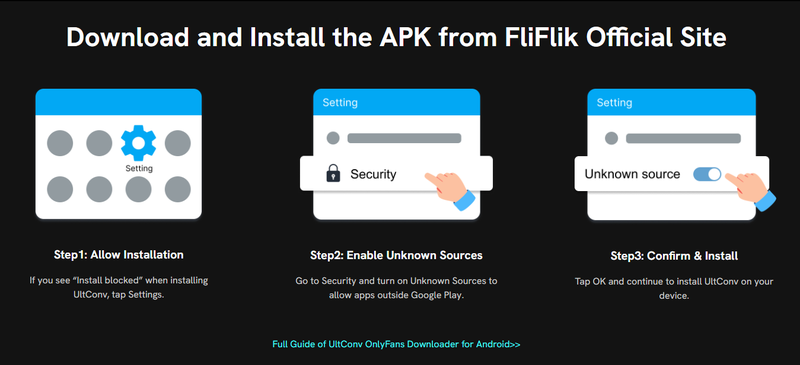
Open your browser and head to the official FliFlik website. Download the newest version of the UltConv APK for Android.
-
After the APK file finishes downloading, tap on it to start the installation process. Once installed, press Open to launch the app.
-
If the installation is blocked, tap Settings and enable Unknown Sources in your security menu. Then, simply return and click OK to complete the setup.

Part 2. How to Register and Activate UltConv?
UltConv includes a free trial version, but activating the app gives you access to all premium downloading features without limitations. Here is how you can register and activate.
-
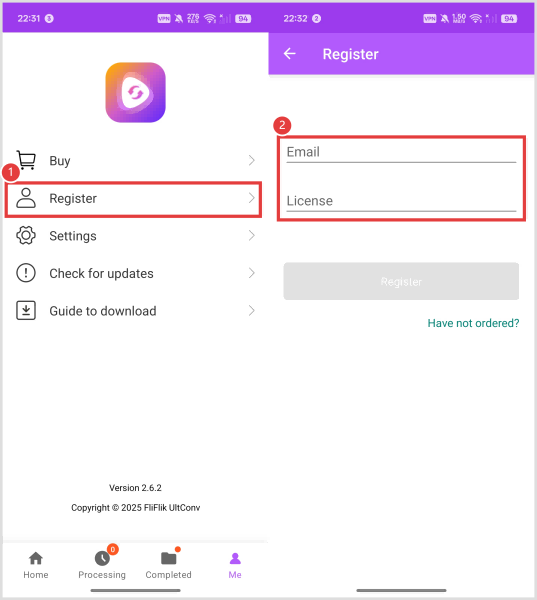
Step 1: Open the UltConv app and tap Me > Register from the bottom menu.
-
Step 2: Enter the licensed email address and activation code you received after purchasing the software.
-
Step 3: Tap the Register button and wait a few seconds while the app verifies your information and unlocks the premium version.
-
Step 4: If you have not purchased a license yet, tap the Buy option inside the app to get a registration code.

Solution to Fix Registration or Activation Issues
If you run into activation problems while using the Fansly downloader app, try these common fixes before contacting support:
- Check Your Email and License Code: Make sure the registered email and activation code are entered exactly as provided. Small typing mistakes or extra spaces can cause the activation to fail.
- Confirm Your Internet Connection: UltConv needs an active internet connection to verify your license online, so ensure your Android device is connected to Wi-Fi or mobile data.
- Disable Security Restrictions Temporarily: Some antivirus apps, VPNs, or security settings may block the activation request. Temporarily disable them and try registering again.
- Verify Your License Status: Check whether your activation code is still valid and hasn’t already reached the maximum number of allowed devices.
- Restart the App and Try Again: Sometimes simply closing and reopening the app can refresh the activation process and solve temporary errors.
Part 3. How to Download Fansly Videos On Android with UltConv
Downloading videos with UltConv is simple because the app includes its own built-in browser, so you can browse and save content in one place.
-
Step 1: Download and install UltConv Fansly Downloader for Android on your device.
-
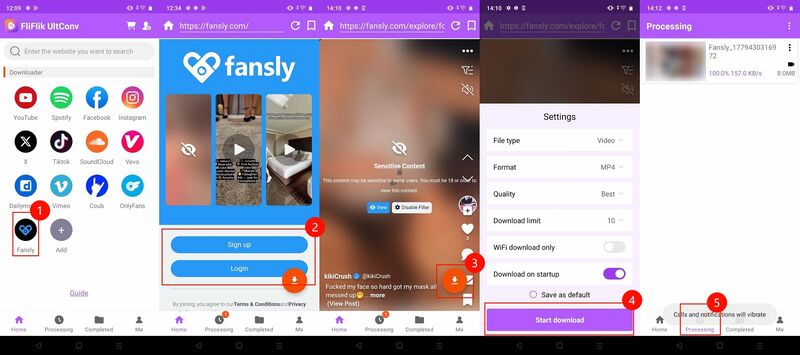
Step 2: Open the app and switch to the Home section. Click the Fansly icon so you can enter the Fansly interface.
-
Step 3: Sign in to your Fansly account and browse the creator profile to locate the video you want to save. UltConv supports downloading free videos and content you have already purchased.
-
Step 4: Play the video and tap the Download button. UltConv will automatically detect the stream and start downloading the video to your device.
-
Step 5: After the download is complete, go to the Downloaded section to find and watch your saved Fansly videos offline anytime.

How to Avoid Fansly Login Issues
Sometimes login problems can happen because of connection issues, outdated app versions, or incorrect account details. The tips below can help you avoid the most common Fansly login errors while using UltConv.
- Make sure you are entering the correct Fansly username, email, and password.
- Use a stable internet connection while logging into the app.
- If login verification keeps failing, try temporarily disabling your VPN or proxy connection.
- Update UltConv to the latest version to avoid compatibility problems with Fansly’s website changes.
- Clear the app cache or restart the app if the built-in browser becomes stuck during login.
- Avoid logging into too many devices at the same time, as this may trigger account security checks.
- If two-factor authentication is enabled, complete the verification process carefully before attempting downloads.
FAQs
Q1. Is it legal & safe to use UltConv OnlyFans Downloader for Android?
Yes, UltConv is designed to be safe to use on Android devices. However, users should only download content they have permission to access or have legally purchased, and always follow the platform’s terms of service and local copyright laws.
Q2. Can I choose where downloaded Fansly videos are saved?
Yes. UltConv allows you to change the download location in the app settings, so you can save videos directly to your preferred internal storage folder or SD card.
Q3. Can I download Fansly videos directly to my mobile phone?
Yes, UltConv Fansly Downloader for Android is built specifically for mobile devices, allowing you to download and watch Fansly videos directly on your Android phone or tablet.
Q4. Can I download Fansly videos without subscribing to creators?
You need an active Fansly account to access and download content. UltConv can only download videos that you are able to view, including free content or videos you have already purchased or subscribed to.
Q5. Can I watch downloaded OnlyFans videos on other devices?
Yes. Videos downloaded with UltConv are saved in MP4 format, making them compatible with most phones, tablets, PCs, and media players.
Q6. What are the differences between UltConv Fansly Downloader for Android and Desktop?
-The Android version is built for portability and convenience. It supports platforms like Fansly, OnlyFans, YouTube, and TikTok directly on Android devices, making mobile downloading simple and fast.
-The desktop version is designed for broader compatibility and larger download tasks. Along with similar core features, the desktop version supports over 10,000 websites, including platforms like Patreon and MyFans, making it better for managing large multi-platform media libraries.