

 By
By  5 minutes read
UltConv Spotify Music Converter is a desktop tool designed to download and convert Spotify songs, playlists, albums, podcasts, and other audio content on Windows and Mac. As a versatile Spotify music converter, UltConv lets you save Spotify music as MP3 and other available audio formats while preserving track titles, artist names, album information, lyrics, and cover artwork.
- Download Spotify songs, playlists, albums, podcasts, and artist collections.
- Convert Spotify music to MP3 and a variety of other audio formats, including FLAC, WAV, AAC, M4A, and more.
- Save Spotify tracks in MP3 quality up to 320kbps.
- Batch download multiple songs or an entire playlist.
- Keep available ID3 tags, lyrics, and album artwork.
- Use Spotify Free or Premium accounts through the built-in web player.
Whether you need a Spotify to MP3 converter, a Spotify playlist downloader, or a convenient way to save an album, this guide explains how to install, activate, configure, and use UltConv Spotify Music Converter on a PC or Mac.
Contents
Part 1. How to Register and Activate UltConv Spotify Music Converter
Before downloading Spotify music, install UltConv on your Windows PC or Mac. You can use the free trial to test its main functions or activate the registered version for complete conversion features.
How to Download and Install UltConv
-
Visit the official UltConv Spotify Music Converter page and download the Windows or Mac installer.
FREE DOWNLOAD![secure download]() Secure Download
FREE DOWNLOAD
Secure Download
FREE DOWNLOAD![secure download]() Secure Download
Secure Download
-
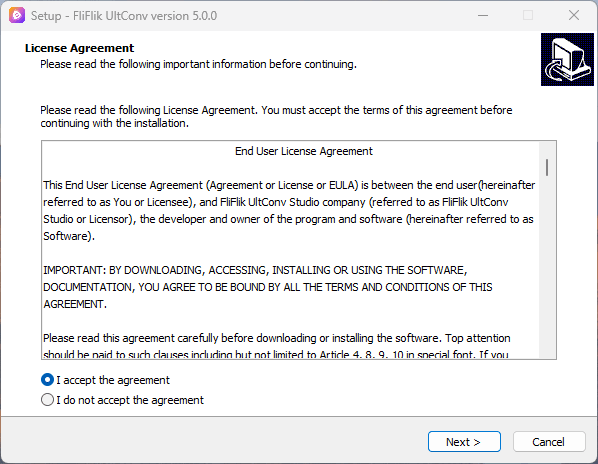
Open the downloaded installation file. On Windows, run the .exe installer and follow the setup instructions. On Mac, open the .dmg file and drag UltConv into the Applications folder.
-
Wait for the installation to finish, then launch UltConv from the Windows desktop, Start Menu, or macOS Applications folder.

How to Register and Activate UltConv
Activating UltConv removes applicable trial limits and unlocks the complete Spotify song, playlist, and album conversion features.
-
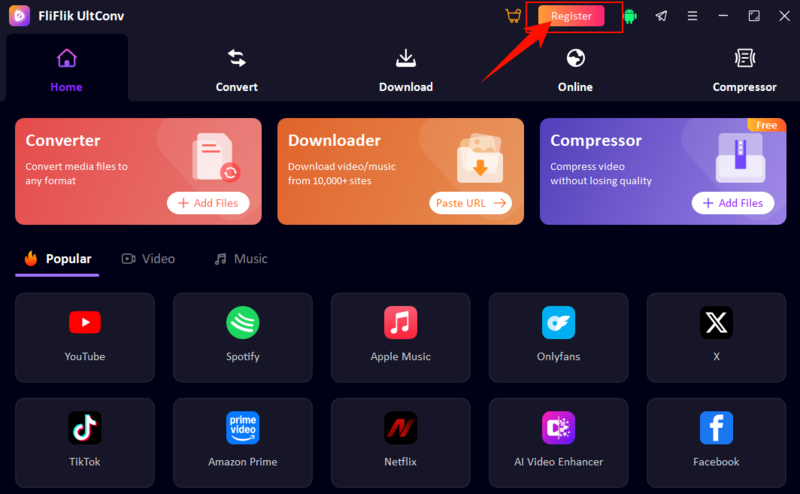
Step 1: Launch UltConv and click the Register or Activate option in the main interface.
-
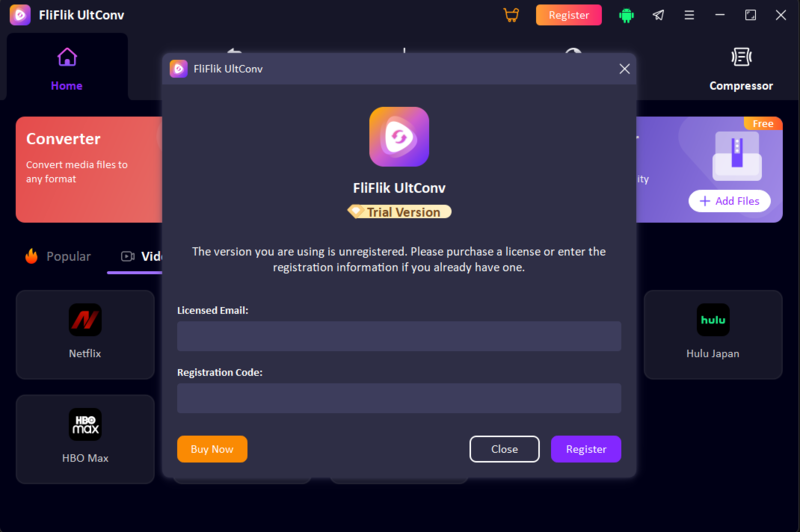
Step 2: Enter the licensed email address and registration code included in your purchase confirmation email.
-
Step 3: Click Register to verify the license and activate the full version.


How to Fix Registration or Activation Issues
If UltConv cannot verify your registration details, try the following:
- Confirm that the licensed email and registration code match the purchase email.
- Remove any extra spaces before or after the email address or code.
- Make sure the computer has an active internet connection.
- Check that the license supports the Windows or Mac version you installed.
- Restart UltConv and enter the registration information again.
- Contact customer support with your licensed email and order number if the issue continues.
How to Adjust Spotify Music Conversion Settings
Before downloading, click the Settings icon in UltConv Spotify Music Converter. You can configure the following options:
- Output Format: Choose MP3 or another available format for the downloaded Spotify music.
- Audio Quality: Select your preferred bitrate, including MP3 quality up to 320kbps.
- Auto Download Lyrics: Enable this option to save available lyrics with the downloaded tracks.
- Output Folder: Choose where the Spotify music files will be saved. Click Change to select another folder.
Click Apply after confirming the settings. UltConv will use these preferences for future Spotify downloads.

Part 2. How to Download Spotify Songs, Playlists, and Albums
UltConv includes a built-in Spotify web player that lets you sign in, browse music, select tracks, and start the conversion without manually copying Spotify links. The same process can be used for individual songs, playlists, albums, podcasts, and artist collections.
-
Step 1: Download, install, and launch UltConv Spotify Music Converter on your Windows PC or Mac.
FREE DOWNLOAD![secure download]() Secure Download
FREE DOWNLOAD
Secure Download
FREE DOWNLOAD![secure download]() Secure Download
Secure Download
-
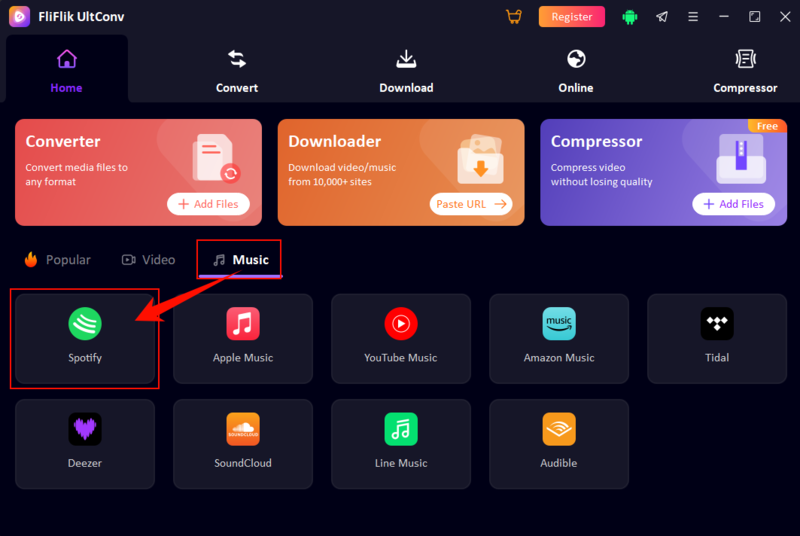
Step 2: Open the Music tab under the Home section and select the Spotify icon.
-
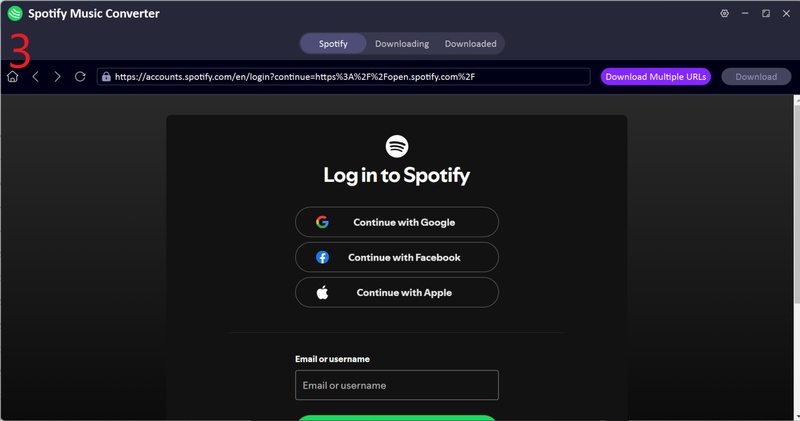
Step 3: Sign in to Spotify through the built-in web player. Both Spotify Free and Premium accounts can be used.
-
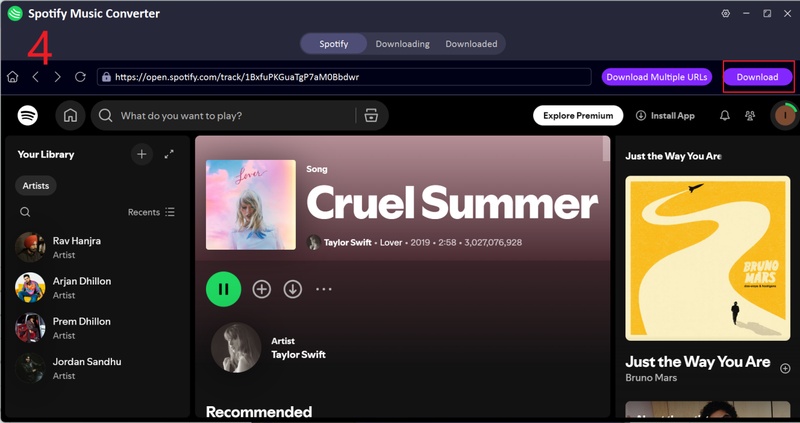
Step 4: Browse or search for the song, playlist, album, podcast, or artist you want to save. Open the content and click the available download button.
Select the tracks you need, confirm the output format and audio quality, and start the download. For a playlist or album, you can select all tracks or remove songs you do not want.
-
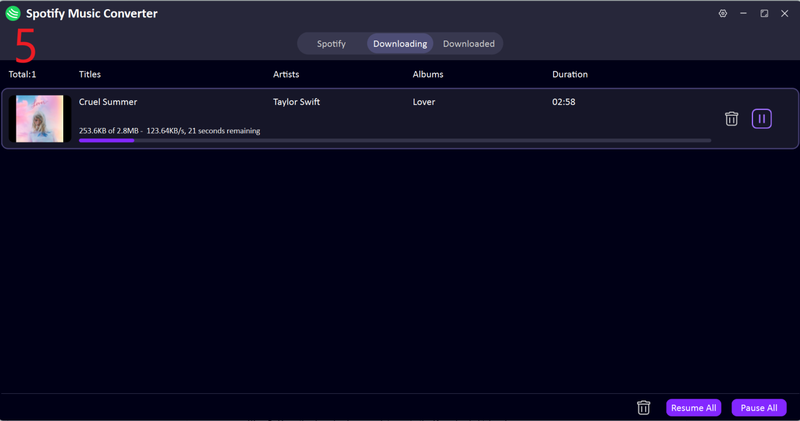
Step 5: When the conversion finishes, open the Downloaded section to find the saved music files. Available track titles, artist names, album details, lyrics, and cover artwork will be retained.


Tips to Fix Spotify Download Issues
If UltConv cannot load Spotify or download the selected music, try the following, If you’re using a particular device, check out more fixes just for you.
- Sign out of Spotify, restart UltConv, and sign in again.
- Make sure the song, playlist, or album page is fully loaded before starting the download.
- Check that the selected content is available in your account and region.
- Use a stable internet connection during music analysis and downloading.
- Make sure the selected output folder has enough available storage.
- Temporarily disable a VPN or proxy if Spotify does not load correctly.
- Update UltConv to the latest version and retry the task.
FAQs About UltConv Spotify Music Converter
 Secure Download
Secure Download
Secure Download