

 By
By  8 minutes read
MOV is a popular video format developed by Apple and commonly used for high-quality videos on iPhones, Macs, and cameras. While MOV files usually offer excellent video quality, they can also become very large in size. Large MOV files take up more storage space, are slower to upload, and can be difficult to share through email, messaging apps, or social media platforms.
That’s why many users look for ways to compress MOV files without making the video look blurry or low quality. In this guide, we’ll show you how to compress a MOV file on Windows, Mac, Android, and iPhone using different methods.

Part 1. How to Compress a MOV File on Windows & Mac (Desktop)
FliFlik UltConv Video Compressor is a powerful desktop solution for Windows and Mac that strikes the perfect balance between high compression ratios and lossless visual quality. Designed to tackle oversized 4K iPhone recordings and professional camera files, it supports over 100 formats, including MOV, MP4, MKV, and AVI. Users can effortlessly shrink files by using a manual quality slider or by setting a specific target size, all while utilizing the real-time preview feature to ensure the output meets their standards before saving.
UltConv features batch processing capabilities that perform up to 10x faster than standard converters, significantly streamlining your workflow. Most importantly, the tool provides a clean, premium experience by producing watermark-free outputs, making it the ideal choice for creators looking to save storage space or optimize videos for quick social media sharing.

- Compress MOV and 100+ media formats easily
- Reduce file size with minimal quality loss
- Batch compress multiple videos simultaneously
- Preview compressed video quality before exporting
- Compress videos with no watermark added
- Support precise file size and quality adjustment
▼ Steps to Compress Videos with FliFlik UltConv Video Compressor
-
Download, install, and launch FliFlik UltConv Video Compressor on your Windows or Mac computer.
FREE DOWNLOAD![secure download]() Secure Download
FREE DOWNLOAD
Secure Download
FREE DOWNLOAD![secure download]() Secure Download
Secure Download
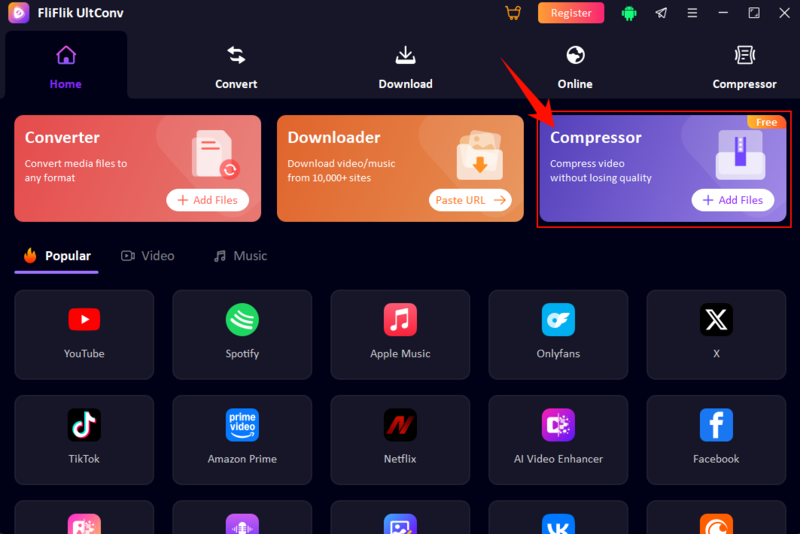
-
Add your MOV video files into the compressor by dragging them into the main interface or using the upload option. UltConv supports many common video formats, including MOV, MP4, AVI, MKV, and more.
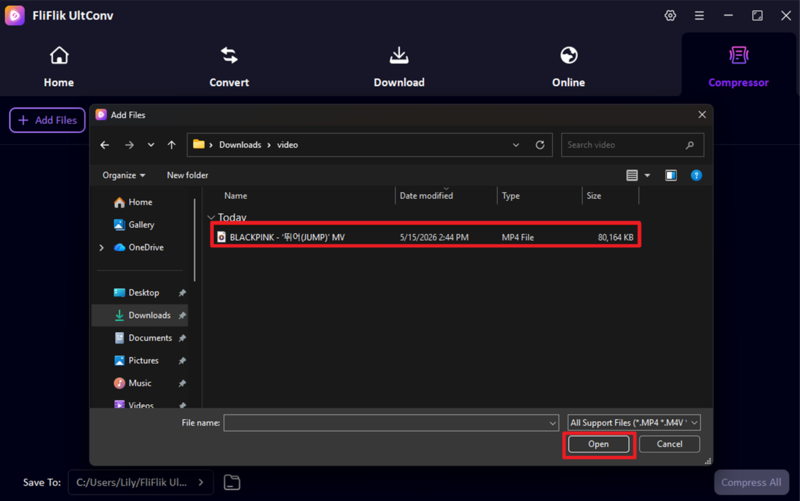
-
Press the Gear icon to access the compression settings. From there, you can customize the output size, compression ratio, or video quality depending on how small you want the file to become.
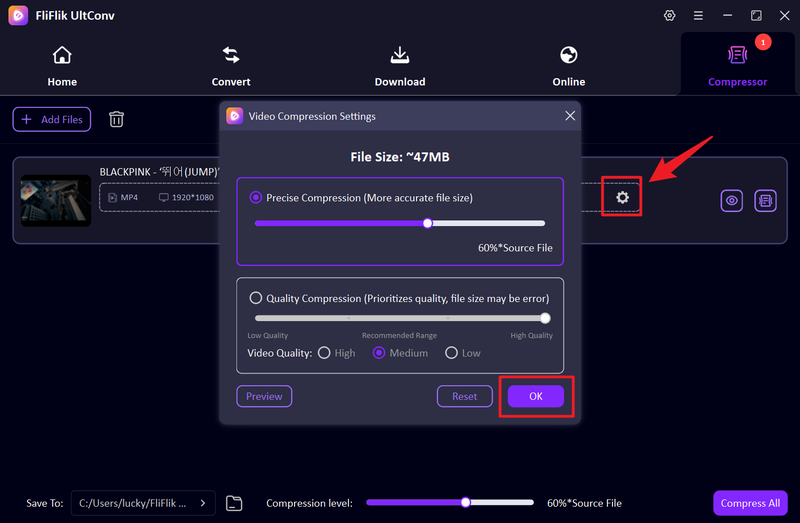
-
Once your settings are ready, click the Compress All button to start the compression process. The software will process your videos quickly using its high-speed compression engine.
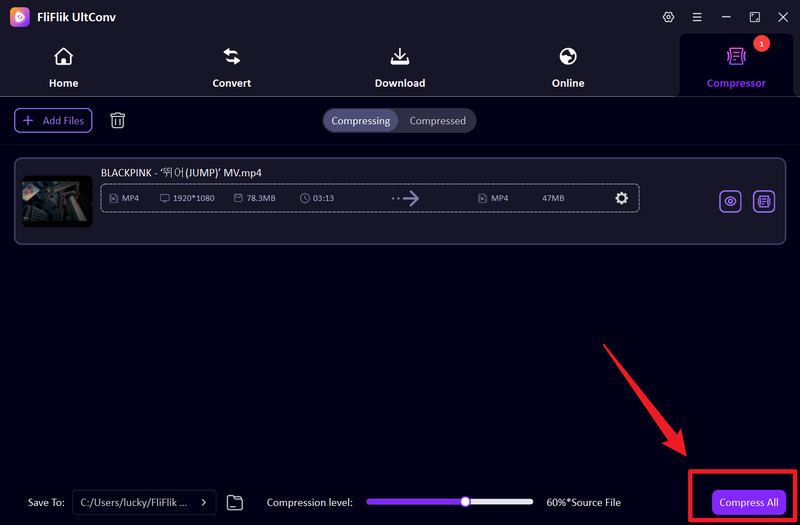
-
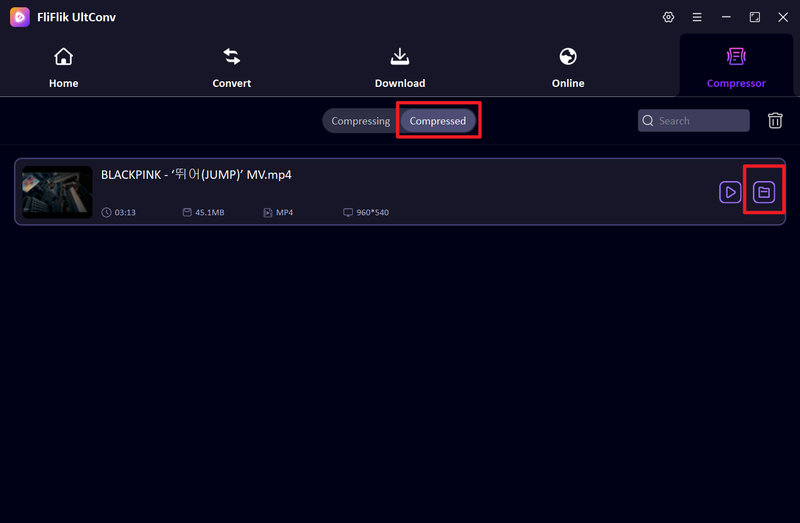
After compression finishes, open the Compressed section to view your completed files. You can preview the compressed video directly inside UltConv before saving, sharing, or uploading it.


Part 2. How to Compress MOV Files Online Free (No Installation)
Clideo MOV Compressor is a simple online tool that allows users to compress MOV videos directly from a web browser without installing any software. It works on Windows, Mac, Android, and iPhone, making it useful for quick file compression. The platform also supports uploading videos from cloud storage services like Google Drive and Dropbox.

▼ Steps to Compress MOV Files Using Clideo
- Step 1: Open the Clideo MOV Compressor website in your browser. Since the compression happens online, make sure your internet connection is stable for faster uploading and processing.
-
Step 2:
Click the blue
Choose file
button to upload your MOV video from your computer. You can also drag and drop the file directly into the upload area.

-
Step 3:
If your MOV file is stored online, use the drop-down menu to import videos directly from Google Drive or Dropbox.
-
Step 4:
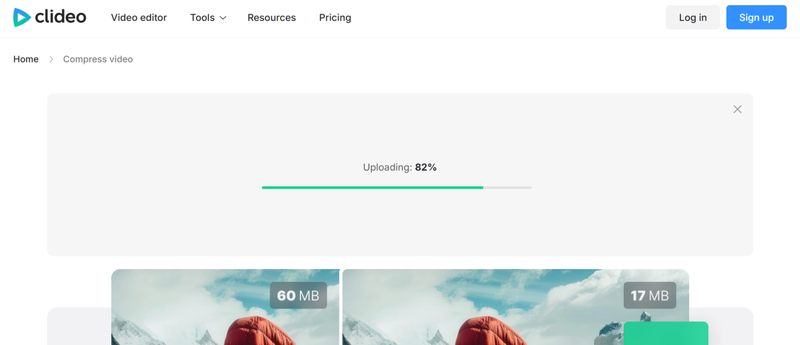
Once the upload finishes, Clideo will automatically begin compressing your MOV video. Larger files may take more time to process.
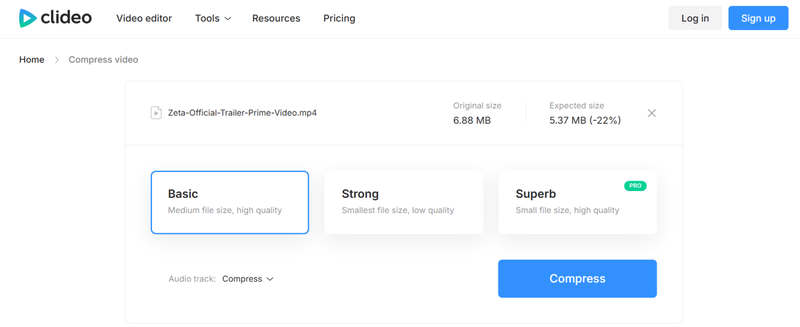
- Step 5: After compression is complete, preview the final result and click the Download button to save the compressed MOV video to your device or cloud storage.


Part 3. How to Compress MOV on Android & iPhone
If you are on your phone, then below 2 apps are best to use for both Android and iPhone users.
1. Compress Videos & Resize Video
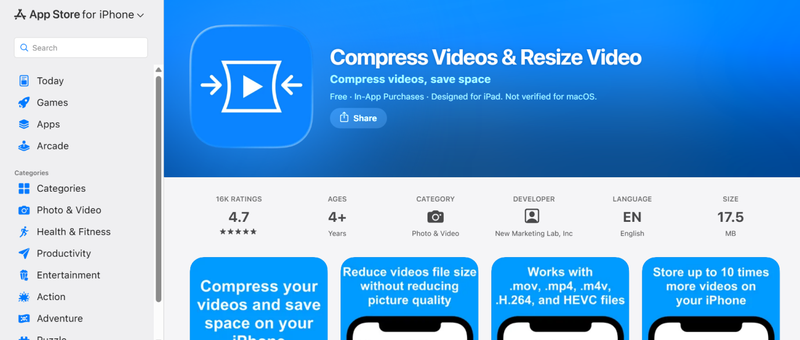
Compress Videos & Resize Video is a popular iPhone app that helps users quickly reduce MOV file sizes directly on iOS devices. It offers simple controls for adjusting video quality, resolution, and file size, making it useful for sharing videos through social media, email, or messaging apps without taking up too much storage.
▼ Steps to Compress MOV on iPhone
-
Step 1:
Download and install the
Compress Videos & Resize Video
app from the App Store on your iPhone or iPad.
- Step 2: Open the app and allow access to your Photos library so you can import MOV videos from your device.
- Step 3: Select the MOV file you want to compress and adjust settings like resolution, bitrate, or compression level based on your preferred file size.
- Step 4: Tap the Compress button to begin reducing the MOV video size. The app will process the file automatically.
-
Step 5:
After compression is complete, save the smaller MOV video to your Photos app or share it directly to other apps.


2. Compress Video Size Compressor
Compress Video Size Compressor is an Android app designed to shrink large MOV and MP4 files without requiring advanced editing skills. It supports multiple compression levels and resolutions, helping Android users save storage space and upload videos more easily.
▼ Steps to Compress MOV on Android
-
Step 1:
Install
Compress Video Size Compressor
from the Google Play Store on your Android phone or tablet.

- Step 2: Launch the app and import the MOV video you want to reduce in size from your gallery or file manager.
-
Step 3: Choose your preferred compression settings such as resolution, video quality, or target file size.

- Step 4: Start the compression process by tapping the Compress Video button. The app will automatically reduce the file size.
- Step 5: Once completed, save the compressed MOV video to your device or share it directly through social apps or messaging platforms.


FAQs
Q1. How do I compress a MOV file?
Free Programs like FliFlik UltConv Video Compressor allow you to reduce MOV file size while keeping good video quality. Simply import the video, adjust compression settings, and export the smaller file.
Q2. Is the MP4 format better than MOV?
MOV is ideal for Apple users and professional editing due to its higher quality, while MP4 is the better choice for social media and general sharing because of its smaller file size and universal compatibility. If you need a balance of practicality and broad device support, MP4 is usually the way to go.
Conclusion
While MOV files offer excellent quality, their large size often leads to storage and sharing headaches. Fortunately, we can easily compress mov on Windows, Mac, mobile, or online—to ensure your videos remain clear yet easy to distribute.
FliFlik UltConv Video Compressor offer maximum flexibility with batch processing and precision quality control. Whether you need a quick mobile fix or a professional-grade desktop shrink, choosing the right tool allows you to reduce file sizes without sacrificing visual clarity.
 Secure Download
Secure Download
Secure Download