

 By
By  9 minutes read


ImgBurn has long been a popular, lightweight tool for burning CDs, DVDs, and Blu-rays. However, in 2026, many users worry about its safety since it hasn’t been updated in years. The main concerns are the bundled software in the installer and potential security risks on newer systems.
In this guide, we’ll look at whether ImgBurn is still safe to use today and how to install it carefully if you decide to keep it. We will also suggest some modern, more secure alternatives for those who are ready to move on to better-supported software.

Part 1. Is ImgBurn Safe? Common Security Issues
ImgBurn still works on Windows 10 and 11 for burning ISOs, DVDs, and copying discs. However, because its official development ended in 2013, using it today comes with several risks you should consider:
No Official Updates or Security Fixes
Since the software hasn’t been updated in over a decade, it lacks modern security patches. Any vulnerabilities discovered since 2013 remain unfixed, making it less secure than modern alternatives.
Bundled Software Risks from Third-Party Downloads
The ImgBurn installer is famous for including bundled software (like toolbars or adware). If you aren’t careful during installation and don’t uncheck these “extra offers,” you may end up with unwanted programs that slow down your PC.
Compatibility Issues with New Windows Versions
While it still runs, ImgBurn may struggle with the newer system protections in Windows 10 and 11. This can lead to driver conflicts, unpredictable behavior, or failed disc burns.
Lack of Official Support
There is no longer an active support team to help with bugs or technical errors. If the software crashes or fails, you are on your own to find a solution, which can be difficult for non-technical users.
Part 2. Step by Step: How to Use ImgBurn to Burn DVDs Safely
Although ImgBurn has been around for years, many users still prefer it because it’s free, lightweight, and doesn’t require a high-performance computer to get the job done. For users who want complete control over the ISO and DVD burning process, it remains the tool of choice—unlike many modern tools that oversimplify these features.
If you’re ready to get started, here’s how to complete the process safely and effectively.
▼ Steps to Burn DVDs Using ImgBurn Safely
- Step 1: Download ImgBurn from a trusted source and install it carefully. During installation, make sure to uncheck any optional bundled software or third-party offers.
-
Step 2:
Open ImgBurn and select the appropriate mode based on your task, such as
“Write image file to disc”
for ISO files or
“Write files/folders to disc”
for normal data DVDs.

- Step 3: Insert a blank DVD into your computer’s DVD writer drive and ensure it is properly detected by the system.
- Step 4: Add your files or ISO image into ImgBurn by clicking the folder or file icon and selecting the content you want to burn.
-
Step 5:
Choose your writing speed and verify settings such as destination drive and disc label for better accuracy.

- Step 6: Click the Write button to start the burning process and wait until ImgBurn completes the operation.
-
Step 7:
Once finished, safely eject the disc and optionally verify it to ensure all data has been burned correctly.


Part 3. Top 3 ImgBurn Alternatives You Should Know
If ImgBurn feels outdated or unsafe for modern Windows systems, there are 3 modern alternatives provide better security, updated interfaces, and reliable DVD/ISO burning for Windows 10 and 11—without the risks of legacy software.
1. CDBurnerXP

CDBurnerXP is a free disc-burning software for Windows that allows users to burn CDs, DVDs, Blu-ray discs, and ISO files easily. It is often considered one of the best lightweight alternatives to ImgBurn because it provides a simple interface and regular updates, making it more suitable for modern Windows versions.
- Free to use with no hidden costs
- Supports multiple disc formats including ISO burning
- Simple and beginner-friendly interface
- Only available for Windows
- Lacks advanced editing features for professional users
2. BurnAware Free

BurnAware Free is a modern DVD and CD burning tool designed for both beginners and advanced users. It offers a clean interface and supports a wide range of disc-burning tasks, including data discs, audio CDs, and ISO image creation.
- Fast and lightweight performance
- Supports a wide range of disc formats
- Clean and easy-to-use interface
- Some advanced features are only in paid version
- May show upgrade prompts
3. WinX DVD Author

WinX DVD Author is another popular tool used for creating and burning DVDs from video files. It is especially useful for users who want to convert videos into playable DVDs with menus and chapters, making it more feature-rich than basic burning tools.
- Supports video-to-DVD conversion
- Allows creation of DVD menus and chapters
- Easy drag-and-drop interface
- Slower processing for large files
- Limited output formats compared to modern tools
Pro Tip. How to Download YouTube Videos to MP4
If you are looking for a way to download YouTube videos to MP4, then FliFlik UltConv Video Downloader is a desktop tool for Windows and Mac that lets you download YouTube videos and save them as MP4 files without any complicated steps. It’s built for users who want reliable offline access to their favorite content without depending on an internet connection every time.
It supports video downloads in 720p, 1080p, 2K, 4K, and 8K quality, and converts to MP3, MP4, and 100+ other formats. Batch downloading, a built-in browser, 10x faster download speeds, and a private folder for storing files make it a solid all-in-one option.

- Download videos from 10,000+ websites with one click
- Convert videos to MP4, MP3, and 100+ formats
- Batch download playlists, channels, and albums easily
- Supports HD video quality up to 4K and 8K resolution
- 10x faster download speed with advanced processing
- Built-in browser and private folder for secure downloads
▼ Steps to Download YouTube to MP4 with UltConv Video Downloader
-
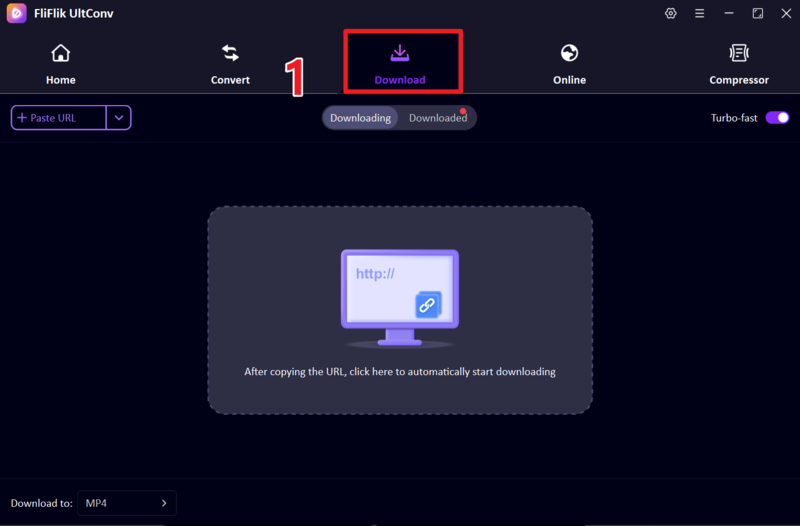
Install and open FliFlik UltConv Video Downloader on your computer. From the main interface, go to the Download section and select the ” Download To ” option to set your preferences.
FREE DOWNLOAD![secure download]() Secure Download
FREE DOWNLOAD
Secure Download
FREE DOWNLOAD![secure download]() Secure Download
Secure Download
-
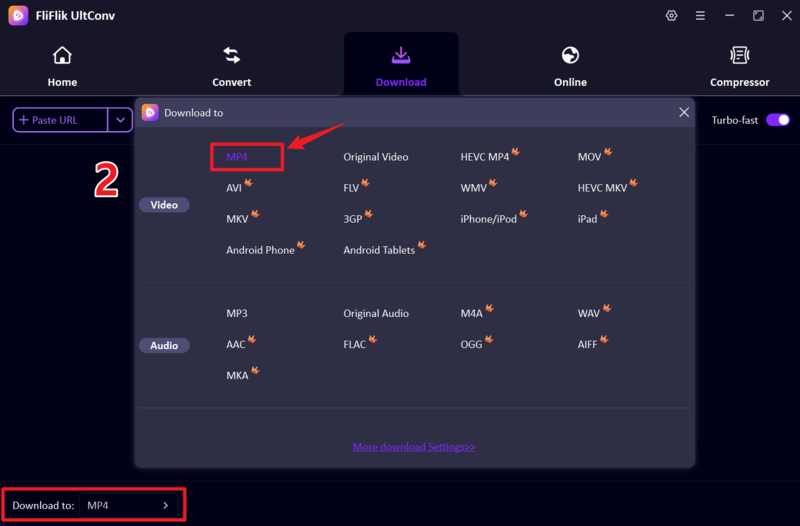
Select MP4 as your output format so the video can be played smoothly on any device or media player.
-
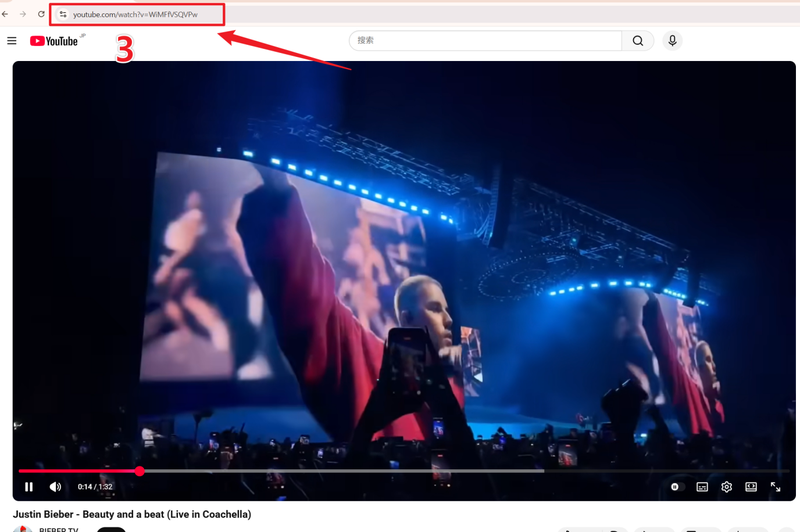
Open YouTube in your browser, search for the video you want, and copy the video URL from the address bar.
-
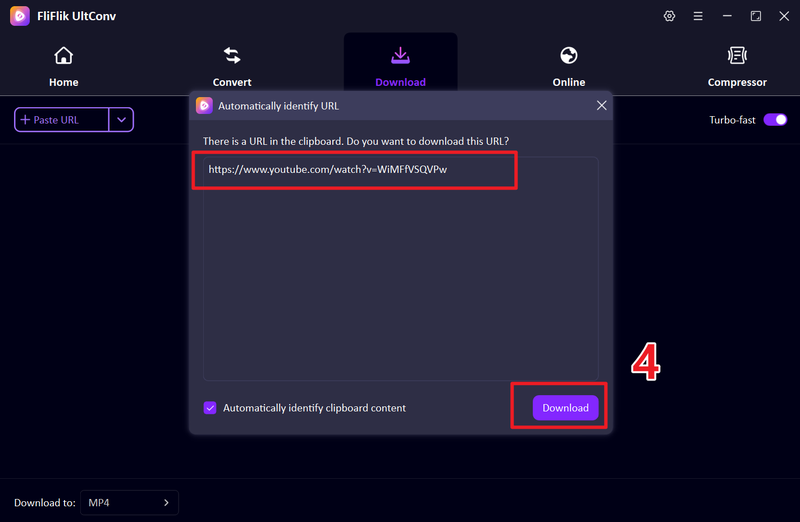
Return to UltConv and paste the copied link into the input field. If the tool does not detect it automatically, click Download to proceed.
-
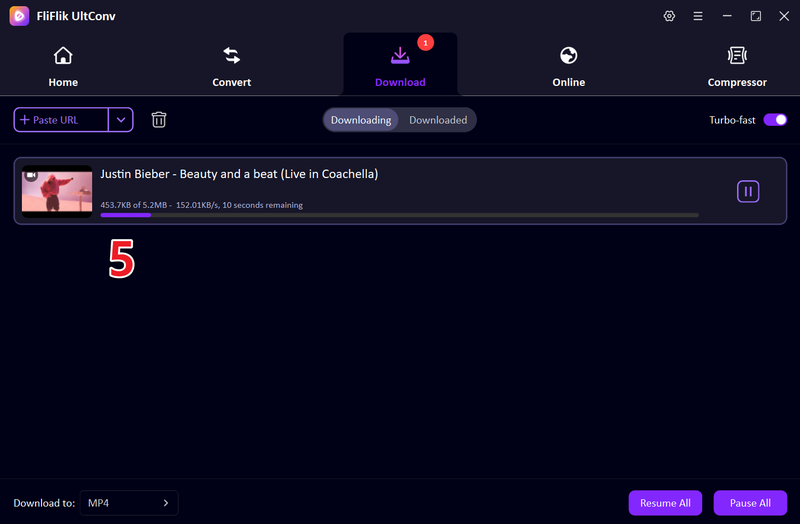
Wait for the download to complete. Once finished, your video will be saved in MP4 format and ready for offline viewing anytime.


FAQs
Q1. Can I use ImgBurn on Mac?
No, ImgBurn is designed only for Windows systems. It does not have an official Mac version, and running it on macOS usually requires workarounds like virtual machines or emulators, which are not recommended for beginners.
Q2. Is it legal to burn YouTube videos to DVD?
It depends on the content. Burning YouTube videos for personal use is usually fine, but downloading or distributing copyrighted content without permission may violate copyright laws. Always make sure you have the right to use the video.
Q3. Are there any good DVD players for Windows?
Yes, Windows users can use players like VLC Media Player, PowerDVD, or Windows Media Player (with codecs). VLC is especially popular because it is free, lightweight, and supports almost all disc formats.
Conclusion
ImgBurn still works for basic DVD and ISO burning, but the lack of updates makes it harder to rely on it for modern Windows systems. For simple one-off tasks, it gets the job done, but compatibility and security concerns are real considerations if you plan to use it regularly.
If you need something more current and well-rounded for downloading, converting, and managing media files, FliFlik UltConv Video Downloader is a solid modern ImgBurn alternative with faster, broader format support and a much smoother overall experience.
 Secure Download
Secure Download
Secure Download
