

 By
By  8 minutes read
While WebM is an excellent format for web streaming due to its small file size and decent quality, it often causes headaches outside of a browser. Because many Windows media players, legacy Mac apps, and iPhones lack native support, users frequently encounter playback errors or files that simply won’t open.
To solve these compatibility issues, you generally need a specialized WebM-compatible player or a way to convert the file into a universal format like MP4. This guide highlights the best WebM players for Windows, Mac, and iPhone, while explaining why converting to MP4 is often the smarter move for seamless playback across all your devices.

Part 1. 3 Best WebM Format Player on Windows and Mac
If your device doesn’t support WebM files by default, using a dedicated media player is the easiest way to open and watch them without errors. Below are some of the best WebM players that work smoothly on both Windows and Mac.
1. FliFlik UltConv Video Converter
Many users face issues when a video file doesn’t open on their device, especially formats like WebM, MKV, or AVI. FliFlik UltConv Video Converter solves this problem by allowing you to quickly convert these files into widely supported formats like MP4 or extract audio in formats such as MP3 or AAC.
It is built to save time, improve compatibility, and make media files usable across all devices without losing quality. Whether you are a casual user, content creator, or someone handling large video files, UltConv provides a smooth and reliable conversion experience with minimal effort.

- Convert videos to audio formats like MP3, AAC, FLAC, and WAV with high-quality preservation
- Supports a wide range of video formats, including MP4, MOV, MKV, AVI, and WebM
- Ultra-fast conversion speed, even for large 4K and 8K video files
- Batch conversion feature to process multiple files at once efficiently
- Fully compatible with Windows, Mac, iPhone, iPad, and Android devices
▼ Converting a WebM Video to MP4 with UltConv Video Converter
-
Download and install FliFlik UltConv Video Converter from the official website, then complete the setup process on your Windows or Mac device.
FREE DOWNLOAD![secure download]() Secure Download
FREE DOWNLOAD
Secure Download
FREE DOWNLOAD![secure download]() Secure Download
Secure Download
-
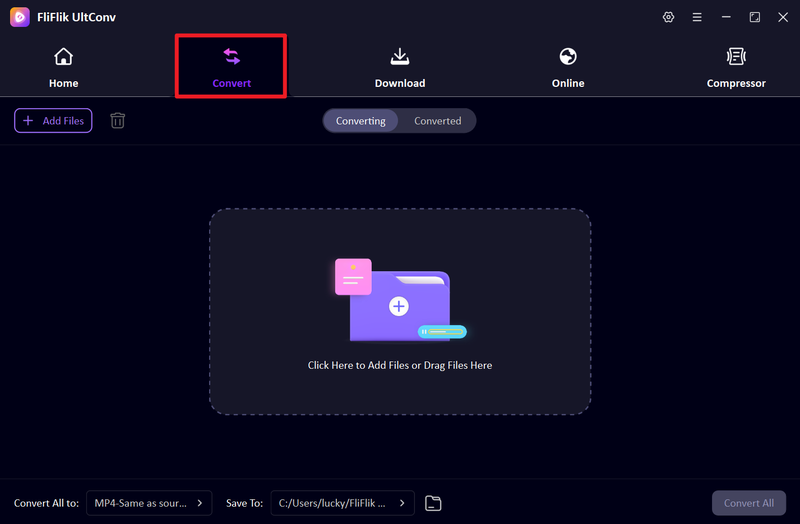
Open UltConv and go to the Convert section. Click Add File or drag and drop your WebM video into the workspace. You can also add multiple files if you want to convert in a batch.
-
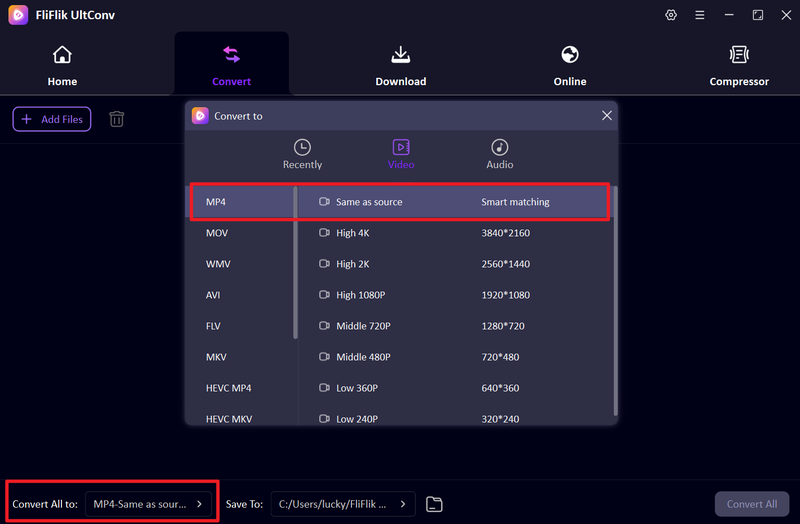
From the output format list, select MP4 as your target format. This ensures your video can play smoothly on almost all devices and media players.
-
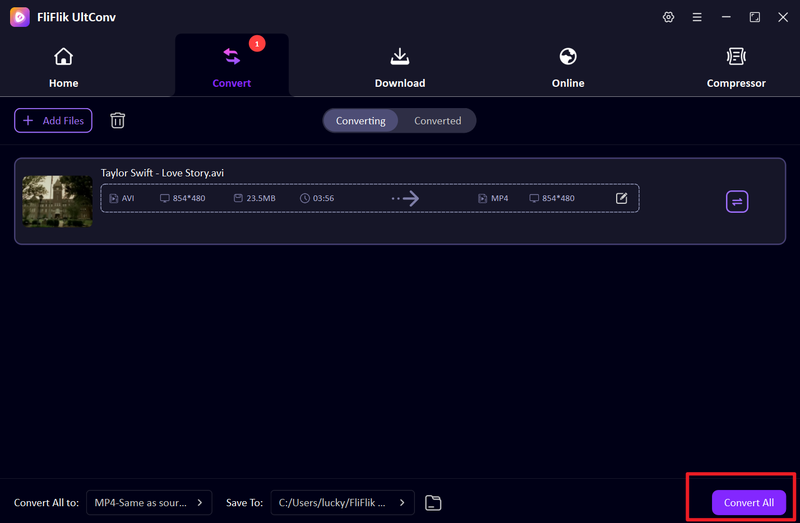
Choose the destination folder where you want to save the converted file, then click Convert All to start the process.
-
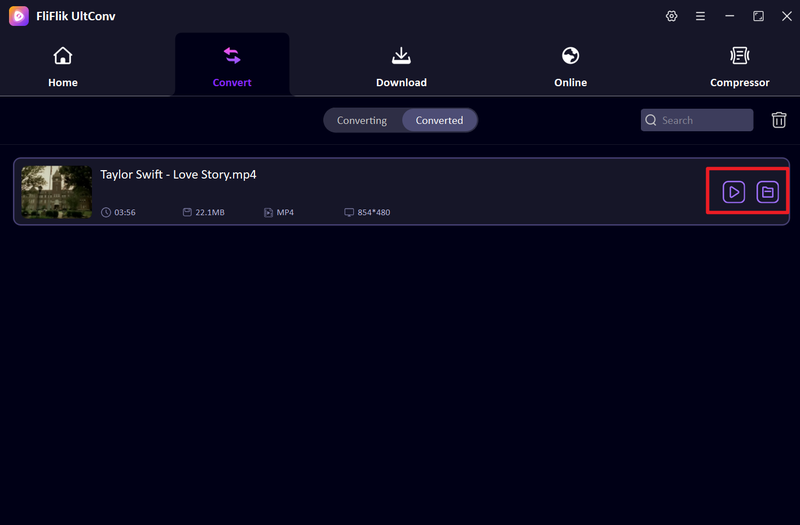
Once the conversion is complete, your WebM video will be successfully converted into MP4 format and ready to play on any device without compatibility issues.


2. KMPlayer

KMPlayer is a well-known free media player that supports almost all video and audio formats, including WebM, MP4, MKV, AVI, and more. It is designed for users who want a flexible and feature-rich player that can handle high-quality videos without needing extra codecs. KMPlayer also offers advanced playback controls, subtitle customization, and network/cloud playback options, making it useful for both casual viewing and advanced users who need more control over their media experience.
▼ KMPlayer Overview Table
| Feature | Details |
|---|---|
| Compatible OS | Windows, macOS, Android, iOS |
| Pricing | Free |
| Subtitles Support | Yes, fully customizable (size, color, position) |
| Hardware Acceleration | Yes, supports hardware acceleration for smooth playback |
| Best For | Users who want an all-in-one advanced media player for different formats, including WebM |
3. GOM Player

GOM Player is a popular multimedia player known for its ability to play a wide range of video formats, including WebM, MP4, AVI, and MKV. It is especially useful for users who want a simple yet powerful player with built-in codec support, so they don’t need to install extra plugins. GOM Player also includes features like subtitle search, screen capture, and VR video support, making it a flexible option for everyday video playback on Windows and Mac.
▼ GOM Player Overview Table
| Feature | Details |
|---|---|
| Compatible OS | Windows, macOS |
| Pricing | Free (with ads) / Premium version available |
| Subtitles Support | Yes, automatic subtitle search and manual upload are supported |
| Hardware Acceleration | Yes, supports hardware acceleration for smooth HD playback |
| Best For | Users who want a simple, beginner-friendly player with strong format compatibility |
Part 2. How to Play WebM Files on iPhone?
iPhone devices do not fully support WebM files by default, which means many users cannot open them directly from the Photos or Files app. Below are two of the best apps you can use to play WebM files smoothly on iPhone.
1. VLC for Mobile

VLC for Mobile is one of the most trusted video players for iPhone users. It supports almost all video formats, including WebM, without needing conversion. You can also stream videos, manage subtitles, and organize your media library easily inside the app.
▼ Steps to Play WebM Files with VLC
-
Step 1: Download and install VLC for Mobile from the App Store.
-
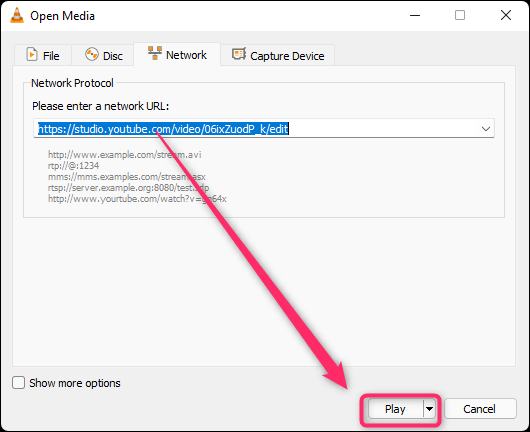
Step 2: Open the VLC app and allow access to your photos or files when prompted.
-
Step 3: Transfer your WebM file to VLC using AirDrop, the Files app, or cloud storage like iCloud or Google Drive.
-
Step 4: Tap the file inside VLC to start playing your WebM video smoothly.

2. PlayerXtreme Media Player
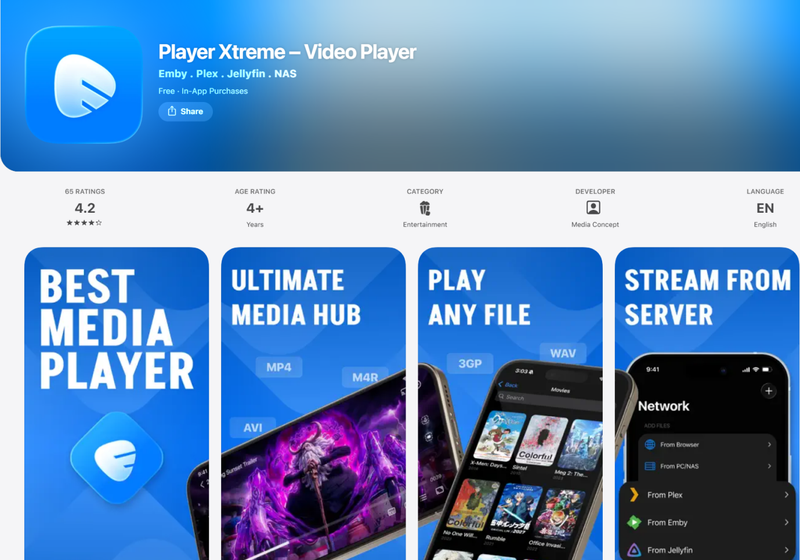
PlayerXtreme is another powerful media player for iPhone that supports a wide range of formats, including WebM. It is designed for smooth playback and offers features like network streaming and file management.
▼ Steps to Play WebM Files with PlayerXtreme
-
Step 1: Install PlayerXtreme Media Player from the App Store.
-
Step 2: Open the app and grant permission to access your local storage or cloud services.
-
Step 3: Import your WebM file using Wi-Fi transfer, the Files app, or cloud storage integration.
-
Step 4: Tap the file to start playback and enjoy smooth WebM video viewing.

Part 3. Why You Might Need to Convert WebM to MP4?
While WebM is great for streaming, it often runs into compatibility issues with many devices and editing tools. Converting WebM to MP4 is usually the best move—it’s the universal standard that ensures your videos play and share smoothly across Windows, Mac, Android, and iPhone.
- Better compatibility: MP4 works on almost all devices and media players, while WebM has limited support on some platforms.
- Easier sharing: MP4 files can be easily uploaded to social media, email, and messaging apps without format issues.
- Editing support: Most video editing software supports MP4, making it easier to cut, trim, or enhance videos.
- Smooth playback on iPhone: iPhones do not natively support WebM, so MP4 ensures error-free viewing.
- Wider usage: MP4 is the standard format for videos on websites, apps, and streaming platforms.
FAQs
Q1. Is WebM format better than MP4?
WebM is better for web streaming because it is lightweight, but MP4 is more universal and works on almost every device and platform.
Q2. Why can’t I play WebM format on my iPhone?
iPhones do not natively support WebM files, so you need a third-party player or conversion to MP4 to play them smoothly.
Conclusion
While the WebM format is well-suited for the web environment, editing, sharing, or playing it on devices that do not natively support the format can often prove to be a hassle. Converting WebM to MP4 is the simplest way to ensure that your videos play smoothly across virtually all devices and platforms. FliFlik UltConv Video Converter makes this conversion process seamless, delivering high-quality and efficient conversion services that completely eliminate the frustrations in your media workflow.
 Secure Download
Secure Download
Secure Download