

 By
By  5 minutes read
UltConv Disney Plus Downloader is a desktop tool designed to help users download Disney Plus movies, TV shows, documentaries, animated films, and individual episodes to Windows or Mac computers. With this Disney Plus downloader, you can save supported Disney+ titles as local MP4 or MKV files, select the available video quality, preserve audio tracks and subtitles, and watch your favorite content offline without buffering.
- Download Disney Plus movies and TV shows in up to 1080p when available.
- Save Disney+ videos as widely compatible MP4 or MKV files.
- Batch download multiple episodes or an entire available season.
- Keep available audio languages, subtitle tracks, and video metadata.
- Manage and watch downloaded Disney Plus videos on different compatible devices.
Whether you need a Disney Plus movie downloader for an upcoming trip or want to learn how to download Disney Plus movies on a laptop, this guide explains how to install, activate, configure, and use UltConv Disney Plus Downloader on a PC or Mac.
Contents
Part 1. How to Register and Activate UltConv Disney Plus Downloader
To access all the features of UltConv Disney Plus Downloader, first install the software on your Windows PC or Mac and activate it with a valid license. This section walks you through the installation, registration, troubleshooting, and general download settings.
How to Download and Install UltConv?
Before downloading Disney Plus movies or TV shows, install UltConv on your computer. The setup process is straightforward and works on both Windows and macOS.
-
Open your browser and visit the official UltConv Disney Plus Downloader page on the FliFlik website.
-
Click the Free Download button for Windows or macOS. Select the installer that matches the operating system on your computer.
FREE DOWNLOAD![secure download]() Secure Download
FREE DOWNLOAD
Secure Download
FREE DOWNLOAD![secure download]() Secure Download
Secure Download
-
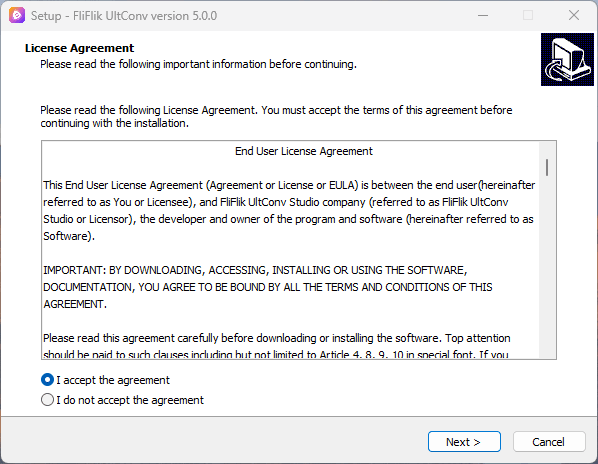
After the installer finishes downloading, open the file and follow the setup instructions for your operating system.
- Windows: Double-click the downloaded .exe file, accept the terms, choose an installation location, and click Install.
- Mac: Open the downloaded .dmg package and drag the UltConv icon into the Applications folder.
-
Follow the on-screen instructions to select your preferred language and installation path. Wait until the setup process is complete.
-
Click Start Now to open UltConv. You can also launch it later from the Start Menu on Windows or the Applications folder on Mac.

How to Register and Activate UltConv Disney Plus Downloader?
UltConv includes a free trial that allows you to test its interface and core functions. Activating the registered version removes trial restrictions and unlocks complete Disney Plus video downloader features, including full-length downloads and additional output options.
-
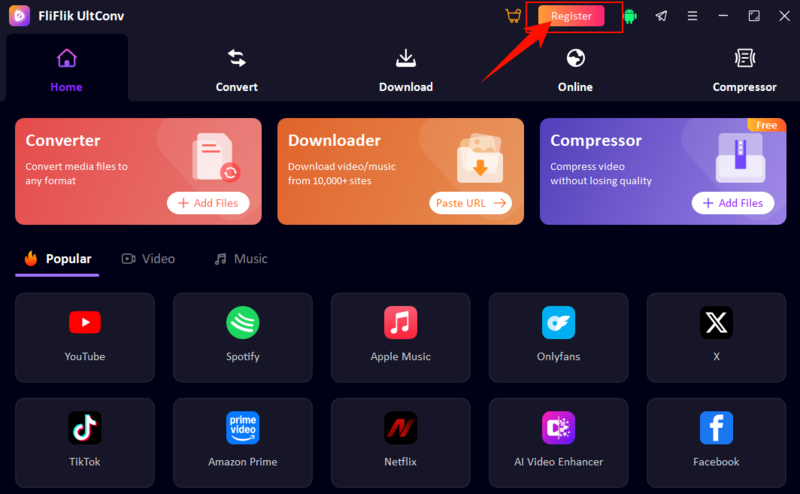
Step 1: Launch UltConv and click the Register or Activate option on the main interface.
-
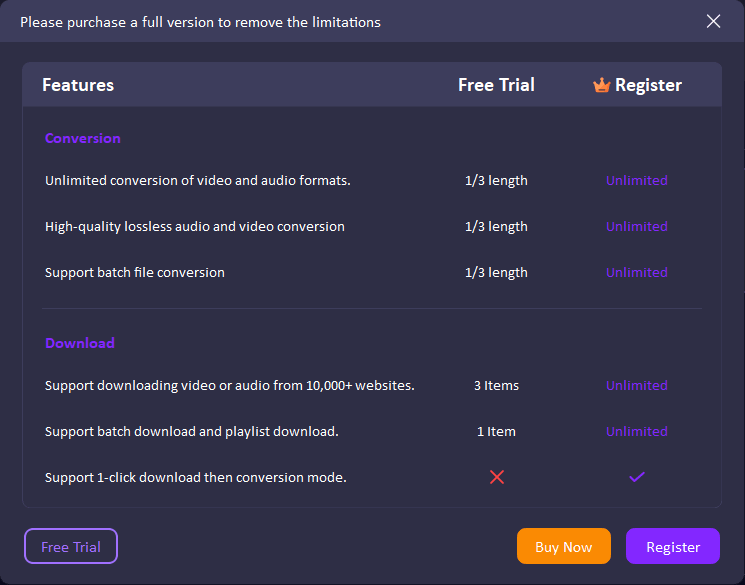
Step 2: Review the differences between the free trial and the registered version in the pop-up window.
-
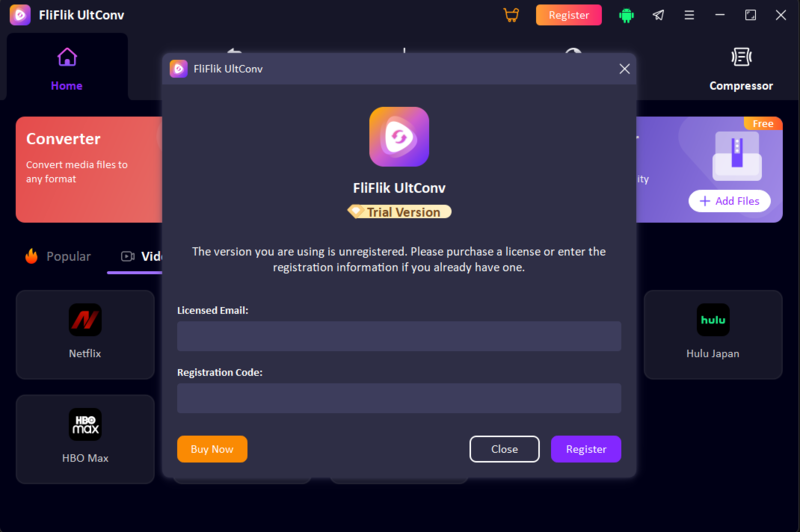
Step 3: Enter the licensed email address and registration code you received after purchasing UltConv. Make sure the information is copied correctly and does not contain extra spaces.
-
Step 4: Click Register to verify your license. The full Disney Plus downloading functions will become available after successful activation.
-
Step 5: If you do not have a license, click Buy Now and choose a suitable plan. Your licensed email and registration code will be sent after the purchase is completed.


How to Fix Registration or Activation Issues
If UltConv cannot verify your registration information, try the following solutions:
- Check the Licensed Email and Code: Make sure you are using the same email address associated with the purchase and that the registration code is entered correctly.
- Remove Extra Spaces: Delete any spaces before or after the licensed email address and registration code.
- Check Your Internet Connection: UltConv needs an active internet connection to verify the license.
- Confirm the Operating System: A Windows license may not activate the Mac version, and a Mac license may not activate the Windows version unless your plan supports both systems.
- Update UltConv: Install the latest available version before attempting to activate the software again.
- Restart the Program: Close UltConv completely, reopen it, and enter the registration details again.
- Contact Customer Support: If the problem continues, provide the order number and licensed email address when contacting the support team.
How to Adjust Disney Plus Video Download Settings
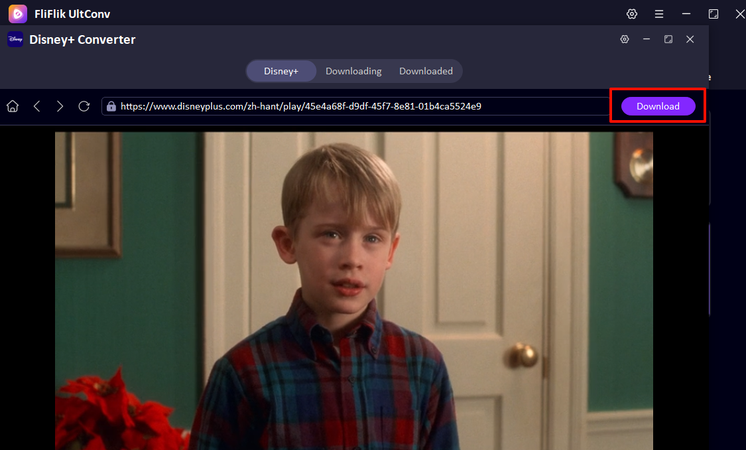
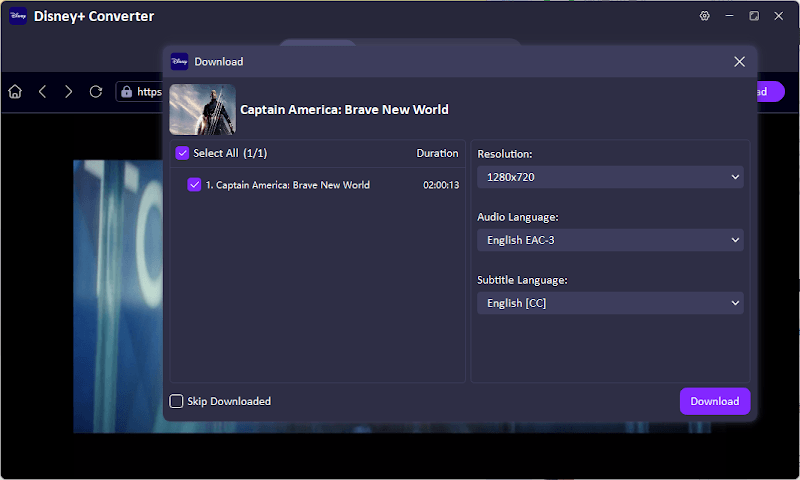
After opening a Disney Plus movie or show in UltConv, click the Download button in the upper-right corner. UltConv will analyze the selected title and open a download window where you can choose the video and customize the available output options.
▼ Steps to Configure Disney Plus Download Settings:
-
Step 1: Select the movie or episode you want to download from the list on the left. For a TV series, you can select individual episodes or use Select All to add all detected episodes.
-
Step 2: Open the Resolution menu and choose an available video quality, such as 1280 × 720. Higher resolutions generally provide clearer playback but require more storage space.
-
Step 3: Select your preferred Audio Language. The available options depend on the Disney Plus title and may include different languages or audio tracks.
-
Step 4: Choose an available Subtitle Language, such as English closed captions. Subtitle options may vary according to the selected movie, episode, and region.
-
Step 5: Enable Skip Downloaded when downloading several episodes if you want UltConv to avoid adding videos that have already been saved.
-
Step 6: Review the selected title, resolution, audio track, and subtitle language. Then click Download at the bottom of the window to add the video to the download queue.

Part 2. How to Download Disney Plus Movies and TV Shows with UltConv
UltConv provides a built-in Disney+ browser that lets you sign in, find a movie or TV show, select episodes, customize the output settings, and manage the download without switching between different programs. The workflow is similar whether you use the Disney Plus video downloader on a Windows PC or Mac.
▼ Steps to Download Disney Plus Movies and TV Shows with UltConv:
-
Step 1: Download, install, and launch UltConv Disney Plus Downloader on your Windows or Mac computer.
FREE DOWNLOAD![secure download]() Secure Download
FREE DOWNLOAD
Secure Download
FREE DOWNLOAD![secure download]() Secure Download
Secure Download
-
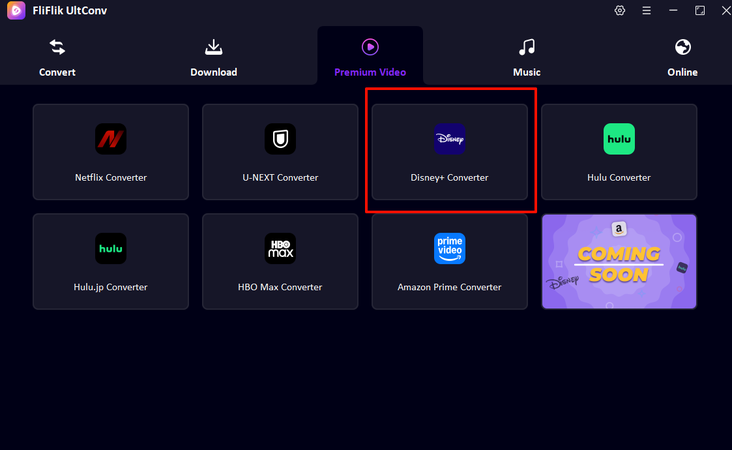
Step 2: On the UltConv Home screen, open the Premium Video section and select the Disney+ icon. UltConv will open Disney+ in its built-in browser.
-
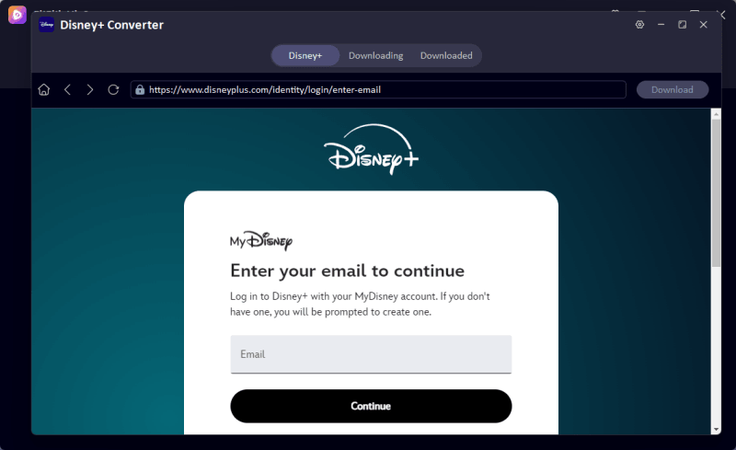
Step 3: Sign in with a Disney+ account that has access to the movie or show you want to download. UltConv only processes content available through your own account.
-
Step 4: Browse the Disney+ library or use the search bar to find the movie, documentary, or TV show you want. Open its detail page and play the video briefly if UltConv needs to detect the available stream.
-
Step 5: Wait for UltConv to analyze the selected title. When the download window appears, choose the available options you need:
-
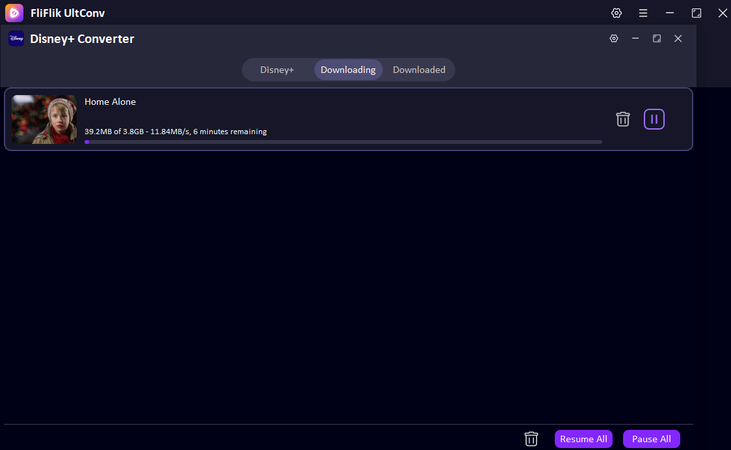
Step 6: Your download will begin automatically. When finished, go to the Download tab to watch your movie offline. It’s now stored locally for anytime access.


Tips to Fix Disney Plus Login or Download Issues
If Disney+ does not load, UltConv cannot detect a video, or the download fails to start, try the following solutions. For more platform-specific fixes, see our guide on how to fix Disney Plus not working.
- Confirm Your Disney+ Access: Make sure your account can stream the selected title in your current region.
- Sign In Again: Log out of Disney+ in the built-in browser, restart UltConv, and sign in again.
- Open the Video Detail Page: UltConv may need you to open or briefly play the movie or episode before it can detect the stream.
- Use a Stable Internet Connection: Avoid changing networks while UltConv is analyzing or downloading a video.
- Check the Output Folder: Make sure the selected drive has enough available storage and that UltConv has permission to write files to the folder.
- Temporarily Disable a VPN or Proxy: A VPN location that does not match your Disney+ account region may prevent the page or selected title from loading correctly.
- Update UltConv: Install the latest version to maintain compatibility with changes to the Disney+ website.
- Restart the Download: Remove the failed task, reopen the Disney+ title, and analyze it again.
- Try Another Title: Availability, quality, audio tracks, and subtitles may differ between Disney+ titles and regions.
- Use Content Responsibly: Only download videos that you are authorized to access and use the saved files for personal offline viewing.
Part 3. FAQs About UltConv Disney Plus Downloader
Part 4. Conclusion
UltConv Disney Plus Downloader combines software installation, account login, video detection, output customization, episode selection, and task management in one desktop workflow. After setting up and activating UltConv, open the Disney+ module, sign in to your account, select a movie or TV show, choose the available resolution, format, audio, and subtitles, and start the download. Once the task is complete, you can locate the saved MP4 or MKV file in the Downloaded section and watch it offline on a compatible device. Use downloaded Disney Plus content only for authorized personal viewing and follow applicable platform terms and copyright rules.
 Secure Download
Secure Download
Secure Download