 By
By  4 minutes read
UltConv Netflix Converter is a desktop tool designed to help users download Netflix movies, TV shows, anime, documentaries, and original series to Windows or Mac computers for offline watching. Instead of being limited to the Netflix app, UltConv lets you save Netflix videos in common formats like MP4 or MKV, with selectable resolution, audio tracks, and subtitles.
Whether you want to watch Netflix movies during travel, keep episodes for offline viewing, or save a full season on your computer, this guide will walk you through the complete process: downloading and installing UltConv, registering your license, adjusting download settings, and downloading Netflix videos step by step.
Part 1. Detailed Steps to Download and Install UltConv Netflix Video Downloader
Before enjoying your movies offline, you need to get UltConv Netflix Downloader ready on your Windows or Mac computer. The setup process is simple and only takes a few minutes.
▼ Steps to Download and Install UltConv Netflix Downloader:
-
Go to the official FliFlik website and navigate to the UltConv Netflix Downloader page.
-
Click the Free Download button. Make sure to select the correct version based on your operating system, whether you are using Windows or Mac.
FREE DOWNLOAD![secure download]() Secure Download
FREE DOWNLOAD
Secure Download
FREE DOWNLOAD![secure download]() Secure Download
Secure Download
-
Once the installer file finishes downloading, double-click to open it.
On Windows: Open the downloaded .exe file, accept the terms, and follow the installation instructions.
On Mac: Open the .dmg package and drag the UltConv app into the Applications folder.
![ultconv installation setup]()
-
Follow the on-screen UltConv instructions. Choose your preferred language and installation path, then click Install.
-
After the installation completes, click Start Now to launch UltConv Netflix Downloader on your desktop.


Part 2. How to Register and Activate UltConv Netflix Downloader?
UltConv Netflix Downloader offers a free trial, but activating the full version unlocks complete downloading features. If you already purchased a license, you can activate it with your licensed email and registration code.
▼ Steps to Register and Activate UltConv Netflix Downloader:
-
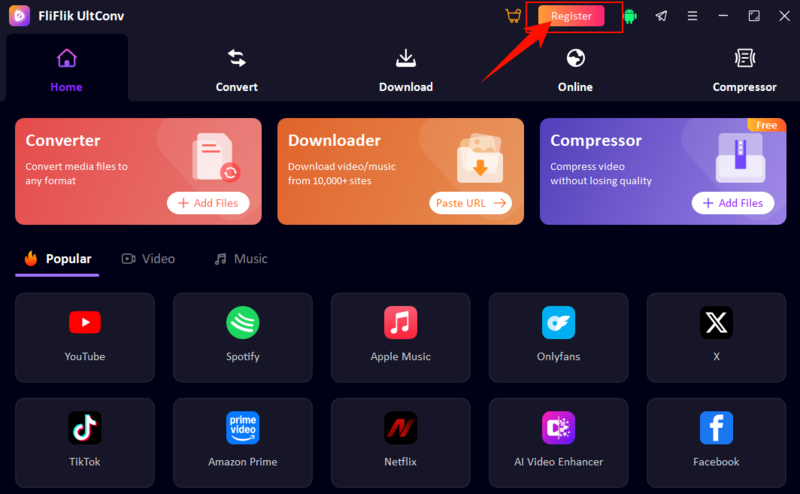
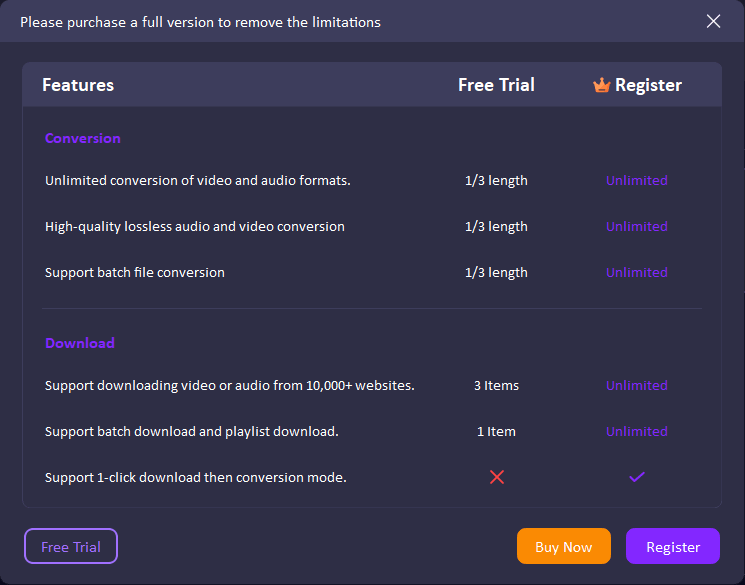
Step 1: After launching UltConv Netflix Downloader, click the Register or Activate button on the main interface. A registration window will appear, where you can view the difference between the free trial and the registered version.
-
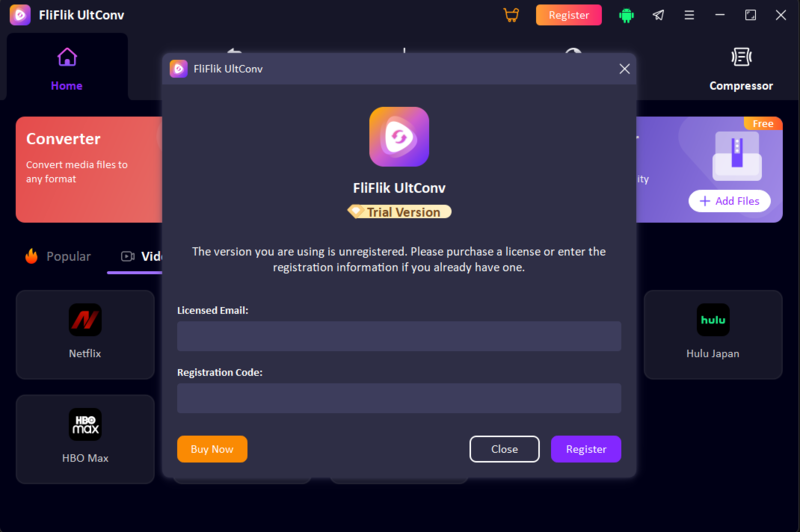
Step 2: Enter the licensed email address and registration code you received after purchase. Make sure there are no extra spaces before or after the code, as this may cause activation errors.
-
Step 3: Once everything is entered correctly, click Register to activate UltConv. The program will verify your license automatically. After successful activation, you can start using the full Netflix downloading features.
-
Step 4: If you have not purchased a license yet, click Buy Now in the registration window or visit the official product page to choose a plan. After purchase, the registration code will be sent to your email.


Troubleshooting Registration and Activation Errors
If you cannot activate UltConv successfully, try these quick checks:
- Make sure the licensed email and registration code are entered correctly.
- Check your internet connection.
- Disable VPN, proxy, firewall, or antivirus temporarily if they block activation.
- Confirm that your license has not expired.
- Restart UltConv and try again.
- Contact FliFlik support if the issue still happens.
Part 3. How to Adjust Download Settings in UltConv Netflix Downloader
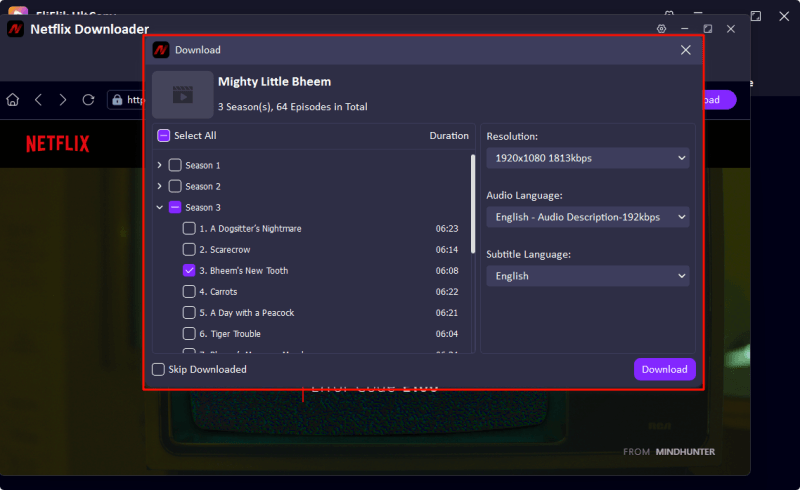
After UltConv detects the Netflix video, a download settings window will appear. Here, you can customize the download preferences before saving the movie, episode, or full season to your computer. This step helps you choose the best video quality, audio language, subtitle option, and output format based on your viewing needs.
01 Select Video Quality
In the download settings window, you can choose from the available video resolutions, such as 1080p, 720p, or other supported options. If you want clearer playback on a larger screen, choose a higher resolution. If you want to save storage space, 720p can be a better option.
02 Choose Output Format
UltConv allows you to save Netflix videos in common formats like MP4 or MKV. MP4 is recommended for most users because it works well on phones, tablets, computers, TVs, and media players. MKV is useful if you want to keep more subtitle or audio track options in one file.
03 Pick Audio Language
If the Netflix title provides multiple audio tracks, you can select your preferred audio language before downloading. This is especially useful for movies, anime, documentaries, or international TV shows with different dubbed versions.
04 Set Subtitle Options
You can also choose the subtitle language and subtitle saving method. Depending on the available options, UltConv lets you download videos with embedded subtitles, save subtitles separately in SRT format, or skip subtitles if you do not need them.
05 Start the Download Process
After confirming the video quality, format, audio language, and subtitle settings, click the Download button to start saving the Netflix video. Once the process finishes, you can find the downloaded file in the Downloaded tab or in your selected output folder.

Part 4. How to Download Videos/Movies/TV Shows on Netflix with UltConv
After installing, activating, and adjusting your settings, you can start saving Netflix videos to your Windows or Mac computer.
▼ Steps to Download Netflix Videos with UltConv:
-
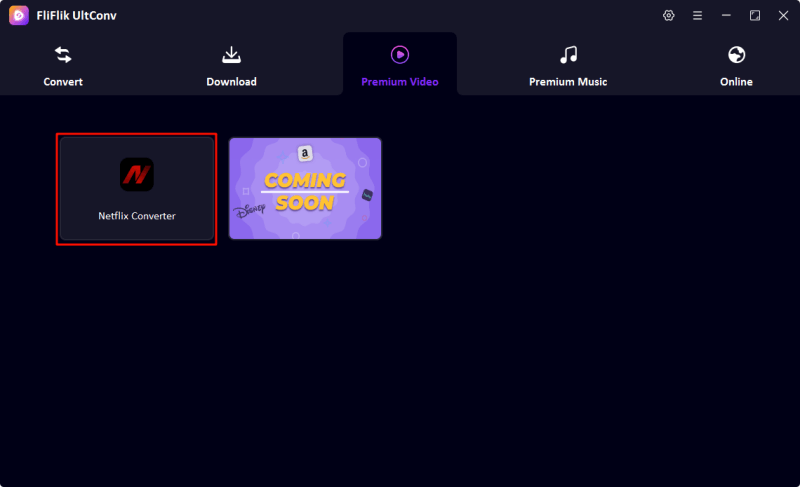
Step 1: After installing and activating UltConv Netflix Downloader, open the program on your Windows or Mac computer.
FREE DOWNLOAD![secure download]() Secure Download
FREE DOWNLOAD
Secure Download
FREE DOWNLOAD![secure download]() Secure Download
Secure Download
-
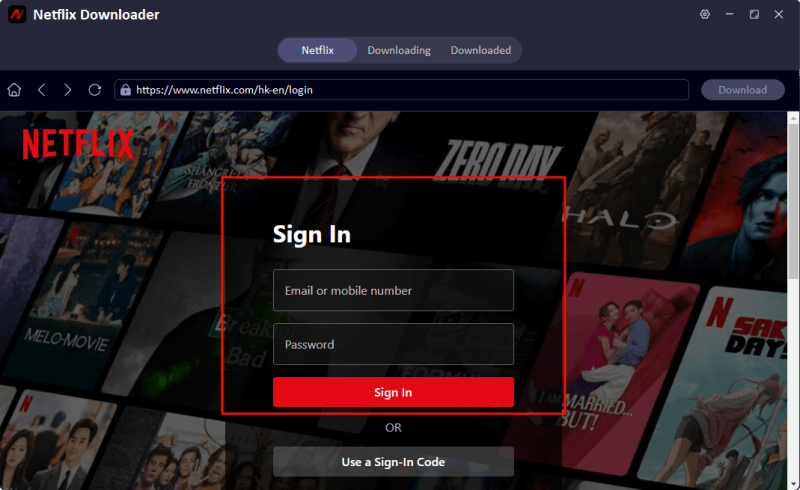
Step 2: Enter the Netflix Downloader section. Log in to your Netflix account through the built-in browser, then search for the movie, TV show, documentary, anime, or episode you want to download.
-
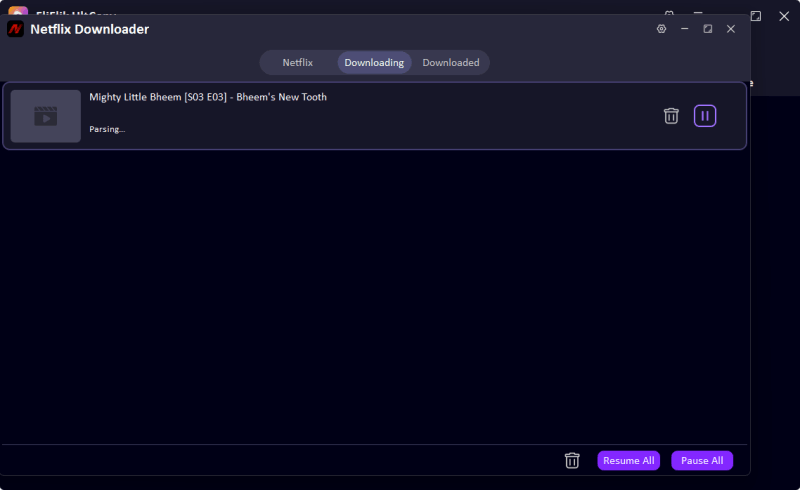
Step 3: Open the video page and let UltConv analyze the Netflix title. If you are downloading a TV show, you can select multiple episodes or a full season for batch download.
-
Step 4: Before downloading, choose the output format, video quality, audio track, and subtitle language. MP4 is recommended for most users, while MKV is better if you want to keep more subtitle or audio options.
-
Step 5: Click Download to start saving the Netflix video. Once the download is complete, go to the Downloaded tab or open the output folder to watch the video offline.