

 By
By  6 minutes read
UltConv Paramount Plus Downloader is a desktop tool designed to help Windows and Mac users download Paramount Plus movies, TV shows, original series, and individual episodes for offline viewing. With this Paramount Plus downloader, you can save supported Paramount+ videos as local MP4 or MKV files, select the available video quality, preserve audio and subtitle tracks, and manage completed downloads from one interface.
- Download Paramount Plus movies, shows, original series, and episodes.
- Save supported Paramount+ videos in up to 1080p when available.
- Export downloaded videos as compatible MP4 or MKV files.
- Batch download multiple episodes or a complete available season.
- Select available audio languages and subtitle tracks.
- Watch saved Paramount Plus videos offline on compatible devices.
Whether you need a Paramount Plus video downloader for travel or want to save several episodes for uninterrupted playback, this guide explains how to install, activate, configure, and use UltConv Paramount Plus Downloader on a PC or Mac.
Contents
Part 1. How to Register and Activate UltConv Paramount Plus Downloader
Before downloading Paramount Plus movies or shows, install UltConv on your Windows PC or Mac and activate it with a valid license. You can then configure the output format, video quality, audio, subtitles, and download folder before starting.
How to Download and Install UltConv?
-
Visit the official UltConv Paramount Plus Downloader page and select the version for your operating system.
-
Click the Free Download button for Windows or macOS.
FREE DOWNLOAD![secure download]() Secure Download FREE DOWNLOAD
Secure Download FREE DOWNLOAD![secure download]() Secure Download
Secure Download -
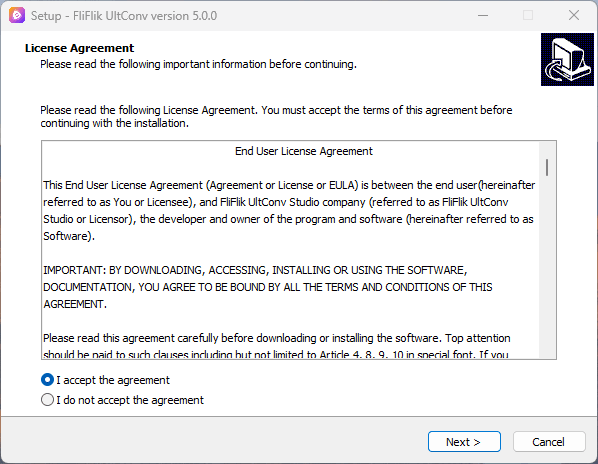
Open the downloaded installer and complete the setup process.
- Windows: Double-click the downloaded .exe file, choose the installation language and destination folder, and click Install.
- Mac: Open the downloaded .dmg package and drag the UltConv icon into the Applications folder.
-
Wait for the installation to finish. Click Start Now on Windows or open UltConv from the Applications folder on Mac.

How to Register and Activate UltConv?
UltConv includes a free trial that lets you explore its interface and test supported functions. Activating the registered version removes applicable trial limits and unlocks the complete Paramount Plus video download workflow.
-
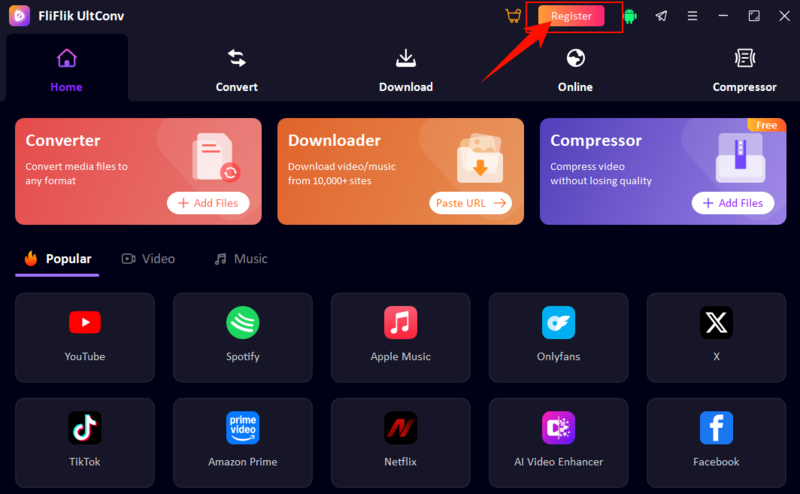
Step 1: Launch UltConv and click the Register or Activate option in the main interface.
-
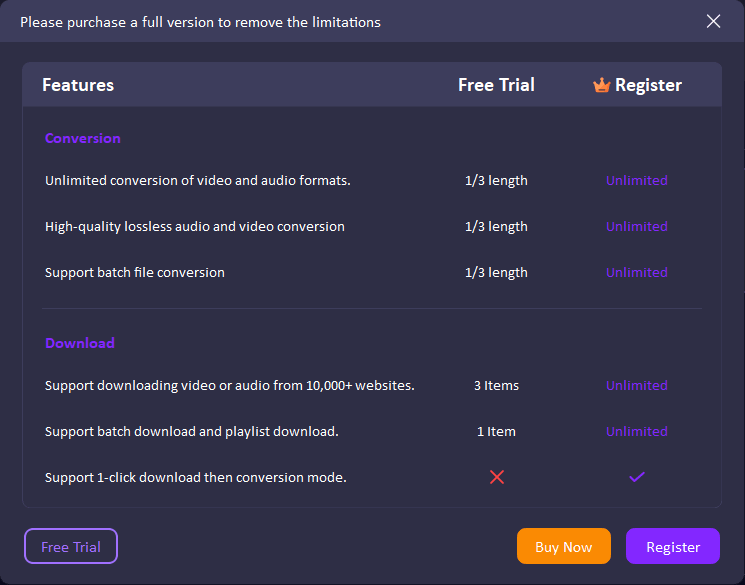
Step 2: Review the differences between the free trial and registered version in the pop-up window.
-
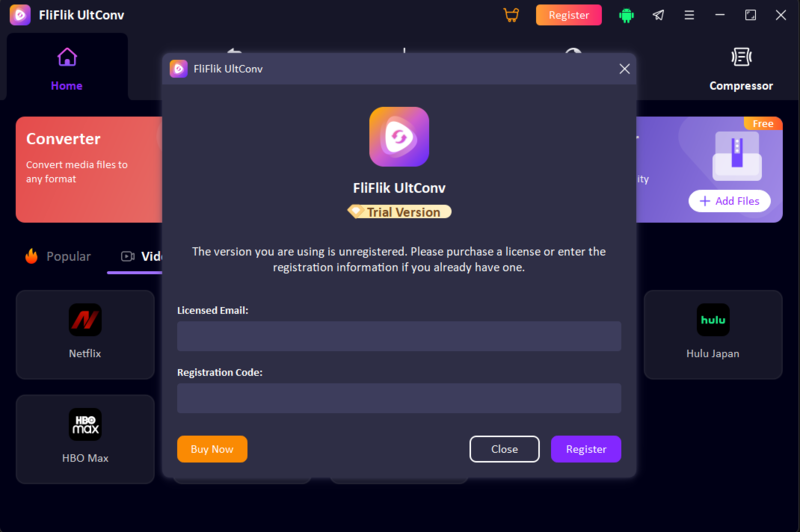
Step 3: Enter the licensed email address and registration code included in your purchase confirmation email. Remove any extra spaces before or after the code.
-
Step 4: Click Register to verify the license and activate the full version.
-
Step 5: If you do not have a license, click Buy Now and choose a suitable plan. Your licensed email and registration code will be sent after purchase.


How to Fix Registration or Activation Issues
If UltConv cannot verify your registration information, try the following solutions:
- Check the Licensed Email and Code: Make sure both are entered exactly as shown in the purchase email.
- Remove Extra Spaces: Delete unnecessary spaces before or after the licensed email or registration code.
- Check the Internet Connection: UltConv needs an active connection to verify the license.
- Disable a VPN or Security Program Temporarily: A VPN, proxy, firewall, or antivirus application may interrupt the verification request.
- Confirm the License Status: Check that the code has not expired or reached its permitted device limit.
- Restart UltConv: Close the software completely, reopen it, and try activating it again.
How to Adjust Paramount Plus Video Download Settings
Before downloading, UltConv lets you customize the Paramount Plus video according to your viewing and storage needs:
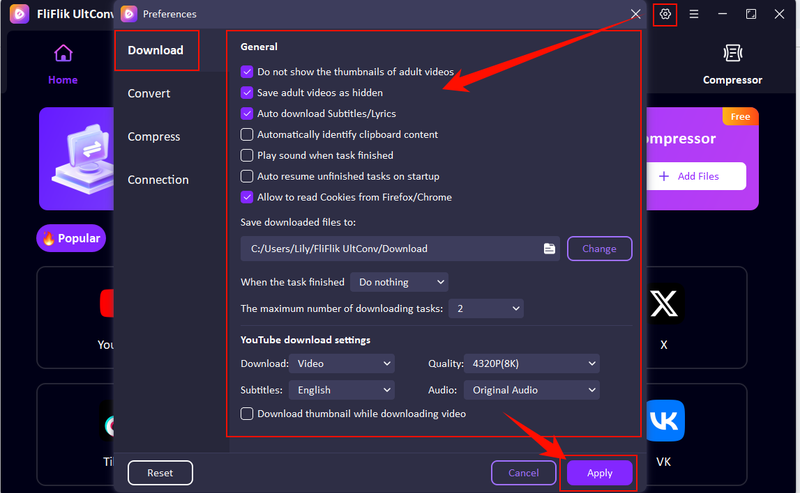
- Video Quality: Select 1080p, 720p, or another available resolution.
- Output Format: Choose MP4 for wider device compatibility or MKV for retaining multiple tracks.
- Audio: Select an available audio language for the movie or episode.
- Subtitles: Embed subtitles into the video, save them separately when supported, or download without subtitles.
- Output Folder: Choose where completed Paramount Plus videos will be stored on your computer.

Part 2. How to Download Paramount Plus Movies and Shows with UltConv
After installing and activating UltConv Paramount Plus Downloader, follow the steps below to download an accessible Paramount+ movie, show, or episode. Make sure the selected title can be played normally through your own Paramount+ account before starting.
▼ Steps to Download Paramount Plus Videos with UltConv:
-
Step 1: Download, install, and launch UltConv on your Windows or Mac computer.
FREE DOWNLOAD![secure download]() Secure Download FREE DOWNLOAD
Secure Download FREE DOWNLOAD![secure download]() Secure Download
Secure Download -
Step 2: Open the Download section in UltConv. Select the preferred output format, video quality, and destination folder.
-
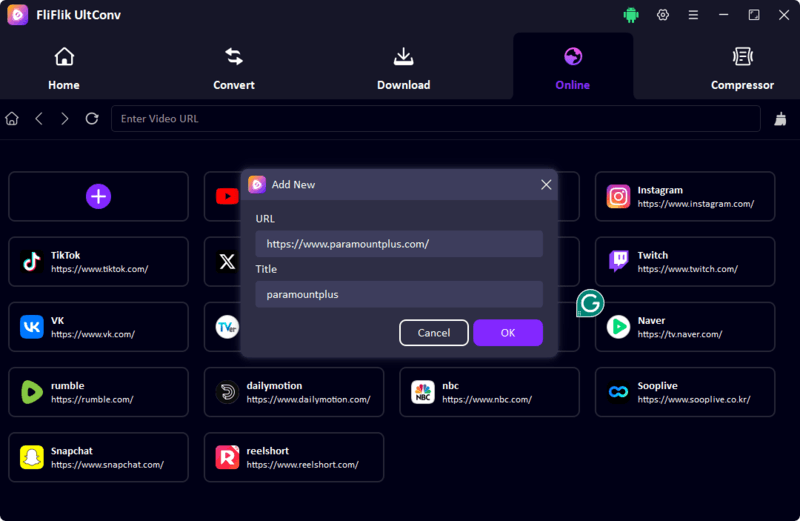
Step 3: Open the Online tab in UltConv and click the + button to add Paramount+. Enter the Paramount+ website URL and give it a title, then click OK.
After adding Paramount+, you can open it directly from the Online tab whenever you need to download a video.
-
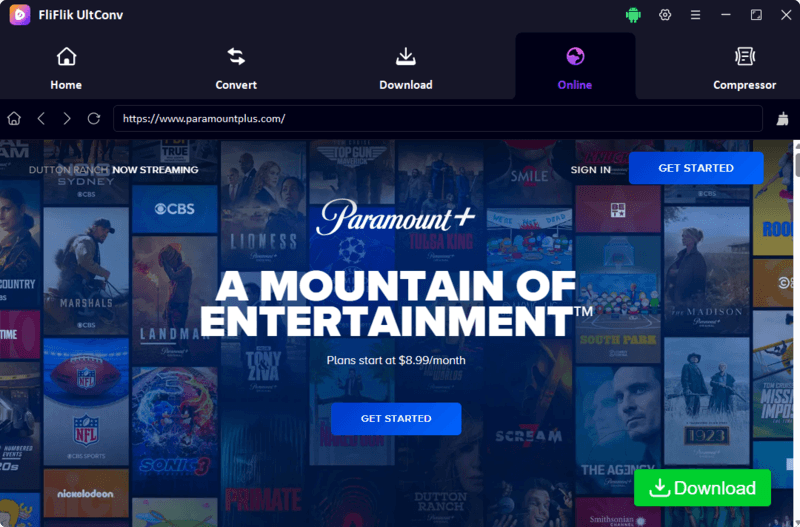
Step 4: Open Paramount+ inside UltConv. Sign in to your Paramount+ account if needed, then browse the library or search for the movie, show, or episode you want to save.
Make sure the content can be played normally through your subscription or account plan before downloading.
-
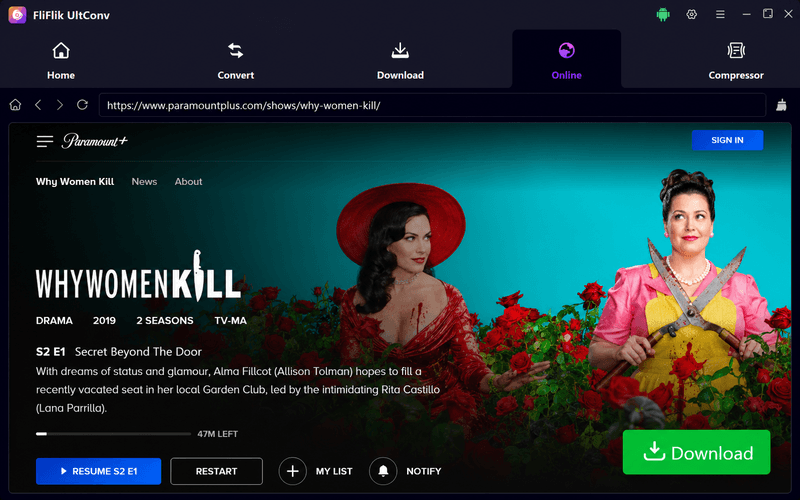
Step 5: Open the Paramount+ title page and play or select the video you want to download. When the green Download button appears in the lower-right corner, click it to add the video to UltConv.
-
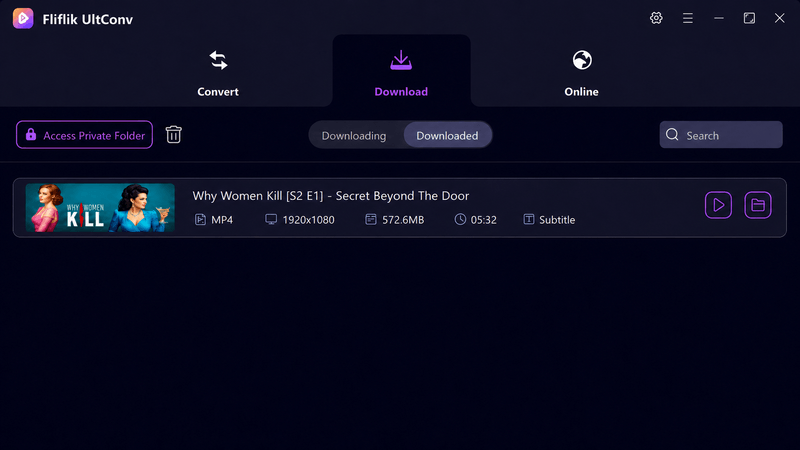
Step 6: Once the download is complete, open the Downloaded section. You can play the saved video directly or click the folder icon to locate the downloaded MP4 file on your computer.


How to Fix Paramount Plus Login or Download Issues
If UltConv cannot analyze or download a Paramount+ video, try the following solutions:
- Check the Video URL: Make sure the complete Paramount+ title URL has been copied from the browser.
- Confirm Account Access: Verify that the movie or episode can be played through your current Paramount+ account and plan.
- Complete Account Verification: Finish any email, password, or security check requested by Paramount+.
- Check Regional Availability: A title may not be available in every country or account region.
- Use a Stable Internet Connection: Avoid switching networks while UltConv analyzes or downloads the video.
- Temporarily Disable a VPN or Proxy: A location mismatch may prevent the Paramount+ page or selected title from loading correctly.
- Update UltConv: Install the latest version if the video URL cannot be detected or processed.
- Check the Output Folder: Make sure the selected drive has enough available storage.
- Retry the Task: Remove the failed download, copy the video URL again, and paste it back into UltConv.
Part 3. FAQs About UltConv Paramount Plus Downloader
Part 4. Conclusion
UltConv Paramount Plus Downloader combines output settings, URL analysis, episode selection, download management, and local file access in one desktop workflow. After installing and activating UltConv, open Paramount+, copy the URL of an accessible movie or show, paste it into the Download section, and select the available quality, format, audio, and subtitle options.
Once the task is complete, open the Downloaded section to locate the saved MP4 or MKV file and watch it offline on a compatible device. Only download content that your account is authorized to access, and use saved videos for personal viewing in accordance with applicable platform terms and copyright rules.
 Secure Download Secure Download