

 By
By  5 minutes read
UltConv U-Next Downloader is a desktop application designed to download supported U-NEXT movies, dramas, anime episodes, documentaries, and variety shows to Windows and Mac computers. With this U Next downloader, you can save accessible videos as local MP4 or MKV files and select the available video quality, audio track, and subtitles before downloading.
- Download supported U-NEXT movies, anime, dramas, and TV episodes.
- Save U-NEXT videos in up to 1080p when available.
- Convert downloaded U-NEXT videos to MP4 or MKV.
- Select available Japanese or multilingual audio tracks and subtitles.
- Manage several U-NEXT video tasks through one download queue.
This guide explains how to install, activate, configure, and use UltConv U-Next Downloader on a Windows PC or Mac. It also covers how to process rental or individually purchased titles that remain playable through your U-NEXT account.
Contents
Part 1. How to Register and Activate UltConv U-Next Downloader
Install UltConv on your computer before opening the U-NEXT module. Activating the software gives you access to the complete download workflow and available output settings.
How to Download and Install UltConv?
-
Visit the official UltConv U-Next Downloader page.
-
Choose the installer for your Windows or macOS computer.
FREE DOWNLOAD![secure download]() Secure Download
FREE DOWNLOAD
Secure Download
FREE DOWNLOAD![secure download]() Secure Download
Secure Download
-
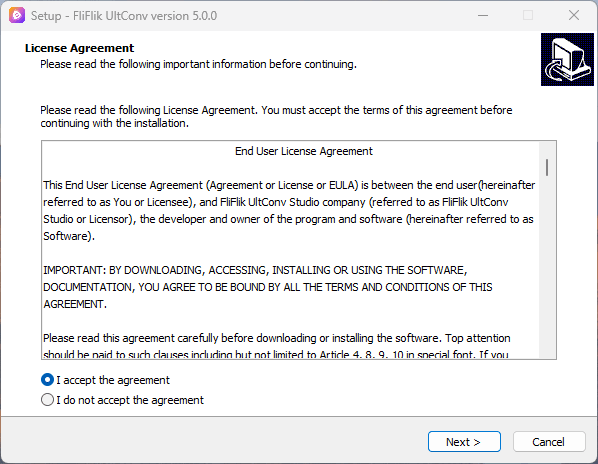
Open the installer and follow the displayed instructions.
- Windows: Run the .exe file, select the installation folder, and click Install.
- Mac: Open the .dmg package and move UltConv into the Applications folder.
-
Launch UltConv after the setup process is complete.

How to License and Unlock UltConv U-Next Downloader?
-
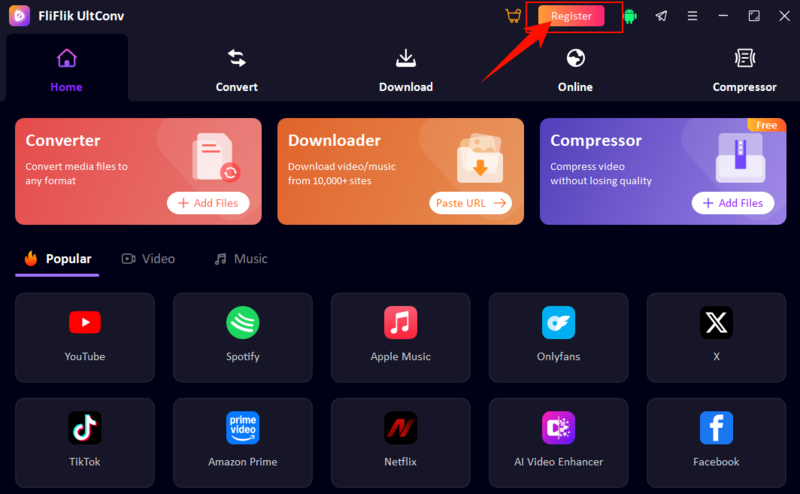
Step 1: Click Register or Activate in UltConv.
-
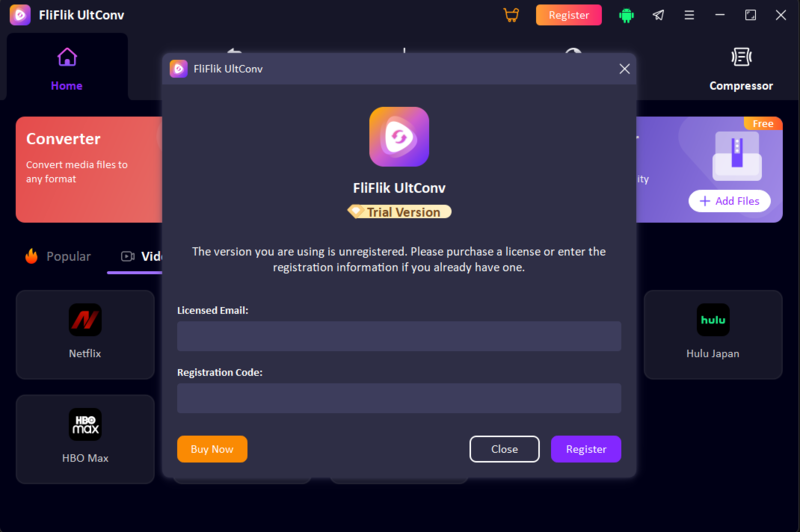
Step 2: Enter the licensed email and registration code received after purchasing UltConv.
-
Step 3: Click Register and wait for the confirmation message.
-
Step 4: If you need a license, click Buy Now and choose an available plan.


How to Fix Registration or Activation Issues
- Verify that the licensed email matches the purchase record.
- Remove spaces accidentally copied with the registration code.
- Confirm that your license supports the installed operating system.
- Connect the computer to a stable network during verification.
- Restart UltConv and install the latest version.
- Contact customer support with the licensed email and order number if necessary.
How to Adjust U-NEXT Video Download Settings
Before you download U-NEXT videos, configure the output folder and general preferences in UltConv.
▼ Steps to Configure U-NEXT Download Settings:
- Step 1: Open the UltConv Settings panel.
- Step 2: Select the folder where completed U-NEXT videos will be stored.
- Step 3: Choose MP4 or MKV as the preferred output format.
- Step 4: Set the default video quality, audio language, and subtitle preference.
- Step 5: Save the settings and return to the main interface.

Part 2. How to Download U-NEXT Videos with UltConv
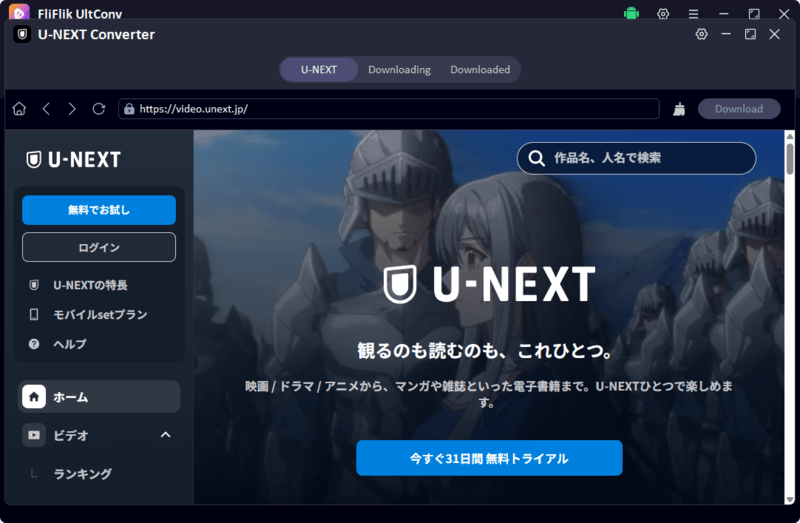
UltConv opens U-NEXT in a built-in browser, allowing you to sign in, browse available content, play a title, and configure the detected download task.
▼ Steps to Download U-NEXT Videos with UltConv:
-
Step 1: Install and launch UltConv U-Next Downloader on your Windows PC or Mac.
FREE DOWNLOAD![secure download]() Secure Download
FREE DOWNLOAD
Secure Download
FREE DOWNLOAD![secure download]() Secure Download
Secure Download
-
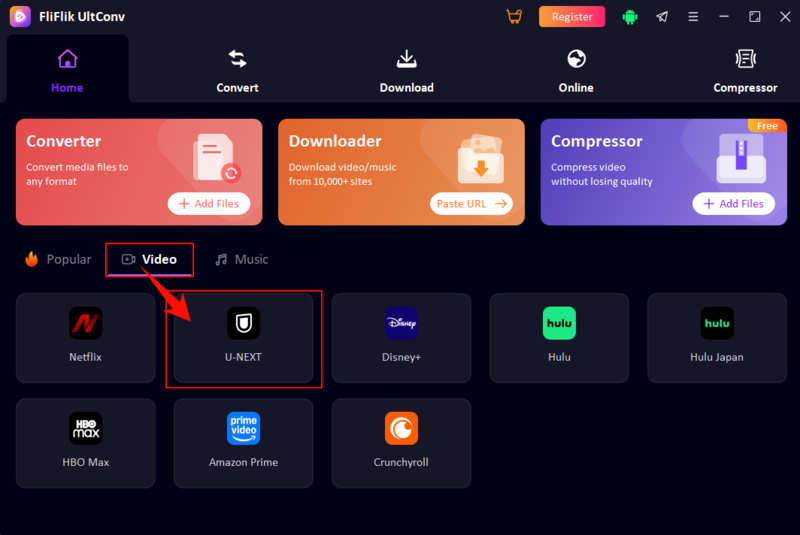
Step 2: Open Premium Video and select the U-NEXT icon.
-
Step 3: Sign in to your U-NEXT account in the built-in browser.
-
Step 4: Browse or search for an accessible movie, drama, anime episode, or other video. Open the title and start playback so UltConv can detect the stream.
-
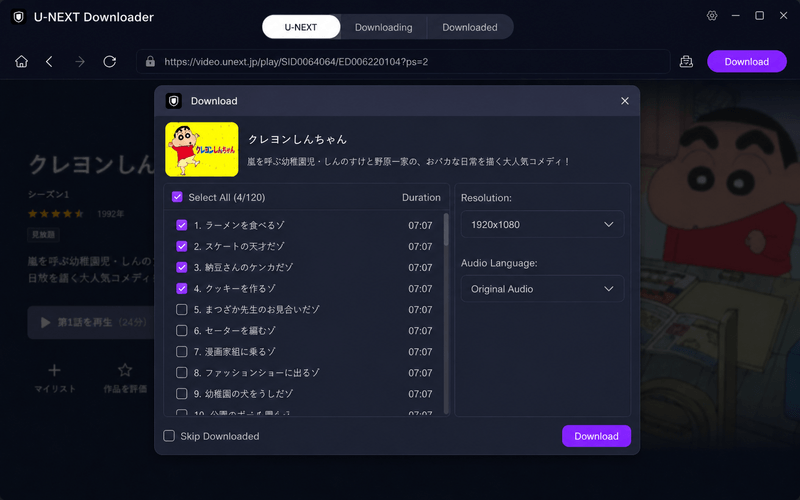
Step 5: Select the available download options after the video is detected:
- Video Quality: Select an available resolution, such as 720p or 1080p.
- Output Format: Choose MP4 or MKV.
- Audio: Select an available Japanese or alternate-language track.
- Subtitles: Choose the available subtitle language and format.
- Episodes: Select one or multiple episodes when an episode list is detected.
-
Step 6: Click Download or Download Now to start the task.
-
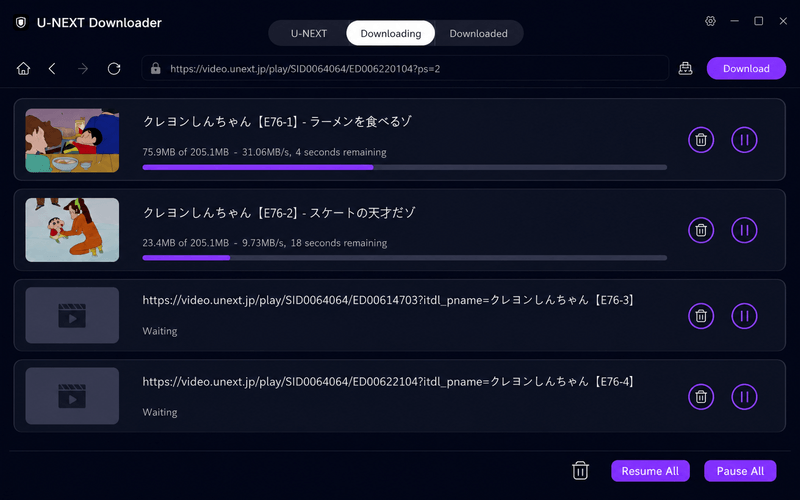
Step 7: Check the task in the Downloading panel. You can pause, resume, or remove it when needed.


How to Fix U-NEXT Login or Download Issues
- Check account access: Make sure the selected title is playable through your account.
- Confirm regional availability: U-NEXT content and account access may depend on your current location.
- Sign in again: Clear the current login session and enter your account information again.
- Play the title first: Start playback before waiting for UltConv to detect the stream.
- Check the access period: A rental or purchased title must still be available in your account.
- Use a stable connection: Avoid switching networks during video analysis or downloading.
- Update UltConv: Install the latest version to improve compatibility after website changes.
- Check the output folder: Confirm that the drive has enough free space and write permission.
Part 3. FAQs About UltConv U-Next Downloader
Part 4. Conclusion
UltConv U-Next Downloader lets Windows and Mac users access U-NEXT through a built-in browser, detect an available movie or episode, configure its quality, format, audio, and subtitles, and manage the task in one interface. Sign in to your account, open a playable title, start playback, select the available settings, and click Download. Use the resulting files only for authorized personal offline viewing and follow applicable copyright rules and platform terms.
 Secure Download
Secure Download
Secure Download