

 By
By  5 minutes read
FliFlik has recently launched the UltConv Video Downloader Chrome Extension, a browser add-on designed for both Google Chrome and Microsoft Edge. It adds a convenient Download button to supported video pages, allowing you to send detected videos directly to the UltConv desktop app without manually copying and pasting URLs.
The extension makes browser video downloads faster and easier, especially when you frequently save content from different websites. Its main benefits include:
- Automatically detects downloadable videos on supported webpages.
- Provides one-click access through the Download button or browser toolbar.
- Works with both Google Chrome and Microsoft Edge.
- Supports available video, audio, HLS, and M3U8 resources.
- Uses the UltConv desktop app to manage and complete download tasks.
Getting started with the UltConv extension only takes a few simple steps. After adding it to your browser, you can use the Download button on supported video pages to open UltConv and start downloading. If the desktop app is not installed yet, the extension will guide you through the setup. This guide covers the full process and common troubleshooting tips.
Part 1. How to Download and Install UltConv Video Downloader Chrome Extension
Follow the steps below to download the UltConv extension package and install it manually in Google Chrome.
▼ Steps to Install UltConv Video Downloader Chrome Extension:
-
Step 1: Click the UltConv extension package to download the ZIP file to your computer automatically. Once the download is complete, open the Downloads folder and extract the ZIP package. Keep the extracted plugin folder in a location where it will not be moved or deleted.
![download and extract the ultconv chrome extension package]()
-
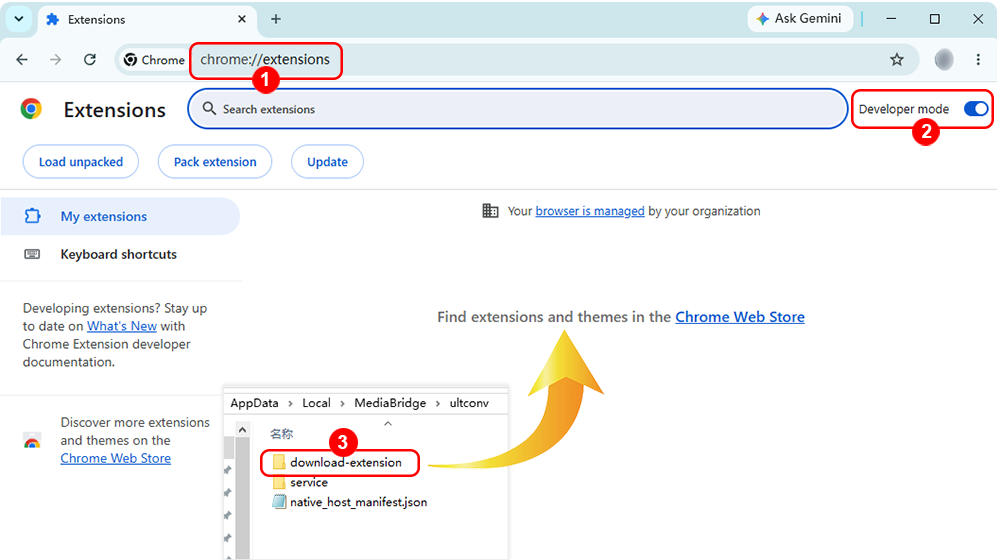
Step 2: Follow the on-screen instructions to install the extension in Google Chrome. Open chrome://extensions in Chrome and turn on Developer mode in the upper-right corner.
Drag the extracted UltConv plugin folder into the Chrome Extensions page. You can also click Load unpacked and select the extracted folder manually.
-
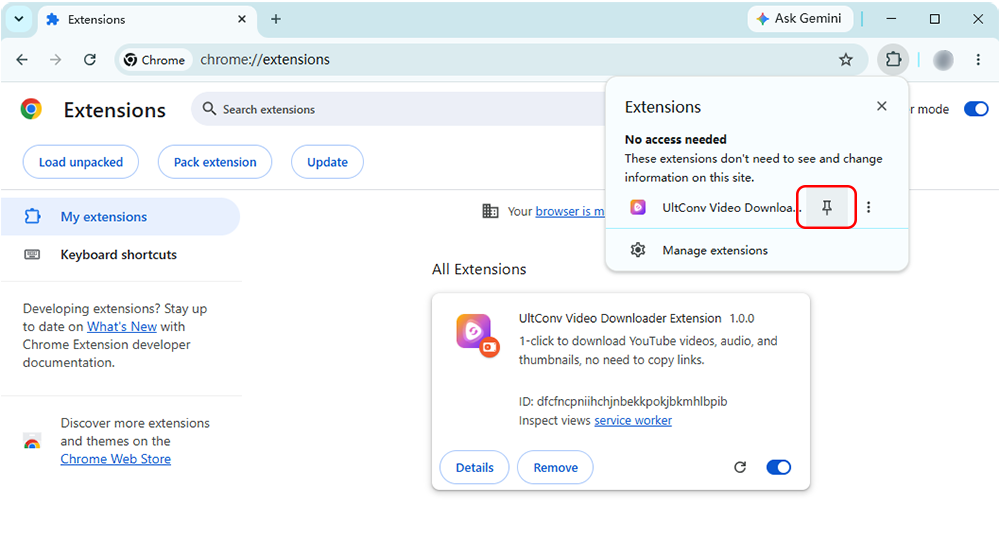
Step 3: Click the Extensions icon beside the Chrome address bar, find UltConv Video Downloader, and click the pin icon. The UltConv icon will then appear on the browser toolbar for easy access.
-
Step 4: Install the UltConv desktop app if prompted. When you use the extension for the first time, a Desktop App Not Installed window may appear if UltConv is not already installed on your computer.
Click Download Installer to download the UltConv desktop installer. Open the downloaded file, then click Install and follow the on-screen instructions to complete the installation.
After UltConv is installed, return to the video page and click the purple Download button again. If the button is unavailable, click the UltConv icon in the Chrome toolbar.
![install ultconv app when prompted]()


Part 2. How to Download Videos With UltConv Google Chrome Extension
▼ Steps to Download Videos With UltConv Chrome Extension:
-
Step 1: Visit a supported website and open the page containing the video you want to download. If necessary, play the video for a few seconds so that the extension can identify the current video page.
-
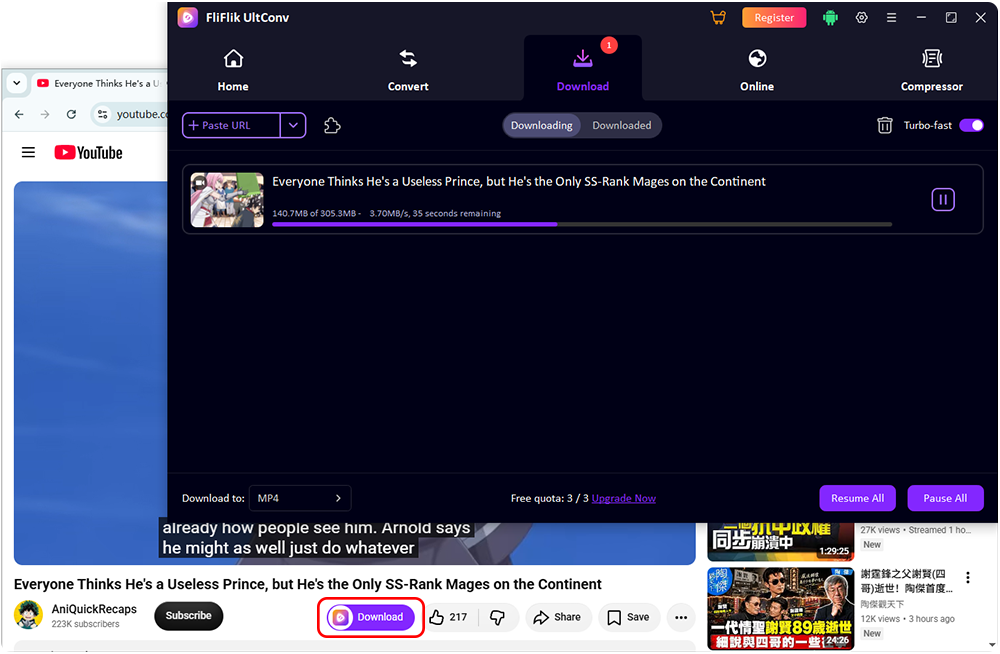
Step 2: Click the purple Download button displayed below the video player. If the Download button does not appear, click the UltConv icon in the Chrome toolbar instead.
![click ultconv extension download button]()
-
Step 3: UltConv Video Downloader will launch automatically and add the detected video to the Download tab. The download will then start automatically.
Keep UltConv running until the task is complete. After downloading, open the Downloaded tab or the output folder to find the saved video.
-
Problem 1: Chrome shows “Failed to load extension.”
Extract the ZIP package first, then select or drag the extracted plugin folder into Chrome instead of the original ZIP file.
-
Problem 2: UltConv does not appear in the Chrome toolbar.
Click the Extensions icon beside the Chrome address bar, find UltConv Video Downloader, and click the pin icon.
-
Problem 3: The purple Download button does not appear.
Wait for the video page to load completely and play the video for a few seconds. You can also refresh the page or use the UltConv icon in the Chrome toolbar.
-
Problem 4: UltConv Video Downloader does not launch.
Make sure the UltConv desktop app is installed and running. Then open the Chrome Extensions page and confirm that the extension is enabled.
-
Problem 5: The video download does not start.
Reopen the video page and click the purple Download button again. If necessary, check your internet connection and restart UltConv.
-
Problem 6: The extension stops working after installation.
Check whether the extracted plugin folder has been moved, renamed, or deleted. If it has, extract the package again and reinstall the extension.


Part 3. Common Installation and Download Issues
If the UltConv extension cannot be installed or does not work as expected, try the following solutions.
 Note:
Note:
Some encrypted, protected, or unsupported video streams may not be detected or downloaded through the extension.
Some encrypted, protected, or unsupported video streams may not be detected or downloaded through the extension.
Part 4. FAQs About UltConv Video Downloader Chrome Extension
Part 5. Conclusion
UltConv Video Downloader Chrome Extension makes browser video downloads more convenient by adding a direct Download button to supported webpages. Instead of copying video URLs and switching between multiple tools, you can send the detected video to UltConv with one click.
By connecting the browser extension with the UltConv desktop app, users can quickly start downloads, view task progress, and manage saved videos in one place. It is especially useful for anyone who frequently downloads videos while browsing with Chrome or Edge.
Only download videos that you own or have permission to save, and follow the terms of the source website.
 Secure Download
Secure Download
Secure Download
