

 By
By  6 minutes read
HandBrake is a free and open-source tool used for video compression, allowing users to reduce large video file sizes while keeping good visual quality. It is especially useful for compressing HD and 4K videos into smaller, more manageable files without heavily affecting clarity.
In this article, we will explain how to compress a video in HandBrake without losing quality, covering simple steps, important settings, and best practices to help you get the right balance between file size and video clarity.

Part 1. Why Use HandBrake to Compress a Video?
HandBrake is a free, open-source tool for converting and compressing videos into modern formats. Maintained by volunteers, it offers powerful and professional compression controls—all completely free of charge.
- Convert videos from nearly any format (MP4, MKV, MOV, and more)
- Completely free and open-source
- Available on Windows, Mac, and Linux
- Advanced compression settings for better quality control
- Supports batch processing for multiple files
- Built-in presets for fast and easy compression
Privacy & Safety

HandBrake is a privacy-focused, non-commercial tool that ensures your data will never be sold or used for profit. Since it runs entirely offline, your videos are processed on your local device and are never scanned, uploaded, or transmitted to any external servers.
The app’s only external communication features are an optional update checker and basic website analytics. HandBrake strictly adheres to a zero-data-collection policy and does not collect any of your personal file data, making it a safe and reliable choice for sensitive content.
Part 2. How to Compress Video with HandBrake (Step-by-Step)
HandBrake is a powerful, free tool for Windows and Mac that shrinks video files without sacrificing quality. Here is a simple guide to getting started:
▼ Steps to Compress Video with HandBrake
-
Step 1:
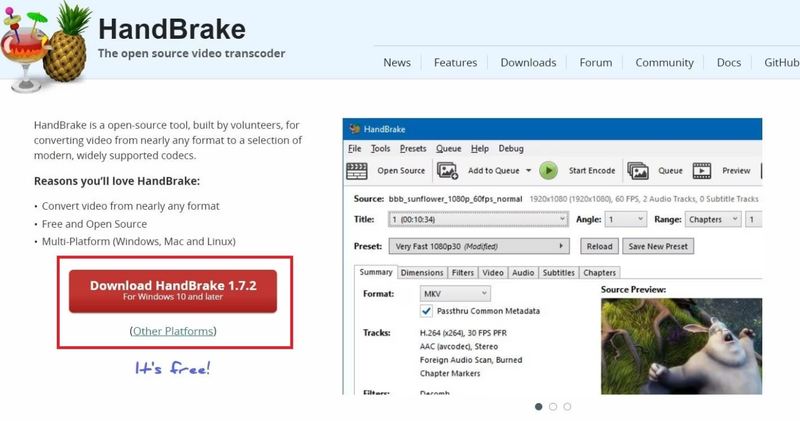
Download and launch HandBrake, then click Open Source to select the video you want to shrink. The software supports a wide range of formats for input.
-
Step 2:
In the Presets menu, select Fast 1080p30 for a good balance of quality and speed. Ensure the output format is set to MP4 for maximum compatibility.
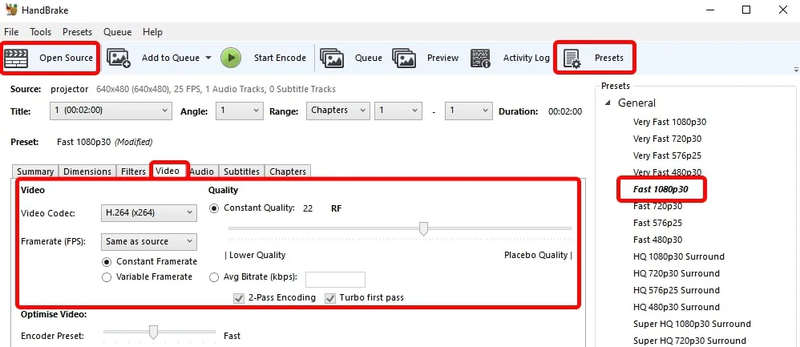
- Step 3: Under the Video tab, set the Encoder to H.264 and Constant Quality to RF 22. In the Audio tab, adjust the bitrate to 160 or 192 kbps to further reduce the file size without losing sound clarity.
-
Step 4:
Click Browse to choose your save location, then hit the green Start Encode button. If you have multiple files, use Add to Queue to process them all at once.



Part 3. A Better Alternative to HandBrake Video Compression
While HandBrake offers deep technical control, its complex settings can be overwhelming for users who just need a fast, reliable way to shrink 4K or HD files. FliFlik UltConv Video Compressor is designed for those who want high-quality compression for social media, email, or cloud storage without the steep learning curve of professional encoding software.
UltConv supports over 100 formats (including MP4, MOV, and MKV) and leverages hardware acceleration to process large files much faster than traditional tools. Its standout features, such as batch compression, adjustable levels, and real-time previews, allow you to precisely control file size while ensuring your videos remain sharp and clear.
▼ System Support
- Windows 10 (64-bit) / Windows 11
- macOS

- Smart compression with minimal quality loss
- Supports 100+ formats including MP4, MOV, MKV, and more
- 10x faster batch compression for multiple videos
- Adjustable size and quality control with simple interface
- Hardware-accelerated processing for large 4K/8K files
- No watermark on exported videos
▼ Steps to Compress a Video with FliFlik UltConv
-
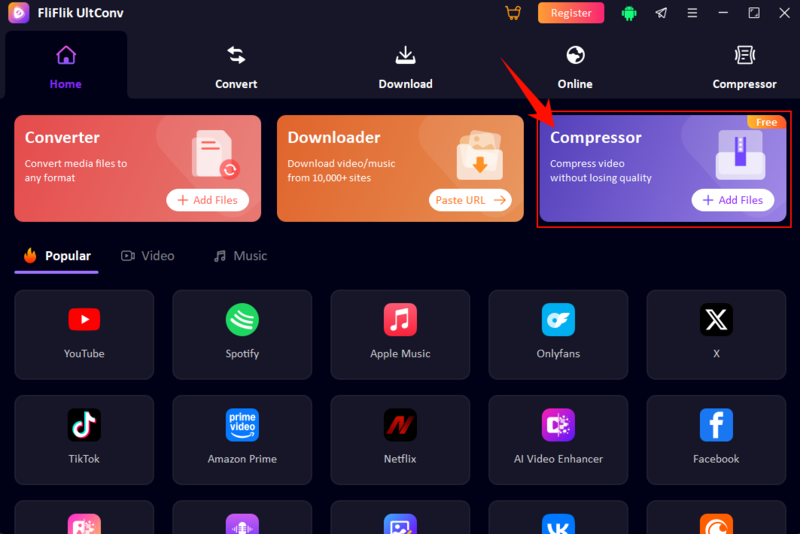
Start by setting up FliFlik UltConv on your desktop. Once open, navigate to the Compressor section or use the Add Files shortcut to grab your footage.
FREE DOWNLOAD![secure download]() Secure Download
FREE DOWNLOAD
Secure Download
FREE DOWNLOAD![secure download]() Secure Download
Secure Download
-
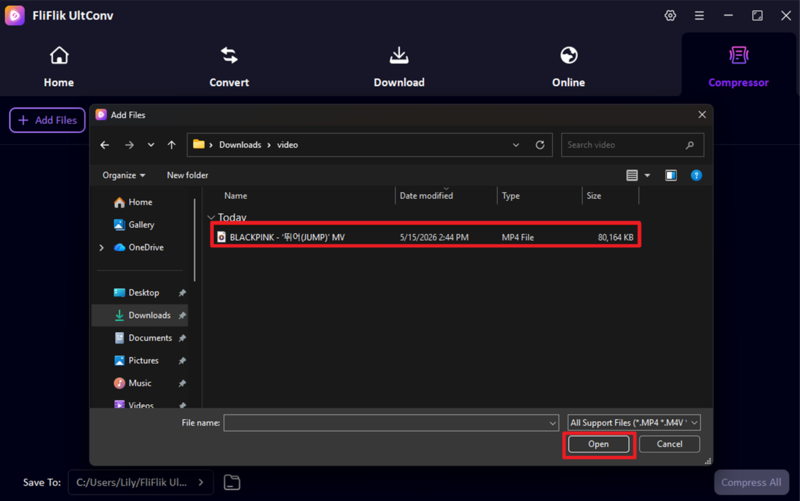
Pick out the target files from your local folders. Don’t worry about compatibility; the tool supports a massive range of formats like WMV, AVI, and MP4.
-
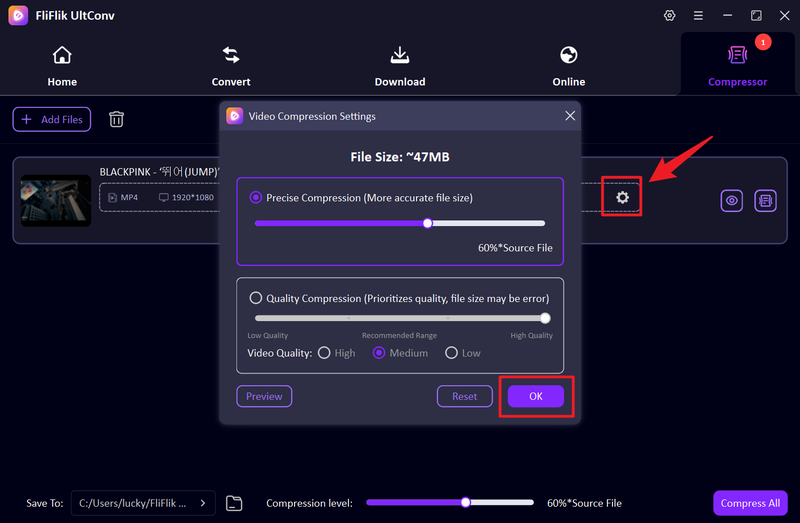
Access the settings gear to reveal a variety of compression tweaks. Toggle these options until you’re happy with the output configuration.
-
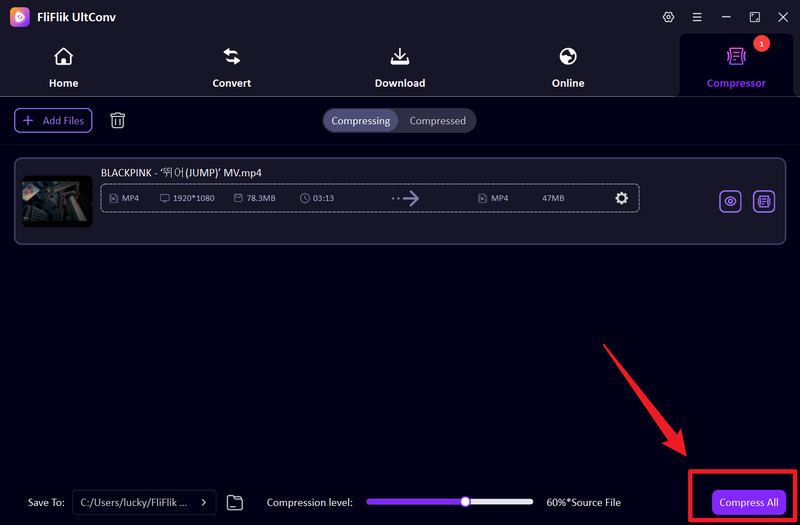
Click the Compress All button to initiate the bulk conversion process. It’s the fastest way to handle multiple videos at once.
-
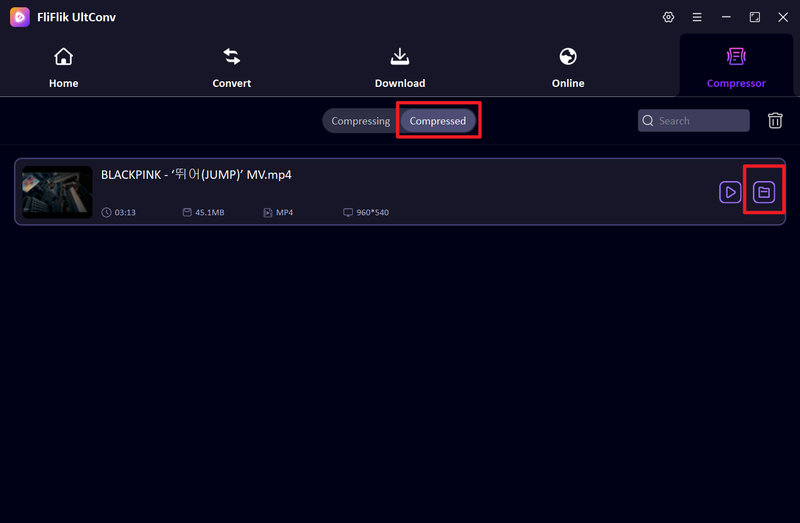
Head over to the Compressed library to see your results. Simply click the Play icon to check the quality and enjoy your newly optimized videos.


FAQs
Q1. Does HandBrake lose quality during video compression?
HandBrake can slightly reduce quality depending on the compression settings you choose, but with the right configuration, the quality loss is usually minimal and difficult to notice. Using lower RF values and proper encoder settings helps maintain better visual clarity.
Q2. How do I compress a video specifically for Discord?
To compress a video for Discord, reduce the file size using tools like HandBrake or FliFlik UltConv Video Compressor by lowering bitrate, resolution, or using efficient codecs like H.264 or H.265. This helps keep the video under Discord’s upload size limit while maintaining good quality.
Q3. Is HandBrake free to compress videos?
Yes, HandBrake is completely free and open-source. Users can compress and convert videos without paying for subscriptions or premium features.
Conclusion
HandBrake is a popular choice for users who want complete control over all technical details. If you’re comfortable adjusting settings like bitrate and resolution to achieve your ideal video results, HandBrake is the perfect choice for you.
If you’re looking for a faster, more straightforward experience, FliFlik UltConv Video Compressor is the better choice. It combines intelligent compression and high-speed performance in a clean, user-friendly interface, allowing you to instantly downsize large videos without needing to be a technical expert.
 Secure Download
Secure Download
Secure Download