

 By
By  5 minutes read
Mac users often need to work with large files such as 4K ProRes videos, Cinema Mode footage, or high-resolution screen recordings. While these videos offer stunning visuals, the files are often too large to upload via email or tools like Discord or Slack, resulting in upload failures or slow transfer speeds.
When searching for ” how to compress videos on a Mac,” the primary goal is to reduce file size without sacrificing detail or smooth playback. This guide highlights five practical methods to help you effectively reduce video file sizes in 2026 while ensuring your content remains crisp and clear, ready to share at any time.

Part 1. How to Compress a Video on Mac Using FliFlik UltConv
FliFlik UltConv Video Compressor is a high-performance tool for Mac and Windows that effectively addresses the issue of oversized video files. No longer do you have to put up with unreliable online converters or be limited by email attachment size restrictions. UltConv offers a reliable way to downsize large videos while maintaining video clarity, allowing you to share them instantly on any platform.
UltConv handles a wide range of video formats, from iPhone clips to professional 8K footage, supporting over 100 formats and delivering precise, fast conversions. With batch processing, hardware acceleration, and real-time preview capabilities, UltConv offers a fast, professional solution for users who need to balance significant storage savings with high-quality video.

- Supports 100+ video and audio formats including MP4, MOV, MKV
- Compresses 4K/8K videos without noticeable quality loss
- Batch compression for multiple files at once
- Precise size control for email, Discord, and social media limits
- Fast processing with hardware acceleration on Mac
- No watermark on exported videos
▼ How to Compress a Video with FliFlik UltConv
-
Install and open FliFlik UltConv on your Windows or Mac computer to begin the process.
FREE DOWNLOAD![secure download]() Secure Download
FREE DOWNLOAD
Secure Download
FREE DOWNLOAD![secure download]() Secure Download
Secure Download
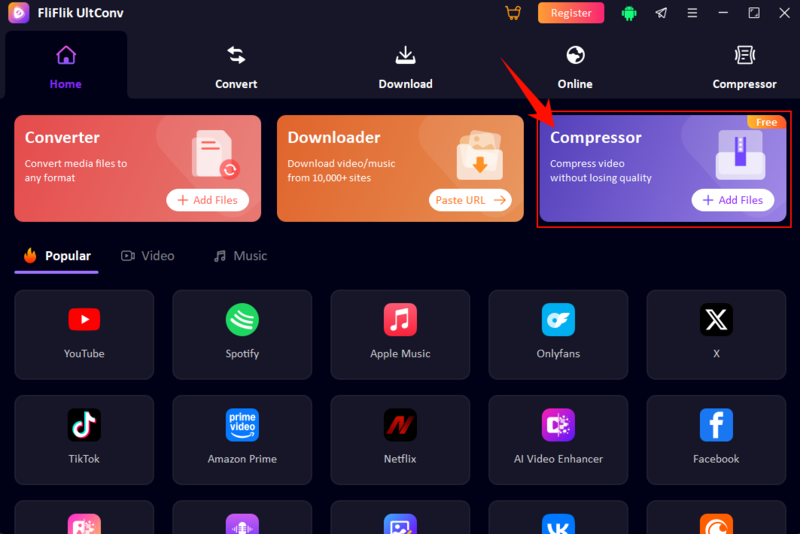
-
Drag and drop your videos into the interface. With support for MP4, MOV, AVI, and more, you won’t have to worry about file compatibility.
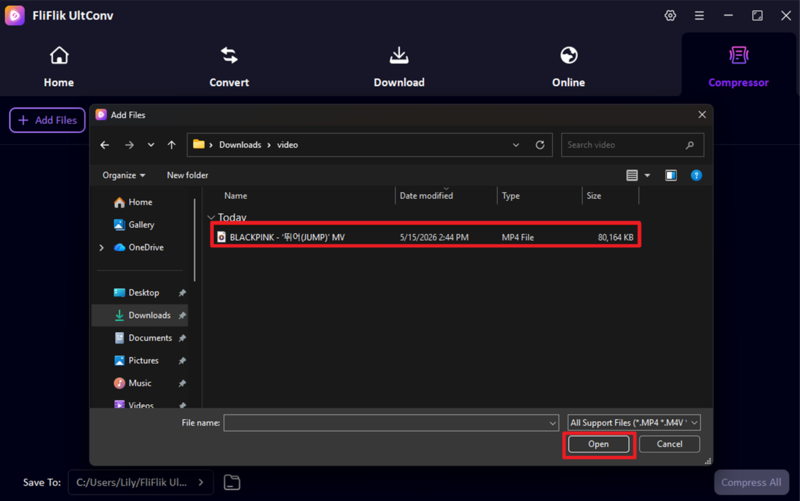
-
Click the gear icon to open the customization panel. Here, you can tweak the compression levels to get the exact output you need.
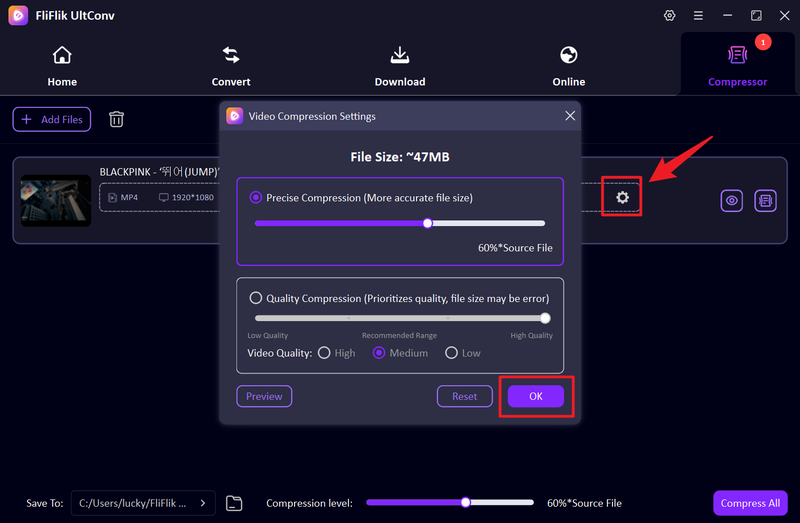
-
Click Compress All to start the high-speed encoding process for all your queued files at once.
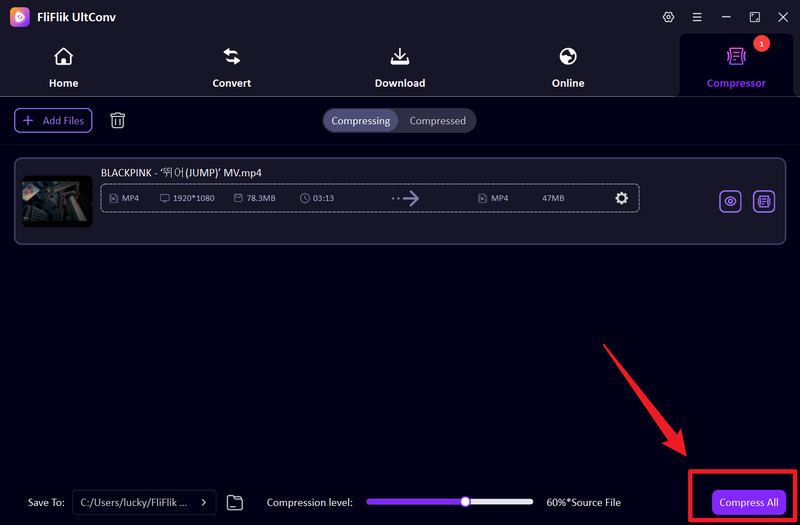
-
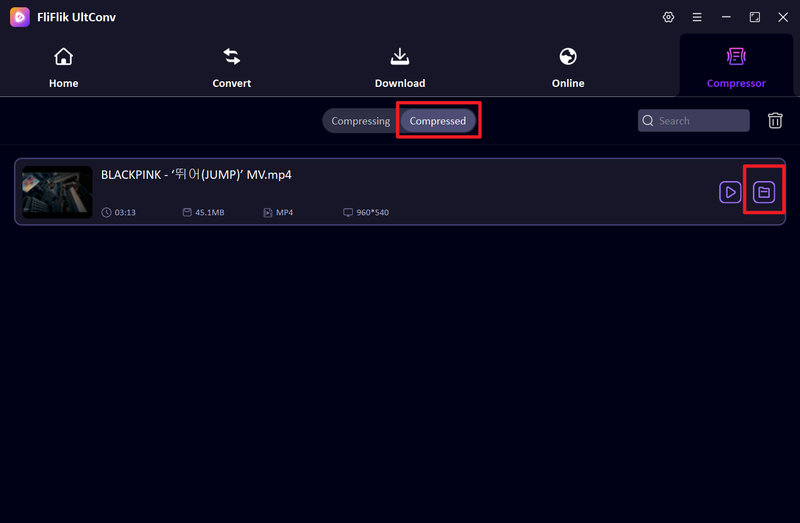
Locate your finished files in the Compressed tab. Use the Play icon to preview the video and ensure the quality meets your standards.


Part 2. How to Compress a Video on Mac Using QuickTime Player
The next option that you can use is QuickTime Player. It is the quickest built-in tool on Mac for reducing video file size without installing any extra software. It works well when you need fast compression for sharing videos via email, messaging apps, or social platforms. While it doesn’t offer advanced control, it is simple and effective for basic use.
▼ Steps to Compress Video with QuickTime Player
-
Step 1: Right-click your video file, select Open With, and choose QuickTime Player to open the video.
-
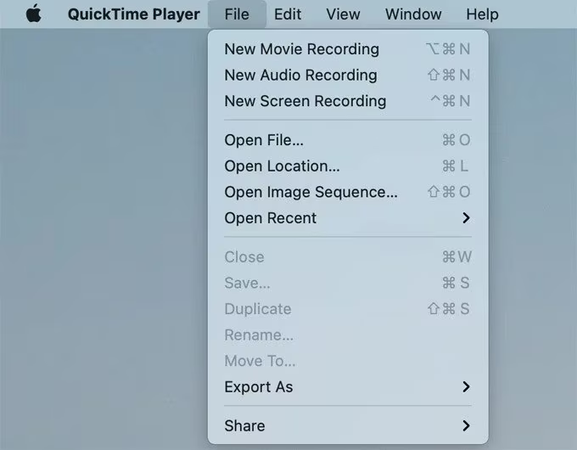
Step 2: Click File from the top menu, then hover over Export As to see available resolution options.
-
Step 3: Select a lower resolution, such as 1080p or 720p, depending on your original video quality.
-
Step 4: Click Save to export the compressed version of your video.

Part 3. How to Compress a Video on Mac Using HandBrake
HandBrake is another free and advanced video compression tool for Mac users who need more control over file size and quality. It is especially useful for compressing large HD or 4K videos while maintaining good visual clarity. With customizable settings, it allows users to balance compression strength and output quality easily.
▼ Steps to Compress Video with HandBrake
-
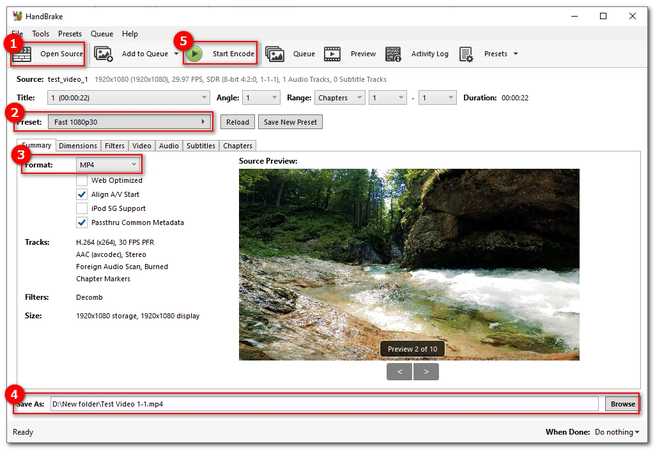
Step 1: Download and install HandBrake from the official website, then launch the app on your Mac.
-
Step 2: Drag and drop your video file into the HandBrake window to import it.
-
Step 3: Select a preset like Fast 1080p30 from the right-side panel.
-
Step 4: Click Start Encode to begin compression.
-
Step 5: After completion, find your compressed video in the output folder you selected.

FAQs
Q1. How do I compress a video on Mac for email?
Use FliFlik UltConv to shrink Mac videos under the 25MB email limit. Its smart settings reduce file size while keeping the video clear and professional.
Q2. Does FliFlik UltConv automatically compress videos for free?
Yes, FliFlik UltConv offers free compression with smart settings that balance size and quality automatically. It also features manual controls for fine-tuning files to meet specific platform or storage requirements.
Q3. Does compressing a video reduce its resolution?
Not necessarily. While basic tools often lower resolution to save space, advanced compressors like UltConv optimize bitrate and encoding instead. This allows you to significantly shrink file sizes while maintaining your original video resolution.
Conclusion
Reducing the size of large 4K or ProRes files on a Mac is essential for saving space and meeting upload limits for email, Slack, or Discord. While QuickTime and HandBrake are common choices, FliFlik UltConv Video Compressor offers a more efficient and user-friendly alternative.
It combines powerful batch processing capabilities with intelligent compression technology, allowing users to downsize videos of any format without sacrificing image quality. This makes it a reliable, high-speed solution for creators and professionals who need to optimize their workflows.
 Secure Download
Secure Download
Secure Download