8 minutes read


Audiobooks from Audible usually come in the AAX format. That works fine inside the Audible app. But try playing the same file on a normal music player or an MP3 device. It often won’t open. That’s where things get frustrating. Many people just want their audiobooks to play anywhere. On a phone. On a laptop. Maybe even on a simple MP3 player during a long trip. To do that, the file needs to be changed into a common format. In most cases, that means you need to convert AAX to MP3.
The good news is that it’s not difficult anymore. A few tools can handle the conversion in a click or two. Once the file becomes MP3, it behaves like any normal audio file. You can move it, store it, and play it on almost any device. Let’s break down the tools that make this easy.

Part 1. Why Do You Need to Convert AAX to MP3?
AAX is the audiobook format used by Audible. It stores high‑quality audio, chapter marks, and other details that make audiobooks easy to navigate. Sounds good so far. The catch is that AAX files are protected and mainly work inside the Audible ecosystem.
But the problem is outside the Audible app, support is limited. Many common players simply do not recognise the file. That is why people keep asking the same question online: How do I convert AAX files to MP3? MP3 solves the problem. It is one of the most widely supported audio formats. Phones, laptops, car systems, and basic MP3 players all handle it without trouble. So why do people convert AAX to MP3? A few practical reasons:
- Better compatibility: MP3 files work on almost any device or media player.
- More control over files: Once converted, the audiobook can be stored, copied, or backed up like any normal audio file.
- Offline listening anywhere: You are not tied to the Audible app or a specific account.
- Easy transfer between devices: MP3 files can be moved to phones, tablets, USB drives, or MP3 players in seconds.
What this really means is simple. Converting the file gives you freedom to listen the way you want, on the device you prefer.
Part 2. Easiest Way to Convert AAX to MP3
If you want a simple way to convert AAX audiobooks, using a dedicated converter usually saves a lot of time. One option many users choose is FliFlik UltConv Audiobook Converter. The tool is designed not only for Audible audiobook conversion but also for downloading and converting online media.
Here’s the interesting part. Besides converting AAX files to MP3, the software also works as a powerful video and music downloader. It can save content from more than 10,000 websites, including platforms like Audible, YouTube, TikTok, and Instagram. Instead of downloading one file at a time, you can grab entire playlists, channels, or albums in one click, which makes things much faster. Another useful feature of UltConv Audiobook Converter is format flexibility. Videos can be converted into MP4, MP3, and over 100 other formats, so the files work on almost any device. You can also download videos in 1080p, 2K, or 4K quality, while audio files can reach 320 kbps for clear sound.

- Download videos and music from 10,000+ sites, including Aubible, YouTube, and Instagram
- Batch download playlists, channels, and albums in one click
- Convert videos to MP4, MP3, and 100+ formats
- Download videos in 1080p, 2K, 4K, and audio up to 320 kbps
- Remove DRM from music on platforms like Spotify and Apple Music
- Built‑in browser to search and download content easily
- Fast download speed with support for multiple files at the same time
▼ How to Convert AAX to MP3 with UltConv Audiobook Converter?
-
Install and launch FliFlik UltConv on your computer.
FREE DOWNLOAD![secure download]() Secure Download
FREE DOWNLOAD
Secure Download
FREE DOWNLOAD![secure download]() Secure Download
Secure Download
-
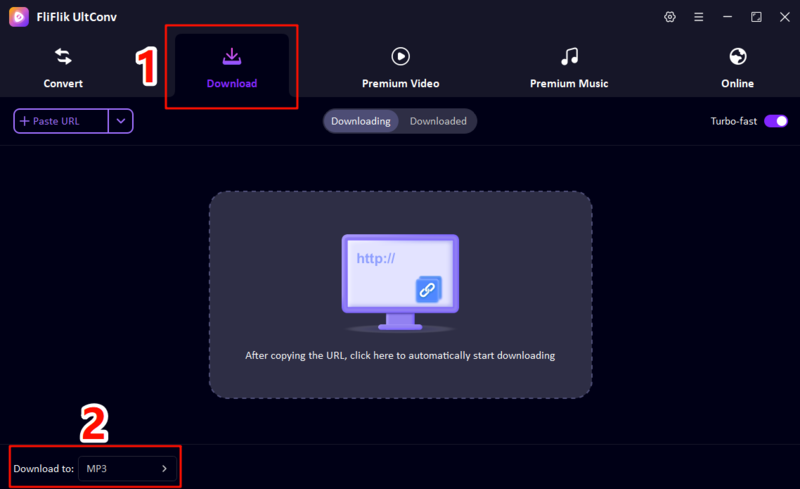
Open the Download tab and click Download to. Choose MP3 as the output format.
-
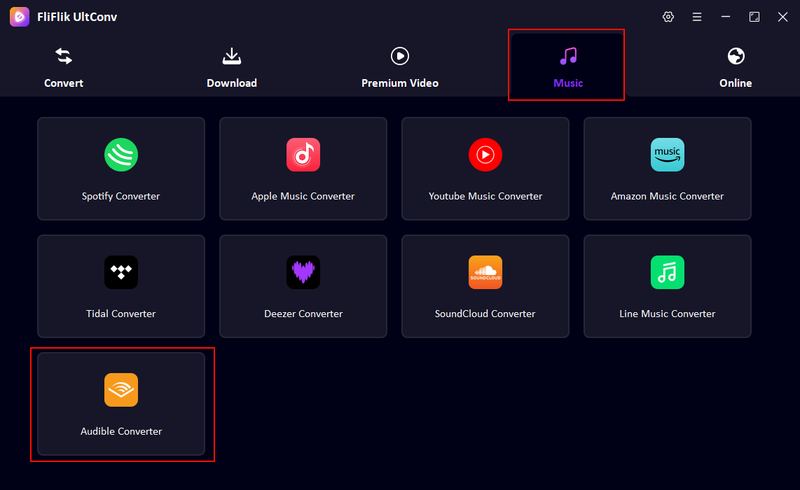
Go to the Music section inside the software and select Audible Converter.
-
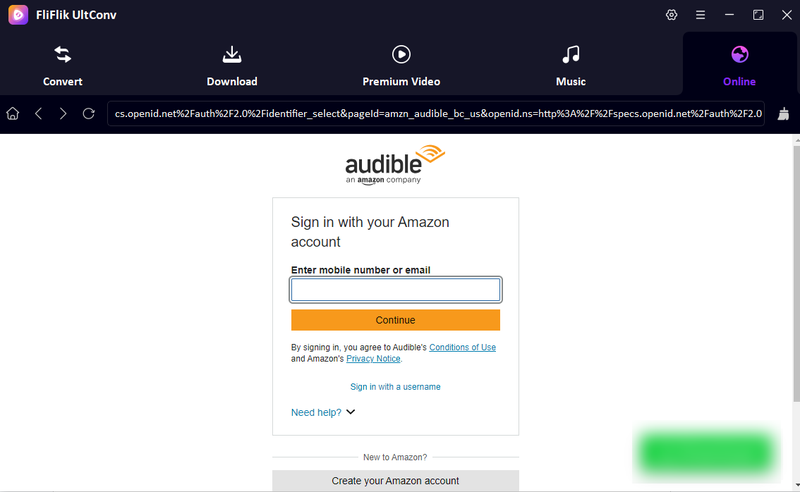
Use the built‑in browser to sign in to your Audible account and open the audiobook you want to convert.
-
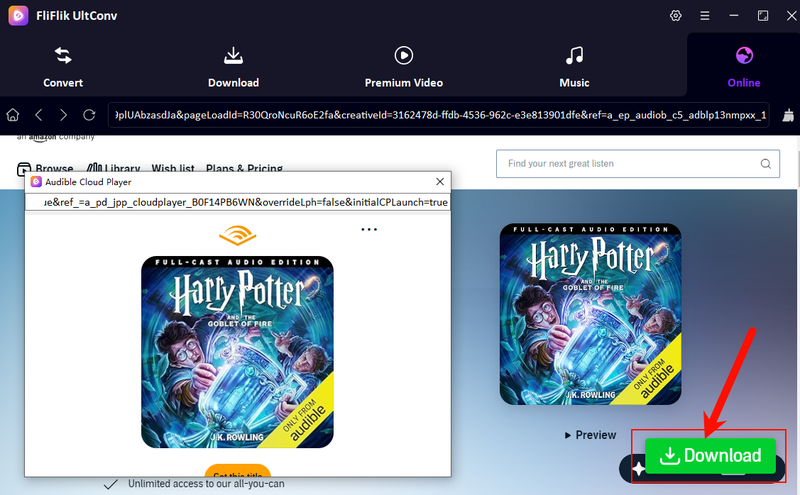
Play the audiobook. When the download option appears near the playback window, click the green Download button.
-
Wait for the downloading and conversion process to finish. After that, open the Downloaded tab to access your MP3 audiobook for offline listening.
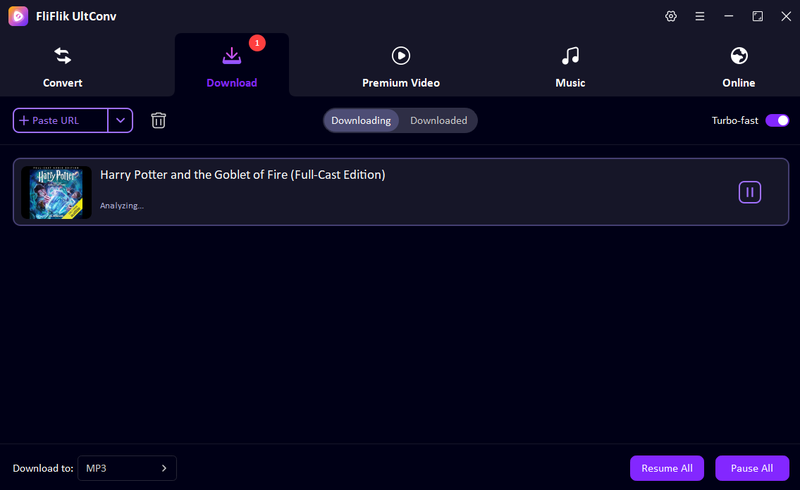


This method lets you download Audible audiobooks as MP3 files quickly while keeping good sound quality and important metadata like title and chapters.
Part 3. 3 Tools to Convert AAX to MP3 For Free
If you prefer not to install software, online converters can be a quick option. These tools work directly in your browser. You upload a file, choose the output format, and let the site handle the conversion. However, there is one thing to keep in mind. AAX is a protected audiobook format used by Audible. Because of this protection, many online converters cannot process AAX files reliably. They may fail during conversion or simply not support the format properly. Still, people often try the following tools when looking for an AAX converter to MP3.
1. Convertio
Convertio is a popular online file converter that supports a wide range of formats. It can convert audio, video, images, and documents directly in your browser without installing any software. The platform allows users to upload files from their computer or from cloud services like Google Drive and Dropbox. The interface is simple, so most people can complete a conversion in just a few steps. However, because AAX is a protected audiobook format, Convertio may not always convert it successfully.
- Works completely online
- Supports many file formats
- Simple interface and quick conversion
- Upload files from cloud storage
- File size limits in the free version
- Conversion speed depends on internet connection
- Low success rate for protected AAX audiobook files
▼ Steps to Convert AAX to MP3 with Convertio
-
Step 1:
Go to the Convertio website. Click
Choose Files
and upload the AAX file from your computer.
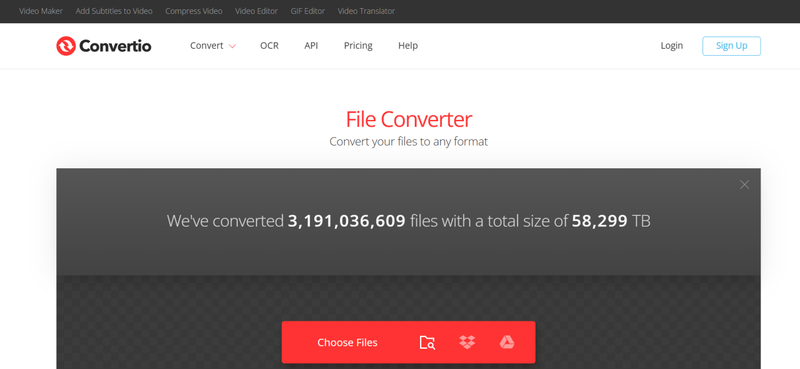
- Step 2: Choose MP3 as the output format.
- Step 3: Click Convert and wait for the process to finish.

2. AConvert
AConvert is another browser-based conversion tool that supports audio, video, documents, and images. It provides a straightforward interface where users can upload a file and select the desired output format. Compared to many simple online converters, AConvert also offers some additional options, such as adjusting audio bitrate or sample rate.
- Free and easy to use
- Supports multiple file uploads
- Advanced audio settings available
- Works directly in the browser
- File size limits for free users
- Ads may appear on the website
- Upload speed depends on internet connection
- Low success rate when converting protected AAX files
▼ Steps to Convert AAX to MP3 with AConvert
- Step 1: Visit the AAX to MP3 page on FreeConvert.
-
Step 2:
Click
Choose Files
and upload your AAC file.
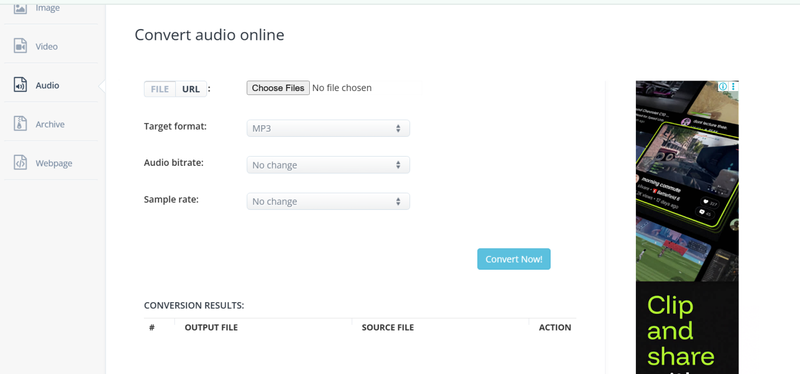
- Step 3: Confirm MP3 as the output format.
- Step 4: Click Convert Now and wait for the process to start.

3. CloudConvert
CloudConvert is a well-known online conversion service that supports hundreds of file formats. It is often used for audio, video, document, and archive conversions. The platform provides a clean interface and also allows users to adjust settings like bitrate or audio quality. It can also import files from cloud services such as Google Drive or Dropbox.
- Supports many file formats
- Reliable conversion quality
- Advanced customization options
- Cloud storage integration
- Limited number of free conversions per day
- Some advanced features require an account
- Large files take longer to upload
- Low success rate for AAX audiobook conversion
▼ Steps to Convert AAC to MP3 with CloudConvert
-
Step 1:
Visit the AAC to MP3 converter on CloudConvert. Click
Select File
and upload the AAC file.
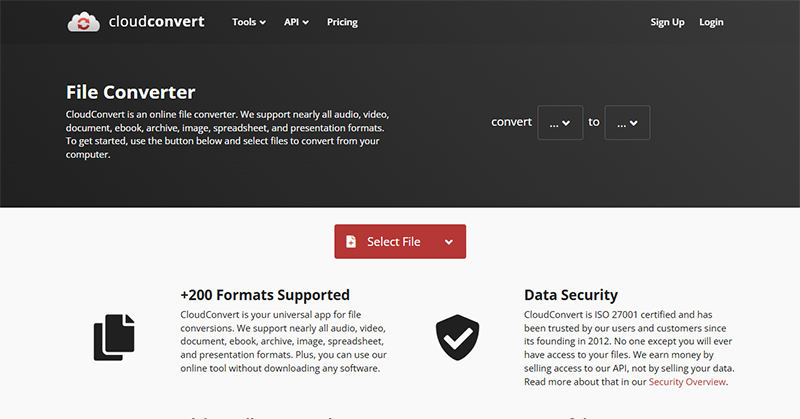
- Step 2: Select MP3 as the output format.
- Step 3: Click Convert to begin the process.

These online tools work well for small files. But remember, most of the time, the conversion process can fail.
Part 4. Comparison Table of 4 AAX to MP3 Converter
Before choosing a tool, it helps to look at the main differences. Some tools only convert audio files, while others also work as downloaders that can access audiobooks directly from platforms like Audible. Another important factor is DRM removal, because Audible audiobooks are protected by DRM, which restricts playback on unauthorized devices. The table below compares four AAX to MP3 converters based on their type, conversion speed, supported formats, batch conversion ability, DRM removal, and overall rating.
| Tool | Type | Convert Speed | Supported Formats | Batch Conversion | DRM Removal | Success Rate | Rating |
|---|---|---|---|---|---|---|---|
| FliFlik UltConv | Converter + Downloader | Very Fast | 100+ MP3, AAX, WAV, AAC, FLAC, M4A, etc. | Yes | Yes | High | ⭐⭐⭐⭐⭐ |
| Convertio | Online Converter | Medium | MP3, WAV, AAC, FLAC | Limited | No | Low | ⭐⭐⭐ |
| AConvert | Online Converter | Medium | MP3, WAV, OGG, FLAC | Limited | No | Low | ⭐⭐ |
| CloudConvert | Online Converter | Medium | MP3, AAC, WAV, FLAC, M4A | Limited | No | Low | ⭐⭐⭐ |
Final Words
Converting audiobooks makes it much easier to listen anywhere. When you convert AAX to MP3, you can play your audiobooks on phones, tablets, MP3 players, or any media app without restrictions. Online converters may seem convenient, but they often struggle with AAX files because the format is protected by Audible DRM. That usually leads to failed conversions or limited results. If you want a smoother solution, FliFlik UltConv AAX to MP3 Converter is a much more reliable choice. It lets you download and convert audiobooks directly, keeps the original audio quality, and preserves metadata for easy organization. If you’re looking for a simple and dependable way to convert AAX to MP3, give FliFlik UltConv a try and enjoy your audiobooks anytime on any device.
 Secure Download
Secure Download
Secure Download
Hey there! I am Maxwell Clark. I'm always looking for new tech tools that make a difference, from making visuals and audio better to making workflows better. I'm going to share tips and tricks for using AI tools for videos, audio, and images. I'm excited to help you navigate the digital world more efficiently and creatively!