8 minutes read


Audible is great for listening on the go, but sometimes you want more control over your audiobooks. Maybe you prefer using an MP3 player, transferring files to another device, or keeping a personal backup. That’s when many users start asking, can you download audible books to mp3? The short answer is not directly, since Audible uses its own protected format.
Still, there are practical ways to download audible books to mp3 with the right tools and methods. In this guide, we’ll walk through proven solutions that still work in 2026. Whether you want better compatibility, offline access without restrictions, or easier file management, these methods will help you convert and enjoy your Audible library in MP3 format.

Part 1. Quick Overview of 6 Audible Converters
Before you dive into methods to download Audible books to mp3, here’s a clear comparison of the top tools you’ll encounter in this guide. It shows what each one offers in terms of conversion type, DRM handling, formats, quality, speed, and batch support.
| Converter | Conversion Type | DRM Removal | Output Formats | Lossless Quality | Download Speed | Batch Download |
|---|---|---|---|---|---|---|
| FliFlik UltConv | Built-in browser + direct media download | ✅ | 100+ (MP3, WAV, AAC, FLAC, etc.) | ✅ | 10X Faster | ✅ |
| Libation | Desktop conversion | ✅ | MP3, others | ✅ | Moderate | ❌ |
| OpenAudible | Desktop exporter | ✅ | MP3, others | ✅ | Moderate | ❌ |
| Convertio | Online uploader-converter | ❌ | MP3 only | Varies by upload | Depends on the Internet | ❌ |
| FliFlik Online Screen Recorder | Browser audio capture | ✅ | MP3 (via recording) | ❌ | Real-time | ❌ |
| Audacity | Desktop audio recorder | ✅ | MP3, WAV, etc. | ❌ | Real-time | ❌ |
Part 2. Best Way to Batch Download Audible Books to MP3 [Easy & Quick]
If you want to download audible books to mp3 without quality loss or complicated steps, FliFlik UltConv Audible Downloader is built to make the process simple and fast. The tool focuses on high-quality audio downloading and conversion, letting you save audiobooks in MP3, WAV, AAC, FLAC, and other popular formats, depending on your device compatibility. You can also keep audio quality up to 320kbps, which helps preserve clear narration and smooth playback for long listening sessions.
Another strong point is website compatibility. Instead of working only with one platform, UltConv Audible Downloader supports downloading from 10,000+ websites, including popular streaming and media platforms. This makes it useful not only for audiobooks but also for music and video audio extraction. With batch downloading, fast processing speed, and built-in browsing support, it becomes a practical all-in-one solution for users who want reliable media downloading and converting.

- Download audiobooks and media from 10,000+ websites, YouTube, TikTok, Instagram, etc.
- Convert audio to MP3, WAV, AAC, FLAC, and 100+ more
- Support up to 320kbps high-quality audio
- Batch download multiple files at once
- Built-in browser for direct searching and downloading
- Fast conversion and download speed
▼ How to Convert Audible to MP3 Using UltConv Audible Downloader?
-
Install and open FliFlik UltConv on your computer.
FREE DOWNLOAD![secure download]() Secure Download
FREE DOWNLOAD
Secure Download
FREE DOWNLOAD![secure download]() Secure Download
Secure Download
-
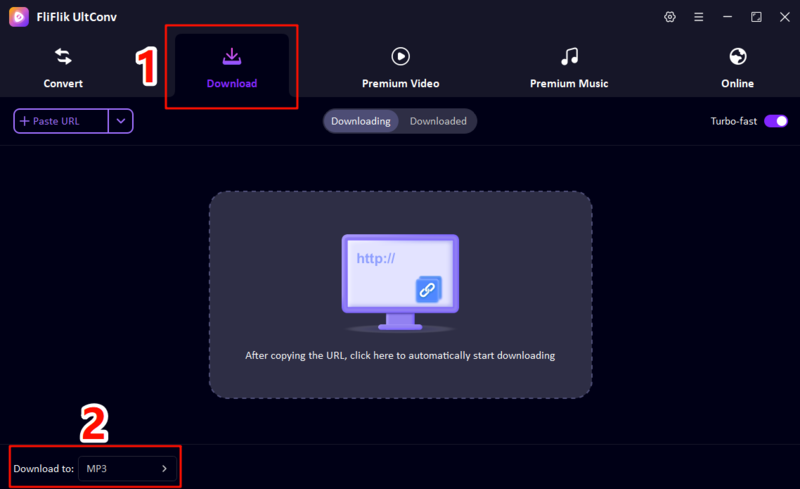
Launch the Download tab and click ” Download to “; choose MP3 as the output format.
-
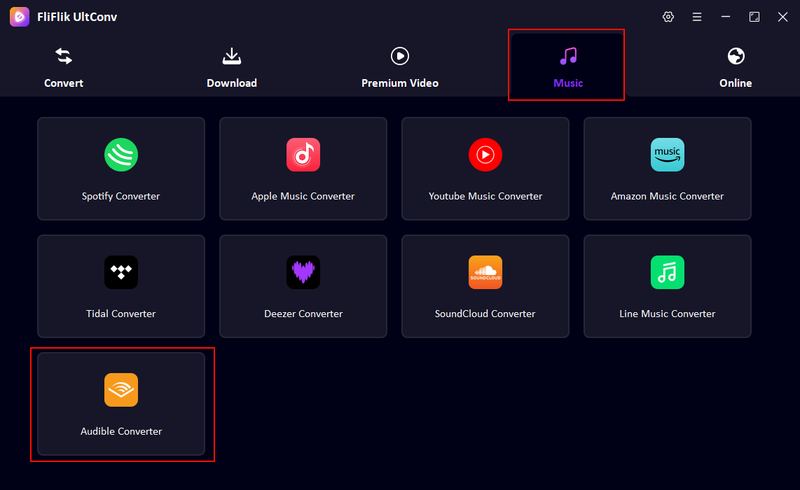
Go to the Music section inside the software and click the Audible Converter.
-
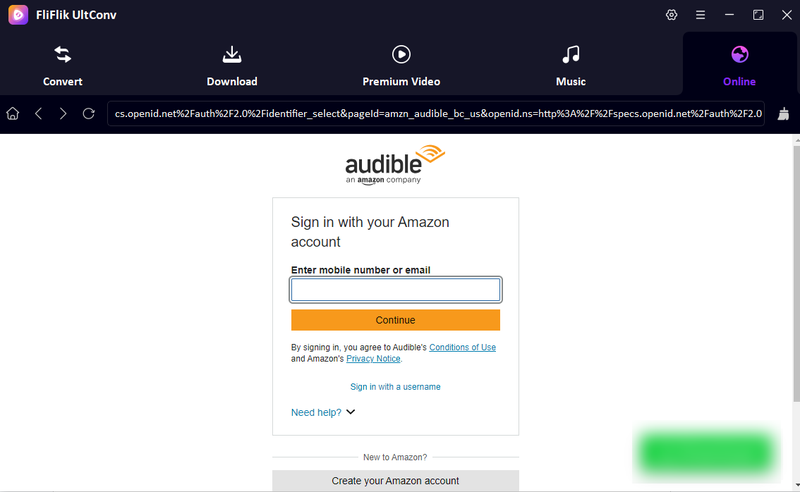
Use the built-in browser to log in to your Audible account and open the audiobook you want to download as MP3.
-
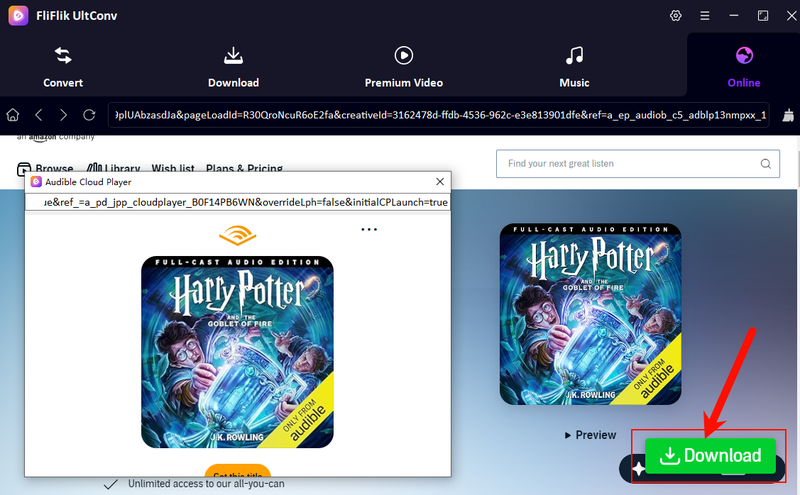
Play the audiobook and wait until the download button appears near the playback window, and click the green Download button.
-
Wait for the conversion and downloading process to finish, then go to the Downloaded tab to access your MP3 audiobook file for offline listening.
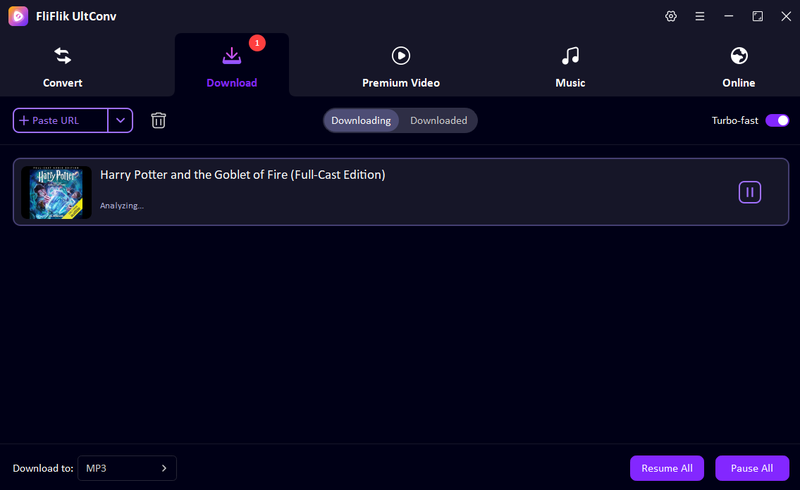


This method helps you download Audible to mp3 quickly while keeping good sound quality and metadata information.
Part 3. 3 Tools to Convert Audible to MP3 For Free
If you don’t want to use paid desktop software, there are still ways to download MP3s using free tools. Below are three of the most common options, how they work, and what to watch out for.
1. Libation
Libation is a free, open-source audiobook management tool that helps you convert Audible books into more usable formats. It’s particularly handy if you want to manage your audiobook library on your computer and then extract audio for use elsewhere. Because it’s community-driven, it doesn’t have the polish of commercial tools, but it gives you a way to work with Audible files without paying.
- Free and open source
- Works on Windows, Mac, and Linux
- Helps manage audiobook libraries
- Setup and use can be technical for beginners
- Conversion quality and speed vary by file
- Need to log in to Audible account
▼ Steps to Use Libation to Convert Audible to MP3:
-
Step 1:
Download and install Libation on your computer.
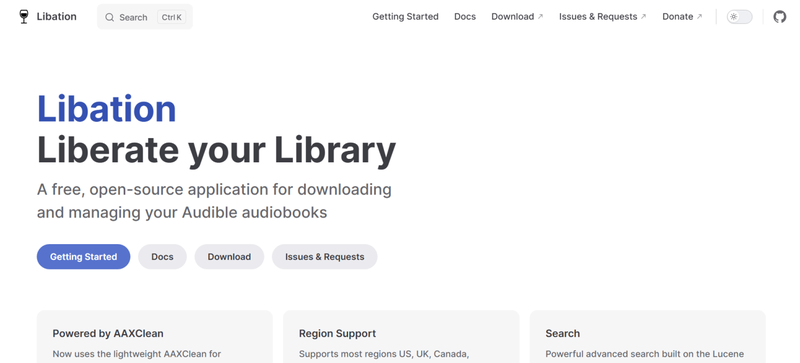
- Step 2: Open the software and log in to your Audible account.
-
Step 3:
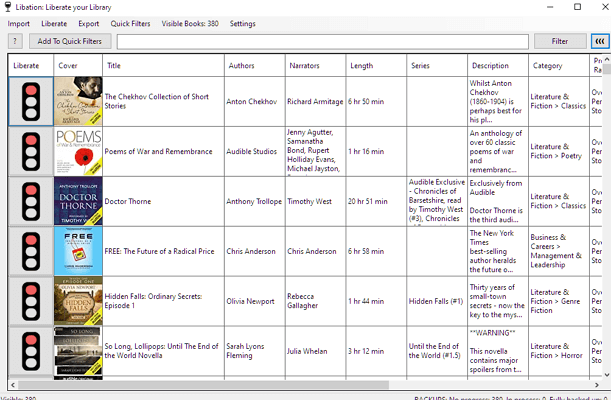
Import your audiobook library and select the audiobooks you want to convert.
-
Step 4:
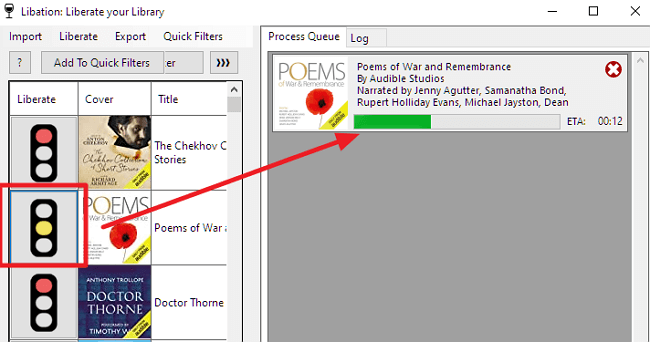
Click the “traffic lights” icon to download and decrypt your Audible books. Once finished, the light will turn green.


2. OpenAudible
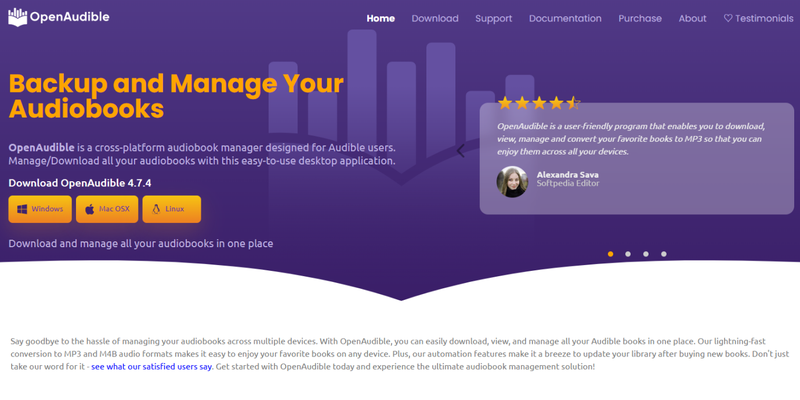
OpenAudible is another free desktop app designed to help you convert Audible audiobooks into MP3 or other formats. It works by importing your Audible library and letting you export the audio, including chapters and metadata. It’s a good choice if you want more control than basic cloud converters but don’t want to invest in premium software.
- Let’s you export chapters and metadata
- Works offline once installed
- Supports MP3 and other audio formats
- Free version may have limitations or trial restrictions
- Initial setup can be confusing for new users
▼ Steps to Use OpenAudible to Convert Audible to MP3:
-
Step 1:
Go to the official OpenAudible website, download the software, and install it on your Windows, Mac, or Linux computer.
- Step 2: Launch the OpenAudible application after installation is complete. Go to the Controls section and choose the option to connect your Audible account.
- Step 3: Select your Audible region and sign in using your Audible account credentials through the browser window that appears.
-
Step 4:
Once your library is synced, browse your audiobook collection. Right-click the audiobook you want to convert and select
Convert to MP3.
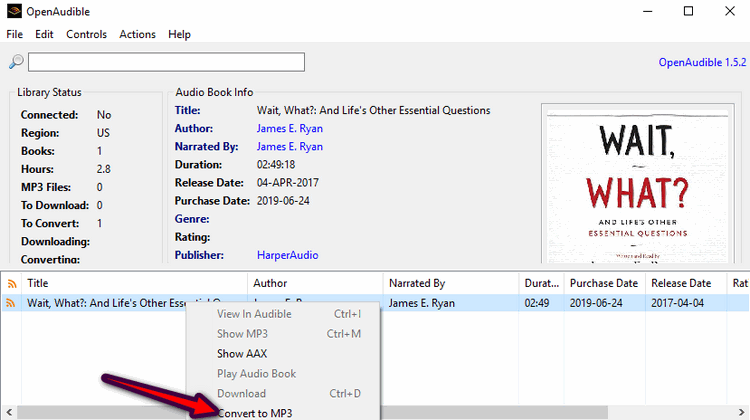
- Step 5: When the conversion process finishes, right-click the converted audiobook again and choose Show MP3 to open the folder where your MP3 file is saved.


3. Convertio
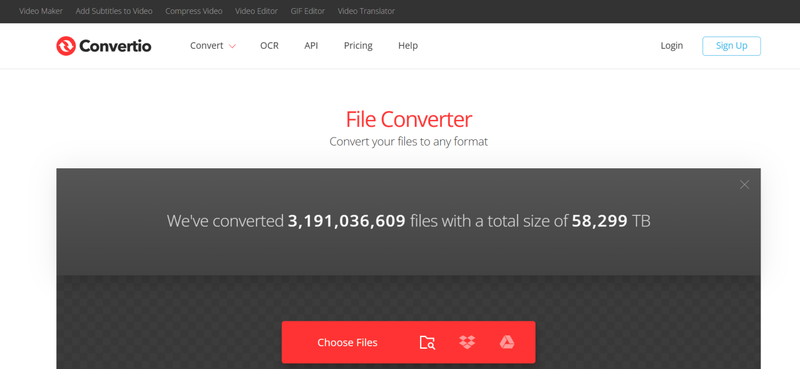
Convertio is an online file converter that can handle many audio formats, including converting Audible files to MP3. It’s browser-based, so you don’t need to install software, and it’s handy for quick, one-off conversions. Just be aware that free use may be limited by file size or daily quota. (For reference, you can see similar instructions in this guide:
- Works entirely in the browser
- No installation required
- Supports many audio formats
- Free version limits file size and usage
- Upload/download speeds depend on your internet connection
▼ Steps to Use Convertio to Convert Audible to MP3:
- Step 1: Open the Convertio website using your preferred web browser.
-
Step 2:
Click the
Choose Files
button and upload the Audible audiobook file you want to convert.
- Step 3: Select MP3 as the output audio format. If needed, you can also open the settings menu to adjust audio parameters or trim the file.
- Step 4: Press the Convert button and wait while the system processes the file.
- Step 5: When the conversion is finished, download the MP3 file and save it to your device for offline listening.

Part 4. 2 Ways to Record Audible to MP3 via Recording
If you want to download books from Audible but cannot directly convert them, screen recording is another practical method. This approach captures the audio playback in real time and saves it as an MP3-compatible audio file using third-party recording tools.
1. FliFlik Online Screen Recorder
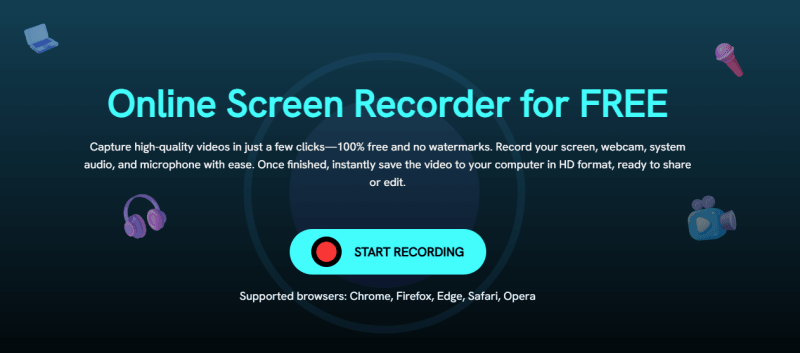
FliFlik Online Screen Recorder is a free browser-based recording tool that helps users capture audio and screen activity without installing software. It works well when you want to download books from Audible by recording audiobook playback directly from your browser. The tool supports recording system sound, microphone, and screen activity while maintaining good audio quality. It is also completely online, so you can use it from any device with a modern browser.
▼ Steps to Record Audible to MP3 with FliFlik Online Screen Recorder:
- Step 1: Open the FliFlik Online Screen Recorder website in your browser.
-
Step 2:
Click
Start Recording
on the homepage to launch the recorder.
-
Step 3:
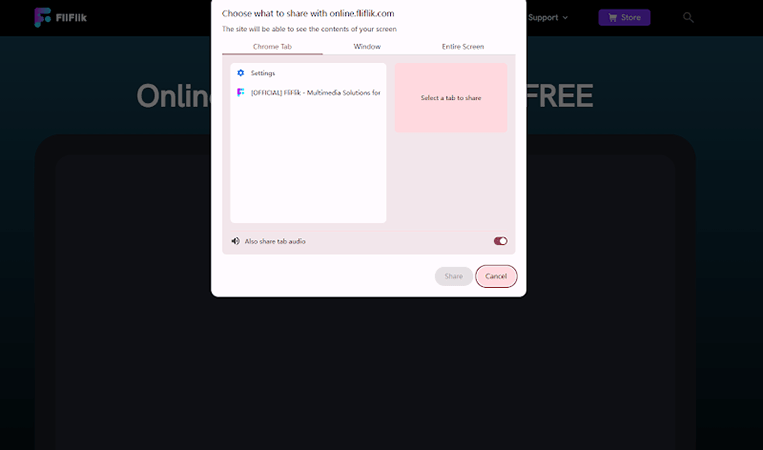
Choose the browser window where your Audible audiobook is playing. Enable system audio recording.
-
Step 4:
Press
Record
and play the audiobook you want to capture.
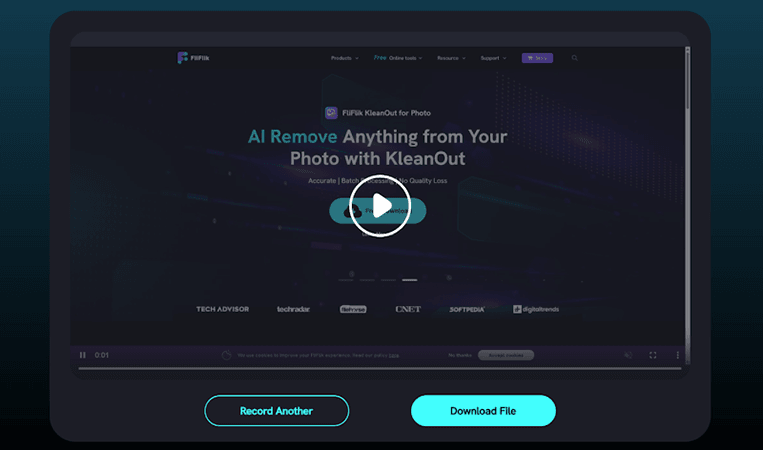
- Step 5: When finished, click Stop, then download and save the recorded audio file to your device.


2. Audacity
Audacity is a free, open-source audio recording and editing software that can help users capture audiobook audio when they want to download books from Audible indirectly through recording. It is commonly used because it offers strong audio editing tools, supports multiple audio formats, and allows users to export recordings as MP3 files after installing the MP3 encoder plugin. Although it is not a direct Audible downloader, it works well for users who want to record audio playback from their computer while listening to audiobooks.
- Completely free and open source
- Powerful audio editing and noise reduction tools
- Supports MP3, WAV, and other audio formats
- Requires manual setup for MP3 export
- Recording quality depends on system audio settings
- Not a direct audiobook downloader
▼ Steps to Record Audible to MP3 with Audacity:
- Step 1: Download and install Audacity on your computer. Also, install the MP3 export plugin if required.
- Step 2: Open Audacity and go to audio recording settings. Select system sound or loopback audio as the input source.
- Step 3: Open your browser and play the Audible audiobook you want to record. Click the Record button in Audacity to start capturing audio playback.
- Step 4: When the audiobook finishes, click Stop.
-
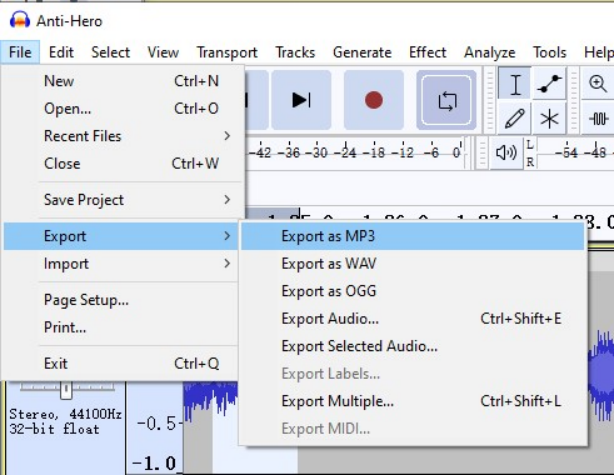
Step 5:
Click
File > Export > Export as MP3
and save the recorded file to your device.

Final Words
Finding ways to download Audible books to MP3 is useful if you want more freedom to listen offline, switch devices, or build your personal audio library. In this guide, we explored several practical methods, from dedicated converters to recording tools. Each option has its strengths, but the best choice depends on whether you prioritize speed, quality, or simplicity. If you want the easiest and most reliable solution, try FliFlik UltConv Audible Converter. It supports high-quality downloads, multiple audio formats, batch conversion, and works with thousands of websites, making audiobook and media downloading much smoother. Instead of juggling multiple tools, you can manage everything in one place.
 Secure Download
Secure Download
Secure Download
Hey there! I am Maxwell Clark. I'm always looking for new tech tools that make a difference, from making visuals and audio better to making workflows better. I'm going to share tips and tricks for using AI tools for videos, audio, and images. I'm excited to help you navigate the digital world more efficiently and creatively!