8 minutes read


Many people enjoy watching videos on NicoNico, especially music videos, covers, and anime songs. But sometimes you may want to save the audio only so you can listen to it anytime, even without the internet. That’s where converting Niconico to MP3 becomes useful.
The good news is that it’s not difficult at all. With the right tools, you can download NicoNico videos into an MP3 file in just a few steps. Once the audio is saved, you can play it on your phone, computer, or music player whenever you like. In this article, I’ll show you three of the easiest ways to download NicoNico to MP3 in 2026. Each method is simple, beginner-friendly, and takes only a few minutes to follow. Let’s get started.

Way 1: Download NicoNico to MP3 with UltConv [Top Pick]
If you want a simple and reliable way to convert NicoNico to MP3, one tool that works really well is FliFlik UltConv NicoNico Downloader. This tool is designed for people who want a simple way to download NicoNico videos and convert them into audio. It supports downloads from 10,000+ websites, including platforms like NicoNico, YouTube, and TikTok, so you’re not limited to just one site. The software also lets you convert videos into MP3 and more than 100 other formats, making it easy to play the files on phones, computers, or music players.
Another thing that makes this UltConv NicoNico Downloader useful is the quality and flexibility it offers. UltConv allows you to download videos in HD, 1080p, 2K, and even 4K resolution, while audio can be saved in high-quality 320 kbps MP3. If you want to save multiple videos, the batch download feature lets you download several files, playlists, or channels at once. The built-in browser also makes it easier to find and download content directly from streaming websites without switching between apps.

- Download videos from 10,000+ websites, including YouTube, Bilibili, and TikTok
- Convert NicoNico videos to MP3 and 100+ other formats
- Download playlists, channels, and albums in one click
- Save audio in high quality up to 320kbps
- Download videos in HD, 2K, 4K, and even higher resolution
- Batch download multiple videos at once to save time
▼ Steps to Download NicoNico Videos with FliFlik UltConv NicoNico Downloader
To download a NicoNico video as MP3 with FliFlik UltConv NicoNico Downloader, first go to the FliFlik UltConv website, download the program, and install it on your computer. Once the software is ready, follow these steps to convert the video audio.
 Secure Download
Secure Download
Secure Download
-
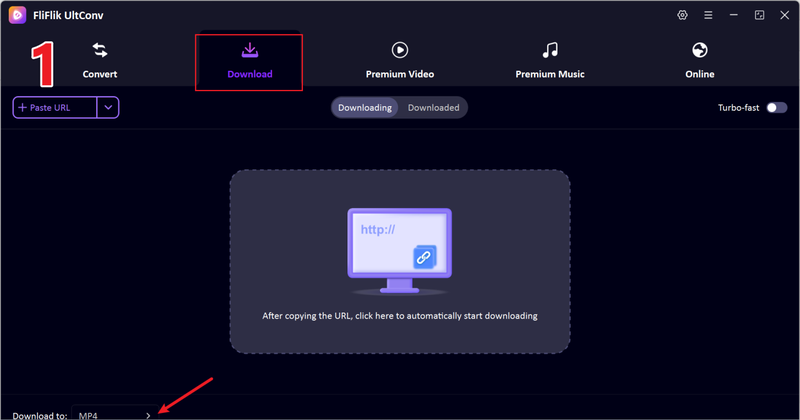
Launch UltConv and open the Download to option from the main interface.
-
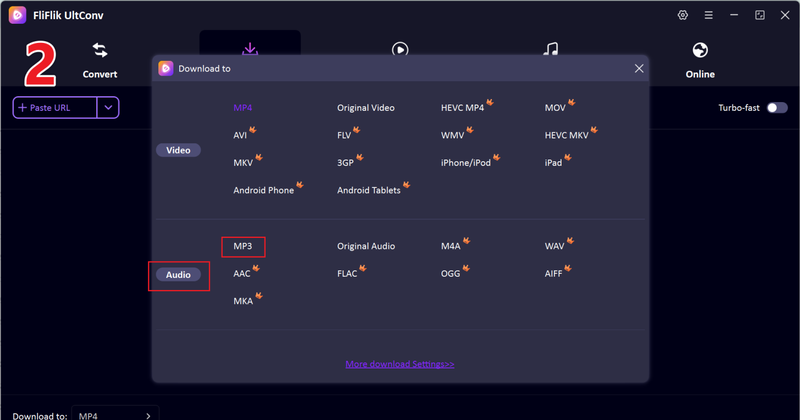
Select your preferred output format and choose MP3 so the video will be converted into an audio file.
-
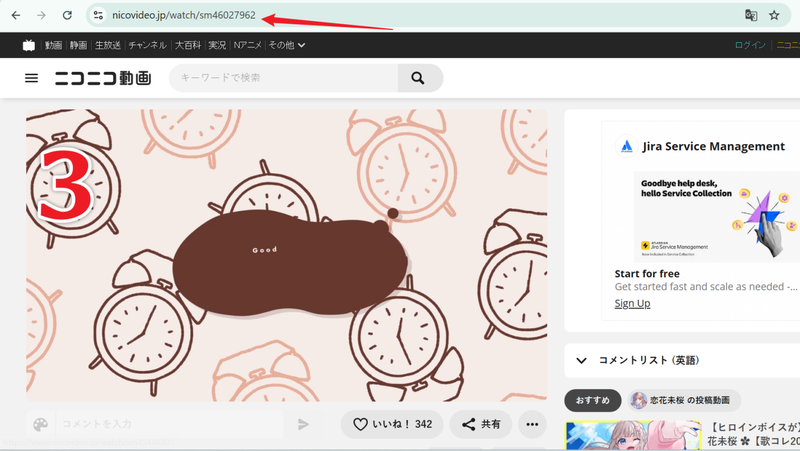
Open the NicoNico video you want to convert and copy its URL from the browser address bar.
-
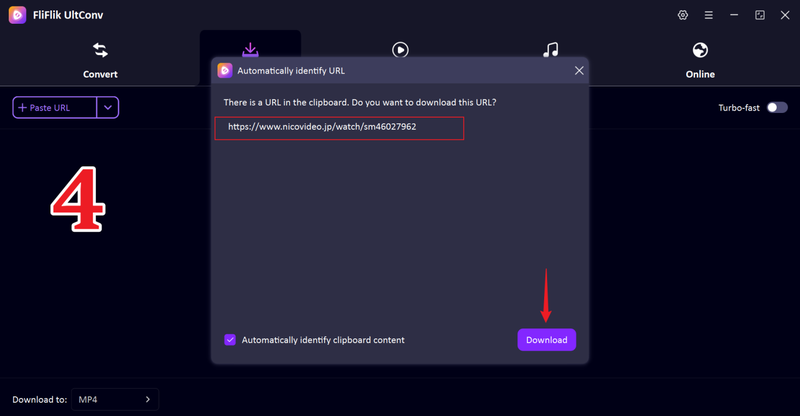
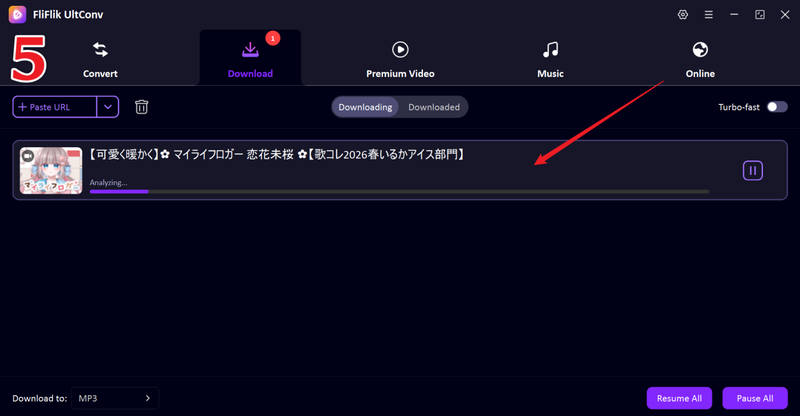
Paste the copied link into UltConv. The tool will automatically detect the video and prepare it for downloading. Click Download to start the conversion.
-
You will download start immediately. Once the process finishes, UltConv will save the MP3 file in your default download folder so you can listen to it anytime offline.


Way 2: Download NicoNico to MP3 with Web-Based Tools
If you don’t want to install software, another option is using a NicoNico to MP3 online tool. These tools work directly in your browser. The process is quick, but online tools usually have some limits, such as ads, redirecting links, slower speeds, and unsuccessful conversions.
1. Keepvid
Keepvid is a simple browser-based downloader that lets users convert and save videos as audio files. It supports many video platforms and works without installing any program, which makes it convenient for quick downloads.
- No software installation needed
- Simple copy‑and‑paste process
- Works on most browsers and devices
- Supports several video websites
- Ads appear on the page
- Download speed can be slower
- Limited format and quality options
▼ Steps to Convert NicoNico to MP3 Online with Keepvid
- Step 1: Open the Keepvid website in your browser.
- Step 2: Go to the NicoNico video you want and copy its URL.
-
Step 3:
Paste the video link into the download box on the Keepvid page, and click
Go
button.
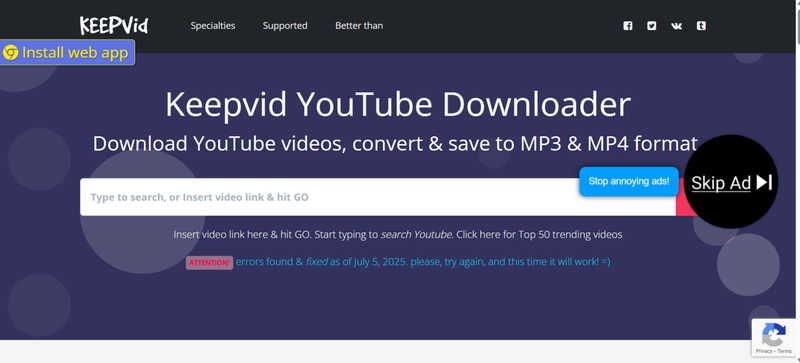
- Step 4: Choose the MP3 format to begin the downloading process.

 Note:
Note:
While using this tool, you can face so many redirecting links, close those tabs immediately for safety purposes.
2. AudioPod AI
AudioPod AI is another web-based tool that can extract audio from videos, including content from NicoNico. It focuses on turning video content into usable audio files quickly through a simple online interface.
- Works completely online
- Clean and easy interface
- Quickly extracts audio from videos
- No installation required
- Requires a great internet connection
- Fewer advanced download features
- File size limits apply
▼ Steps to Download NicoNico Audio with AudioPod AI
- Step 1: Visit the AudioPod AI NicoNico downloader page in your browser.
- Step 2: Open the NicoNico video you want and copy the video link.
-
Step 3:
Paste the link into the media extractor box on the page. Next, turn on the Audio Only icon to blue and then click the
Preview
button.
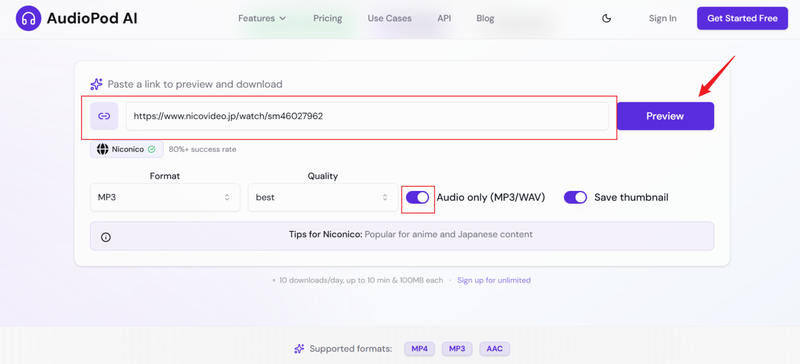
- Step 4: After conversion, you will see the video start downloading.
 Note:
Note:
Please remember, this tool’s success rate claims 80% for NiciNico videos from the developer, but in reality, it’s way lower than that.
Way 3: Download NicoNico to MP3 with Open Source Tool
Another option for saving Niconico MP3 files is using an open‑source tool called NicoNico Audio Extractor. This tool was created by developers who wanted a simple way to extract audio directly from NicoNico videos. Since it’s open source, anyone can download it, check the code, and use it freely. It works well for users who are comfortable with basic technical setup and prefer free tools.
- Completely free and open source
- Designed specifically for NicoNico audio extraction
- No ads or subscriptions required
- Lightweight and simple tool
- Setup can be harder for beginners
- No graphical interface in some versions
- Limited support compared to full downloader software
▼ Steps to Download Niconico MP3 with Niconico Audio Extractor
-
Step 1:
Visit the GitHub page and download the latest version of NicoNico Audio Extractor to your computer.
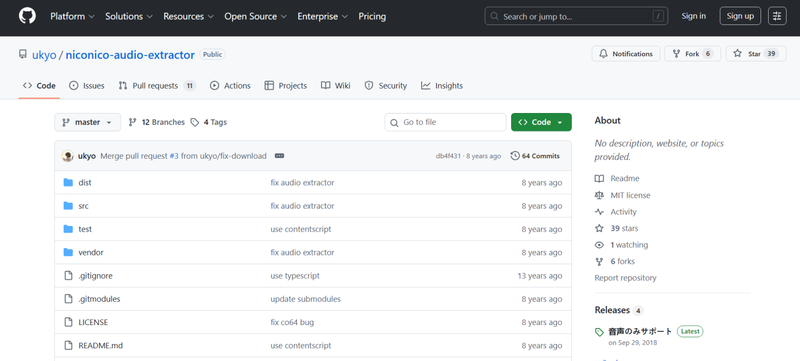
- Step 2: Extract the downloaded files and open the program or command tool provided in the package.
- Step 3: Go to the NicoNico video you want and copy its video URL from your browser.
- Step 4: Paste the video link into the tool or run the command with the URL to start the extraction process.
- Step 5: After the process finishes, the audio will be saved on your computer as an MP3 file that you can play anytime.

Bonus: Record NicoNico to MP3 with Audacity
If you prefer recording the audio instead of converting the video, Audacity is a great option. Audacity is a free and open‑source audio recording tool used by millions of people for recording, editing, and exporting sound files. It allows you to capture audio directly from your computer while a video is playing, which makes it useful for saving audio from NicoNico videos. Using Audacity for NicoNico to MP3 recording is simple. You just play the video and let the software record the sound from your system. Once the recording is finished, you can export the file as an MP3 and save it on your computer.
- Completely free to use because Audacity is open‑source.
- Works with almost any video site, not just NicoNico.
- Lets you record exactly the part of the audio you want.
- Built‑in editing tools allow trimming, noise reduction, or adjusting volume before saving the MP3.
- Recording happens in real time, so a 5‑minute video takes 5 minutes to record.
- Requires setting up system audio correctly, which may confuse beginners.
- If notifications or other sounds play on your computer, they may be recorded as well.
- Audio quality depends on your system settings and recording configuration.
▼ Steps to Record NicoNico to MP3 with Audacity
- Step 1: Download and install Audacity on your computer, then open the program.
- Step 2: Go to the NicoNico video you want and start playing it in your browser.
- Step 3: In Audacity, set your recording input to capture system audio so it can record the sound coming from the video.
- Step 4: Click the Record button in Audacity while the video is playing. The software will start capturing the audio in real time.
-
Step 5:
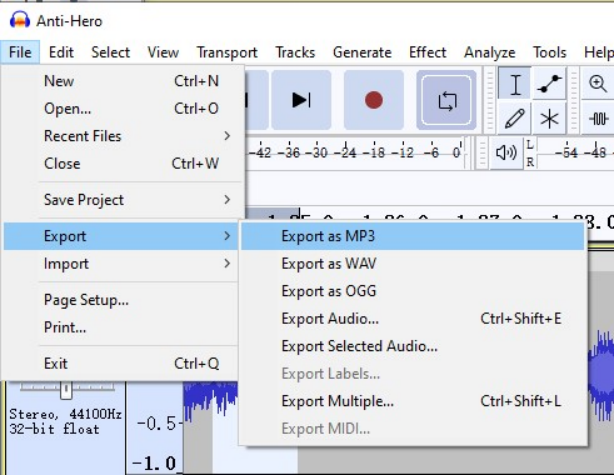
When the video finishes, stop the recording. Then go to File, choose Export, select MP3 as the format, and save the file to your preferred folder.

Final Words
Downloading NicoNico to MP3 is not complicated once you know the right tools. In this guide, we looked at three main ways to do it: desktop software, online converters, and even recording the audio. Web tools can work for quick downloads, and open‑source options are helpful if you like free utilities. But if you want something faster, easier, and more reliable, a dedicated downloader is usually the better choice. That’s why FliFlik UltConv NicoNico Downloader stands out as the best option. It lets you download and convert NicoNico videos to MP3 in just a few clicks while keeping high audio quality. You can also download multiple videos and convert them to many formats. If you regularly save NicoNico music or videos, UltConv NicoNico Downloader is definitely a worth-trying tool.
Secure Download
Secure Download
Hey there! I am Maxwell Clark. I'm always looking for new tech tools that make a difference, from making visuals and audio better to making workflows better. I'm going to share tips and tricks for using AI tools for videos, audio, and images. I'm excited to help you navigate the digital world more efficiently and creatively!