10 minutes read


Getting Twitch up and running on your device is pretty straightforward these days. Whether you’re planning to stream, want to catch your favorite gamers, or just enjoy live content, activating Twitch TV doesn’t have to be complicated. Smart TVs, consoles, streaming sticks, whatever you use, the setup is simple once you see how it works. In this, Twitch.TV/Activate Guide, we will share how you can get Twitch going on any device and jump right into the action.

- Part 1. What is Twitch.tv Activate and Why Do You Need It?
- Part 2. How to Activate/Link Twitch Account to Smart TVs
- Part 3. How to Activate/Link Twitch to Streaming Devices
- Part 4. How to Activate/Link Twitch to Gaming Consoles
- Part 5. Twitch.tv Not Working? 5 Common Issues & Fixes
- Bonus: How to Download Twitch Streaming to Play on Any Device
- Final Words
Content Table:
Part 1. What is Twitch.tv Activate and Why Do You Need It?
Twitch.tv Activate is the process that links your Twitch account to a device, like a smart TV, gaming console, or streaming stick. When you enter the activation code on your device, it tells Twitch, “Hey, this account belongs here,” so you can start streaming directly without logging in each time.
You need this for a few reasons. First, it gives you quick access to your subscriptions, follows, and watch history on any device. Second, it makes streaming more convenient, with no repeated logins, no typing long passwords on a TV remote. Essentially, activating Twitch turns your device into a fully connected Twitch hub, ready for live streams, chats, and notifications.
It’s especially helpful if you switch between devices often or want to share your account safely without entering credentials everywhere. Once activated, your Twitch experience is seamless, consistent, and ready to go.
Part 2. How to Activate/Link Twitch Account to Smart TVs

Activating Twitch on a smart TV means linking your Twitch account to the TV’s Twitch app so you can watch streams on the big screen. On many smart TVs, that’s done through twitch.tv/activate with a code your TV shows you. The exact steps vary a little by brand and model, but the overall flow is very similar.
▼ Activation Steps (Samsung, LG, Vizio, and Others):
- Step 1: On many TVs, you’ll find Twitch in the app store or built-in platform like the Samsung Gaming Hub or LG Content Store. Older TVs without an official app may require casting or a streaming stick.
- Step 2: Once the app opens, pick Sign In or Activate. Your TV will display a 6‑digit activation code along with instructions telling you to go to twitch.tv/activate.
- Step 3: On your phone, tablet, or computer, open a web browser and navigate to twitch.tv/activate. Make sure you’re logged into the Twitch account you want linked.
- Step 4: Type the code shown on your TV into the box on twitch.tv/activate. After a moment, the TV app should refresh, and you’ll be signed in.
- Step 5: Once the code is accepted, your Twitch account is linked, and you can browse channels, watch live streams, and join chats right from your smart TV.
Here, you need to remember that some newer Samsung Smart TVs come with Twitch built into the Samsung Gaming Hub, making activation straightforward. For older Samsung models that don’t have an official Twitch app, the easiest workaround is to cast Twitch from your phone or use a streaming device like a Fire TV Stick or Chromecast.
Part 3. How to Activate/Link Twitch to Streaming Devices

Streaming devices like Roku, Fire TV, Apple TV, and Chromecast make it easy to watch Twitch on your big screen, even if your TV doesn’t have a native Twitch app. Activating Twitch on these devices is similar across platforms: you open the Twitch app, get an activation code, and link it through a browser on another device. This ensures your account is connected and ready to stream without repeatedly signing in.
▼ Activation Steps for Streaming Devices:
- Step 1: Open the Twitch app on your streaming device. Choose Log In or Activate, and a 6-digit code will appear on the screen.
- Step 2: On a phone, tablet, or computer, open a web browser and go to twitch.tv/activate. Sign in with your Twitch account, then enter the code displayed on your streaming device. Once the code is accepted, your Twitch account will be linked and ready to use.
This process works for most streaming devices, whether it’s a Roku streaming stick, Amazon Fire TV, Apple TV, or even casting with Chromecast. Once activated, you can browse channels, watch live streams, and join chats right from your streaming device without additional logins.
Part 4. How to Activate/Link Twitch to Gaming Consoles

Gaming consoles like PS5, PS4, Xbox Series X/S, and Xbox One allow you to enjoy Twitch on the big screen and even stream your own gameplay. Activating Twitch on these devices connects your console to your Twitch account so you can watch streams or go live without repeatedly signing in. The process is straightforward and similar across consoles.
▼ Steps to Activate Twitch on Xbox:
- Step 1: Make sure your Xbox is connected to a monitor or smart TV and has internet access.
- Step 2: Open the Xbox Store, search for the Twitch app, and download it to your console.
- Step 3: Open the Twitch app on your Xbox. You’ll see a 6-digit activation code on the screen.
- Step 4: On another device, like a PC, Android, or iPhone, open a web browser and log in to your Twitch account. Then, go to twitch.tv/activate and enter the 6-digit code from your Xbox screen.
- Step 5: Once the code is accepted, Twitch will be fully activated on your Xbox. You can now watch streams, join chats, or broadcast your own gameplay directly from your console.
This same process works on PS5, PS4, and other Xbox models, making it easy to enjoy Twitch content or stream live from any modern gaming console. Using twitch.tv/activate ensures your account is securely linked and ready to go.
Part 5. Twitch.tv Not Working? 5 Common Issues & Fixes
Even though activating Twitch is usually simple, sometimes things go wrong. Here are the five most common problems users face on twitch.tv/activate and how to fix them.
1. Expired or Invalid Code
Activation codes on Twitch are temporary. If you take too long to enter the code on twitch.tv/activate, it may expire. Sometimes, a mistyped code can also trigger an invalid code error.
Fix: Generate a new code by reopening the Twitch app on your device. Enter the new code promptly in the browser. Double-check for typos before submitting.
2. “Device Not Supported” Message
Some older smart TVs or consoles may not officially support the Twitch app. When you try to activate it, you might see a “device not supported” message.
Fix: If your device isn’t supported, use an alternative like a streaming stick (Fire TV, Roku, Chromecast, Apple TV) or cast Twitch from a phone or tablet. Updating the device’s firmware may also make the app available.
3. Login Loop Issues
A login loop happens when Twitch keeps asking you to sign in even after entering the activation code. This often occurs due to browser cache issues or temporary server errors.
Fix: Clear the cache and cookies on your browser or try a different browser. Make sure your Twitch account is verified and has a confirmed email address. Logging out and back in on the Twitch app can also resolve this problem.
4. Network or Connection Problems
A weak or unstable internet connection can prevent the code from linking your device to your Twitch account. Sometimes devices on separate networks cause activation failures.
Fix: Ensure both your device and the browser you’re using to enter the code are on the same stable Wi‑Fi network. Restart your router or switch to a wired connection if possible.
5. Region or Geo-restriction Issues
Twitch availability varies by region, and certain features may be blocked in some countries. If the activation page doesn’t load or the app shows errors, geo-restrictions could be the cause.
Fix: Check if Twitch is supported in your country. Using a VPN to connect to a supported region can sometimes solve activation issues, though it may violate Twitch’s terms of service, so proceed with caution.
Bonus: How to Download Twitch Streaming to Play on Any Device
Sometimes you want more than just watching Twitch live; you may want to save streams for offline viewing, revisit your favorite moments, or repurpose content for personal use. That’s where a desktop tool like UltConv Video Converter comes in. Unlike standard Twitch downloads, UltConv Video Converter allows you to save video and audio in multiple formats like MP4, MOV, and MKV, etc, giving you complete control over how and where you watch your content. Whether it’s a gaming session, a music stream, or a live event, you can convert it for playback on any device, phone, tablet, or PC without worrying about compatibility issues. With ultra-fast conversion speeds and batch processing, even large 4K or 8K streams are handled efficiently. UltConv Video Converter also preserves high-quality audio and video, ensuring your downloaded streams look and sound exactly like the originals.

- Easily extract audio from any video file for listening or editing
- Supports popular video formats like MP4, MOV, MKV, and AVI for maximum compatibility
- Convert large video files quickly without long waiting times
- Process multiple videos at once with batch conversion to save time
- Preserves the original video and audio quality during conversion
- Support 1000+ websites, including YouTube, Twitch, Facebook, and more
▼ Steps to Download Twitch Streaming to Play on Any Device with UltConv Video Converter
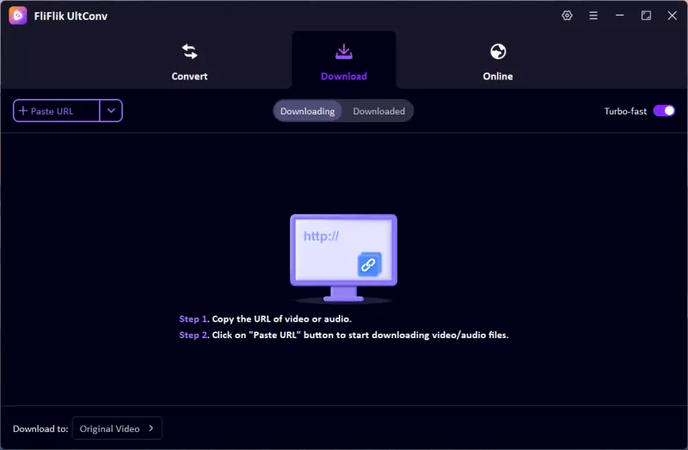
UltConv Video Converter can not only convert media files stored on your computer but also download and convert video and audio from online websites.
-
Go to the Download section and select the format you want for your video or audio file.
-
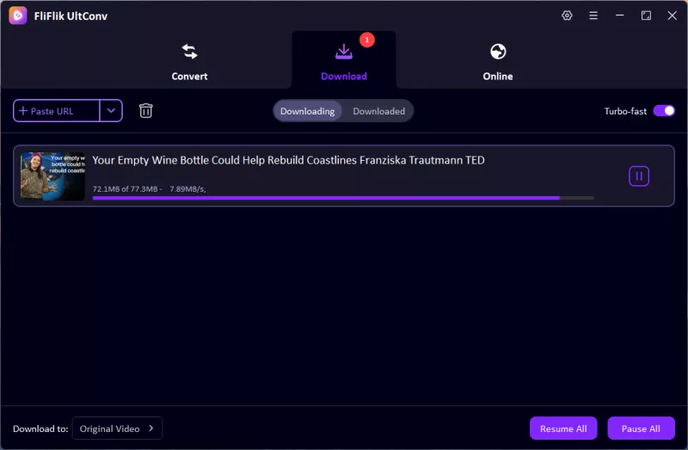
Copy the URL of the video or audio you want to download. Return to UltConv’s Download section and paste the link to start the conversion.
-
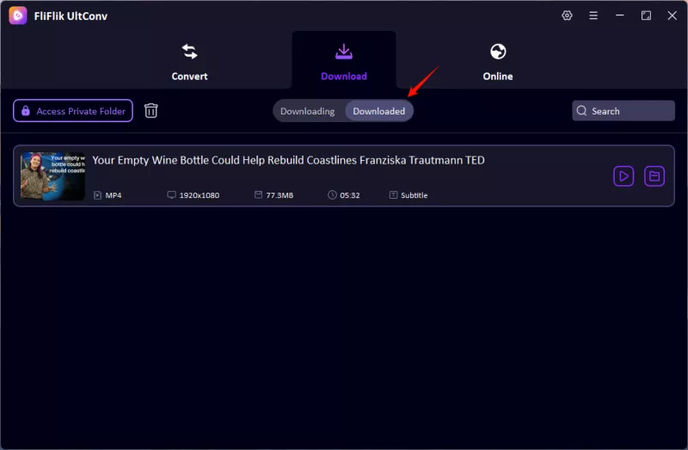
Once the conversion is finished, check the Downloaded section to access your files and enjoy them on any device.


Final Words
Activating Twitch on any device has never been easier with Twitch TV activate, whether you’re using a smart TV, streaming device, or gaming console. By following the steps outlined in this guide, you can link your account quickly and start enjoying live streams without interruptions. For those who also want to save streams or convert media from online sources, UltConv Video Converter is an all-in-one solution that makes downloading and converting videos or audio simple, fast, and high-quality. It ensures your favorite content is always available offline and ready to play on any device.
 Secure Download
Secure Download
Secure Download
Hey there! I'm Clara Knight, and I'm passionate about using AI to streamline my workflow in the image watermark removal industry. So excited to empower users with clear guides and insights to conquer those pesky watermarks. Let's unleash the power of AI for watermark-free visuals!