8 minutes read


YouTube now supports videos in 8K resolution (7680 × 4320), which means incredibly sharp images and much more detail than regular HD or even 4K. Many creators upload travel footage, nature videos, and cinematic content in this quality, so, naturally, some viewers want to save these videos and watch them later offline.
The problem is that downloading 8K videos is not always easy. A lot of tools claim they support 8K video download, but when you actually use them, the video ends up saved in lower quality, like 1080p or 4K. This usually happens because YouTube delivers video and audio separately through its streaming system, and not every downloader can merge them properly. Things get even heavier if you try an 8K 120fps video download, because high‑frame‑rate videos contain much more data. In this article, we’ll share three reliable methods to download 8K YouTube videos without watermarks.

Way 1: Download 8K YouTube Videos Officially

One official way to save videos from YouTube is through YouTube Premium. If the service is available in your region, a Premium subscription lets you download videos and watch them offline later. This method is simple because the download option appears directly below the video player. However, the videos are saved only inside the YouTube app, not as regular files on your device.
- Step 1: Go to the YouTube website or open the app and sign in with your YouTube Premium account.
- Step 2: Search for the video you want to download and open its watch page.
-
Step 3:
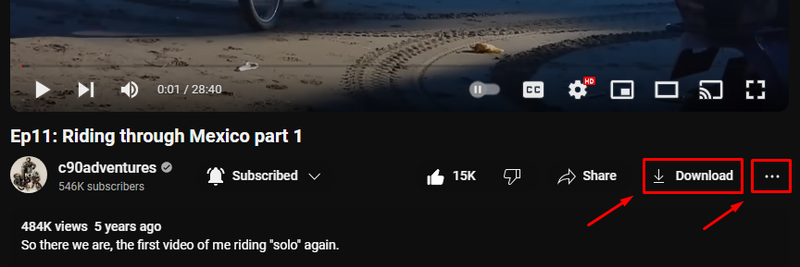
Click or tap the
Download
button located below the video player.
-
Step 4:
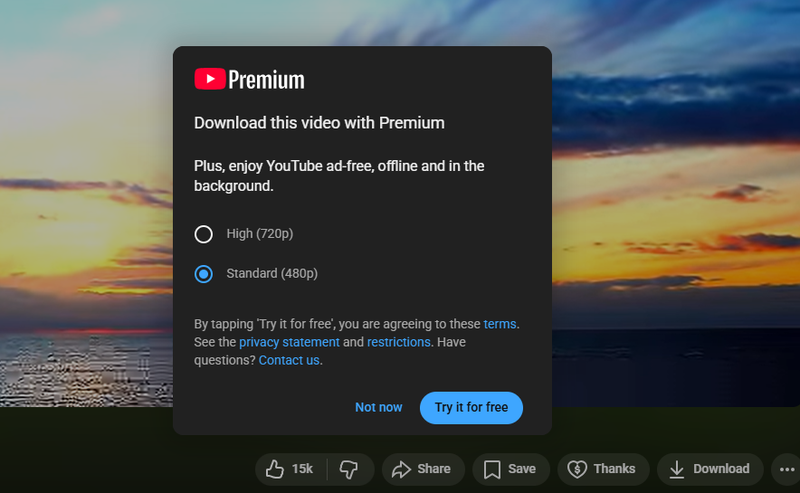
Choose the available quality and confirm the download. The video will be saved in your YouTube library for offline viewing.


Limitations:
Although this method is easy, it does not support a true 8K download. The offline quality is usually limited to 720p or sometimes 480p, depending on the device. Also, the downloaded videos stay inside the YouTube app and cannot be transferred to other devices. Another thing to remember is that offline videos are not permanent. They normally stay available for about 29 days, and the app needs to reconnect to the internet occasionally to confirm that the video is still available.
Way 2: Download 8K YouTube Videos with UltConv [Lossless Quality]
If you want a real 8K video download without losing quality, using a dedicated downloader is usually the best option. One tool many people use is FliFlik UltConv YouTube Downloader. Unlike many online downloaders that compress videos or limit the resolution, this YouTube video downloader 8K can save videos in their original quality. The tool is designed to download high-resolution videos directly from YouTube and many other streaming sites while keeping the original quality. Instead of compressing the video, it captures the full video stream and saves it in resolutions like 4K or even 8K.
Another thing that makes the tool practical is how flexible it is. You can download a single video, an entire playlist, or even a full channel in one go. It also lets you choose the format you want before downloading, so you can save the video as MP4, MKV, MP3, and 100 other formats, convert it to audio, or store it in another format that works better on your device.

- Download videos from 10,000+ websites, including YouTube
- Support 8K, 4K, 2K, and 1080p video downloads
- Download playlists, channels, and albums with one click
- Convert videos to MP4, MP3, and 100+ formats
- Extract audio from videos without quality loss
- Batch download multiple videos at once
- Up to 10× faster download speed
- Built-in browser for quick searching and downloading
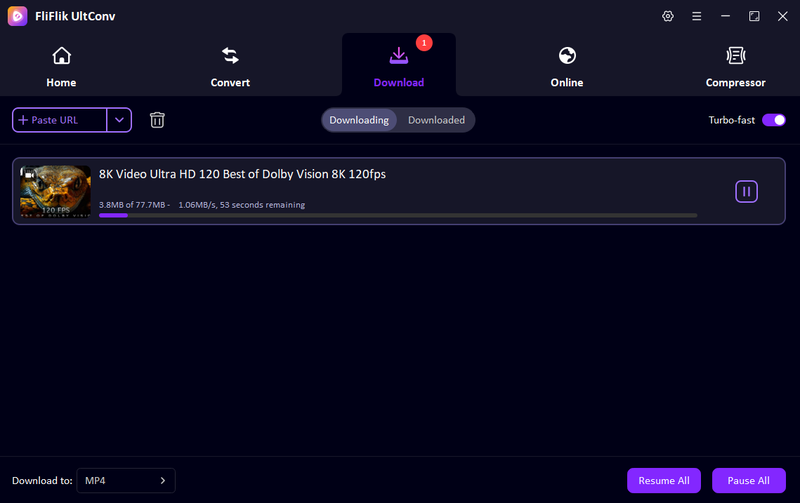
▼ Steps to Download YouTube Video to 8K Quality with UltConv YouTube Downloader
-
First, download and install FliFlik UltConv Video Downloader and open the tool.
FREE DOWNLOAD![secure download]() Secure Download
FREE DOWNLOAD
Secure Download
FREE DOWNLOAD![secure download]() Secure Download
Secure Download
-
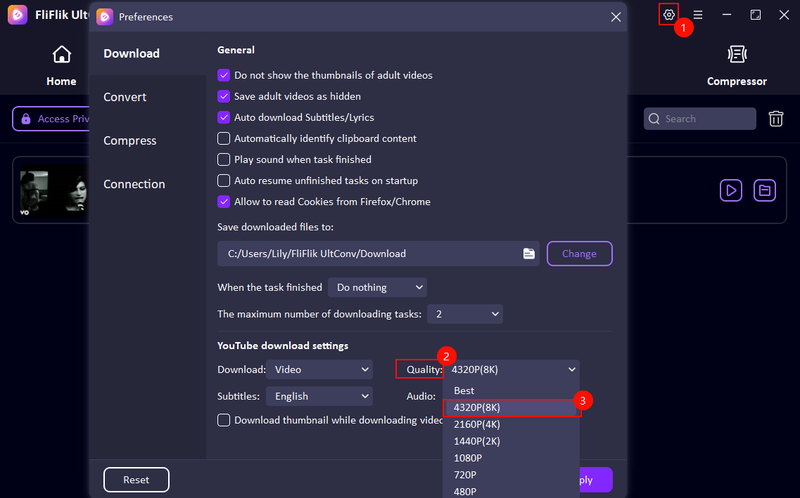
In the main interface, click setting buttons and choose 8K quality for video; click the “Apply” button to confirm you setting.
-
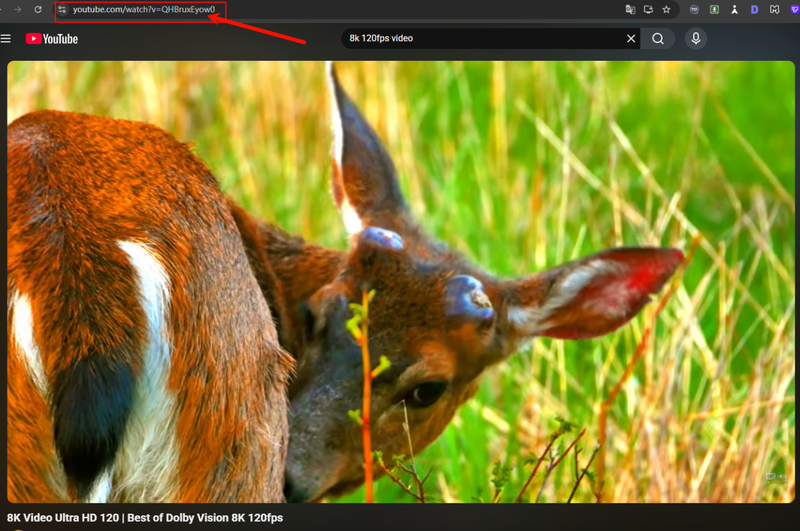
Open YouTube or any streaming website in your browser, locate the 8K video you want to download, and copy the page URL from the address bar.
-
Return to UltConv, paste the URL into the downloader manually. The program will analyze the link and begin downloading the video.


Way 3: Download 8K YouTube Videos with an Open-Source Tool
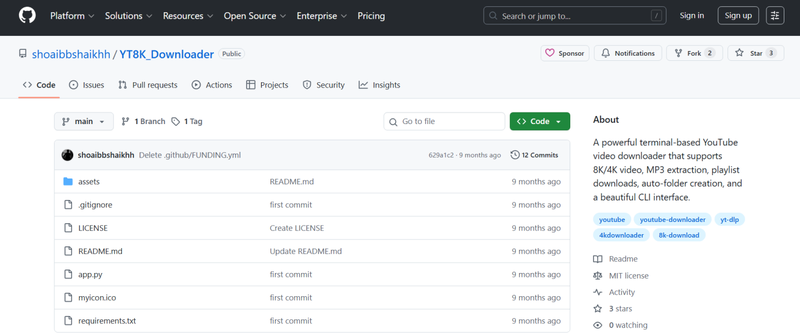
Another option for people who prefer free tools is using an open-source program like YT8K_Downloader. This type of tool is usually created by developers and shared publicly, which means anyone can download and use it. Some users like open-source software because it’s lightweight and gives more control over the downloading process. Tools like YT8K_Downloader work as a YouTube 8K downloader, allowing you to grab high-resolution videos directly from YouTube. However, the interface is often simpler than commercial tools, so the process may require a few extra steps.
▼ Steps to Download 8K YouTube Videos with an Open-Source Tool
-
Step 1:
Download the YT8K Downloader program from its official repository and install it on your computer.
- Step 2: Open YouTube in your browser and copy the link of the 8K video you want to download.
- Step 3: Launch the downloader and press Enter to auto-detect from the clipboard.
- Step 4: Choose the video quality, such as 8K resolution, and select the output format if the option is available.
- Step 5: Click the Download button and wait for the tool to process and save the video to your computer.

Limitations:
Although open-source tools can work as a YouTube downloader 8k, they often come with some drawbacks. Many of them have a basic interface, which can be confusing for beginners. Updates may also be inconsistent, so the tool might stop working if YouTube changes its system. In some cases, you may also need extra software or command-line knowledge to run the program properly.
Part 4. Quick Comparison—Which is the Best Method to Save 8K Videos
By now, you’ve seen three different ways to perform a YouTube video download 8k. Each method works, but they are designed for different types of users. Some are simple but limited, while others give you full control over quality and downloads.
For example, the official download option inside YouTube mainly allows offline viewing in the app, and the resolution is usually limited to 720p or 480p, not true 8K. Third-party tools and desktop downloaders, on the other hand, can often download higher resolutions and save videos as real files on your computer. Here’s a quick comparison so you can easily see which option fits your needs.
| Method | Type | Support Sites | Max Quality | Batch Download | Price | Ease of Use | Rate |
|---|---|---|---|---|---|---|---|
| YouTube Official Download | Built-in app feature | Only YouTube | 720p / 480p | No |
|
Very Easy | ⭐⭐⭐ |
| UltConv Downloader | Desktop software | 10,000+ sites | Up to 8K | Yes |
|
Very Easy | ⭐⭐⭐⭐⭐ |
| YT8K_Downloader | Open-source tool | Mostly YouTube | Up to 8K | No | Free | Difficult (technical setup) | ⭐⭐⭐ |
Wrapping Up
So, now we know downloading ultra-high resolution videos is not always straightforward, especially when you want the real file in full quality. As we’ve seen, there are a few ways to handle an 8K video download. The official option inside YouTube is simple, but it mainly allows offline viewing and doesn’t provide true 8K files. Open-source tools can work, but they often require a bit more technical setup. If you want something easier and more reliable, a dedicated downloader is usually the better choice. FliFlik UltConv YouTube Video Downloader makes the process much simpler. You can download videos in up to 8K quality, grab playlists in batches, and even convert videos to audio in just a few clicks. If you regularly save videos for offline viewing, editing, or archiving, it’s worth giving UltConv YouTube Video Downloader a try and seeing how smoothly high-quality downloads can work.
 Secure Download
Secure Download
Secure Download
Hey there! I am Maxwell Clark. I'm always looking for new tech tools that make a difference, from making visuals and audio better to making workflows better. I'm going to share tips and tricks for using AI tools for videos, audio, and images. I'm excited to help you navigate the digital world more efficiently and creatively!