8 minutes read


So, you open Disney Plus to watch your favorite show, and nothing. The app won’t load. Videos are not playing. Many times, you may notice the app is frozen, and many times you will see an error. Whatever the scenario is, the situation is really frustrating. But the good thing is all problems has its solution. No matter if you are experiencing a device-related problem, connection issue, or an error on Disney’s end, there are a few easy solutions that can get things back up and running. In today’s article, we have listed all the possible errors of why disney plus not working for you with their corresponding solution. So, this article has all the available solutions. Keep reading.

Part 1. Why is Disney Plus Not Working? [Corresponding solutions]
If you’re asking yourself why is Disney Plus not working, one of the most common reasons is connection or streaming issues. These errors can appear on any device, TV, phone, tablet, or computer, and they often come with specific error codes that help pinpoint the problem. Below, we will share the most frequent ones and how you can fix them.
1. Connection and Streaming Errors
When the internet connection is poor or there is a temporary server error, the app doesn’t load video or buffer. On other occasions, the device may have compatibility issues. Here are some of the common error codes you will see because of connection and streaming errors.
Error Code 42

This error usually points to a network or connection problem. It can appear if your internet speed is too slow or your Wi-Fi keeps dropping. You could notice the app failing to load, freezing mid-video, or showing repeated buffering. Basically, your device can’t communicate properly with Disney+ servers.
- Check your internet connection: Make sure your Wi-Fi or mobile data is stable. A speed test of at least 5 Mbps for HD streaming is recommended.
- Restart your network: Sometimes simply turning your router off for 30 seconds and back on can fix temporary connection glitches.
- Relaunch the Disney Plus app: Close it completely and open it again. This refresh often clears minor app-side errors that block streaming.
Error Code 39
This error is common when trying to stream Disney Plus on a TV. It occurs due to HDMI or HDCP issues; basically, the TV or device isn’t properly recognized. You might see a black screen or playback failure. This error explains why Disney Plus not working on TV can happen even when the internet is fine.
- Check HDMI connections: Make sure your cables are securely plugged in and not damaged. Using the TV’s original ports often avoids compatibility issues.
- Confirm supported devices: Disney Plus only works on certain TVs, streaming sticks, and consoles. Make sure your device is on the official list.
- Relaunch the app: Disconnect the device from HDMI briefly, reconnect, and restart the app to reset the connection.
Error Code 41

If Disney’s servers are overloaded, usually during peak hours or new releases, you might see Error 41. This can make the Disney Plus app not work at all or cause long loading times. The app may freeze on a black screen or repeatedly fail to start.
- Wait and try later: Traffic spikes are temporary, so giving it a few minutes often resolves the problem.
- Restart the app: Closing and reopening can help reconnect your device to less busy servers.
- Check service status: Visit Disney Plus status pages or social media to confirm if the issue is widespread. This saves time troubleshooting on your own.
Error Codes 91 & 92
These errors occur when Disney Plus receives too many login or streaming requests at the same time. You may be unable to log in, watch any videos, or keep the app from crashing. This is common during major releases or promotions.
- Wait & relaunch: Give it a few minutes, then reopen the app or refresh the website to try again.
- Restart your device or computer: This can clear temporary glitches that block the app from connecting.
- Check your connection: A stable internet connection ensures your device can properly communicate with Disney Plus servers.
2. Device and Compatibility Errors
Some Disney Plus errors aren’t about your internet; they’re about the device you’re using or where you’re trying to watch from. Device or compatibility errors happen when your device doesn’t fully support Disney Plus, or if your location prevents streaming. Here are some common errors you can face.
Error Code 83

This error shows up when your device is not compatible with Disney Plus. It could be an older smart TV, an outdated console, or a device running an unsupported operating system. Basically, the app can’t run because the device doesn’t meet the technical requirements.
- Check device compatibility: First, visit Disney Plus’s official list of supported devices. If your device isn’t listed, try another compatible device.
- Check location settings: Also, some devices may block Disney Plus if the location services are off or set incorrectly. Make sure your device shows the correct country.
Error Code 73
This occurs when you try to access Disney Plus from a restricted region or while using a VPN or proxy. Geo-blocking prevents the service from streaming content outside supported areas.
- Disable VPN or proxy: Turn off any VPN, proxy, or location-spoofing software and try again.
- Update the app: Make sure Disney Plus is running the latest version, as updates can fix region-related bugs.
- Power cycle your device: Restart your TV, console, or streaming stick to refresh settings.
Error Code 13

This happens when you reach the device limit for your Disney Plus plan. You can’t stream on a new device if all the allowed devices are in use.
- Log out of unused devices: Check which devices are currently logged in and remove ones you no longer use.
- Check your plan: Ensure your plan supports the number of devices you’re trying to use simultaneously.
3. Account and Login Errors
Many issues come down to your account’s wrong credentials, expired payment methods, or problems with your subscription. These errors prevent you from signing in or streaming.
Error Code 14
This usually appears when you enter the wrong email or password. It’s simple, but it stops you from logging in entirely.
- Check your credentials: Make sure you’re entering the correct email and password.
- Reset your password: If you can’t remember it, use Disney Plus’s password reset option to regain access.
Error Code 9
This can appear when there’s a problem with your payment or account status. Maybe your subscription expired or your last payment didn’t go through.
- Check payment methods: Ensure your card is valid and up-to-date.
- Check account status: Log in to the Disney Plus website and confirm your subscription is active.
Error Code 13
This error can also appear for login or password problems, separate from device limits. It may block access if credentials are entered incorrectly multiple times.
- Reset or change password: Updating your password can solve repeated login failures.
- Clear cache and cookies: Sometimes old app or browser data can prevent login. Clearing it refreshes the connection.
Part 2. General Troubleshooting Steps for Disney Plus Not Working

Sometimes the issue isn’t a specific error code; it’s just that Disney+ isn’t behaving properly. If that’s the case then these general troubleshooting steps can solve most of your Disney Plus problems quickly.
1. Restart the App
Before doing anything complicated, try closing the app completely and reopening it. Apps can sometimes get stuck due to temporary glitches, and a fresh start often clears these small hiccups. On a phone or tablet, swipe the app away from your recent apps. On a TV or streaming device, close the app and relaunch it. You’d be surprised how often this simple step fixes the problem.
2. Restart the Device
If restarting the app doesn’t work, it’s time to restart your device. Whether it’s a TV, computer, or phone, turning it off and on again clears temporary system issues and can improve performance. This also helps the app reconnect to Disney Plus servers with a clean slate.
3. Check for Updates
Make sure both your Disney Plus app and your device’s operating system are up to date. Outdated apps can misbehave, freeze, or fail to load content. Check the app store on your device for updates, and if needed, update your device’s firmware or OS. Keeping everything current ensures smooth streaming.
4. Reinstall the App
If the app keeps acting up, uninstall it completely and reinstall it. This removes corrupted files that might be causing crashes or errors. After reinstalling, log in again, and you’ll have a fresh, fully updated version ready to stream.
Part 3. How to Download Disney Plus Video for Seamless Viewing
Okay, here’s another solution you can try if Disney Plus not working and keeps ruining your movie nights. Instead of relying on streaming every time, downloading your favorite shows or movies for offline viewing is a smart move. This way, you can watch without buffering, network interruptions, or app glitches. For that, you need a reliable and safe tool, and one of the best options is FliFlik UltConv Disney Plus Downloader.
UltConv Disney Plus Downloader is the perfect tool to download your favorite Disney Plus movies into MP4 format to watch offline. You can save videos in HD or 4K and convert them into audio files without losing quality. Also, with UltConv Disney Downloader, you can even batch download multiple videos or a full season of your favorite Disney show at once. Another best thing is it’s not just about Disney; UltConv Video Downloader supports 10,000+ streaming platforms like Netflix, Prime Video, Tubi etc. You can download your favorite movies from all of these platforms in up to 8K resolution and in common formats like MP4 and MKV. Plus, it keeps everything organized with features like private folders and built-in browsing for direct downloads.

- Supports 10,000+ streaming websites, including Disney Plus, Netflix, Pluto, Amazon Prime, and more
- Download videos in 720p, 1080p, 2K, 4K, and even 8K resolution
- Convert videos to 100+ common formats like MP4, MP3, WAV, AAC, FLAC, and AIFF
- Batch download multiple videos, playlists, or albums simultaneously
- Remove DRM from Spotify and Apple Music for offline playback in MP3
- Save live streams from YouTube, Twitch, TikTok, and more
- Lightning-fast speeds, up to 10x faster than normal downloading
▼ Steps to Download Disney Plus Movies with FliFlik UltConv Disney Plus Downloader
-
First, download and install FliFlik UltConv Disney Plus Downloader. The setup is quick and straightforward.
FREE DOWNLOAD![secure download]() Secure Download
FREE DOWNLOAD
Secure Download
FREE DOWNLOAD![secure download]() Secure Download
Secure Download
-
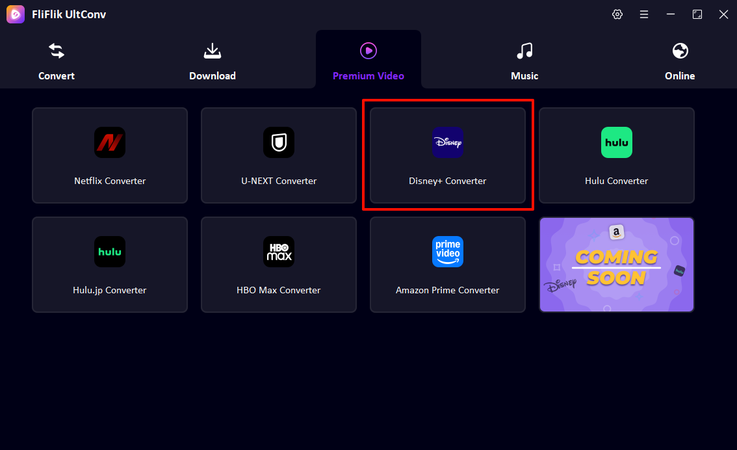
Launch UltConv and click on the Premium Video tab. From there, select Disney+ Converter to access Disney Plus content directly from within the software.
-
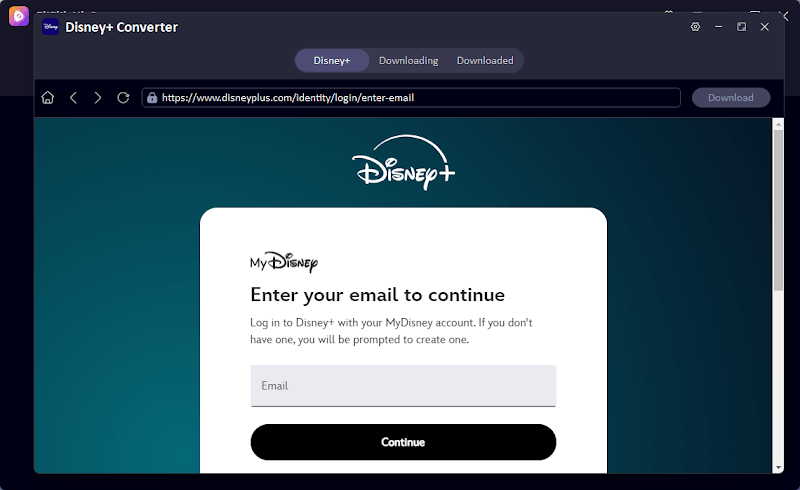
The Disney Plus interface will open inside UltConv. Sign in to your Disney Plus account. This lets you browse movies and shows without switching between a browser and the software, keeping everything in one place.
-
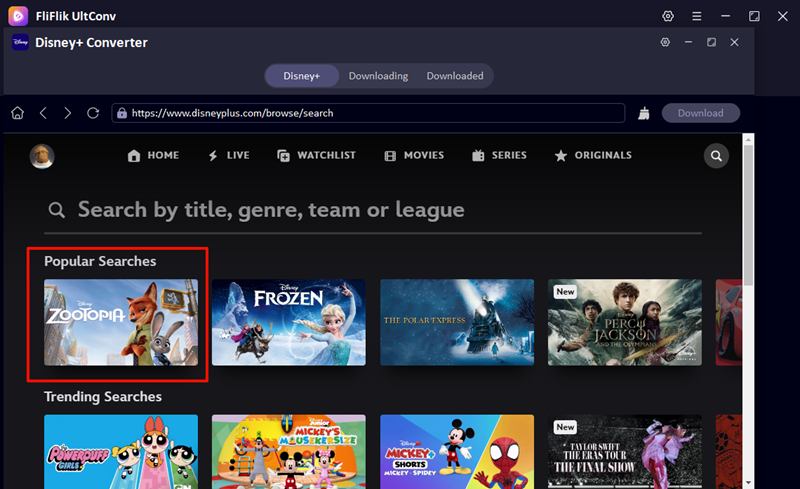
Use the search bar to find your desired movie and click to play it.
-
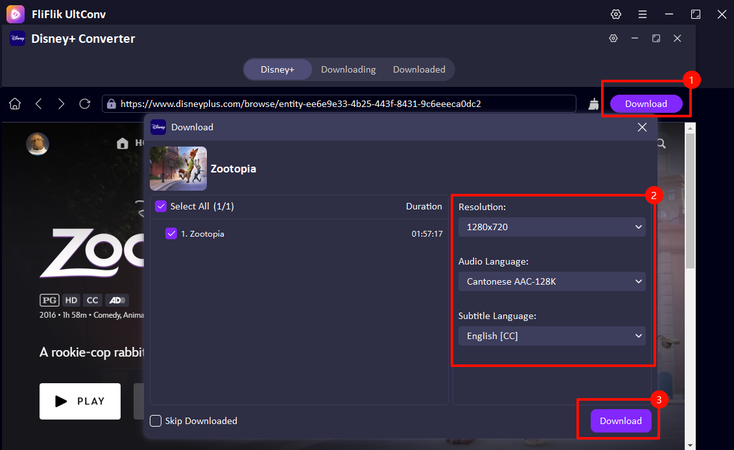
Click the ‘Download’ button in the upper right corner, then you can choose video quality (up to 4K), select your preferred audio language, and subtitle options.
-
The download will begin immediately. When it’s finished, go to the Downloaded tab to find your movie.
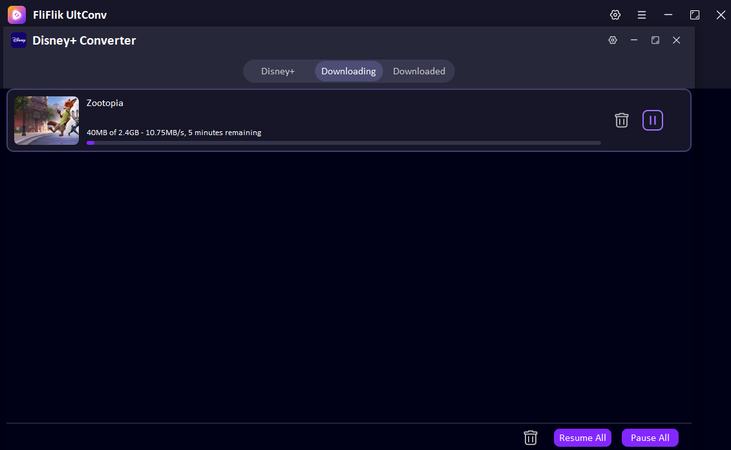


It’s the perfect tool to enjoy everything you love from Disney Plus in offline mode. You can watch without an internet connection and anywhere on any of your devices freely once your content is downloaded.
Final Words
So, now if your Disney Plus not working, you already know the solution. If the screen shows an error, then just do the solution we provided above, and you will be back in minutes. Our troubleshooting steps cover the most common problems and can get you back to streaming quickly.
But if you want a truly stress-free way to watch, why deal with slow loading or error messages? With FliFlik UltConv Disney Downloader, you can save your favorite Disney Plus movies and shows directly to your device. Watch in HD, pick the format that works best for you, and enjoy them offline whenever you like. Movie nights become easy, relaxing, and completely under your control.
 Secure Download
Secure Download
Secure Download
Hey there! I am Maxwell Clark. I'm always looking for new tech tools that make a difference, from making visuals and audio better to making workflows better. I'm going to share tips and tricks for using AI tools for videos, audio, and images. I'm excited to help you navigate the digital world more efficiently and creatively!