9 minutes read


MyVidster is a social video bookmarking platform where users can save and share videos from different websites. However, many users want to download from MyVidster so they can watch videos offline without relying on internet connectivity. Since MyVidster does not provide a direct download button for most videos, users often need third-party download tools to save content quickly and safely.
In 2026, video downloading has become more important because people want offline access to entertainment, tutorials, and social media clips. Using a reliable downloader can help preserve video quality, support multiple formats, and make the process much simpler. In this article, we will show easy methods to download from MyVidster in just a few clicks using safe and effective tools. If you want quick, hassle-free downloads, this guide will help you get started.

- Part 1. What is MyVidster & Why Download from It?
- Part 2. Quick Overview of 4 MyVidster Video Downloader
- Part 3. Easiest Way to Download MyVidster Videos on PC & Mac
- Part 4. How to Download Videos from MyVidster with Online Tools
- Part 5. How to Download from MyVidster with Extension
- Final Words
Content Table:
Part 1. What is MyVidster & Why Download from It?

MyVidster is a social video bookmarking platform that allows users to collect, share, and organize videos from across the internet. Instead of hosting its own videos, MyVidster helps users save video links from various streaming and social media websites. This makes it popular among users who want to build their own personalized video collections. However, since MyVidster mainly works as a bookmarking service, it does not always provide a direct download option for videos.
That is why many users look for ways to download from MyVidster using third-party tools. Downloading videos can be helpful when users want to watch content offline, avoid buffering issues, or keep important videos saved locally for later use. In addition, offline downloads can help users preserve videos even if the original source link becomes unavailable.
- No official download feature is available on most videos
- Offline viewing without an internet connection
- Avoid buffering or slow streaming issues
- Save favorite videos for personal archives
- Keep videos accessible if sources are removed
Part 2. Quick Overview of 4 MyVidster Video Downloader
Below is a quick comparison of 4 tools we recommend for MyVidster video downloading, including software, online tools, and browser extensions. Each option has different strengths in terms of supported sites, download speed, and advanced features.
| Tool | Type | Support Sites | Batch Download | Download Speed | Max Quality | Ad-Free |
|---|---|---|---|---|---|---|
| FliFlik UltConv | Desktop Software | 10,000+ video & music sites | ✅ | Very fast | Up to 4K / 8K | ✅ |
| PasteDownload | Online Tool | Multiple platforms including MyVidster | ❌ | Medium | Up to 1080p | ❌ |
| TTOK | Online Tool | Various social video sites | ❌ | Medium | Up to 1080p | ❌ |
| CocoCut | Browser Extension | Many streaming websites | ❌ | Medium | Depends on source | ✅ |
Part 3. Easiest Way to Download MyVidster Videos on PC & Mac
If you want to download from MyVidster, using a powerful desktop downloader is the most reliable choice because MyVidster does not provide an official download button for most videos. That’s where FliFlik UltConv MyVidster Downloader becomes very useful. This tool is designed to help users save videos and audio from MyVidster and more than 10,000+ websites while keeping original quality intact. It supports high-resolution downloads up to 4K and 8K video quality and audio downloads up to 320kbps, which is great for both entertainment and editing purposes. You can also download videos in multiple formats such as MP4, MP3, WAV, AAC, and FLAC, making it compatible with most media players and editing software. The software also supports batch downloading, allowing users to save multiple MyVidster videos at once without downloading them one by one.

- Download videos from 10,000+ websites, such as YouTube, TikTok
- Save videos in 4K and 8K quality and high-quality audio up to 320kbps
- Support MP4, MP3, WAV, AAC, FLAC, and 100+ formats
- Batch download videos, playlists, and media collections
- Built-in browser for easy video searching and downloading
- Convert video to audio without quality loss
▼ How to Download MyVidster Videos with UltConv Video Downloader?
-
Download and install FliFlik UltConv Video Downloader on your PC or Mac.
FREE DOWNLOAD![secure download]() Secure Download
FREE DOWNLOAD
Secure Download
FREE DOWNLOAD![secure download]() Secure Download
Secure Download
-
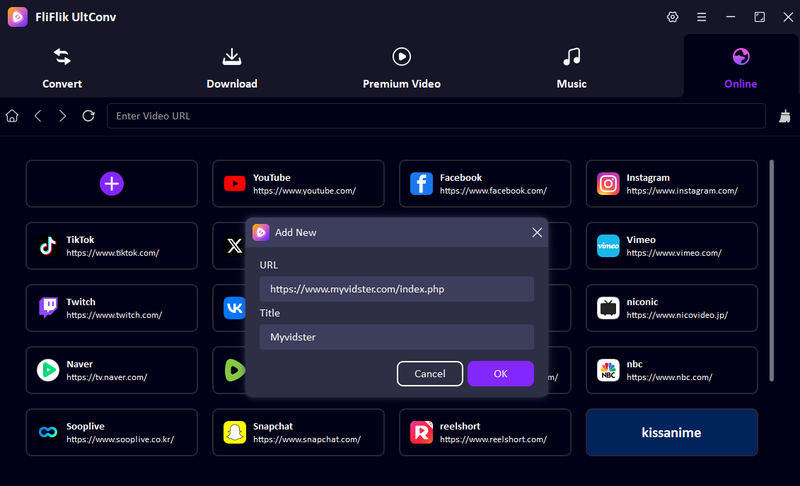
Open the software, go to the Online tab, then paste the MyVidster website link into the search box. Add the video title if required.
-
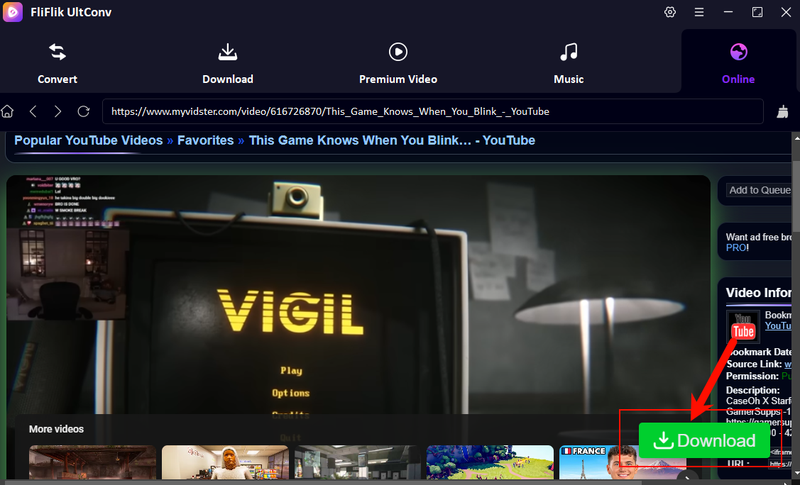
The MyVidster video page will open inside the built-in browser of UltConv, and find the video you want to download. Once the video is detected, click the green Download button.
-
The video will start downloading automatically. You can check the download progress in the download queue.
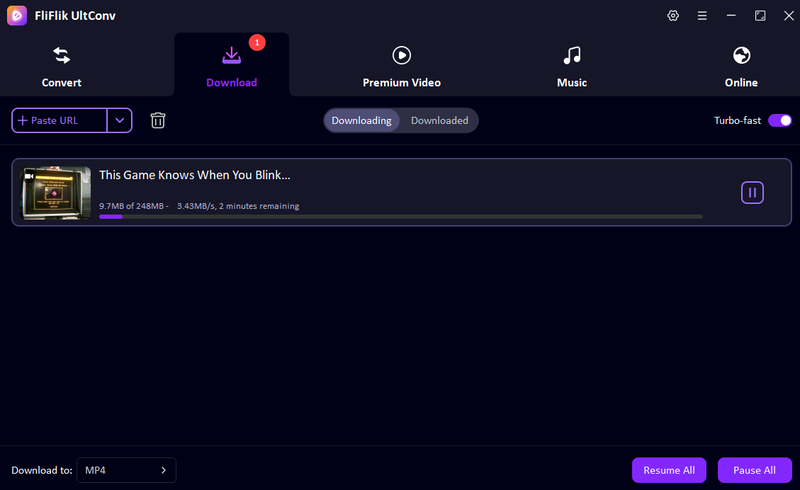


That’s how you can easily complete MyVidster download using UltConv Video Downloader.
Part 4. How to Download Videos from MyVidster with Online Tools
Online tools allow users to save videos without installing extra software. You simply paste the video link into the downloader page and generate a download option. These tools are convenient for quick myvidster download tasks when you want to save a video directly from your browser.
1. Patsedownload
Patsedownload is a browser‑based tool that helps users download videos from MyVidster quickly. The website works by processing a MyVidster video URL and generating a downloadable file. Since everything runs online, users can access it from computers, tablets, or smartphones without installing any applications. The interface is simple and designed for quick copy‑paste downloads, which makes it beginner-friendly. It is commonly used when users want a fast Myvidster download without dealing with complicated software setups.
- Simple interface suitable for beginners
- No software installation required
- Works on desktop and mobile browsers
- Ads may appear on the page
- Download speed depends on server load
▼ Steps to Download Videos from MyVidster with PasteDownload
-
Step 1: Copy the video URL from the MyVidster page.
-
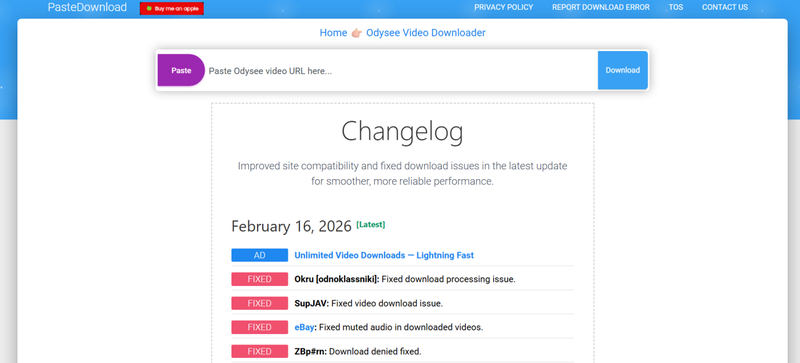
Step 2: Open the Patsedownload website in your browser.
-
Step 3: Paste the copied link into the download field. Click the Download button to process the video link.
-
Step 4: Next, click the MP4 download button and save the file to your device.


2. TTOK
TTOK is another online platform designed to help users perform MyVidster downloads quickly through a web browser. The tool processes the video page link and generates a downloadable version of the media. Because it works online, users can access it from different operating systems, including Windows, macOS, Android, and iOS devices. Many users prefer TTOK for its quick link detection and simple interface that allows video downloading with only a few steps.
- No registration required
- Works on multiple devices and browsers
- Fast link processing
- Limited advanced download options
- Ads may appear during use
▼ Steps to Download Videos from MyVidster with TTOK
-
Step 1: Open MyVidster and copy the video link you want to download.
-
Step 2: Visit the TTOK MyVidster downloader page and paste the copied video link into the input box. Click the Download button to analyze the video.

-
Step 3: After analysis the tool will show you MP4 download button, simply click that and save your video.

Part 5. How to Download from MyVidster with Extension
CocoCut is a browser extension designed for downloading streaming media from many websites, including MyVidster. The extension detects video streams automatically when the video is playing in your browser. Once detected, it provides a quick download option so users can save the file directly to their device. Many people prefer CocoCut because it removes the need to copy and paste video links manually.
- Automatic video detection
- One‑click download option
- Works with many streaming websites
- Some features require premium access
- Not all protected streams are supported
▼ Steps to Download Videos from MyVidster with CocoCut Extension
-
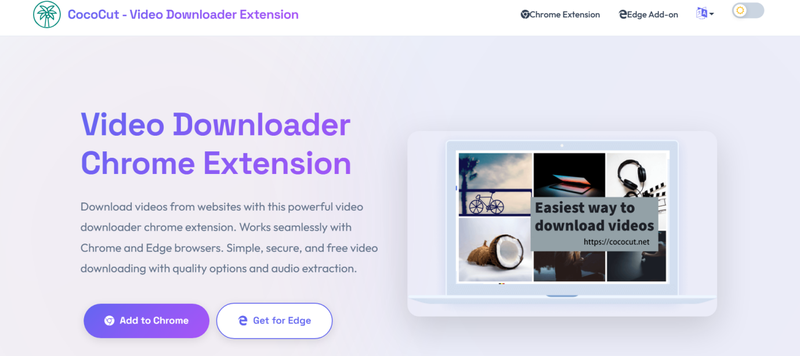
Step 1: Install the CocoCut extension in Chrome or Firefox.
-
Step 2: Open the MyVidster video you want to download and play the video so the extension can detect the stream.
-
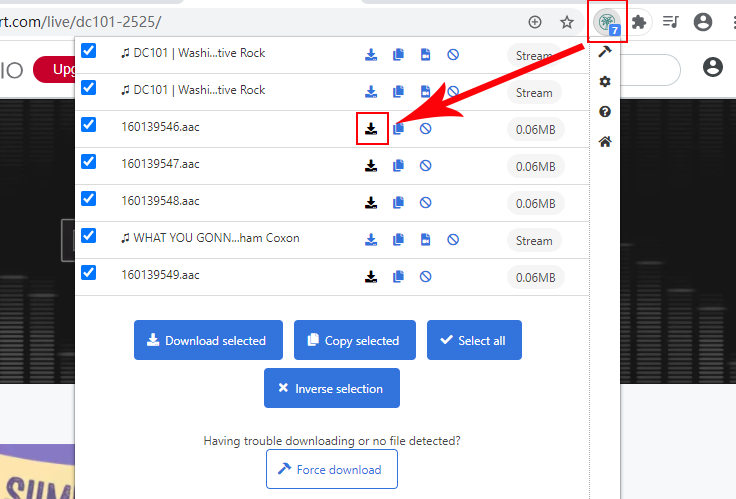
Step 3: Click the CocoCut icon in the browser toolbar, select the detected video, and click Download to save it.


Final Words
Finding the best way to download from MyVidster makes it easier to enjoy your favorite videos offline without worrying about buffering or lost links. Since MyVidster does not provide a direct download option for most content, using reliable tools, browser extensions, or professional download software is the safest and most convenient solution. Always choose tools that support high video quality, fast downloads, and multiple formats for better playback and editing compatibility.
If you want the easiest and most powerful solution, try FliFlik UltConv MyVidster Video Downloader. It supports downloads from thousands of websites, offers high-quality video and audio saving, and makes the whole process simple with one-click downloading. Start using FliFlik UltConv today to enjoy smooth, safe, and fast MyVidster video downloads anytime.
 Secure Download
Secure Download
Secure Download
Hey there! I am Maxwell Clark. I'm always looking for new tech tools that make a difference, from making visuals and audio better to making workflows better. I'm going to share tips and tricks for using AI tools for videos, audio, and images. I'm excited to help you navigate the digital world more efficiently and creatively!