9 minutes read


Medal.tv is a platform used by gamers to record and share short gameplay clips. Highlights from games such as Fortnite, Valorant, and Call of Duty are often uploaded and shared with friends or online communities. The clips are easy to view and share, but they are usually streamed through the platform.
Sometimes a clip needs to be saved on a computer or phone. A local copy can help with editing, reposting, or personal storage. This is where tools to download medal clips become useful. In this article, five methods are explained. Each method shows how Medal clips can be saved without a watermark so they can be used or watched offline in 2026.

- Method 1. Download Medal Clips with UltConv [No Watermark]
- Method 2. Download Medal Clips with Medal’s Built-in Download Feature
- Method 3. Download Medal Clips with Online Downloader
- Method 4. Download Medal Clips with Extension
- Method 5. Download Medal Clips with Medal Bypass
- Final Words
Content Table:
Method 1. Download Medal Clips with UltConv [No Watermark]
FliFlik UltConv Medal Downloader is our first recommendation. This tool focuses on saving online videos in high quality and common formats. The program supports downloads from more than 10,000 websites, including Medal.tv, YouTube, and Vimeo. Clips can be saved directly to a computer, which allows them to be watched offline or edited later.
Several download features are included to make clip saving easier. You can download videos in resolutions such as 720p, 1080p, 2K, or 4K. You can also convert files into formats such as MP4 or MP3, so they work with most media players and editing tools. A built-in browser is provided inside the program, which allows users to open a clip page and download it without switching to another browser. Batch downloading is supported as well, so multiple Medal clips can be saved in one process without a watermark.

- Videos can be downloaded from 10,000+ websites, YouTube, TikTok, and Instagram
- Clips can be saved as MP4, MP3, and 100+ formats
- Batch download is supported for multiple clips
- Video quality up to 4K is supported
- Built-in browser allows direct clip downloading
- Audio can be converted without quality loss
▼ Steps to Medal Download No Watermark Clips with UltConv Medal Downloader
-
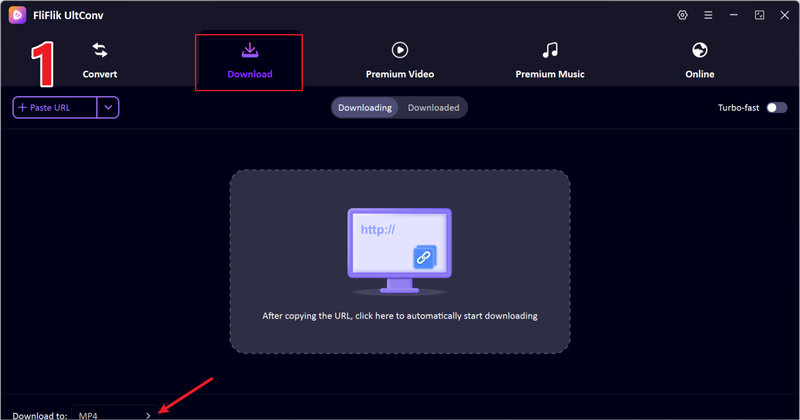
Install and open FliFlik UltConv Video Downloader on your computer. After the program starts, open the Download to section.
FREE DOWNLOAD![secure download]() Secure Download
FREE DOWNLOAD
Secure Download
FREE DOWNLOAD![secure download]() Secure Download
Secure Download
-
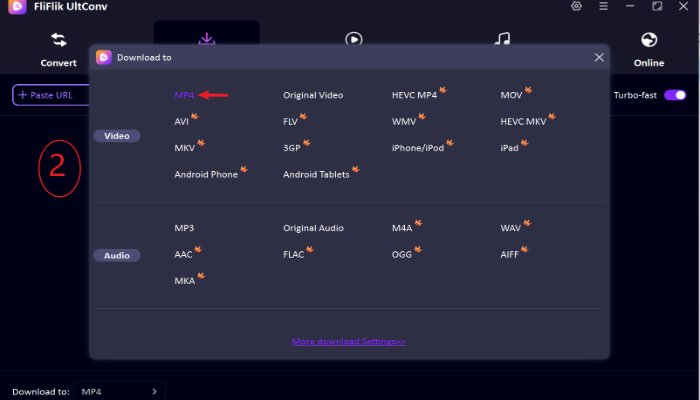
Choose the output format you want for the clip, such as MP4. The selected format will be used when the clip is saved.
-
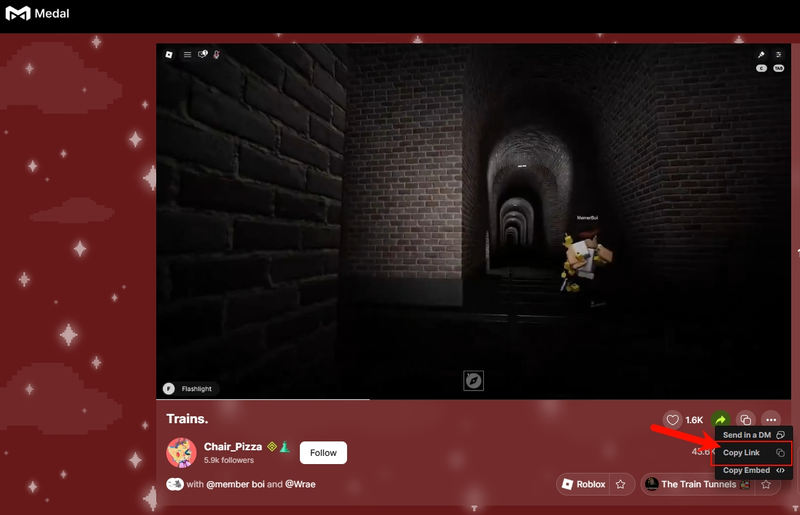
Open the clip you want to save on Medal.tv and copy the video link from the browser.
-
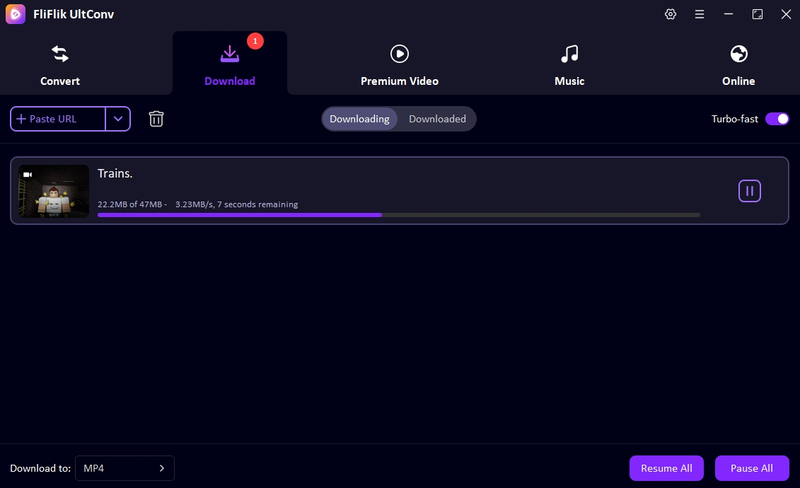
Paste the copied link into the program. The clip will be detected, and then it starts to download. The Medal clip will be saved to your computer and can be watched offline without a watermark.


Method 2. Download Medal Clips with Medal’s Built-in Download Feature
Medal.tv also provides its own option to save clips. This method is simple because it works inside the platform. A clip can be opened and saved directly from the website or the desktop app. For users who want a quick medal clipping download, the built-in feature is often the first option to try.
However, there is one clear limit. When a free account is used, the downloaded video usually includes a watermark. The clip is still saved, but the platform mark will appear on the video. Because of this, some users look for other methods when they need a clean file.
- No extra software is required
- Works directly inside the Medal platform
- Quick and simple download process
- Suitable for saving personal clips
- Free downloads include a watermark
- Format and quality options are limited
- Not designed for batch downloads
▼ Steps to Download Medal Clips Officially
- Step 1: Open Medal.tv in your browser or app and sign in to your account.
- Step 2: Find the gameplay clip you want to save and open the clip page.
-
Step 3:
Click the
Download
option that appears below the video player.
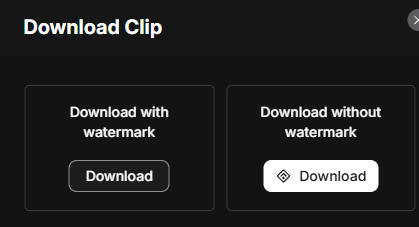
- Step 4: The clip will be saved to your device. If a free account is used, the downloaded video will include a watermark.

Method 3. Download Medal Clips with Online Downloader
PasteDownload is a web-based tool that allows users to save videos by pasting a link into the website. It can also be used for medal clip download when a quick solution is needed. Because the service runs in a browser, no software installation is required. The process is simple. A Medal clip link is copied and pasted into the tool, and the video file can then be downloaded to a computer. This method is often used for single clips. However, online tools does not always work with every video and quality options.
- No installation is required
- Works directly in a web browser
- Simple link paste download process
- Quick for saving a single clip
- Limited format and quality options
- Some clips may not be detected
- Ads may appear on the page
- Batch downloads are not supported
▼ Steps to Download Medal Clips with PasteDownload
- Step 1: Open the clip you want to save on Medal.tv and copy the video link from the browser.
-
Step 2:
Go to the PasteDownload website and paste the copied link into the download box.
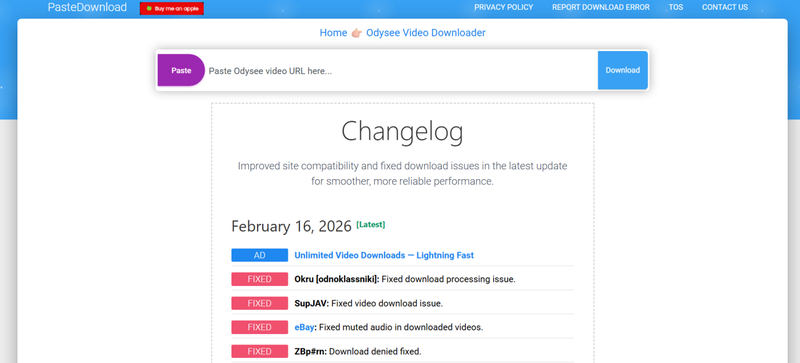
-
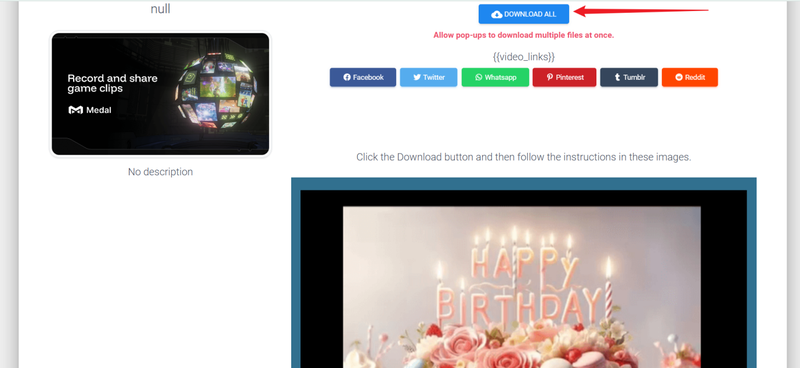
Step 3:
Click the
Download
button so the tool can detect the video, click Download, and download the file to your device.


Method 4. Download Medal Clips with Extension
CocoCut Video Downloader is a browser extension used to save videos that play inside a webpage. After the extension is added to the browser, it can detect video streams and allow a media clip download from supported pages. This method works while you watch the clip on Medal.tv. When the video loads, the extension checks the page and shows available download options. It is often used by users who prefer downloading directly from their browser instead of installing a full desktop program.
- Works directly in the browser
- Simple setup through the extension store
- Quick download from the video page
- No separate software is required
- Some videos may not be detected
- Format options can be limited
- Download success may vary
- Not suitable for batch downloads
▼ Steps to Download Medal Clips with CocoCut Video Downloader
-
Step 1:
Install the CocoCut Video Downloader extension from the browser extension store.

- Step 2: Open the clip you want to save on Medal.tv and play the video.
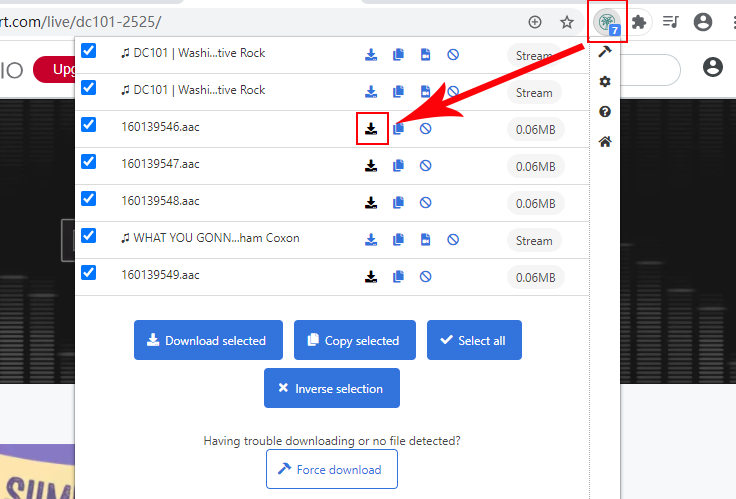
- Step 3: Click the CocoCut extension icon in the browser. The tool will detect the video stream on the page.
-
Step 4:
Choose the available file option and start the download. The clip will then be saved to your device.


Method 5. Download Medal Clips with Medal Bypass
Medal Bypass is a simple web tool designed to help users save clips from Medal.tv. The tool works by processing the clip link and generating a direct download file. Many users try this method when they want a medal download no watermark without installing software. The service runs in a browser, so no setup is required. A clip link is pasted into the website, and the tool prepares the video file for download. This method is useful for quick downloads.
- No installation is required
- Works directly in a browser
- Simple link paste process
- Can provide downloads without watermark
- Some clips may not load correctly
- Download speed may vary
- Limited format options
- Website availability may change
▼ Steps to Download Medal Clips with Medal Bypass
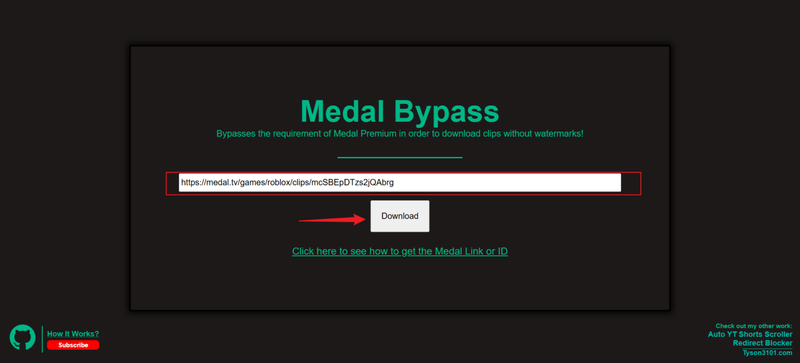
- Step 1: Open the clip you want to save on Medal.tv and copy the video link from the browser.
- Step 2: Go to the Medal Bypass website and paste the copied link into the input box.
-
Step 3:
Click the download button so the tool can process the video.
-
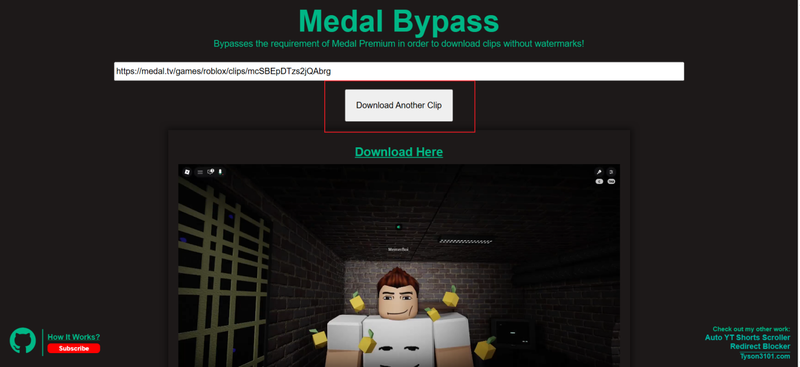
Step 4:
hoose the available file option and save the clip to your device.


Final Words
Several methods can be used to download Medal clips, including built-in options, browser extensions, and online tools. Each method works in a different way. Some are simple and quick, but they may add a watermark or limit video quality. Others may not work with every clip. If a clean file without a watermark is needed, a dedicated downloader is usually the more reliable choice. FliFlik UltConv Medal Downloader provides support for thousands of websites, allows clips to be saved in formats such as MP4, and supports high video quality. Batch downloads are also available, which helps when several clips need to be saved at once. For users who want a simple and stable way to keep their gameplay highlights, trying FliFlik UltConv Medal Downloader is a practical choice.
 Secure Download
Secure Download
Secure Download
Hey there! I am Maxwell Clark. I'm always looking for new tech tools that make a difference, from making visuals and audio better to making workflows better. I'm going to share tips and tricks for using AI tools for videos, audio, and images. I'm excited to help you navigate the digital world more efficiently and creatively!