

 7 minutes read


It’s really frustrating why are videos not playing in Firefox. You are not the only one who encounters this issue. It can be on YouTube, Netflix, or embedded videos on other sites. This Firefox not playing videos can get very annoying because it interrupts your browsing.
Fortunately, most of the time, the problem is due to the browser configuration, outdated software, hardware errors, or a network problem. We will explore the reasons videos can’t be played in Firefox and simple methods to solve them.

Part 1: Why Is Firefox Not Playing Videos?
Firefox may stop playing a video for many reasons. It is often easy to solve the problem when you know why it is happening. These are the common causes of blank screens, spinning circles, or error messages:
1. Outdated Firefox Version
Firefox frequently updates to support new video formats as they become available. Your version may be too old to play certain videos, particularly if you are trying to play a video from a modern website that uses HTML5 (or DRM-protected content).
2. Disabled or Outdated Plugins and Codecs
Some Videos might require plugins such as Adobe Flash (for old videos) or media codecs to play some video formats. Videos won’t load if they are disabled, missing, or not updated.
3. Corrupted Cache and Cookies
Also, browsing data builds up over time. Corrupted cache or cookies can block video scripts, prevent streams from starting, or cause videos to freeze. Clearing cache and cookies often resolves these issues.
4. Hardware Acceleration Conflicts
Hardware acceleration uses your GPU to process video playback faster, but it may conflict with your graphics driver or system settings. That’s why your videos may stutter, freeze, or not play at all.
5. Conflicting Extensions or Add-ons
Some browser extensions, especially ad blockers or security add-ons, can mess with video players. They might block scripts from running or unintentionally stop media content from loading.
6. Network or Firewall Restrictions
A slow internet connection, VPN settings, or strict firewall rules can block your streaming content or cause playback errors. Streaming sites always need a really stable and unrestricted connection to work properly.
7. HTML5 or DRM Issues
Most modern streaming sites use HTML5 video or special DRM protections. If these are disabled, blocked, or not supported in Firefox, your videos simply won’t play.
Part 2. How to Fix Videos Not Playing in Firefox?
If your videos aren’t playing, don’t worry, there are a few simple things you can try to get Firefox running smoothly again. These fixes cover the usual problems like wrong settings, extensions getting in the way, or other system conflicts.
Method 1: Check Your Internet Connection
A slow internet connection is usually the main problem why videos won’t load. Run a speed test and restart your router first. Make sure nothing else is using up all the bandwidth on your network. Remember, HD and 4K videos need a really fast, steady speed.
Method 2: Clear Firefox Cache and Refresh
Your saved data (cache and cookies) can sometimes get corrupted and stop videos from playing. Go into Firefox settings, clear your cache and cookies, and restart the browser. If it’s still messed up, use the “Refresh Firefox” option. This resets everything to default but saves your important stuff like passwords. It’s great for fixing hidden conflicts.
Method 3: Disable Add-ons and Extensions
Extensions like ad blockers, VPNs, or security tools can break streaming services. Go to the Add-ons Manager and turn off all extensions for a minute. If the video plays, turn them back on one by one. This helps you find the single extension that’s causing the whole problem.

Method 4: Disable Hardware Acceleration
Hardware acceleration can improve performance, but it may conflict with your graphics driver and cause video playback problems. To disable it, go to Settings → General → Performance, uncheck “Use recommended performance settings,” and then disable “Use hardware acceleration when available.” Restart Firefox and check if videos play normally.

Method 5: Use a New Private Window
Sometimes cached scripts, cookies, or logged-in sessions interfere with playback. Opening a private window bypasses saved data, extensions (if disabled in private mode), and login sessions. Try streaming the video in a new private window to see if it plays correctly. If it does, the issue is likely related to your normal browsing data or settings.

Bonus Tip. How to Download an Entire Video for Offline Viewing?
Watching videos online is easy, right? But what happens when your internet connection is terrible, or you just want to watch later without streaming? Most major sites, like YouTube, Netflix, and Twitch, don’t let you save content in high quality for offline viewing. Here’s where FliFlik UltConv Video Downloader comes in as a reliable fix. It lets you download videos, playlists, and even live streams from thousands of websites. You can convert them to different formats, keep the high-definition quality, and even remove DRM from music.
You get total control over your media collection. You don’t have to give up quality or convenience with FliFlik UltConv Video Downloader. It supports batch downloads (saving a lot at once), has a built-in browser so you can save content right there, and keeps your files safe in a private folder. No matter if you have a 4K video, a live stream, or an entire playlist, this all-in-one downloader makes watching offline totally seamless and fast.

- Download videos and audio from over 10,000 websites, including YouTube, TikTok, Instagram, and Netflix
- Convert videos and music to MP4, MP3, WAV, and over 100 formats while keeping original quality
- Batch download multiple videos, playlists, or albums in a single click
- Save videos in HD, 2K, 4K, and even 8K resolution for offline playback
- Use the built-in browser and private folder to securely manage and download content
▼ How to Download YouTube to MP4 with FliFlik UltConv Video Downloader?
First, download and install FliFlik UltConv Video Downloader on your computer. Once installed, follow these simple steps to save any YouTube video as an MP4 file.
 Secure Download
Secure Download
Secure Download
-
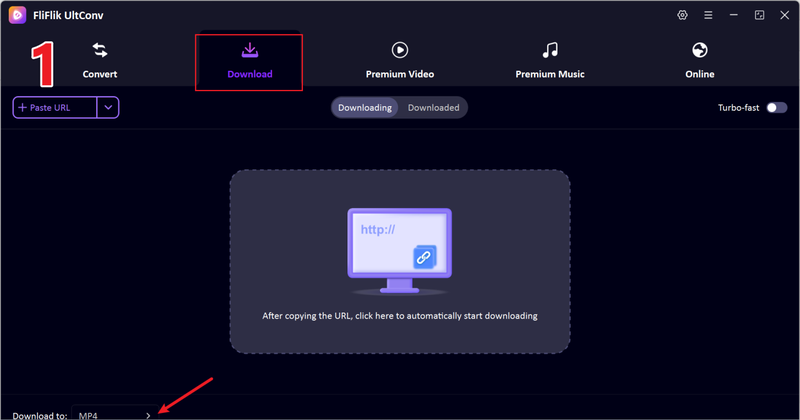
Open UltConv Video Downloader and go to the Download tab, then click the “Download to” button at the bottom.
-
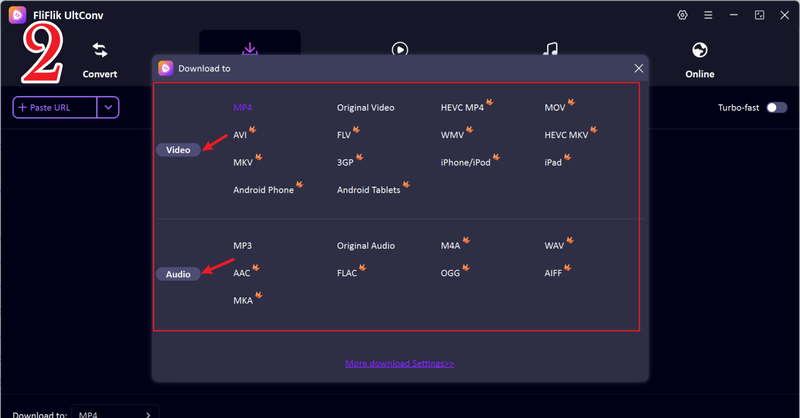
Choose MP4 as the output format so your downloaded videos can play on any device.
-
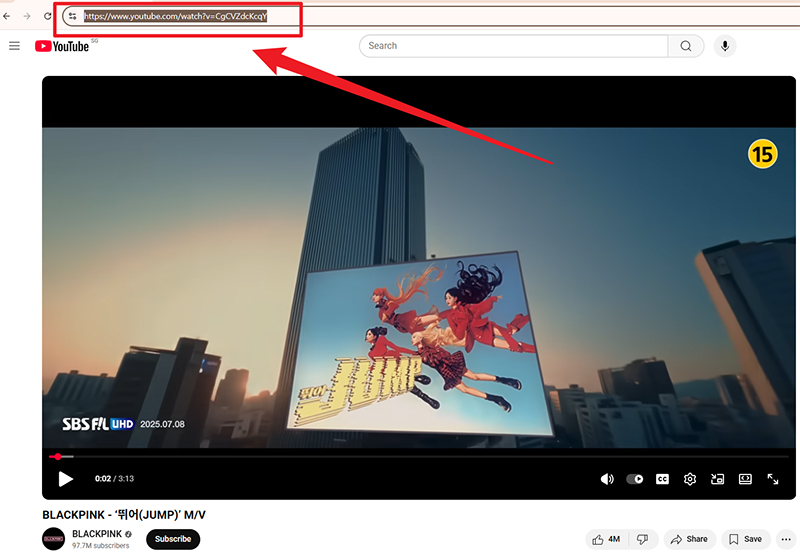
Open YouTube in your browser and copy the URL of the video you want to save.
-
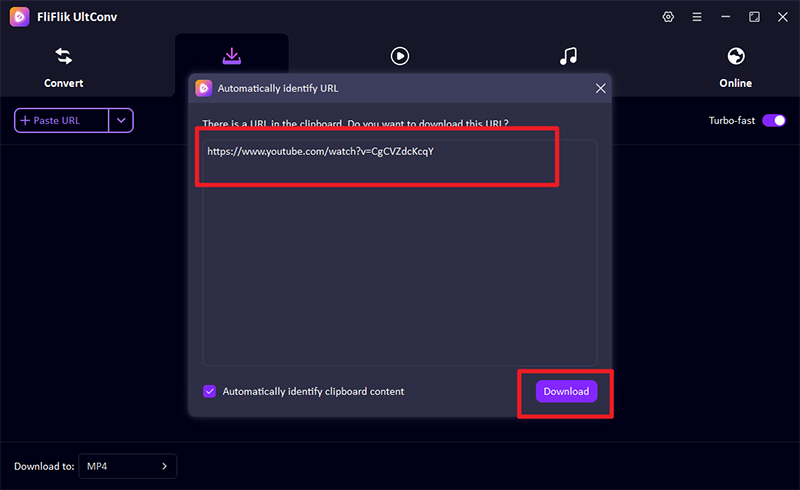
Return to UltConv. If the software automatically detects the link, simply click “Download” to start saving the video.
-
If the video link isn’t detected automatically, paste it manually into the search box and press “Download.”
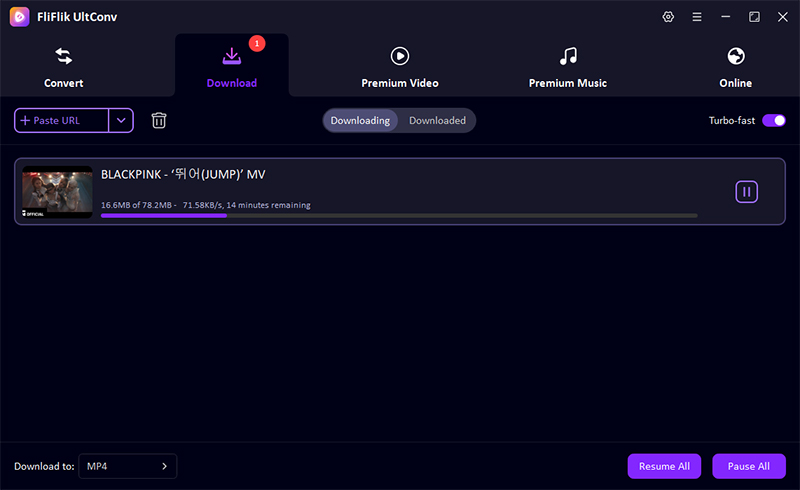


Once the download is complete, your YouTube video will be saved as an MP4 file. You can now watch it anytime offline without worrying about buffering or internet interruptions.
FAQs
Q1. Why does video not play in the Firefox browser?
Videos won’t play in Firefox for a few common reasons. The main culprits are having an old browser version, a corrupted cache, add-ons that fight with the player, disabled JavaScript, or problems with hardware acceleration. Sometimes, it’s just a bad network connection or an issue with the website itself that causes the playback failure.
Q2. How do I set Firefox to automatically play videos?
To let videos play automatically, just go into your Firefox Settings. Head to Privacy & Security, then click on Permissions, and finally choose Autoplay. Once you’re there, switch the setting to “Allow Audio and Video” for all sites, or you can just add specific websites where you want videos to start playing right away.
Q3. Why are my YouTube videos not playing in Firefox?
YouTube videos usually won’t play because of old Adobe Flash or HTML5 settings, blocked scripts, slow internet, or maybe a bad extension. The good news is that clearing your cache, updating Firefox, and turning off those bad add-ons usually fixes the whole thing.
Conclusion
When videos stop playing in Firefox, it’s annoying, but the fix is usually simple. A quick connection check, a cache cleanup, or disabling a few extensions is often all it takes. Firefox’s built-in tools make it easy to get playback running smoothly again.
And if you want to skip streaming issues altogether, FliFlik UltConv Video Downloader is a solid option. It lets you grab high-quality videos from YouTube and thousands of other sites so you can watch everything offline without any hiccups.
Secure Download
Secure Download
Hello, I research and introduce useful solutions for AI videos, images, and audio tips in our daily life. If you learn these things, you can easily deal with the problems of the new era.

