7 minutes read


Netflix’s new household rules turned account sharing into a headache. Many users get those annoying warnings or find their streaming blocked just for logging in somewhere new. Traveling, staying at someone else’s place, or just watching on a different device? Suddenly, you’re locked out. It feels kind of unfair, honestly. But the good thing is that this problem has some solutions. In this article, we will share some methods on how to bypass the Netflix household error in a practical way, without overcomplicating things or wasting your time. Let’s find the best solution for you.
Part 1. Possible Reasons for Netflix Household Error
The Netflix household error doesn’t show up randomly. In most cases, it’s triggered by how and where your account is being used. Here are the most common reasons people run into it most often.
You’re Not on The Home Internet Netflix Recognizes
Netflix links your household to the main Wi-Fi connection used on your primary TV. If you open Netflix on a different network, like office Wi-Fi, hotel internet, mobile data, or even a second home, the system treats it as a new location and blocks access.
Your Internet Connection Changed Behind the Scenes
Sometimes nothing changes on your end, but your internet provider switches your public IP address or network routing. This is common with dynamic IPs or CGNAT setups. When that happens, Netflix may think your home network is new and no longer matches the saved household.
A Device Stayed Away from Home Too Long
If you travel often or use Netflix in different places, devices can fall out of the household over time. Netflix expects devices to reconnect to the home network occasionally. When they don’t, the next login from another location can trigger the error.
You Changed or Reset Your Router or Modem
Installing a new router, replacing a modem, or resetting network equipment can also cause problems. Even if your Wi-Fi name stays the same, the network itself may look different to Netflix, which leads to re-verification issues.
Someone Else Used Your Account Elsewhere
When another person signs in from a different location, Netflix may tighten checks on the account. This can affect everyone using it, sometimes causing the household error even on the main home network.
You’re Using a Network that Netflix Doesn’t Count as a Home
Shared networks like hotels, dorms, offices, airports, or apartment Wi-Fi are often flagged as temporary or public. Netflix usually doesn’t treat these as valid household connections, which makes the error more likely to appear.
Part 2. How to Bypass Netflix Household Error

There isn’t one single fix that works for everyone. Netflix checks location, network behaviour, and device history, so the solution depends on what triggered the error in the first place. The good news is that most blocks can be handled with a few practical steps. Here are some quick solutions that you should try.
1. Request a Vacation Access Code
If you’re traveling or temporarily away from home, this is usually the fastest fix. Netflix allows short-term access outside your household by sending a verification code to the account email. Once you enter that code, the device gets temporary permission. It doesn’t permanently change your household, but it lets you keep watching without disruption while you’re away.
2. Update Netflix Household Location
When your main home setup changes, like moving houses or switching internet providers, Netflix needs to be told. You can update the household from the main TV connected to your home Wi-Fi. This resets what Netflix considers your official household and clears mismatches caused by network changes.
3. Connect to the Account Holder’s Wi-Fi
This step matters more than most people realize. Logging in from the same Wi-Fi used by the main TV helps Netflix re-link your device to the household. Even a short connection can be enough to sync things back. After that, the device usually works again when taken elsewhere for a while.
4. Add a New Member to the Netflix Account
If someone regularly watches from a different location, Netflix expects that usage to be formalized. Adding an extra member makes that device legitimate instead of flagged. It’s not a workaround, but for shared households, it prevents repeat blocks and constant re-verification.
5. Watch Netflix on Mobile or PC
Netflix is generally more flexible with phones, tablets, and computers than with TVs. If a smart TV is blocked, logging in on a mobile device or laptop often still works. This doesn’t fix the household issue permanently, but it lets you keep watching while you sort out the main setup.
6. Verify Your Device by Email
Sometimes Netflix simply wants confirmation. When prompted, choose the email verification option, open the message sent to the account holder, and confirm the device. This usually unlocks access immediately, especially if the device hasn’t been flagged repeatedly.
7. Restart Your Router if You Got a New IP Address
If the error appeared out of nowhere at home, your IP may have changed. Restarting the router can refresh the connection and sometimes restore the IP Netflix expects. It’s a small step, but in many cases, it solves the problem without doing anything else.
8. Don’t Use Smart TVs Beyond Your Home Network
Smart TVs are the strictest devices Netflix monitors. Using them outside the home network, even briefly, increases the chances of getting blocked later. If you travel often, it’s safer to use a phone, tablet, or laptop instead of relying on a TV that Netflix expects to stay in one place.
Each of these methods works for a specific situation. The key is matching the fix to what caused the error, rather than trying everything at once.
Part 3. How to Fix Common Netflix Errors

Not every Netflix problem is related to household rules. Some errors are technical and show up because of network issues, browser settings, or device glitches. Here are a few common Netflix error codes people run into, and what usually fixes them.
Netflix Error Code E100
This error often appears on smart TVs and streaming devices. It usually means corrupted device data, network issues, or an unsupported device/browser. The easiest fix is to restart the TV and reopen Netflix. Check your internet connection as well. If that doesn’t work, logging out of the app and signing back in can help. In some cases, uninstalling and reinstalling Netflix clears the error completely.
Netflix error Code NW-2-5
This one points to a network connection problem. Netflix can’t reach its servers, even though your internet may seem fine. Start by restarting your router and modem. If you’re using Wi-Fi, try switching to a wired connection or moving closer to the router. Checking your DNS settings or temporarily turning off a VPN can also make a difference.
Netflix error Code M7361
This error is common on browsers, especially Chrome. It’s often linked to extensions, cookies, or cached data interfering with playback. Clearing your browser cache and cookies is a good first step. If the problem continues, try disabling extensions one by one or opening Netflix in an incognito window to see if something in the browser setup is causing the issue.
Netflix Error Code E109
E109 usually appears when Netflix detects a problem with the device’s region or account verification. It can happen after switching networks or using a device outside the home for a long time. Signing out of Netflix and logging back in often helps. If not, restarting the device or reconnecting it to the home Wi-Fi can resolve the mismatch.
Most of these errors aren’t serious, but they can be frustrating. Taking a minute to identify the code makes it much easier to fix the issue without guessing or resetting everything at once.
Part 4. How to Avoid Netflix Household Error Forever
If household errors keep interrupting your viewing, the easiest way to avoid them is to stop relying on Netflix’s location checks. Once videos are saved offline, there’s no home Wi-Fi to verify, no device limits, and no pop-ups blocking playback when you travel or switch networks.
This is where UltConv Netflix Downloader comes in. It allows you to download Netflix videos in high quality and store them locally, so streaming restrictions no longer matter. You can keep the original resolution, including HD and higher quality videos, and choose from widely supported formats like MP4, MKV, AVI, or MOV, depending on the device you use. With its batch downloading feature, you can download a complete season with a single click. Not only this, you can set the quality of your downloaded file as high as 8K and 4K HD videos. Once your favorite show is downloaded, you will be independent from all the Netflix streaming limitations and can keep your downloads on your device forever.

- Supports high-quality video and audio output, including HD, 4K, and even 8K files
- Converts videos into MP4, MKV, AVI, MOV, and other widely supported formats
- Extracts audio into MP3, FLAC, AAC, and more while keeping original sound quality
- Batch conversion lets you process multiple files at once without slowing down
- Fast conversion engine handles large files without long wait times
- Support 1000+ websites, including Netflix, HBO Max, Hulu, and more
▼ How to Save Netflix Videos with UltConv Video Converter?
UltConv Video Converter makes it simple to save Netflix movies, TV shows, and videos for offline viewing. Here’s how you can do it step by step.
-
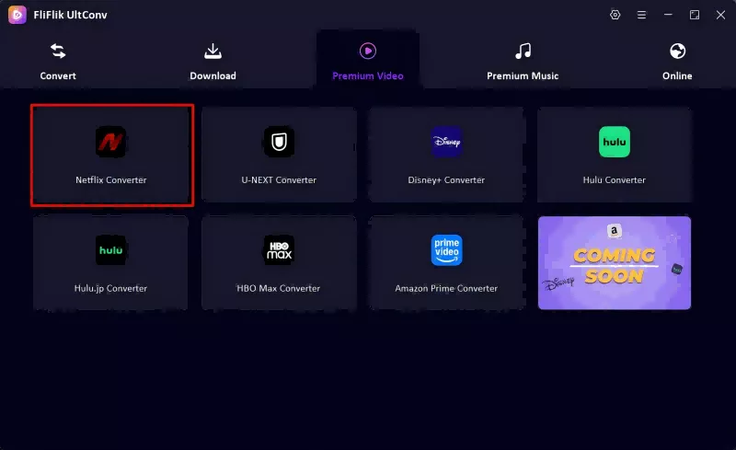
Open UltConv and go to the Premium Video section where the Netflix Converter is located.
-
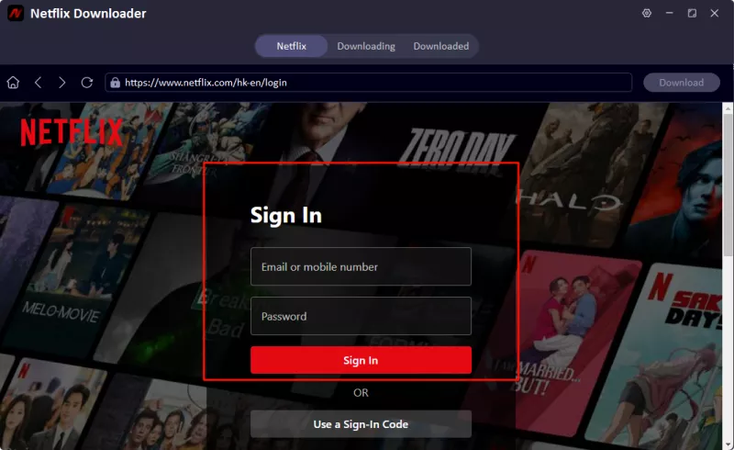
Use your Netflix credentials to sign in directly within the UltConv interface. This ensures the tool can access your library and premium content.
-
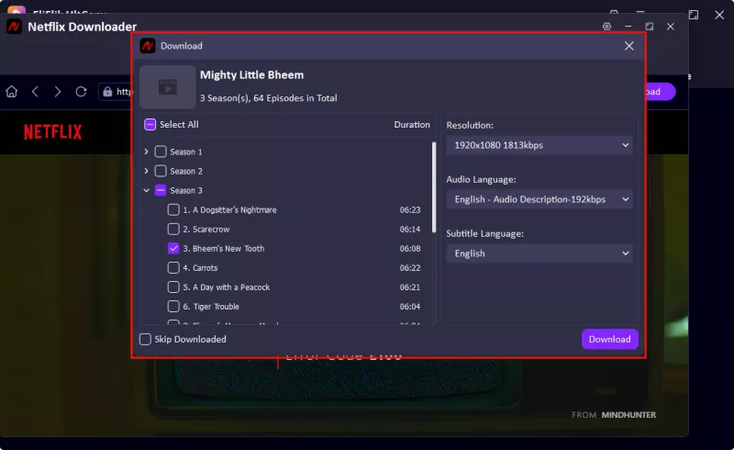
Browse your Netflix library and select the movies, series, or episodes you want to download. Before starting, you can pick the video resolution, audio language, and subtitle language to match your preferences.
-
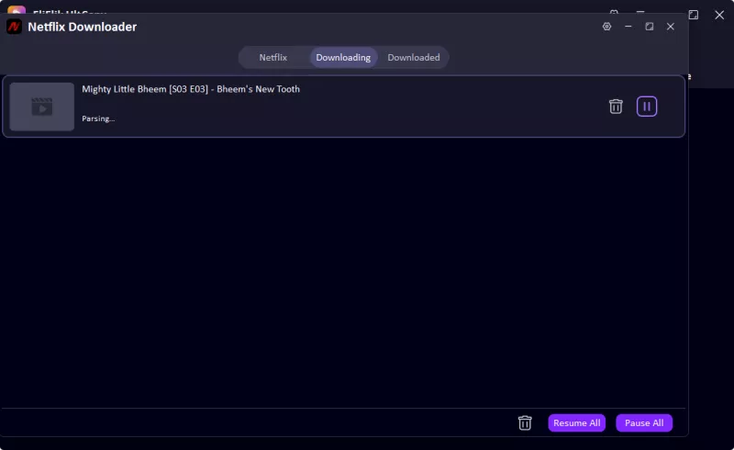
Once all settings are ready, click the Download button. UltConv will automatically download and save the video in MP4 format, keeping the original video and audio quality intact.


UltConv isn’t just a video converter; it’s a reliable tool that lets you download and convert videos or audio files from Netflix and many other platforms, making offline viewing smooth and hassle-free.
Conclusion
Netflix household errors don’t have to control how or where you watch. If you keep running into blocks because of Wi‑Fi changes, travel, or shared accounts, there are practical ways to deal with it. We hope with all the above solutions now you know how to bypass Netflix household error. And for more flexibility, you can use UltConv Netflix Downloader, which makes this simple. You can grab Netflix videos in high quality, pick the format that works best for your device, and even save just the audio if you like. With batch downloads and fast processing, it’s a hassle-free way to enjoy your movies and shows anytime, anywhere, without worrying about household restrictions or network issues. Give this tool a try today and enjoy Netflix offline playback easily.
 Secure Download
Secure Download
Secure Download
Hey there! I'm Clara Knight, and I'm passionate about using AI to streamline my workflow in the image watermark removal industry. So excited to empower users with clear guides and insights to conquer those pesky watermarks. Let's unleash the power of AI for watermark-free visuals!