8 minutes read


Sending a video by email sounds simple until the file is too large to attach. Most email services limit attachment sizes, so even a short HD clip can quickly exceed the allowed limit. That’s when many people start searching for how to compress a video file for email without ruining the video quality.
The good news is you don’t need complicated editing skills to shrink a video file. A few simple tools can reduce the file size while keeping the video clear enough to watch. In this article, we will share 5 free ways to compress a video so it fits easily in an email. Whether you’re sending a work presentation, a family clip, or a quick screen recording, these methods make the process much easier.

- Part 1. How to Compress A Large Video File for Email on Windows
- Part 2. How to Compress A Video File for Email on Mac
- Part 3. How to Compress Video to Email on Android
- Part 4. How to Compress A Video File for Email on iPhone
- Part 5. How to Make a Video File Smaller to Email with an Online Tool
- Final Thoughts
Content Table:
Part 1. How to Compress A Large Video File for Email on Windows
If your video file is too large to attach to an email, using a video compressor is usually the quickest fix. One practical option is FliFlik UltConv Video Compressor, which includes a free video compression feature designed to reduce file size without noticeably damaging video quality. Instead of manually adjusting complex settings, UltConv Video Compressor lets you compress large videos into smaller, email-friendly files in just a few clicks.
Besides compression, UltConv Video Compressor is also a powerful media downloader and converter. The software supports downloading videos from 10,000+ websites and converting them into multiple formats for easier sharing. If you often send video clips through email or messaging apps, the built-in compressor helps shrink large files while keeping the video clear and playable across devices.

- Compress large video files to smaller sizes for email sharing
- Batch compress multiple videos at once with 10× faster speed
- Supports compressing video & audio in 100+ formats
- Support previewing the compressed video quality in advance
- Download videos from 10,000+ websites, including major streaming platforms
- Convert videos to MP4, MP3, M4A, and 100+ formats
- Download videos in 4K, 2K, and 1080p while keeping high quality
▼ Steps to Compress a Large Video File for Email with FliFlik UltConv
If you are wondering how to make a video file smaller to email, using a video compressor is one of the easiest solutions. UltConv includes a built-in compressor that reduces video size quickly while keeping good quality. You can shrink large videos into smaller files that are easier to attach to emails.
-
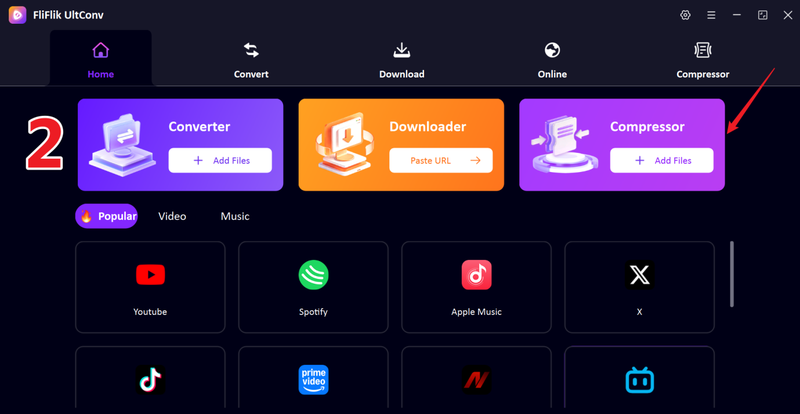
Download and install FliFlik UltConv on your Windows computer. After installation, open the program and launch the Compressor section.
FREE DOWNLOAD![secure download]() Secure Download
FREE DOWNLOAD
Secure Download
FREE DOWNLOAD![secure download]() Secure Download
Secure Download
-
Drag and drop the video file you want to compress into the UltConv window.
-
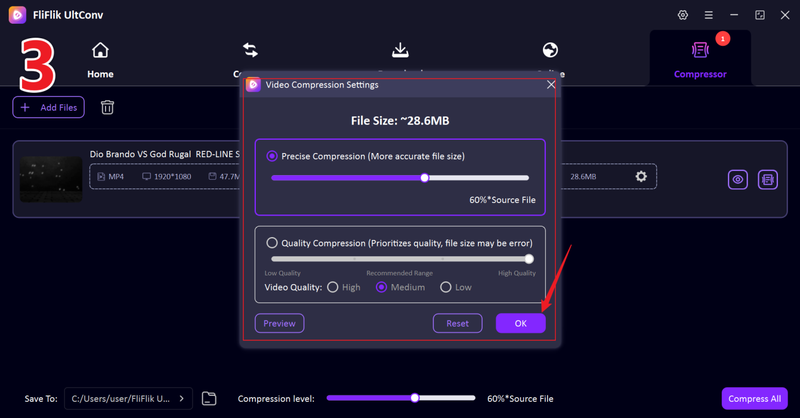
Adjust the compression level based on the file size you want. Higher compression will reduce the video size further, you can also preview the compressed video quality before compress.
-
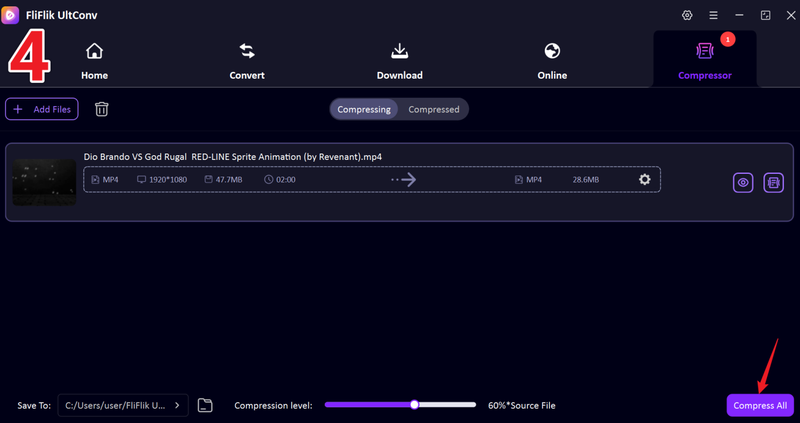
Click Compress All to start shrinking the video file.
-
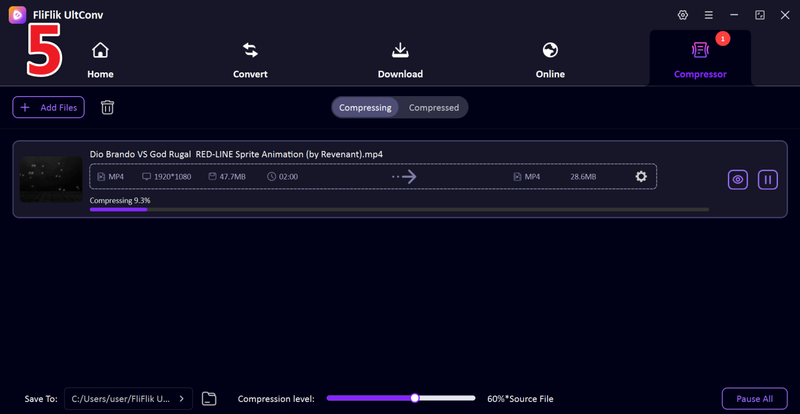
You will see your video start compressing. After the process finishes, go to the Compressed tab to view and access your smaller video file.


Part 2. How to Compress A Video File for Email on Mac
If you use a Mac and need a quick way to shrink a video before sending it by email, QuickTime Player can help. While it’s mainly known as Apple’s built-in media player, it also includes a basic export feature that reduces video file size. It’s not a full video editor, but it can quickly re-encode a video into a smaller format without requiring additional software.
For many users asking how to compress a video file on a Mac for email, this built-in method works well because it’s simple and already available on every Mac. By exporting the video with a lower resolution and using the H.264 codec, you can significantly reduce the file size while keeping the video clear enough for sharing.
▼ Steps to Compress a Video with QuickTime
- Step 1: Open the video file in QuickTime Player on your Mac.
- Step 2: From the top menu bar, click File, then select Export As.
-
Step 3:
Choose a lower resolution such as 1080p, 720p, or 480p, depending on the size you need.
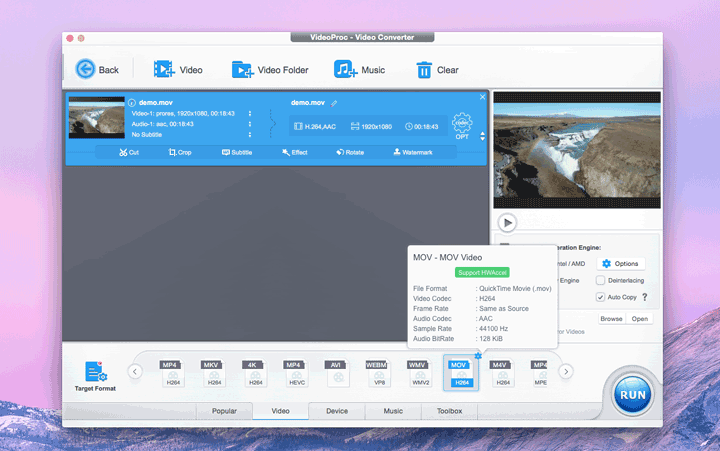
- Step 4: Select Greater Compatibility (H.264) as the codec to balance quality and file size.
- Step 5: Click Save to export the compressed version of the video to your computer.

- Built into macOS, no installation required
- Very easy and quick to use
- H.264 compression keeps decent video quality
- Limited compression controls
- Fewer export options than professional tools
- Not suitable for batch compression
Part 3. How to Compress Video to Email on Android
If you want to reduce a large video directly on your phone, Compress Video Size Compressor is a helpful Android app. It lets you shrink video files by lowering resolution or bitrate while keeping reasonable video quality. The app supports many formats like MP4, AVI, MOV, MKV, and others, and it can even queue multiple videos for compression.
One useful feature is the ability to preview the compression result before processing the whole video. You can also select different compression profiles or set a specific target file size, which makes it easier to prepare a video for email attachments or messaging apps.
▼ Steps to Compress a Video on Android
-
Step 1:
Install
Compress Video Size Compressor
from the Google Play Store and open the app.
- Step 2: Tap Select Video and choose the large video file you want to compress from your phone gallery.
-
Step 3:
Choose a
compression profile
or set a target video size manually like Medium.
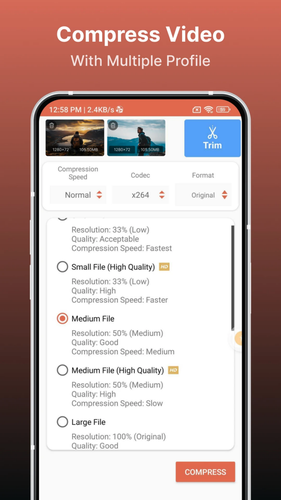
- Step 4: Start the compression process and wait while the app reduces the file size.
- Step 5: After the process finishes, save or share the compressed video directly from the app.


- Supports many video formats such as MP4, AVI, MOV, and MKV
- Allows custom compression settings and target file size
- Can queue multiple videos for batch compression
- Shows preview before compressing so you can check quality
- Compression may slightly reduce video quality
- Some advanced features require the paid version
- Compression speed depends on your phone’s hardware
Part 4. How to Compress A Video File for Email on iPhone
If you want to make a video smaller for email on an iPhone, iMovie is a reliable free option. It’s available on iPhones and iPads and gives you control over resolution, quality, and compression. You can reduce your video size without extra apps, and it works well for MP4 files commonly used for email attachments.
▼ Steps to Compress a Video Using iMovie
- Step 1: Open iMovie on your iPhone and import the video you want to compress.
-
Step 2:
Tap Share, then select File from the options.
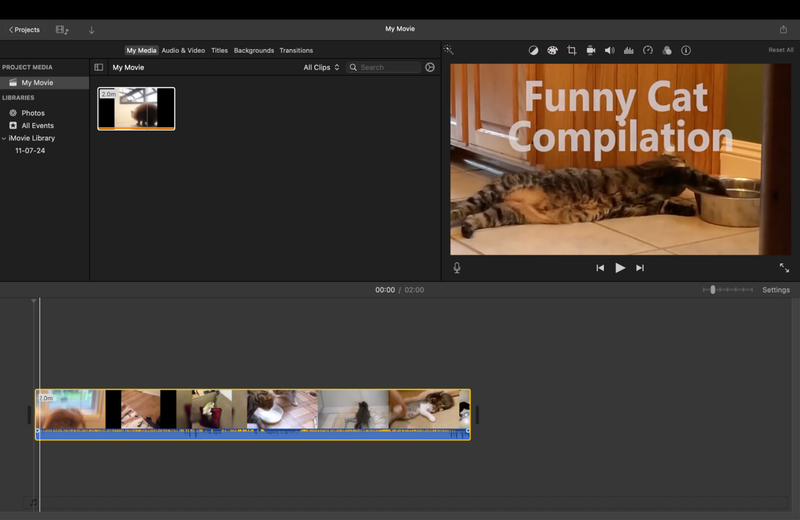
- Step 3: Adjust the Format, Resolution, Quality, and Compression settings to reduce file size. Keep an eye on the file size estimate at the bottom.
- Step 4: Tap Save to export the compressed video to your Photos app.

- Free and pre-installed on most iPhones
- Easy to use with clear control over compression settings
- Show the estimated file size before exporting
- Compressed videos may lose high-resolution quality
- Only works for videos imported into iMovie
- You still need to send the file via email or other methods after compression
This method is perfect for reducing large files while maintaining control over the final output size, answering the common question of how to make a video file size smaller for email.
Part 5. How to Make a Video File Smaller to Email with an Online Tool
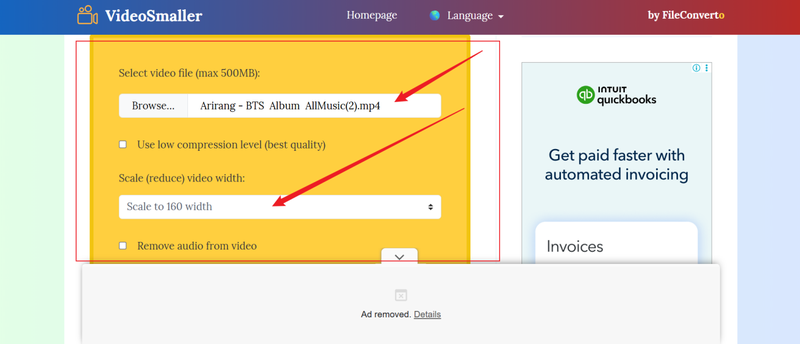
VideoSmaller is a free online service that lets you compress video files directly from your browser, no installation needed. It works for MP4, MOV, AVI, and other common formats, making it ideal when you just need a quick, lightweight solution to reduce file size for emailing. Simply upload your video, adjust settings, and download the compressed version.
▼ Steps to Compress Video Using VideoSmaller
- Step 1: Go to VideoSmaller and click Browse to select the video file you want to compress.
-
Step 2:
Choose optional settings: enable
“Reduce video width”
or
“Low compression”
depending on how much you want to shrink the file.
- Step 3: Click Upload Video to start compressing. Wait for the upload and compression process to finish.
- Step 4: Once completed, click Download to save the compressed video to your device.

- No installation required; works entirely online
- Supports multiple video formats (MP4, MOV, AVI, etc.)
- Simple interface and quick compression
- Requires a stable internet connection
- File size limit (usually under 500 MB)
- Fewer options for controlling quality and resolution compared to software tools
VideoSmaller is great for quick, small video compressions when you just need to make a video file smaller to email without installing anything.
Final Thoughts
When it comes to how to compress a video file for email, there are plenty of options from built-in tools like QuickTime and iMovie to online services like VideoSmaller. Each has its merits, but they often come with limitations, such as file size caps, slower compression, or reduced control over quality. That’s where FliFlik UltConv Video Compressor stands out. With its new compressor feature, you can quickly shrink large videos while keeping high-quality output, batch compress multiple files at once, and convert them into MP4, MP3, or over 100 formats, all from one intuitive platform. It’s perfect for Windows users who regularly share videos via email or cloud storage. For anyone who wants fast, reliable, and flexible compression without compromising on quality, download FliFlik UltConv Video Compressor and simplify your video workflow today.
 Secure Download
Secure Download
Secure Download
Hey there! I am Maxwell Clark. I'm always looking for new tech tools that make a difference, from making visuals and audio better to making workflows better. I'm going to share tips and tricks for using AI tools for videos, audio, and images. I'm excited to help you navigate the digital world more efficiently and creatively!