8 minutes read


If you’re looking for how to download Crunchyroll episodes on PC, you are already aware that you cannot download Crunchyroll episodes on PC officially. And streaming is not always convenient. Your internet might not always work. It’s possible that you are travelling. No matter your reason, downloading episodes makes everything easier. In this article, we will show you practical methods to download Crunchyroll episodes and full seasons on your PC, so you can enjoy your shows without streaming issues.

Part 1. Can You Download Crunchyroll Episodes on PC?
Crunchyroll doesn’t allow the episode downloads on a PC officially. The downloading feature is restricted to its mobile apps (Android/iOS) only, and is only available with certain Mega Fan plans. The Crunchyroll website and desktop app lack the built-in feature to save episodes directly to your laptop or computer.
Why is that? It comes down to licensing and content protection. Crunchyroll uses strict DRM rules to control where and how anime episodes are stored and played. Downloads are locked inside the mobile app and can’t be transferred, copied, or watched outside it.
So, if you’re on a PC and want offline access, the official route doesn’t help much. That’s why many users start looking for alternative ways to download Crunchyroll episodes on a computer.
Part 2. Official Crunchyroll Download Limits

Although you cannot directly download Crunchyroll episodes on a PC, the platform does allow downloads on mobile devices. Even on phones or tablets, however, the feature comes with several restrictions.
You need a Mega Fan or Ultimate Fan subscription to access offline viewing, and not every title is available for download. Another thing to keep in mind is that downloaded episodes are not permanent. They come with expiration rules, device restrictions, and plan requirements. And even when downloads are available, they stay locked inside the app. This means you can’t move them, back them up, or watch them on devices that are not supported. Here are the main limitations you should know about:
- Paid plans only: Offline downloads are available only on the Mega Fan and Ultimate Fan plans.
- No PC support: You cannot download or watch offline episodes on a PC or Mac.
- Limited devices: Offline viewing works only on iOS, Android, and Nintendo Switch.
- Download expiration: Episodes expire after 7 days if you don’t watch them.
- Playback limit: Once you start watching, the download usually expires within 48 hours.
- Title restrictions: Some anime are not available for download due to licensing rules.
- Storage limits: The number of episodes you can download depends on your device’s storage.
- App locked files: Downloaded episodes stay inside the Crunchyroll app and can’t be transferred or shared.
Because of these limits, the official offline feature often falls short for users who want to download Crunchyroll episodes on a PC and keep them for long-term viewing.
Part 3. Best Way to Download Crunchyroll Episodes on PC
If you want to download Crunchyroll episodes on your PC for offline viewing, using a third-party downloader is the most direct option. UltConv Video Converter is a reliable tool that lets you save full anime episodes and seasons in high quality, like 8K and 4K HD videos, so the video stays clear and smooth on a PC screen. You can choose common formats like MP4, MKV, MOV, MP3, AAC, WAV, FLAC, and OGG.
UltConv Video Converter also covers the small details that matter. You can download episodes with subtitles included, which is essential for anime fans. It supports batch downloading, so you can grab multiple episodes or an entire season at once instead of repeating the process every time. Once downloaded, your episodes are stored locally and ready to watch anytime without internet access.

- Batch download entire Anime seasons at once instead of downloading them one by one
- Download episodes with subtitles so you can watch comfortably without missing dialogue
- Save videos in formats like MP4, MKV, or MOV, so they play smoothly on any PC
- Supports HD and higher resolutions, up to 8K and 4K HD videos
- Episodes downloaded on a PC can be transferred and played on phones, tablets, or smart TVs
▼ How To Download Episodes on Crunchyroll PC with UltConv Video Converter?
-
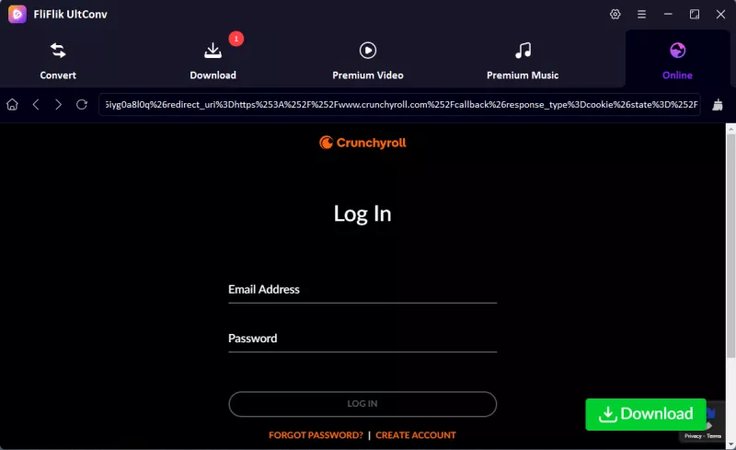
After installation, open UltConv, open the Online section, and sign in to your Crunchyroll account.
-
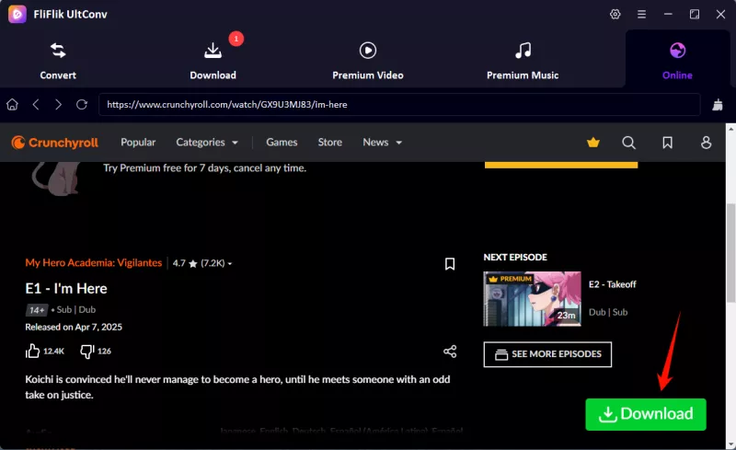
Browse or search for the anime episode or season you want to save, then click the Download button.
-
Once the download is complete, go to the Downloaded section to find and play your saved episodes offline.
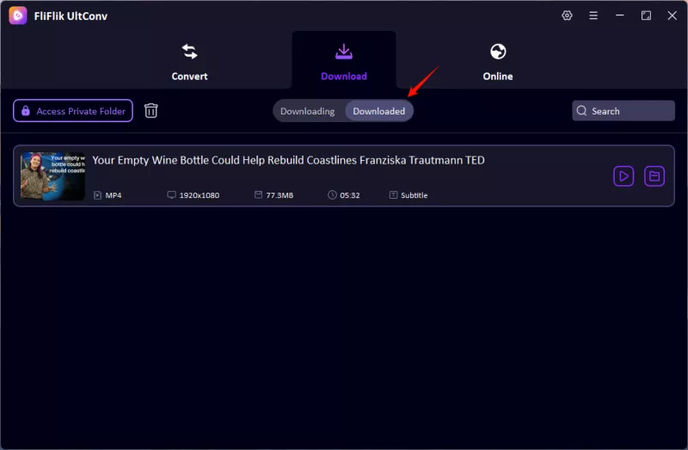


And that’s all. Your Crunchyroll episodes will be saved right into your device in high-quality video format for offline watching.
Part 4. How to Download Crunchyroll Episodes on PC with Screen Recorder
If you don’t want to install any software and just casually want to record a few episodes or clips, using a screen recorder is a simple option. With a good online screen recorder, you can capture episodes in real time while keeping high-quality video and audio. One convenient option is FliFlik Free Online Screen Recorder, which works directly in your browser, doesn’t require sign-up, and records without adding watermarks. It’s safe, simple, and perfect for saving episodes for offline viewing without complicated setups.
▼ Steps to Download Crunchyroll Episodes Using FliFlik:
-
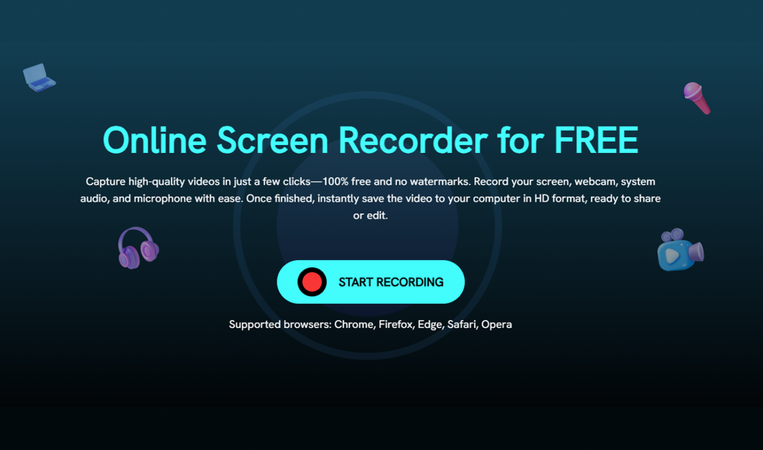
Step 1: Go to the FliFlik Online Screen Recorder homepage and click the Start Recording button to launch the tool.
-
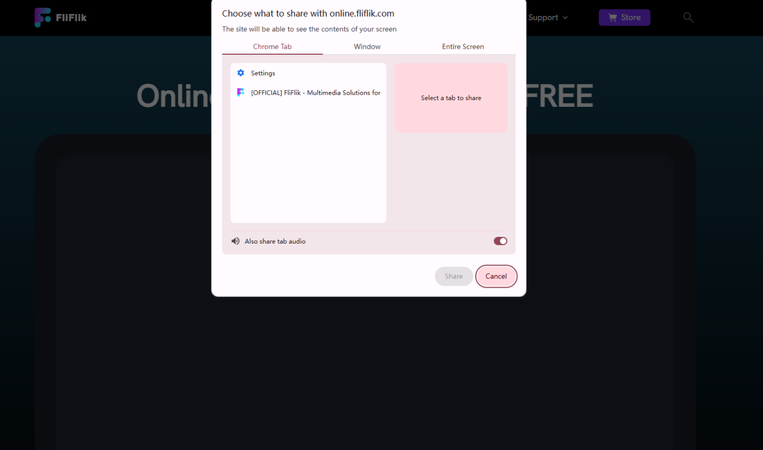
Step 2: Choose the screen or browser window where Crunchyroll is playing, select audio and webcam options if needed, and click Record after the 3-second countdown.
-
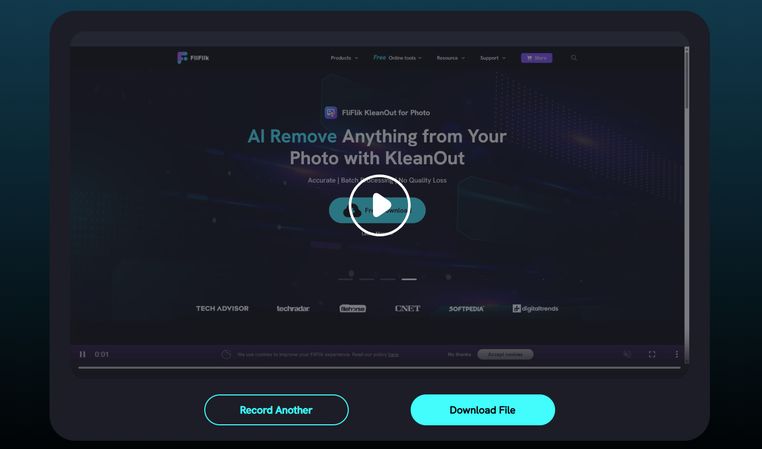
Step 3: When the episode finishes, click Stop, preview your recording, and save it to your PC. You can repeat the process for additional episodes as needed.


This method ensures you get full episodes in good quality while bypassing device or subscription limits.
Part 4. FAQs about Crunchyroll Download
Q1. Is it legal to download Crunchyroll episodes on PC?
You should only download Crunchyroll episodes on a PC with third-party downloaders for personal use. The content is meant to stay private and should not be shared, uploaded, or distributed in any way. This approach keeps you within a safer, personal-use boundary while enjoying offline access.
Q2. Why doesn’t Crunchyroll allow downloads on PC?
Crunchyroll limits downloads to iOS, Android, and Nintendo Switch to protect content rights and prevent unauthorized sharing.
Q3. Do Crunchyroll downloads expire?
Yes. Offline downloads on official apps expire after 7 days if not played, and 48 hours after you start watching.
Wrapping Up
We hope you now know how to download Crunchyroll episodes on pc. Using screen recorders works, but it can be slow and may not keep video quality or subtitles intact. A more practical solution is UltConv Video Converter. It lets you save full episodes or entire seasons in high resolution, keeps subtitles and metadata intact, and supports multiple formats like MP4, MKV, and MP3. You can download several videos at once and convert them quickly for any device. UltConv Video Converter makes creating an offline anime collection simple. With this tool, you can watch Crunchyroll content whenever you want, without dealing with restrictions or unstable streams.
 Secure Download
Secure Download
Secure Download
Hey there! I'm Clara Knight, and I'm passionate about using AI to streamline my workflow in the image watermark removal industry. So excited to empower users with clear guides and insights to conquer those pesky watermarks. Let's unleash the power of AI for watermark-free visuals!