7 minutes read


Streaming YouTube with the screen off seems simple, but if you’ve ever tried it on an iPhone or Android, you know that on the app, it’s impossible. Whether you need music to play while your phone is locked or you want to listen to a podcast while multitasking on other apps, there are a few available solutions. If you’ve been googling how to play YouTube in the background on iPhone and Android, we’ve got you covered. In this article, we will show you how to play YouTube in the background on iPhone and Android. Let’s break down the methods that actually work without paying for Premium.

Part 1. Keep Playing YouTube in the Background with Browsers
Streaming YouTube in the background is one of the easiest things to do on a mobile browser. You just need to open YouTube in desktop mode, start playing a video, and it will continue to play in the background even if you open other apps or lock your screen. The best thing about this is that it works on both iPhone and Android, and you don’t need to subscribe to Premium. Let me share in detail how to do this on Android and iPhone.
On Android:
Playing YouTube in the background on Android isn’t complicated once you know the trick. The idea is simple: grab the video link, move it to your browser, switch to desktop mode, and let the audio keep rolling even when the screen is off. Follow these steps, and you’ll get the hang of it quickly.
- Step 1: Open the YouTube app and look for the video you want. You can search, check your subscriptions, or pick something from your home feed. Let it load so you have the options visible under the video.
-
Step 2:
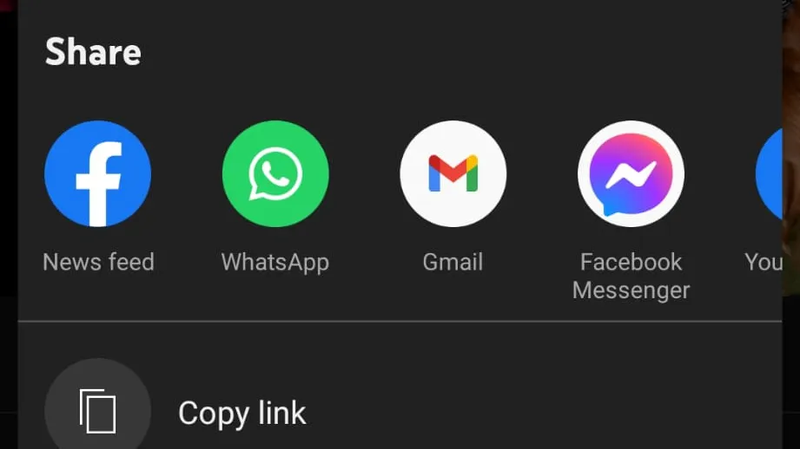
Tap the Share button below the video and select Copy link. If you haven’t opened the video yet, you can also tap the three-dot menu beside it and copy the link from there. Make sure the link is saved to your clipboard before moving on.
-
Step 3:
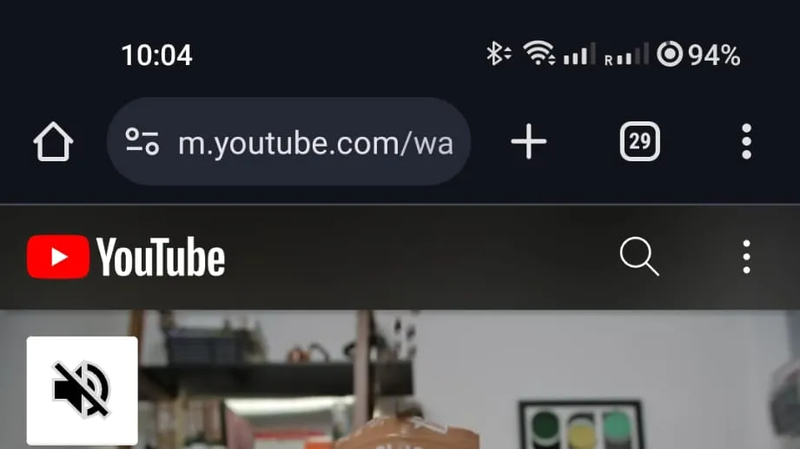
Switch to your browser, Chrome works best, but anything is fine. Paste the link into the address bar and wait for the video to load on the web version of YouTube. It should start playing normally inside the browser.
-
Step 4:
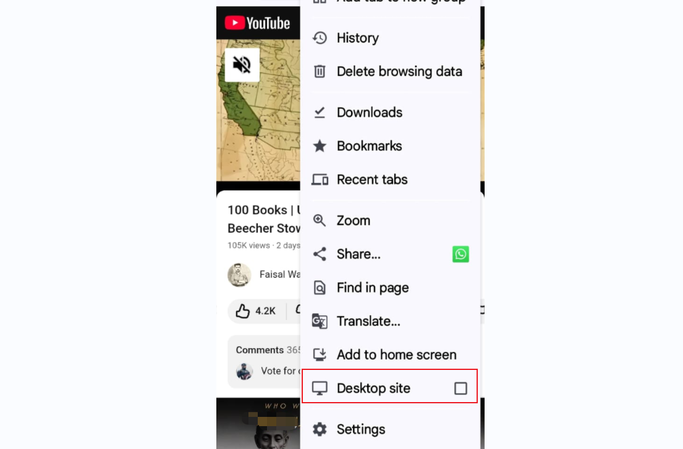
Open the browser menu and turn on the Desktop site. This forces the full YouTube desktop webpage to load instead of the mobile layout. Once the page reloads, the video will look slightly different, which is what you want for background play.
- Step 5: Press your phone’s power button to lock the screen. The audio will pause for a moment, but you’ll see playback controls on your lock screen. Tap Play, and the audio will continue even with the screen off or while using other apps. Optional — Use YouTube Premium\ If you want to avoid these steps entirely, Premium gives you background play by default plus downloads and no ads, but it’s a paid option.


On iOS:
Playing YouTube in the background on iOS works almost the same way as Android, but Safari makes it a bit easier. The main trick is switching to the desktop site so the audio keeps running even when the screen is off.
- Step 1: Open Safari on your iPhone and head to youtube.com. Find the video you want and open it on the site, not the YouTube app.
-
Step 2:
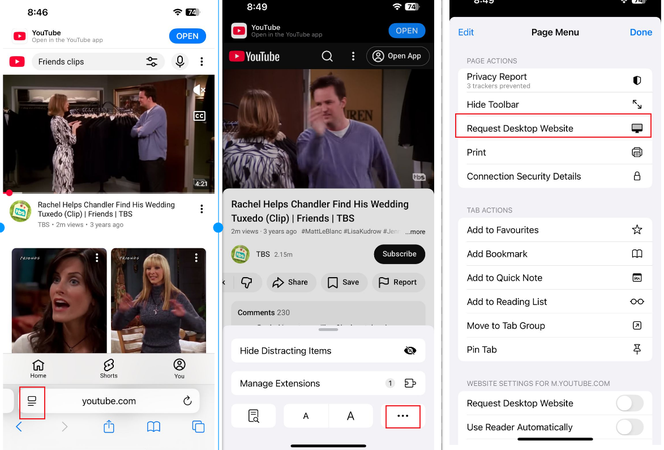
Tap the AA icon in the address bar, then tap More at the bottom-right. Choose a Request Desktop Website. The page will refresh and load the desktop version of YouTube.
- Step 3: Press play and ignore any prompts trying to push you into the YouTube app. You may have to go through a few ads before the video starts.
- Step 4: Press the Side button to lock your screen. The audio will pause for a second, but you’ll see playback controls on the Lock Screen. Tap Play and the audio will continue in the background.
- Step 5: If you want to leave Safari and use your phone normally, swipe up to go home. When the audio stops, use the controls in Dynamic Island or Control Center to start it again. The sound will keep playing while you switch between apps.

Part 2. Play YouTube in the Background with PIP
This method comes from Reddit users, and yes, I tested it myself. It works amazingly on the iPhone. The idea is simple: use Picture in Picture, hide the MiniPlayer, and then restart playback from the Lock Screen.
-
Step 1:
Go to Settings, open General, then tap Picture in Picture. Turn it on if it isn’t already.
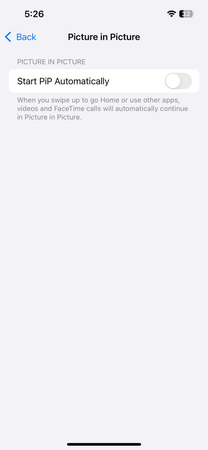
- Step 2: Open the YouTube app and start the video you want to listen to. Once it starts playing, swipe up to go to your Home Screen. The PIP MiniPlayer should pop up as a floating window.
- Step 3: Swipe the MiniPlayer toward the edge of your screen until it becomes a small tab with an arrow icon. This keeps it active but out of the way.
- Step 4: Swipe from top right to open the Control Center. Pause video from media controls.
- Step 5: Press the Side button to lock your phone. On the Lock Screen, press Play—even if the title doesn’t show. The audio will start playing with your screen off. You can repeat the same steps whenever you want background playback. It’s a neat workaround and feels almost like a hidden feature.

Bonus Tips: How to Download YouTube to MP3 for Offline Use
If you do not want to do all the hassle, then a simple solution is download YouTube to MP3 for offline use. You can download YouTube videos as MP3s to listen to music, lectures, or podcasts whenever you want without needing the internet. UltConv Video Downloader is a very good solution for this problem. It works on over 10,000 sites, including YouTube, Twitch, and TikTok. It doesn’t just grab the videos; it converts them into high-quality MP3s, keeps the important info like titles and album art (ID3 metadata), and lets you download a bunch of videos or whole playlists all at once.
UltConv Video Downloader offers speed and flexibility that go way beyond MP3 conversion. You can download videos up to 8K resolution, skip the recording process to save live streams, and the tool even claims it can remove DRM protection from services like Spotify and Apple Music. Best thing is it has a built-in browser for easy searching, a private folder to secure your downloads, and lightning-fast speeds that make saving massive collections super easy.

- Convert YouTube videos to MP3
- Preserve full audio quality up to 320 kbps
- Download entire YouTube playlists, channels, or albums
- Support 10,000 websites, TikTok, YouTube, Instagram etc
▼ How to Convert YouTube to MP3 with FliFlik UltConv Video Downloader?
First, download and install FliFlik UltConv Video Downloader on your computer. Then follow these steps to save any YouTube video as an MP3 file.
 Secure Download
Secure Download
Secure Download
-
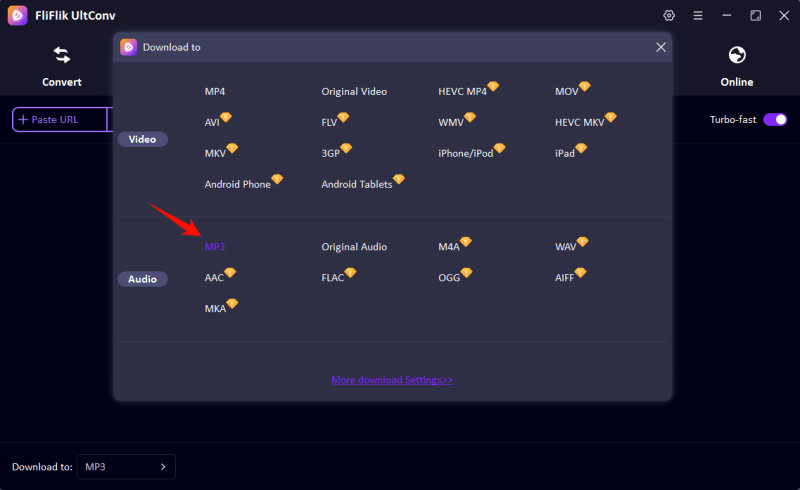
Go to the Download tab, then click the Download to button at the bottom.
-
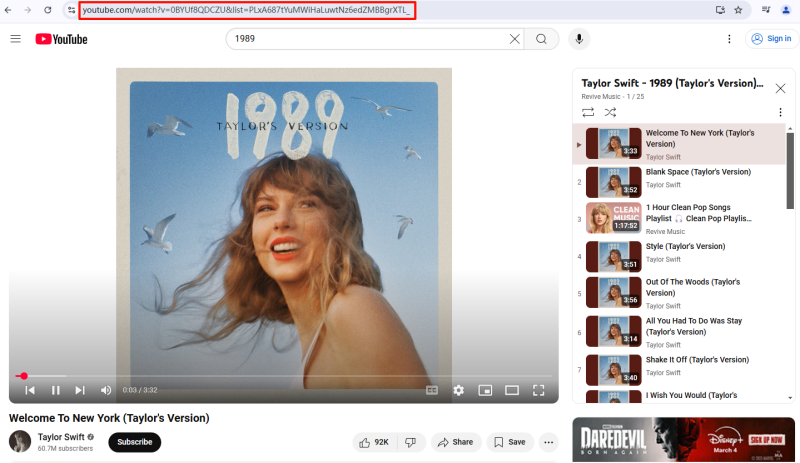
Open YouTube in your browser and copy the link of the video whose audio you want to save.
-
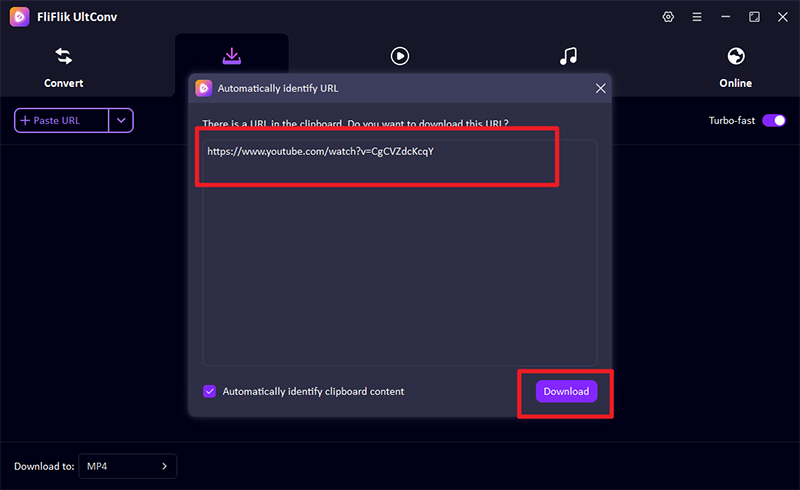
Return to UltConv. If the software automatically detects the video link, click Download to start saving the audio as an MP3 file.
-
The downloading process will start immediately.
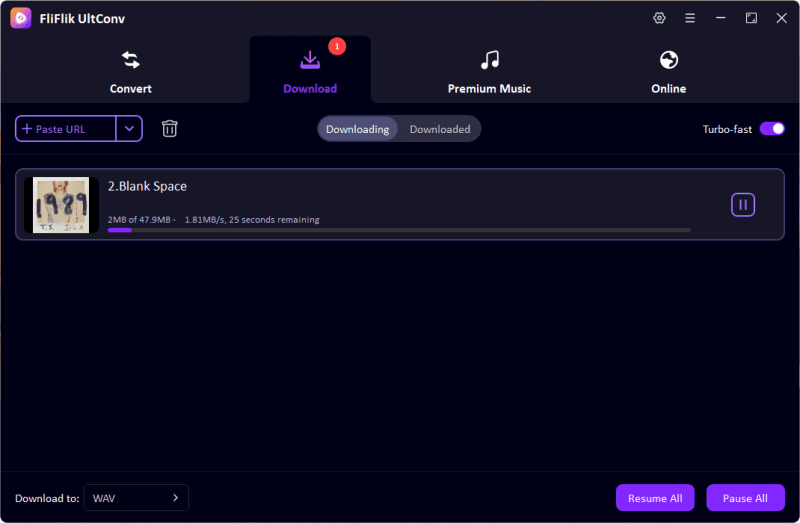


Once the process is complete, your YouTube video will be saved as an MP3 file. You can listen anytime offline, on any device while doing all other things on your phone.
Final Words
Listening to YouTube in the background totally changes how you use your phone, it’s great for music, podcasts, or long videos. You can do this without paying for Premium, too! We’re talking about using a browser, switching to desktop mode, or using that cool Picture-in-Picture trick people learned from Reddit. Knowing how to play YouTube in the background on your iPhone opens up options most users never realize they have.
And if you want to make this process much easier, you can use tools like UltConv Video Downloader for offline MP3 or MP4 downloads. Once downloaded, you can enjoy your videos and audio anytime, anywhere, with zero interruptions. These methods make background playback and offline access simple. They put you completely in control of your YouTube experience. So, download it today and enjoy offline listening anywhere.
Secure Download
Secure Download
FAQ
Q1. Can I keep YouTube playing while using other apps?
Yes. On Android, you can use a browser in desktop mode or YouTube Premium to continue playback while switching apps. On iPhone, you can use Safari in desktop mode or the Picture-in-Picture (PIP) trick to keep audio running in the background.
Q2. How do I close YouTube and keep it playing?
Simply start your video in a browser or enable PIP, then exit the app. On iPhone, use the Lock Screen or Control Center to resume playback. On Android, using desktop mode in a browser will let the audio continue even after you leave the YouTube app.
Hey everyone! I'm Ivan Davis, and I'm passionate about using AI to streamline my workflow in the voice changer industry. So excited to empower users by changing the voice to any voice they want!