8 minutes read


Ever wish you could keep your favorite YouTube moments right on your camera phone? Maybe it’s a hilarious clip, a how-to you want to watch again, or just a song you can’t get out of your head. Saving videos straight to your camera roll makes life easier, no more searching or waiting for Wi-Fi. It’s handy for personal projects, sparking new ideas, or just sharing a laugh with friends. Here, I’ll walk you through how to save YouTube clips to camera roll on your desktop, Android, or iPhone. Doesn’t matter what device you’ve got; there’s a simple way to get those clips onto your camera roll.

Part 1. Common Uses to Save YouTube Clips to Camera Roll
There are plenty of reasons you might want to save YouTube videos to your camera roll, and it’s not just about having them handy. Here are the most common uses:
- Offline Viewing: Downloading videos lets you save YouTube videos to your camera roll for later viewing without needing an internet connection. Perfect for travel, commuting, or any time Wi-Fi isn’t available.
- Social Media Content: Creators often pull segments from YouTube videos to remix or share on Instagram, TikTok, or other platforms. (Always get the original creator’s permission first!) Saving clips locally makes it easier to repurpose them for content creation.
- Backup/Reference: Keep tutorials, lectures, or inspirational talks on hand. Having a saved copy ensures you can refer back even if the original video is removed.
Saving videos to your camera roll gives you flexibility while still respecting copyright and usage rules.
Part 2. How to Save YouTube Clips to Camera Roll on Desktop
If you’re using a PC or Mac and want a reliable method to solve the problem – how to save a YouTube video to my camera roll, FliFlik UltConv YouTube Downloader is one of the best tools available. Unlike basic downloaders, UltConv YouTube Downloader doesn’t just grab a single clip; it can handle entire playlists, channels, and even live streams, all in high-quality resolutions up to 8K. You can download YouTube videos to MP4, MP3, and over 100+ formats.
You can also use its built-in browser to find videos without switching tabs, making the process smoother and faster. By saving downloads to a folder on your computer first, you gain the flexibility to transfer the files to your phone later and add them to your Camera Roll. This ensures you have full control over your downloaded videos, whether for offline viewing, editing, or sharing, while keeping everything organized and secure.

- Grab videos from 10,000+ sites in resolutions up to 8K
- Batch download videos and music to MP4, MP3, and over 100+ formats.
- Batch download multiple videos or playlists at once
- Save live streams from YouTube, Twitch, and more in real time
- Accelerated download speeds (up to 10× faster)
- Built-in browser to search and find videos without leaving the app
▼ Steps to Download YouTube Clips with UltConv YouTube Downloader
First, download and install FliFlik UltConv YouTube Downloader on your computer. Then follow these steps to save any YouTube clips to your device directly.
-
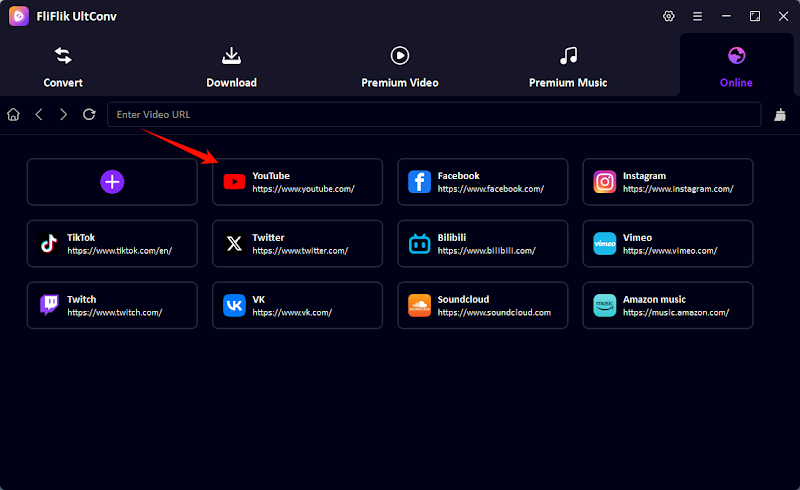
In the main interface, tap on the Online tab and then click on YouTube.
-
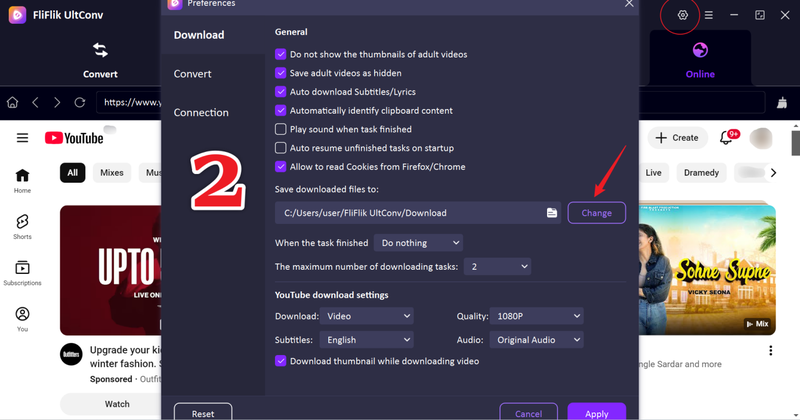
In the main interface, click on the Settings button and select the folder where you want to save your downloads.
-
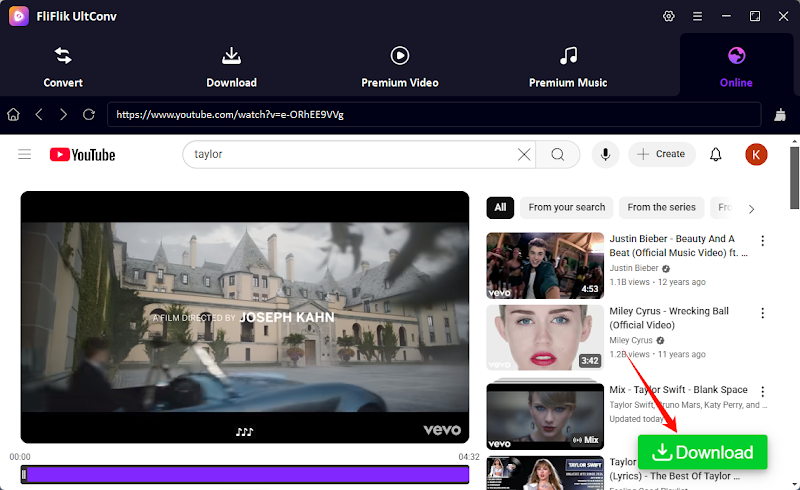
Find the video you want to download in the built-in browser of UltConv. Once you’ve selected the video, click the Download button.
-
The video will start downloading automatically to your chosen folder.
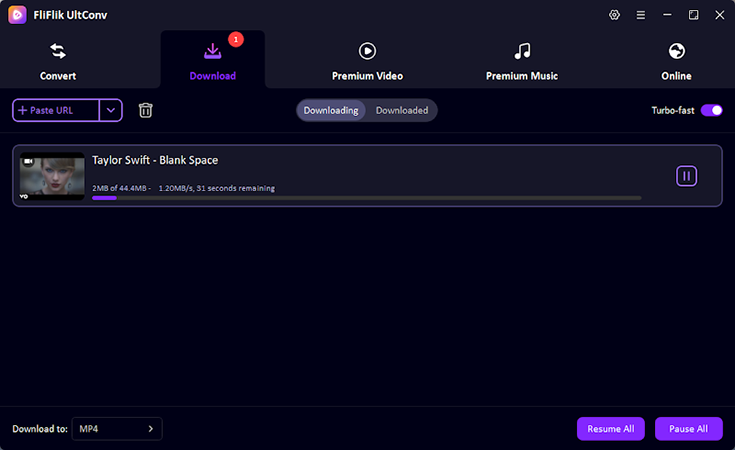


Once downloaded, the video will be in your chosen folder, ready to watch offline or transfer to your phone’s camera roll via USB. This method ensures high-quality downloads and keeps your YouTube clips organized.
Part 3. How to Save a YouTube Clip to Camera Roll [Android]
If you’re an Android user wondering how to save a YouTube video to your camera roll, FliFlik UltConv YouTube Downloader for Android is one of the easiest solutions. Unlike other apps that require multiple steps or external tools, UltConv allows you to download videos and audio straight to your device in high quality. You can grab full YouTube playlists or individual videos with just one click, whether it’s a tutorial, music clip, or any content for personal use.
The app supports 1080P and 4K video downloads, audio extraction in 320 kbps, and batch downloading of multiple videos at once. UltConv YouTube Downloader for Android also lets you choose where downloads are stored, giving you full control over your Camera Roll and device storage while keeping everything organized and easily accessible.
- Support Over 10,000 Sites, such as Twitter, Facebook, and Instagram
- Download YouTube videos in MP4 or audio in MP3 with lossless quality
- One-click download for entire playlists or channels
- Batch download multiple videos simultaneously
- High-resolution options from 360p up to 4K, audio in 320 kbps
- Flexible output folder settings to save videos directly to your preferred location, including camera roll
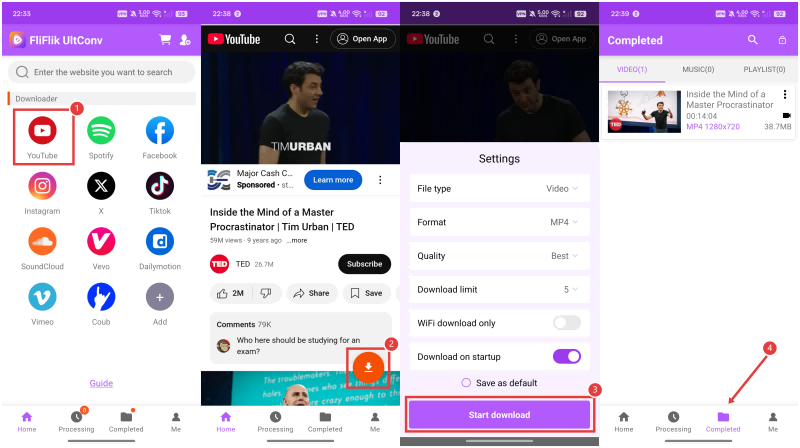
▼ Steps to Download YouTube Clips with UltConv YouTube Downloader for Android
-
Step 1: Download and install UltConv YouTube Downloader for Android on your device. Once installed, open the app.
-
Step 2: Go to Settings → Download Folder and choose where you want the video saved. This ensures it goes straight to a folder that can sync with your camera roll or media library.
-
Step 3: Use UltConv’s built-in browser to go to YouTube. Find the video or clips you want to save for offline viewing.
-
Step 4: Click the Download button. Choose your preferred format, MP4 for video or MP3 for audio, and select the quality that suits your needs, from 360p up to 4K.
-
Step 5: Press Start Download. The video will be saved directly to your camera roll, ready to watch anytime without needing internet access.

Part 4. How to Save Clips from YouTube to Camera Roll [iOS]
If you’re on an iPhone or iPad and want to save a YouTube video to your camera roll, Documents by Readdle is one of the easiest ways to do it. This free app combines a handy file manager with a built-in browser, so you can visit YouTube download sites right inside the app. Since iOS doesn’t let you download videos directly from YouTube, Documents by Readdle gives you a workaround: you can grab the video, store it temporarily within the app, and then move it to your Photos app (camera roll) to watch offline whenever you want. It’s a bit more hands-on than Android or desktop tools, but it gets the job done reliably.
- Free app with an integrated browser, no need to switch between apps
- Can access online downloaders like SaveFrom.net inside the app
- The file manager interface makes locating and managing downloads simple
- Indirect process: You must copy and paste the video URL into the downloader
- After downloading, videos stay in the Documents folder and must be manually moved to Photos
- A few extra steps compared to Android or desktop tools
▼ Steps to Save YouTube Clips to Camera Roll with Documents by Readdle:
- Step 1: First, get the Documents by Readdle app from the App Store and install it on your iPhone or iPad. The app is free and lets you download, organize, and view files easily.
-
Step 2:
Open Documents and tap the Browser icon at the bottom right corner. This opens the app’s built-in browser for navigating websites.
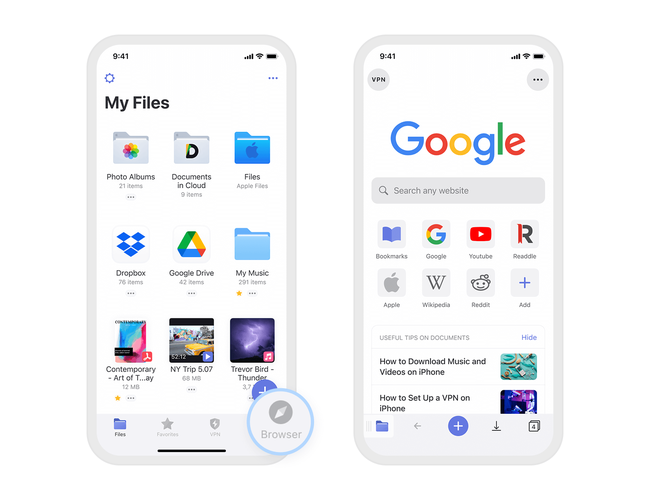
- Step 3: Using the browser, go to the website that hosts the video you want to download. Some sites may require you to use a third-party downloader by pasting the video link.
- Step 4: Open the download button or hold on the video preview to start downloading. Name the file and choose where to save it. If the format is supported by iPhones, you can save it directly to the Camera Roll in the Photos app. Otherwise, you can organize and play it within the Documents app’s video player.

This method gives iOS users a safe way to save YouTube clips to the camera roll, even with Apple’s restrictions.
Final Words
Figuring out how to save YouTube clips to the camera roll doesn’t have to be complicated. Whether you’re on a PC, Android, or iPhone, there’s a way to grab videos and watch them offline whenever you want. For the smoothest experience, FliFlik UltConv YouTube Video Downloader really shines. You can download videos or entire playlists in high quality, pick your preferred format and resolution, and save them straight to your device or camera roll without any hassle. If you want to have your favorite YouTube videos ready to watch anytime, offline or on the go, give FliFlik UltConv a try. It makes saving videos quick, simple, and reliable.
 Secure Download
Secure Download
Secure Download
Hey there! I am Maxwell Clark. I'm always looking for new tech tools that make a difference, from making visuals and audio better to making workflows better. I'm going to share tips and tricks for using AI tools for videos, audio, and images. I'm excited to help you navigate the digital world more efficiently and creatively!