8 minutes read


Many people search for how to screen record OnlyFans because they want to save content for offline viewing. But it’s not always simple. Content on OnlyFans Ltd. is protected by platform security and creator controls, so some recording tools often get blocked or show black screens. Still, some users look for workarounds to capture videos for personal use. In this article, we will look at what actually works in 2026, the limitations you should know, and safer methods people use to record content without running into playback problems. Remember, respecting creator rights and platform rules is important while exploring these methods.

- Part 1. Why Do I Screen Record OnlyFans Videos Fail?
- Part 2. Can OnlyFans Detect Screen Recording?
- Part 3. How to Screen Record OnlyFans Videos on Windows & MacOS
- Part 4. How to Screen Record OnlyFans Videos on Android & iOS
- Part 5. Is Still Black Screen? Try 100% Working Way to Download OnlyFans
- Final Words
Content Table:
Part 1. Why Do I Screen Record OnlyFans Videos Fail?
I tried to screen-record OnlyFans videos before, but it always failed. When I searched, “Can you screen record on OnlyFans?” I found out the answer is not that simple. OnlyFans content is protected by strong security measures. Even if I open a screen recorder, the video often shows a black screen or records only audio.
The main reason is DRM protection. DRM is a digital lock that stops people from copying or saving streaming content directly. OnlyFans also uses app-level protection and browser-level security to block screen capture tools. That is why when I try to record videos using built-in phone recorders or PC recording software, the system just blocks the video playback area. In simple words, the platform is designed to protect creators’ content, so normal screen recording methods usually don’t work.
Part 2. Can OnlyFans Detect Screen Recording?
Many people ask, “Does OnlyFans know if you screen record?” The simple answer is that OnlyFans cannot directly detect screen recording on your device. The platform does not have access to your phone screen activity or computer recording software. However, content on OnlyFans is still protected by copyright and DRM-like protections through the app and browser environment.
Even though direct detection is unlikely, sharing or distributing recorded content without permission is illegal. Selling, reposting, or sharing creator content violates platform rules and copyright laws. OnlyFans creators rely on paid subscriptions, so unauthorized distribution can lead to account bans, legal issues, or platform penalties. In short, you may be able to record locally, but you should never distribute or sell the content without permission.
Part 3. How to Screen Record OnlyFans Videos on Windows & MacOS
If you search for OnlyFans screen recorders, you will find many tools, but only a few work reliably because of platform protection. Below are the 2 options to consider.
1. OBS Studio
One commonly used option is OBS Studio, which is free and powerful for recording screen activity on Windows and Mac.
▼ Steps to Use OBS Studio to Screen Record OnlyFans
- Step 1: Download and install OBS Studio from the official website.
- Step 2: Open OBS and click the “+” under Sources.
-
Step 3:
Choose
Display Capture
or
Window Capture.
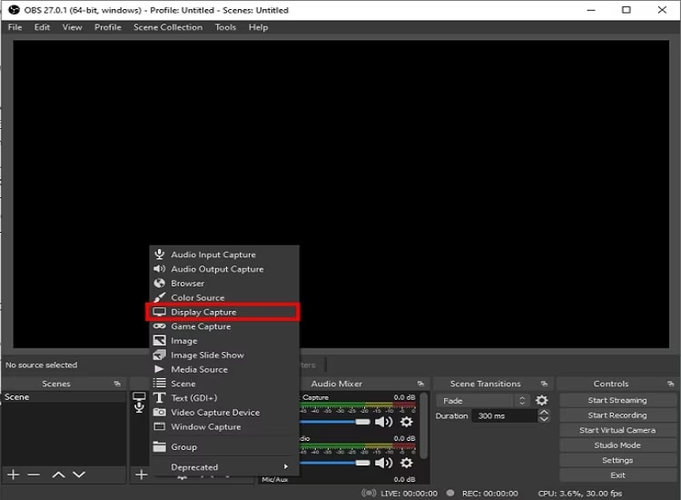
- Step 4: Select the browser window where the OnlyFans video is playing.
- Step 5: Click Start Recording to begin.
- Step 6: Click Stop Recording when finished. The file will be saved on your computer.

- Free and open-source
- Supports high-quality recording
- Works on Windows and macOS
- Setup can feel complex for beginners
- Sometimes records black screens if DRM protection is strong
2. QuickTime Player
Another simple option for Mac users is Apple QuickTime Player. It is built into macOS and easy to use for basic recording.
▼ Steps to Use QuickTime Player to Screen Record OnlyFans
- Step 1: Open QuickTime Player.
-
Step 2:
Click
File → New Screen Recording.
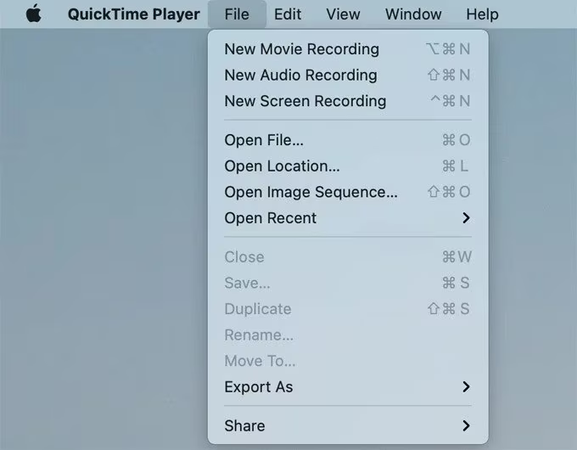
- Step 3: Choose microphone and recording area settings.
- Step 4: Open the OnlyFans video in the browser and click Record and start playback.
- Step 5: Click Stop and save the file.

- Very easy to use
- Built-in tool, no download needed
- Good for simple recordings
- Limited editing features
- May not bypass platform protection on some videos
Part 4. How to Screen Record OnlyFans Videos on Android & iOS
Most modern phones already have built-in screen recording tools, which makes it easier to capture videos. However, because the content is protected, sometimes recordings may show black screens or stop recording video playback. Still, the built-in recorder is the simplest method for personal use.
Using Android & iOS Built-in Recorder
▼ For Android
- Step 1: Open the video you want to record in the browser or OnlyFans app.
- Step 2: Swipe down to open the notification panel.
-
Step 3:
Tap
Screen Record.
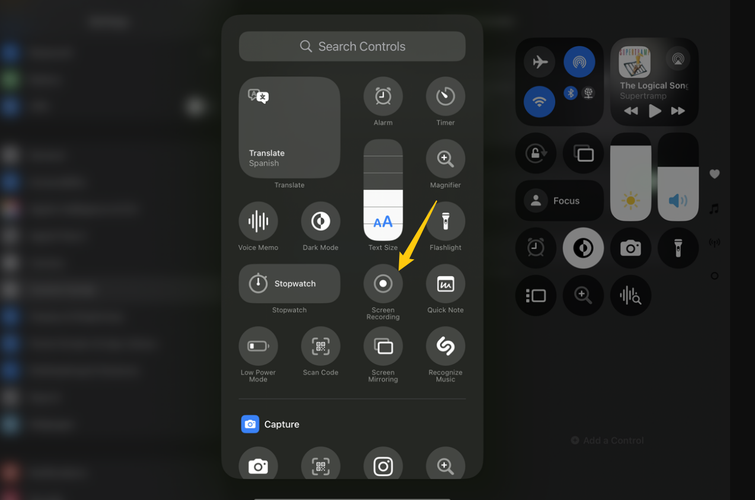
- Step 4: Choose recording settings like sound or microphone audio.
- Step 5: Press Start and play the video.
- Step 6: Tap Stop when finished. The video will be saved in your gallery.

▼ For iOS
- Step 1: Go to Settings → Control Center and add Screen Recording if not available.
- Step 2: Open the OnlyFans video.
- Step 3: Swipe down (or up on older models) to open the Control Center.
-
Step 4:
Tap the
Record
button and wait for the countdown. And play the video and record.
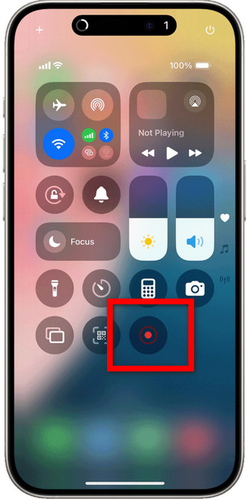
- Step 5: Tap the red status bar to stop recording.

- Easy and free
- No extra software needed
- May fail on protected videos
- Limited editing and recording control
Part 5. Is Still Black Screen? Try 100% Working Way to Download OnlyFans
If you keep getting black screen results when trying to screen record OnlyFans, it is usually because of DRM protection and platform security restrictions. That is why many users search for better ways to save content instead of relying on screen recording methods. A more stable solution is FliFlik UltConv OnlyFans Downloader, a dedicated downloader designed to directly save streaming content instead of recording it in real time.
UltConv allows users to download OnlyFans videos directly as standard MP4 files, which means you can watch them anytime without worrying about playback blocks. It supports high-quality downloads up to 4K, including 1080p and 720p options, depending on source quality. Users can also download DM videos, bulk content from multiple posts, and even save profile images for offline backup. The tool works through its built-in browser, allowing safe login and direct access to subscribed content.

- Download OnlyFans videos to MP4 in HD and 4K quality
- Download DM videos with one click
- Bulk download multiple videos at once
- Remove DRM protection for offline playback
- Save profile images and media content
- Support multiple adult and subscription platforms
- Works with over 10,000 streaming sites beyond OnlyFans
▼ How to Download OnlyFans Videos with UltConv?
-
Download and install UltConv from the official website. Open the software and go to the Online section. Paste the OnlyFans video link into the search bar.
FREE DOWNLOAD![secure download]() Secure Download
FREE DOWNLOAD
Secure Download
FREE DOWNLOAD![secure download]() Secure Download
Secure Download
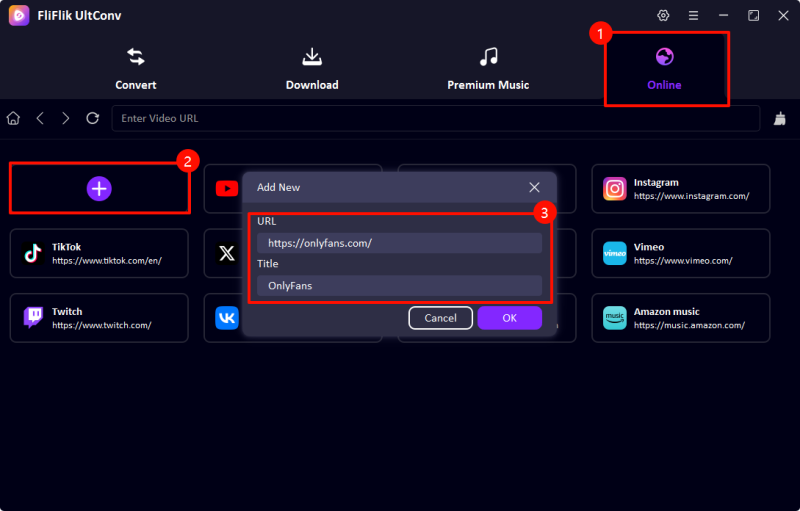
-
Log into your OnlyFans account inside the UltConv built-in browser to access your subscribed content.
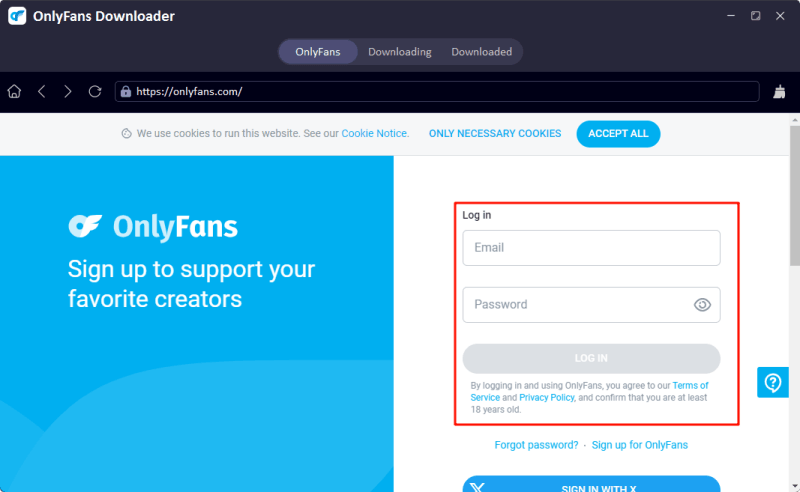
-
Browse your feed and find the video you want. Click Download and select your preferred resolution and format.

-
Wait for the download to finish. The video will be saved locally for offline viewing.
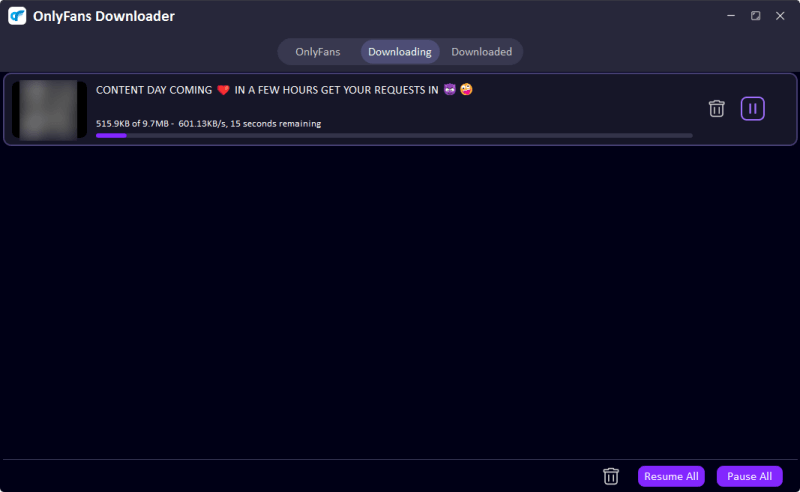


Using a direct downloader is usually more reliable than trying to bypass screen recording blocks, since it avoids playback capture restrictions.
Final Words
So, how to screen record OnlyFans? The truth is, screen recording often fails because of DRM protection and platform security. While tools like OBS, QuickTime, or built-in phone recorders can work sometimes, they frequently show black screens or fail to capture protected content. If you want a more reliable way to save videos, using a direct downloader is usually the smarter choice. FliFlik UltConv OnlyFans Converter lets you download OnlyFans videos in HD quality, save DM content, and keep videos for offline viewing without recording errors. If you want smoother, faster, and safer downloads, try FliFlik UltConv OnlyFans Downloader today. It’s a practical solution for bypassing playback recording blocks and saving content directly to your device.
 Secure Download
Secure Download
Secure Download
Hey there! I am Maxwell Clark. I'm always looking for new tech tools that make a difference, from making visuals and audio better to making workflows better. I'm going to share tips and tricks for using AI tools for videos, audio, and images. I'm excited to help you navigate the digital world more efficiently and creatively!