

 7 minutes read


Are you still searching for a YouTube video download tool? JDownloader 2 is probably one of the tools you’ve come across. It’s free, widely used, and supports a huge number of platforms. But knowing how to use JDownloader 2 properly is where most people get stuck.
With multiple tabs open, link detection happens in the background, and the process feels hectic. Basic actions like grabbing a video or extracting files do not feel simple. For this reason, most users prefer guidance information instead of trial and error. This guide will cover what JDownloader 2 is, how it works, and an alternative that downloads videos, but in an easier way and more safely.

Part 1. What is JDownloader 2?

JDownloader 2 is a free open-source download manager. It helps you download files and videos easily from the internet. JDownloader manages all of the downloading in the background instead of your browser downloading one by one. When you copy a link, the tool automatically detects it, analyzes the content, and prepares it for download. It works with hundreds of sites, video, file-hosters, archives, etc. We provide rapid downloading through a simple, user-friendly interface.
What makes JDownloader 2 popular is its flexibility. It can be used on Windows, macOS, and Linux. Also, it can handle large downloads, paused downloads, and password downloads. That said, it’s not the most beginner-friendly tool. The interface can feel overwhelming at first, and understanding how it works before using it saves you a lot of hassle.
- Automatically detects copied links
- Supports video and file downloads from many websites
- Resume paused or interrupted downloads
- Extracts compressed files automatically
- Works with multiple downloads at the same time
Part 2. How to Use JDownloader 2 to Download Videos
You don’t need to learn every button to use JDownloader 2. For most video downloads, the process is simple. Let’s use a YouTube video as an example.
- Step 1: Go to the official JDownloader website and download the installer for your system. Run the setup file and follow the on-screen instructions. Once installation finishes, open JDownloader 2.
- Step 2: When JDownloader launches, make sure Clipboard Observer is turned on. This allows the program to automatically detect any supported video link you copy.
-
Step 3:
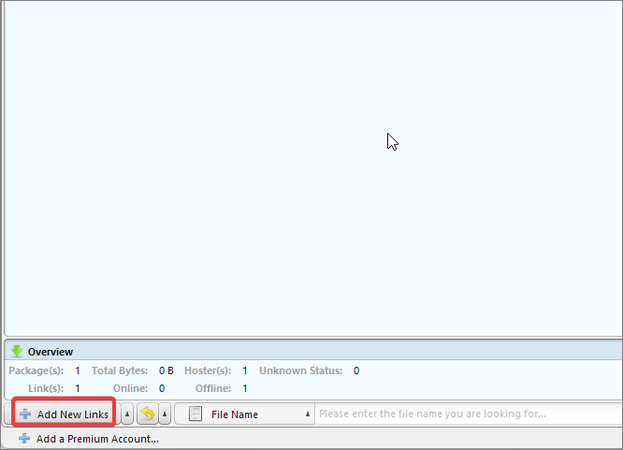
Open YouTube (or another supported site) in your browser. Copy the URL of the video you want to download. JDownloader will instantly grab the link and move it to the LinkGrabber tab. You can also click on Add new links to add your link.
-
Step 4:
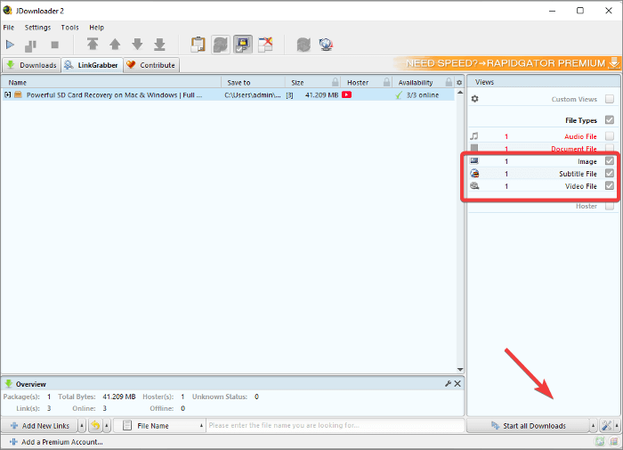
Switch to the LinkGrabber section. You’ll see all available files from the link, including video, audio, and subtitles. Select the video quality you want.
-
Step 5:
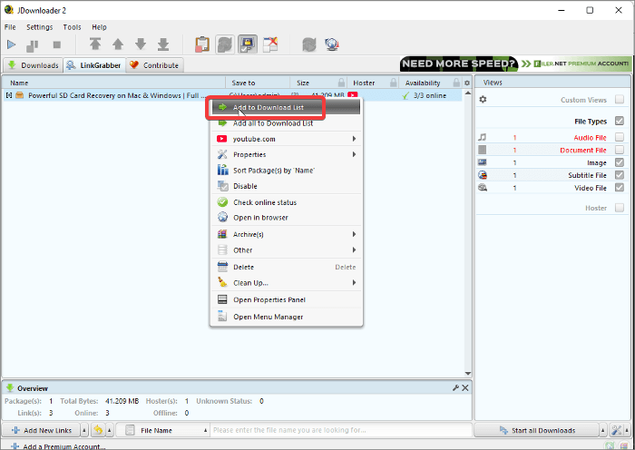
Right-click the selected file and choose Start Downloads, or simply click the play icon. The video will move to the Downloads tab and begin downloading.
-
Step 6:
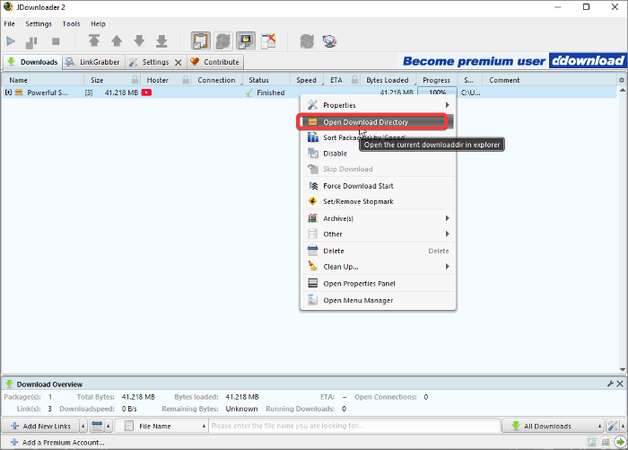
Once the status shows Finished, right-click the file and select Open Download Directory. Your video is now saved on your computer and ready to watch offline.


Bonus Tip. Best JDownloader Alternative – FliFlik UltConv Video Downloader
If you’re looking for a faster and more flexible way to download videos, music, and even entire playlists, FliFlik UltConv Video Downloader is an excellent alternative to JDownloader 2. With UltConv Video Downloader, you can grab videos from YouTube, Twitch, TikTok, Netflix, and over 10,000 other websites. It lets you download in high-quality resolutions like 4K, 2K, and 1080p, while also converting videos into audio formats such as MP3, WAV, AAC, FLAC, and AIFF.
You can download multiple videos, entire playlists, or full channels all at once, saving a lot of time. Real-time live stream downloads and DRM removal from services like Spotify and Apple Music let you collect content without any limits. UltConv Video Downloader also preserves all metadata, keeping your files organized, while the built-in browser and private folder provide secure and easy access to everything you download.

- Download videos from 10,000+ websites, including YouTube, Netflix, TikTok, and more
- Save videos in 720p, 1080p, 2K, and 4K without quality loss
- Batch download playlists, channels, and albums in one click
- Convert videos to MP3, WAV, AAC, FLAC, and 100+ formats
- Download live streams in real time instead of recording
- Built-in browser for easy link detection and downloading
- Up to 10x faster download speed compared to standard tools
- Private folder to protect your downloaded files
▼ How to Convert YouTube to MP4 with FliFlik UltConv Video Downloader?
FliFlik UltConv Video Downloader is a fast and reliable tool for both Windows and Mac, making it easy to save videos in high-quality formats. Once installed, you can quickly convert any video and watch it offline without buffering. Follow these simple steps:
 Secure Download
Secure Download
Secure Download
-
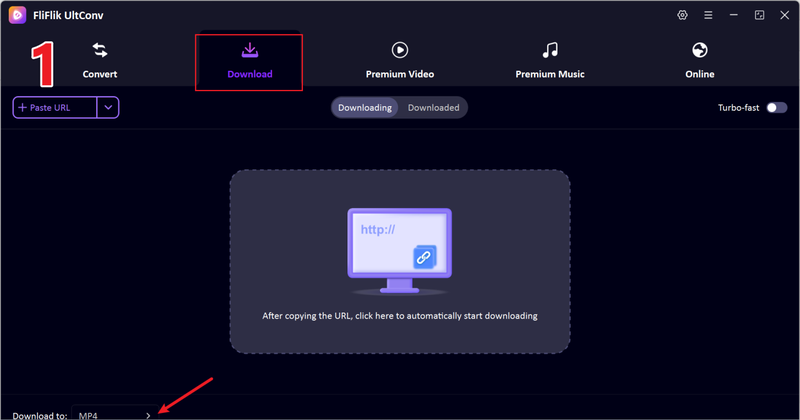
Open UltConv Video Downloader and go to the Download tab. Click the “Download to” button at the bottom to choose where to save your video.
-
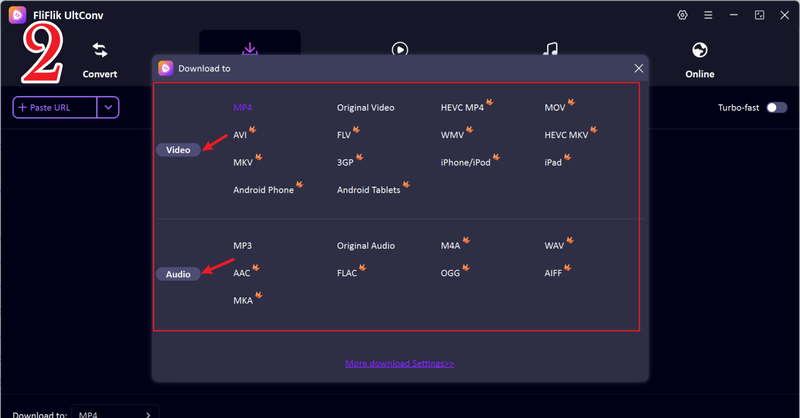
Next, pick your preferred output format. UltConv supports multiple video and audio options, so you can choose exactly what you need.
-
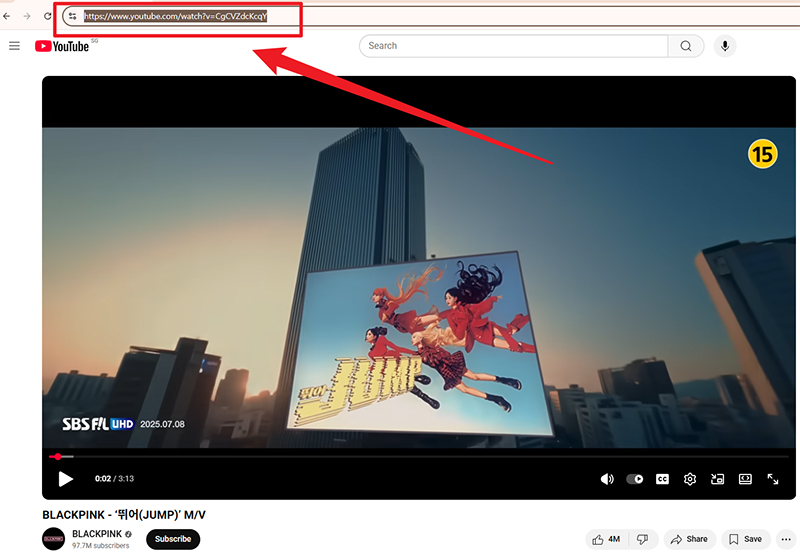
Open YouTube in your browser and copy the URL of the video you want to download.
-
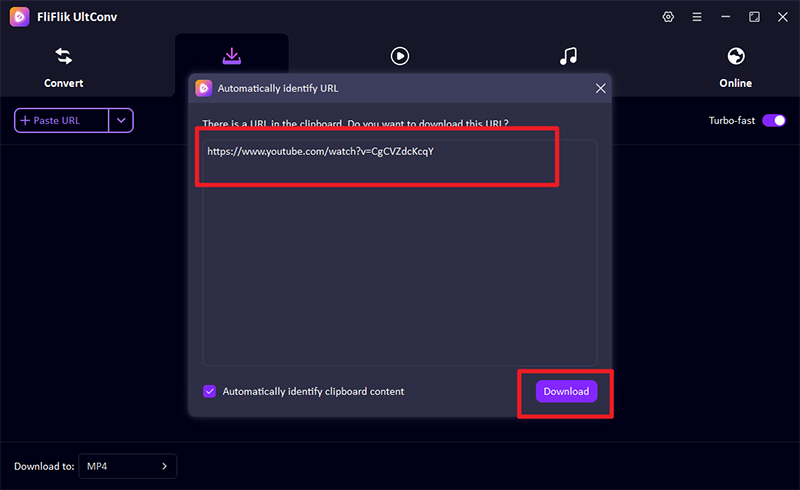
Now, go back to UltConv. If the link is detected automatically, just click Download to start saving the video.
-
If the link isn’t detected automatically, paste it into the search box manually and hit Download.
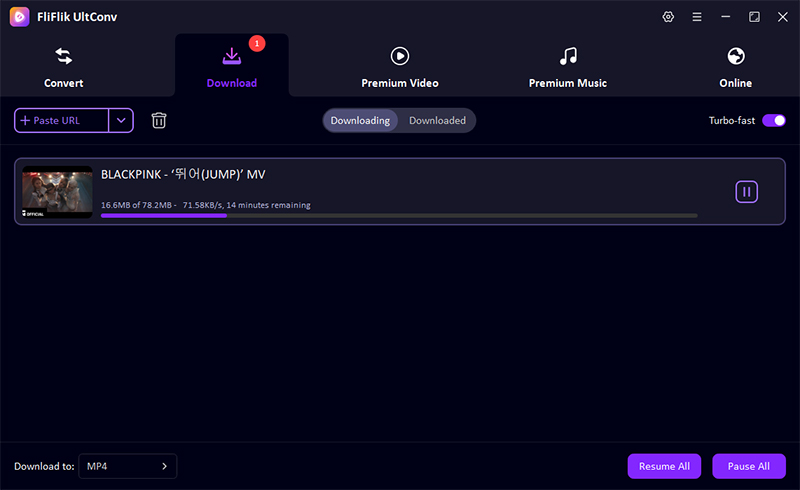


Once the download finishes, your video will be saved in MP4 and ready to watch offline ad-free and without streaming interruptions.
FAQs
Q1. Is JDownloader adware?
JDownloader itself is not adware, but it may show optional ads or bundled offers during installation. Always download from the official site and uncheck any extra offers.
Q2. What is JDownloader?
JDownloader is a free download manager that helps you grab videos, music, and other files from various websites. It supports batch downloads, multiple links, and many popular platforms like YouTube.
Q3. How to extract files from JDownloader?
Once your downloads finish, right-click on the file in the download list and choose Open Download Directory. If it’s a compressed file, use any standard extractor like WinRAR or 7-Zip to access the content.
Conclusion
JDownloader 2 is a good tool for downloading files and getting content from the internet. It works well for downloading many files at once and supports many well-known sites. However, if you want something faster and easier with extra features like high-quality video downloads and live stream capture, FliFlik UltConv Video Downloader is a great choice. With UltConv Video Downloader, you can download videos and music from many websites, save them as MP4 or MP3, and watch or listen offline without ads or interruptions. It’s perfect for anyone who wants to enjoy their favorite content anytime and anywhere.
Secure Download
Secure Download
Hello, I research and introduce useful solutions for AI videos, images, and audio tips in our daily life. If you learn these things, you can easily deal with the problems of the new era.

