7 minutes read


Picture-in-picture on Hulu is a convenient feature for users. It allows you to watch favorite shows or movies in a small, floating window while multitasking around the device. Whether it’s browsing the web, checking emails, or using other apps, PiP will let you never miss one moment of your Hulu content. In 2026, Hulu continues to support picture-in-picture on most devices, making seamless viewing easier than ever without being tied to one app or screen. In this article we will share how to enable picture in picture on Hulu step by step.

- Part 1. What is Picture-in-Picture (PiP)?
- Part 2. How to Enable Hulu PiP on PC
- Part 3. How to Enable Picture-in-Picture on Hulu for Mobile Devices
- Part 4. How to Enable Picture-in-Picture on Hulu for Smart TV
- Part 5. Hulu Picture-in-Picture Not Working?
- Beyond Native PiP: Download Hulu Content for PiP on Any Media Player
- Final Thoughts
Content Table:
Part 1. What is Picture-in-Picture (PiP)?

Picture-in-picture, or PiP, is a feature that allows a video to play in a small, resizable window that floats over other apps or windows. Instead of keeping Hulu open full-screen, you can continue browsing, working, or using other apps while still watching your favorite show or movie. It’s especially useful for multitasking, keeping an eye on live events, or following tutorials while referencing other content at the same time.
Using PiP on Hulu brings several benefits. You can watch videos without interrupting your workflow, switch between apps freely, and even move the floating window to a convenient spot on your screen. It also reduces the risk of missing key moments in a show while doing other tasks. Overall, PiP enhances the viewing experience by offering flexibility, convenience, and uninterrupted entertainment.
Part 2. How to Enable Hulu PiP on PC
Enabling picture-in-picture on Hulu for PC is straightforward, especially if you’re using a supported browser like Chrome or Firefox. Hulu offers multiple ways to get videos into a floating window so you can continue browsing or multitasking while watching your favorite shows.
Option 1: Use Hulu’s Built-in PiP Icon
When watching a video on Hulu, look for the small PiP icon in the video controls. Clicking this icon will open the video in a floating window that you can resize and move anywhere on your screen. This method works directly in the browser and doesn’t require extra shortcuts or tools.

Option 2: Use Shortcut Keys
If you’re using Firefox, you can quickly enable PiP using keyboard shortcuts. On Windows or Linux, press Ctrl + Shift + ] and on macOS, press Cmd + Shift + ]. The current video instantly pops into a picture-in-picture window. You can then move it to any corner, resize it, pause, or close it as needed. This shortcut works for Hulu and many other video platforms as long as the browser supports PiP.
Option 3: Resizing and Repositioning
Once the video is in PiP mode, you can easily adjust the size of the floating window by dragging its corners. You can also click and drag the window to any part of your screen for convenient viewing while working on other tasks. This flexibility ensures you’re not tied to a single area of your display while enjoying Hulu content.
Part 3. How to Enable Picture-in-Picture on Hulu for Mobile Devices
Picture-in-picture on Hulu works on both iOS and Android devices, letting you continue watching while using other apps. The setup differs slightly depending on your device and operating system.Below we share how to enable both on iOS and Android.
▼ On iPhone & iPad (iOS 14+)
-
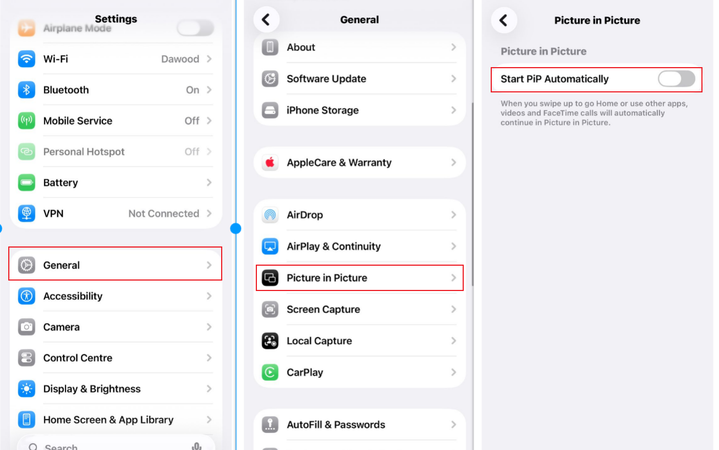
Step 1: On your iPhone, go to Settings > General > Picture-in-Picture and turn on “Start PiP Automatically.”
- Step 2: Open the Hulu app and start playing a movie or show.
- Step 3: Swipe up from the bottom (or press the Home button) to exit the app. The video will resize into a floating window automatically.
- Step 4: Drag the window anywhere on your screen or use two fingers to resize it. Tap the window to return to full screen, pause, or close the video.

▼ On Android (Android 8.0+)
-
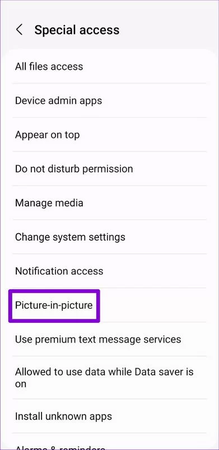
Step 1: On your Android Go to Settings > Apps & notifications > Hulu > Picture-in-picture and enable “Allow picture-in-picture.”
- Step 2: Open the Hulu app and start playing a video.
- Step 3: Tap the Home button. The video will continue in a small floating window.
- Step 4: Drag the window, pause, or close it anytime. Hulu will now play in the background while you use other apps.

Part 4. How to Enable Picture-in-Picture on Hulu for Smart TV
Most Smart TVs don’t support Hulu’s picture-in-picture feature directly through the app. Instead, PiP functionality depends on the TV itself, as some models come with a built-in PiP mode that lets you watch one source in a small window while using another app or input.
To use PiP on a Smart TV, check your TV’s settings or remote for a “Picture-in-Picture” option. If supported, enable it and select Hulu as the primary source. You can then adjust the size and position of the video window while navigating other apps or inputs. Keep in mind that not all TVs offer this, so PiP on Hulu may be limited to mobile devices and PCs in most cases.
Part 5. Hulu Picture-in-Picture Not Working?
Even though Hulu’s PiP feature is convenient, users sometimes run into issues. Here are the most common problems and how to fix them.
Issue 1: No PiP Button Visible
Sometimes the PiP icon doesn’t appear in the video controls. This can happen if your browser or Hulu app is outdated, hardware acceleration is disabled, or conflicting extensions block the feature. Fix this by updating your browser or app to the latest version, enabling hardware acceleration, clearing cache and cookies, and disabling extensions that might interfere.
Issue 2: PiP Window Immediately Closes
Your floating PiP window might disappear instantly. Causes include Hulu subscription limitations (ad-supported plans may restrict PiP), content restrictions on certain shows, or DRM conflicts. To fix it, ensure PiP permissions are enabled, consider upgrading to a plan without ads, or try playing a different show.
Issue 3: PiP Stuttering or Lag
A laggy or choppy PiP window is often due to network bandwidth or device performance. Close bandwidth-heavy apps running in the background, lower the video quality settings, or toggle hardware acceleration to smooth playback.
Issue 4: Audio But No Video
Sometimes PiP plays sound but the video is blank. This often occurs on older browsers or devices with graphics rendering issues. Restart your device, update your browser or Hulu app, and make sure hardware acceleration is turned on.
Issue 5: Can’t Resize or Move PiP Window
If the floating window is stuck or unresponsive, it may be due to device or browser limitations. Try resizing your browser window, restarting the Hulu app, or using a different supported browser. On mobile, make sure your OS version supports PiP gestures and touch controls.
Beyond Native PiP: Download Hulu Content for PiP on Any Media Player
If you want to watch Hulu shows in Picture-in-Picture mode without being limited by app or device restrictions, downloading your favorite content is the easiest way to go. By saving videos locally, you can play them on any media player, resize the window, and enjoy full control over playback. UltConv Hulu Video Downloader makes this simple. With UltConv Hulu Video Downloader, you can save any show or movie in up to 4K quality and watch it anywhere, anytime. The tool makes it easy to grab videos, convert them to MP4 or MKV, keep subtitles, preserve multi-language audio tracks, remove ads, and even download full seasons in one go all without losing quality or metadata.
What makes it really handy is how flexible it is. You can pick the format that works best for your device, keep Dolby Atmos audio for a cinematic feel, and customize subtitles to your liking. Batch downloads let you snag entire seasons at once, and the built-in browser means you don’t have to switch back and forth between apps. It’s a simple way to take full control of your Hulu library offline.

- Download Hulu videos in 1080p or 4K quality
- Convert Hulu content to MP4 or MKV for universal device support
- Save multi-language audio tracks including Dolby Atmos
- Preserve subtitles in SRT or VTT formats for flexible use
- Remove ads from Hulu videos for uninterrupted viewing
- Support 1000+ streaming services, including Hulu, HBO Max, Netflix, and more
▼ Steps to Save Hulu Videos with UltConv Hulu Video Downloader
-
Download and install FliFlik UltConv Hulu Video Downloader from the official website. The setup is quick and straightforward, so you’ll be ready to start in just a few minutes.
FREE DOWNLOAD![secure download]() Secure Download
FREE DOWNLOAD
Secure Download
FREE DOWNLOAD![secure download]() Secure Download
Secure Download
-
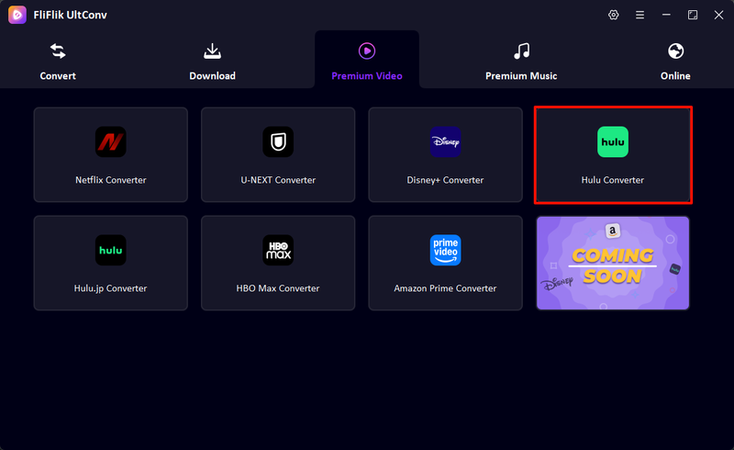
Open the software, go to the Premium Video section, and select the Hulu Converter. This section lets you access Hulu content directly within the program without switching to a browser.
-
Log in to your Hulu account inside UltConv. Once signed in, you’ll see your full Hulu library, including movies, TV shows, and playlists.

-
Search or browse for the video you want to save. When you find it, click the Download button next to the title and pick your preferred resolution and format.

-
UltConv will process the file and save it to your computer, keeping the quality, audio tracks, and subtitles intact. You can now enjoy your Hulu content offline anytime, without ads or interruptions.



Final Thoughts
When you enable picture-in-picture on Hulu it becomes easy to multitask while watching your favorite shows effortlessly. However, native PiP features can sometimes be limited by device, browser, or content restrictions. For those who want complete control, downloading Hulu content with UltConv Hulu Video Downloader is a game-changer. It lets you save videos in high quality, preserve subtitles and audio tracks, and watch offline on any device, giving you full flexibility while enjoying Hulu content anytime, anywhere.
 Secure Download
Secure Download
Secure Download
Hey there! I'm Clara Knight, and I'm passionate about using AI to streamline my workflow in the image watermark removal industry. So excited to empower users with clear guides and insights to conquer those pesky watermarks. Let's unleash the power of AI for watermark-free visuals!