7 minutes read


SaveTheVideo is often one of the first tools people find when they want to download videos quickly from the web. It promises simple downloads. You don’t need to set it up with complicated steps. All this sounds really nice. No doubt, but once you start using savethevideo, you begin to notice gaps in quality, format support, and reliability. In this, our detailed SaveTheVideo review, we will take a clear look at what SaveTheVideo actually offers, where it falls short, and which alternatives make more sense if you want better control over your downloads.

Part 1. What is SaveTheVideo?

SaveTheVideo is a web-based tool that enables you to download videos from Vimeo, Dailymotion, TikTok, Twitter, Instagram, and Facebook, as well as to convert videos to various formats. The fact that it runs entirely in a browser means that you don’t have to install additional software. This can be convenient for anyone who wants to download without additional hassle. You can also convert the videos into various formats, such as MP4, MP3, AAC, and other formats. You can also download subtitles if available. Despite its promise of easy access, many restrictions come into play when we practically use it. We will discuss this in detail later.
- Download videos from multiple platforms, including TikTok, Twitter, Instagram, Vimeo, and Facebook
- Convert videos to formats like MP4, MP3, AAC, WebM, 3GP, and OGG
- Merge video and audio files and save in HD quality up to 1080p
- Cut or trim video and audio by selecting start and end times
- Download subtitles or closed captions when available
- Alternative download options if the main link fails
- Mobile-friendly, works on Android devices with a simple one-click setup
- Completely free
- Supports a wide range of video and audio formats
- Works on almost any device with a modern browser
- Simple and easy to use for quick downloads
- Limited to online functionality
- Video quality may not always be consistent
- Subtitles and audio downloads depend on availability from the source
- Occasional slow processing or download failures
Part 2. SaveTheVideo Not Working?
While SaveTheVideo is convenient for quick online downloads, it isn’t always reliable. Users sometimes run into errors, slow downloads, or failed conversions. Below, we will list the common issues that you can face while using SaveTheVideo and what solutions you can try.
Website Compatibility Issues
Some videos from newer or less common sites may not be supported. If SaveTheVideo cannot detect the video, try copying the link carefully or check whether the platform is listed as supported.
Browser Problems
Outdated browsers, blocked scripts, or excessive cache can prevent downloads. Fix this by updating your browser, clearing cache and cookies, or trying a different browser.
Slow Internet Connection
Large videos or high-resolution downloads may fail if your internet is unstable. Make sure your connection is stable and try downloading smaller videos first to test.
Video Privacy or Copyright Restrictions
Some content cannot be downloaded due to privacy settings or copyright protection. In these cases, SaveTheVideo will not be able to access the file. There’s no workaround other than using content you are legally allowed to download.
Server or Site Errors
Occasionally, the SaveTheVideo servers may be overloaded or under maintenance. Waiting a few hours and trying again often solves the problem.
Part 3. How to Use SaveTheVideo to Download Video
Using SaveTheVideo is fairly straightforward, especially if you want to download videos from supported platforms. The process is simple, but there are a few tips to make it work smoothly. Before starting, make sure you have the video link ready and a stable internet connection. Keep in mind that not all videos may be downloadable due to privacy or copyright restrictions.
▼ Steps to Download Videos with SaveTheVideo:
- Step 1: Go to the SaveTheVideo website in your browser.
- Step 2: Copy the link of the video you want to download. You can copy from Vimeo, TikTok, Instagram, etc.
-
Step 3:
Paste the video link into the input box on SaveTheVideo and click
Start
or
Download.
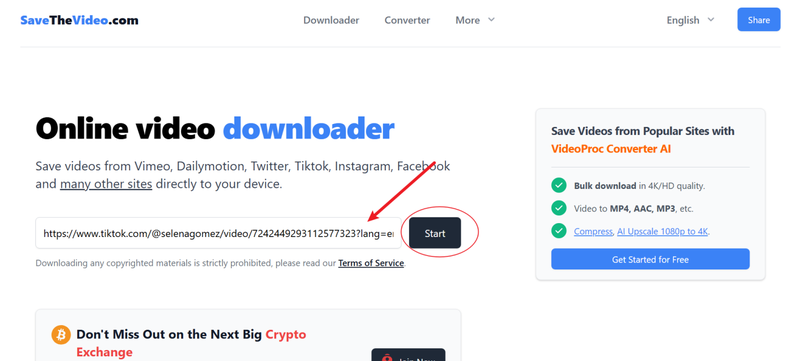
- Step 4: Wait for the tool to process the video. This may take a few moments, depending on the file size and your internet speed.
-
Step 5:
Choose the format and quality you prefer. Options may include MP4, MP3, or other supported formats.
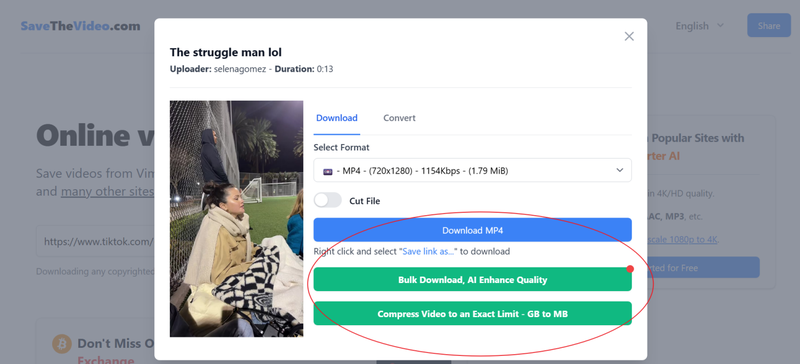
- Step 6: Click the final Download button to save the video to your device. Once it finishes, you can access it offline anytime.


This method works well for Vimeo and other supported platforms, making it a quick solution when you need a video saved locally.
Part 4. SaveTheVideo Video Quality and Format Limitations
While SaveTheVideo is convenient for quick downloads, it has some limitations when it comes to video quality and format options. The tool works for basic downloading needs, but if you’re looking for high-resolution videos, multiple format choices, or professional-grade output, you may find it falls short. Understanding these limitations can help set expectations and decide if you need a more advanced downloader.
Limited High-Resolution Support: Some videos may only be available in standard or lower HD quality. 4K or higher-resolution downloads are not consistently supported.
Format Restrictions: Although SaveTheVideo offers several formats like MP4, MP3, AAC, and WebM, it doesn’t cover all possible formats. Users needing MKV, MOV, or other professional formats may find it restrictive.
Subtitles and Captions: Not all videos allow downloading of subtitles or closed captions. Availability depends on the source video.
No Batch Download: SaveTheVideo requires downloading videos one by one. There is no option to download multiple episodes, playlists, or full seasons at once.
File Size Limits: Extremely large videos may fail to download or process slowly, making them less suitable for full-length movies or high-quality long-form content.
Inconsistent Performance Across Platforms: Download speed and video quality can vary depending on the website, video type, or browser being used.
These limitations mean SaveTheVideo is best suited for casual, small-scale downloads rather than heavy or professional use.
Part 5. Best SaveTheVideo Alternatives When It Stops Working
With all the limitations and occasional issues of SaveTheVideo, especially when it fails to download or struggles with formats and quality, many users look for a more reliable solution. If you want a tool that can handle large files, preserve video quality, and offer more control over downloads and conversions, UltConv Video Converter is a strong alternative. It lets you save videos from thousands of websites and convert them into popular formats like MP4, AVI, MKV, or MP3. The tool works smoothly for both video and audio, so you can convert full-length movies, anime episodes, or music tracks without losing quality.
UltConv Video Converter handles large files effortlessly, including HD, 4K, and even 8K videos. You can batch convert multiple files at once, saving time if you want an entire playlist or season. It also keeps subtitles and metadata intact, and the output works on a wide range of devices, including PCs, phones, tablets, and smart TVs. With stable performance and fast conversion speeds, it’s a reliable all-in-one tool for anyone who wants offline access to their favorite media.

- Convert video to audio in MP3, FLAC, AAC, and other formats
- Fast conversion for large HD, 4K, and 8K files
- Batch conversion to process multiple videos at once
- Preserve high-quality video and audio output
- Compatible with PC, iPhone, iPad, Android, and more
- Supports over 100 formats including MP4, MKV, MOV, WAV, and OGG
▼ Steps to Download High Quality Videos with UltConv Video Converter:
-
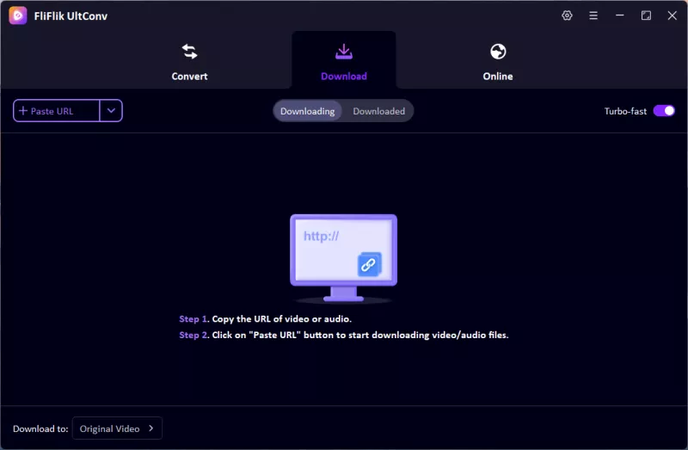
Before downloading, go to the Download section and choose the format you want for your video or audio.
-
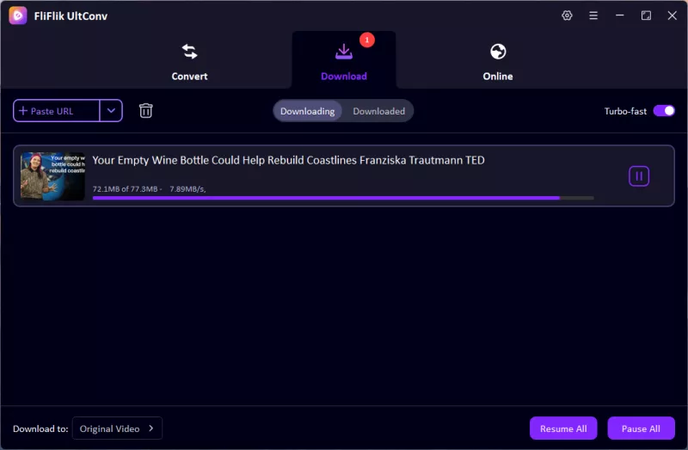
Copy the link of the video or audio you want to download, then paste it into UltConv’s Download section to start the conversion.
-
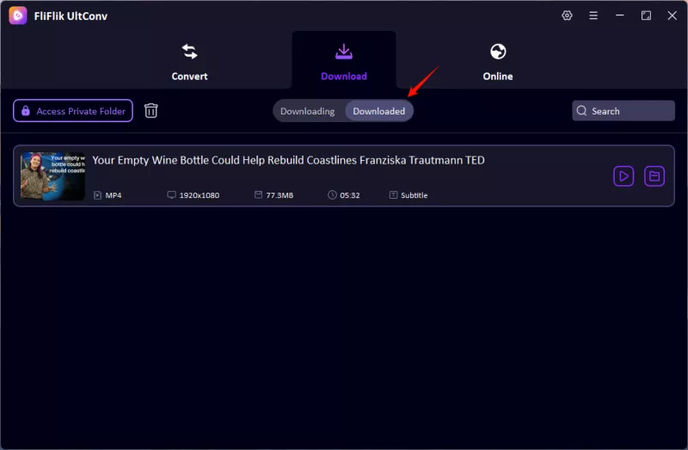
Once the download is complete, go to the Downloaded section to find and play your saved files.


Final Thoughts
SaveTheVideo is a convenient option if you just need to download a few videos quickly, but it comes with limitations. Video quality can be inconsistent, subtitles may not always be available, and you cannot download multiple files at once. It works best for casual users who don’t mind these restrictions. If you want more control and a smoother experience, UltConv Video Converter is a much stronger option. It supports high-quality HD and 4K downloads, preserves subtitles and metadata, allows batch downloading, and works with a wide range of formats and devices. For anyone who regularly saves videos from sites like Vimeo, YouTube, or Crunchyroll, UltConv provides a reliable, practical way to build an offline library without frustration.
 Secure Download
Secure Download
Secure Download
Hey there! I'm Clara Knight, and I'm passionate about using AI to streamline my workflow in the image watermark removal industry. So excited to empower users with clear guides and insights to conquer those pesky watermarks. Let's unleash the power of AI for watermark-free visuals!