8 minutes read


Streaming on Tubi is convenient, but it comes with one clear limit. You can only watch content while you are connected to the internet. If you want to watch a movie during travel, save a show for later, or play it on a device that does not support the Tubi app, that becomes a problem.
This is why many users look for ways to convert Tubi to MP4. MP4 is a widely supported video format that works on almost any device, including phones, tablets, laptops, smart TVs, and media players. Once a video is saved in MP4 format, you can watch it anytime without buffering, app restrictions, or internet access. In this article, we will explain how to convert Tubi to MP4 for offline viewing and explore a few practical methods that make the process simple and reliable.

Part 1. Why Do We Need to Convert Tubi to MP4?
Tubi operates on an AVOD (Advertising-based Video on Demand) model. This means users can watch thousands of movies and TV shows for free, but the platform includes advertisements during playback to support the service. Instead of charging a subscription fee, Tubi relies on ads to keep the content accessible. While this model makes streaming free and convenient, it also comes with a few limitations for viewers. Because of these limits, some users look for ways to convert Tubi TV to MP4 so they can keep their favorite content in a more flexible format. There are several common reasons behind this.
- No official download option: Unlike some streaming platforms, Tubi does not provide a built-in feature for downloading videos for offline viewing. This means you always need an internet connection to watch content on the platform.
- Preventing favorite content from disappearing: Streaming libraries often change over time. Movies or shows available today may be removed later due to licensing agreements. Saving videos in MP4 format helps users keep content they enjoy.
- Ad-free watching: Since Tubi relies on advertisements, viewers usually encounter ads during playback. Converting videos to MP4 allows users to watch their saved content without interruptions.
- Bypassing regional restrictions: Some titles on Tubi are only available in certain regions. Converting videos to MP4 makes it easier to watch them later on any device without depending on regional availability.
- Enabling offline viewing: MP4 is a widely supported format that works on phones, tablets, laptops, smart TVs, and media players. Once a video is saved locally, it can be watched anytime without buffering or internet access.
For users who want more control over how and where they watch content, converting Tubi videos to MP4 becomes a practical solution.
Part 2. Best Way to Convert Tubi to MP4 Easily
One of the simplest ways to convert Tubi videos is by using a dedicated Tubi to mp4 downloader. A reliable option is FliFlik UltConv Tubi Converter, a tool designed to download and convert videos from streaming websites into widely supported formats like MP4.
UltConv Tubi Converter works as a complete video downloading and conversion solution. It supports downloading videos from more than 10,000 websites, including popular streaming and social media platforms. The software also includes a built-in browser, which allows users to search, open, and download videos directly without copying links between different tools. Besides single video downloads, it supports batch downloading, so multiple videos or an entire season can be saved at once. UltConv Tubi Downloader also preserves high video quality during the download process, supporting resolutions from standard HD to 4K and even higher when available. With fast download speeds and flexible format options, it offers a practical way to save streaming content for offline viewing.

- Download videos from 10,000+ websites, like Netflix, Disney+
- Save videos in MP4, MP3, and 100+ formats
- Support 4K, 2K, 1080p, and HD video downloads
- Batch download multiple videos at the same time
- Built-in browser for easier video searching and downloading
- 10× faster download speed for large files
▼ Steps to Download Tubi Videos with UltConv Tubi Converter
To download a Tubi video with UltConv, start by visiting the FliFlik UltConv Tubi Converter page. Download the software and install it on your computer. Once the program is ready, follow these steps.
 Secure Download
Secure Download
Secure Download
-
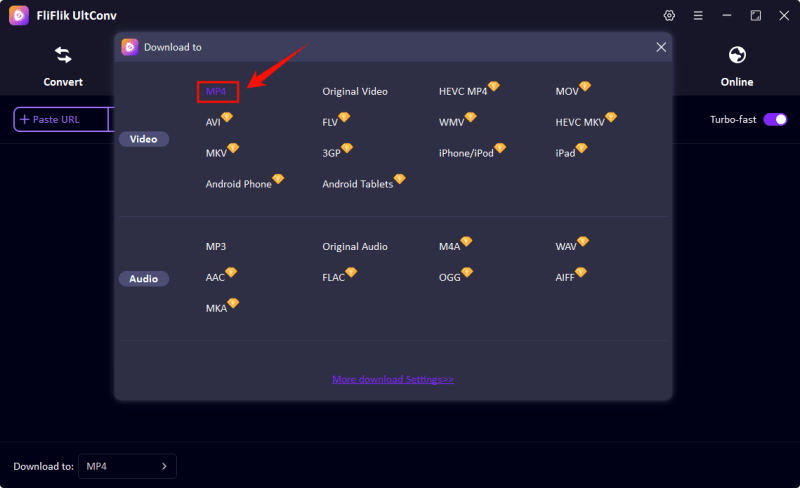
Open UltConv, click at Download tab and click the “Download to” option to choose MP4 as the output format.
-
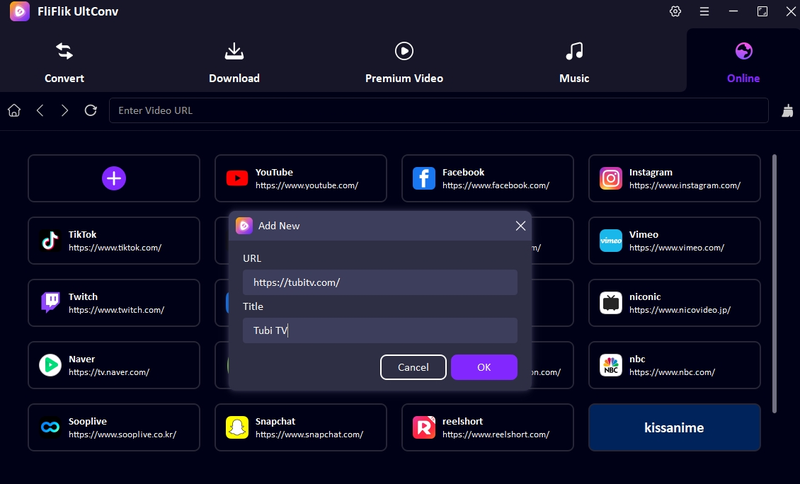
Then go to the Online Tab , and paste the Tubi TV website link into the search box. Add the video title if required.
-
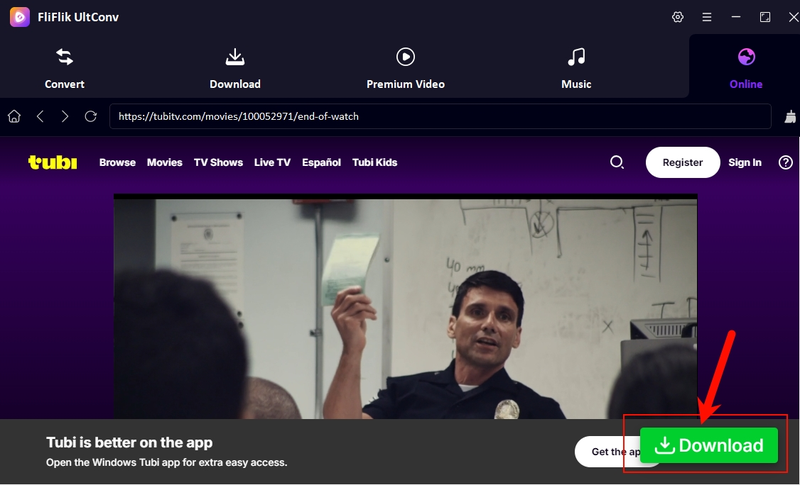
Open Tubi with UltConv’s built-in browser, play the movie or TV episode you want to save, and click the green Download button.
-
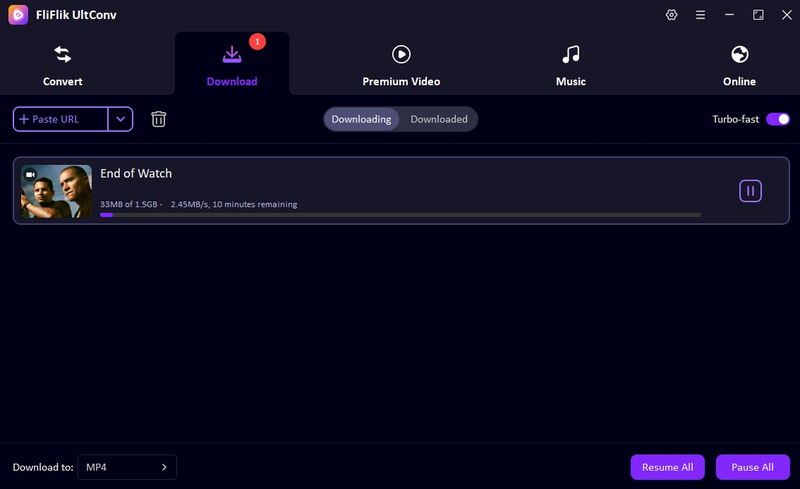
Now you can check the downloading process on the Downloading tab. Once the process finishes, the MP4 file will be available in your default download folder for offline viewing.


Part 3. 3 Free Tools to Convert Tubi to MP4
If you do not want to install software, some free online tools can also help convert Tubi videos. Here are three options many users try.
1. Fetchfile

Fetchfile is a simple online downloader that allows users to save videos from different streaming sites. When I tested it, the interface felt straightforward. You paste the video link, the tool analyzes the page, and then it generates download options. It works directly in the browser, so there is no installation required. However, like most online tools, performance depends on the website structure and internet connection. Sometimes it takes a moment to process the link before showing the download options.
- No software installation required
- Simple and clean interface
- Supports multiple video sources
- Works directly in the browser
- Processing links can take time
- Video quality options may be limited
- Ads may appear on the page
2. Letoltes

Letoltes is another browser-based Tubi to MP4 converter that allows users to download Tubi videos quickly. When I tried it, the process felt quite similar to other link-based downloaders. You paste the video link, the site detects the media file, and then it provides download options. What I noticed is that Letoltes works best with public video links and standard video pages. It does not require any account or installation, which makes it convenient for quick downloads.
- Completely free to use
- No registration required
- Simple link-paste download process
- Works on different devices and browsers
- Sometimes fails to detect the video source
- Download speed depends on server response
- Limited format and resolution choices
3. PasteDownload

PasteDownload is another web-based tool that helps users download online videos by simply pasting the video link. It is quite easy to use because the page layout is simple and the steps are clearly shown. After entering the video link, the site scans the source and provides available download formats. Like many free online downloaders, it may not always detect every video perfectly, but it can still work for basic downloads when the link is supported.
- Easy to use interface
- No software installation needed
- Supports multiple streaming platforms
- Quick link-based downloading
- Ads can appear during the process
- Video detection may fail sometimes
- Limited advanced features
Part 4. Comparison: Which is the best Tubi Tv to MP4 converter?
Now that we’ve looked at several tools, it helps to compare them side by side. Each Tubi TV to MP4 converter works a little differently. Some support more websites, while others focus on simplicity. The table below highlights the main differences based on site support, download speed, quality, and reliability.
| Tool | Supported Sites | Batch Download | Download Speed | Max Quality | Ads-Free | Success Rate |
|---|---|---|---|---|---|---|
| FliFlik UltConv | 10,000+ video & music sites | ✅ | Very fast (accelerated downloads) | Up to 4K | ✅ | High |
| Fetchfile | Multiple sites like YouTube, Vimeo, Facebook, TikTok | ❌ | Medium (depends on server) | Up to HD | ❌ | Medium |
| Letoltes | Supports various streaming links | ❌ | Medium | Up to HD | ❌ | Medium |
| Pastedownload | Many major platforms, including YouTube, Facebook, and Instagram | ❌ | Medium | Up to 1080p | ❌ | Medium |
Final Words
Turning Tubi to MP4 simply gives you more control over how you watch your content. Tubi is great for free movies and shows, but since it doesn’t offer an official download option, you’re stuck needing an internet connection every time you want to watch something. That’s why many people look for ways to save videos in MP4 format so they can watch them offline on any device. Free online tools can work for quick downloads, but they’re often slow and filled with ads. If you want something more stable and easier to use, the FliFlik UltConv Tubi Converter is a much better choice. It supports thousands of websites, downloads videos quickly, and keeps the original quality. If you plan to save Tubi videos regularly, give FliFlik UltConv Tubi Converter a try and make offline viewing much simpler.
Secure Download
Secure Download
Hey there! I am Maxwell Clark. I'm always looking for new tech tools that make a difference, from making visuals and audio better to making workflows better. I'm going to share tips and tricks for using AI tools for videos, audio, and images. I'm excited to help you navigate the digital world more efficiently and creatively!