8 minutes read


Streaming’s supposed to be fun, right? Ads kind of mess that up, especially on Paramount Plus. You’re ready to dive into a show or settle in for a movie night, and suddenly an ad interrupts the moment. The good news is that there are ways to watch Paramount+ without commercials, giving you uninterrupted viewing.
In this article, we will show you how to watch Paramount Plus without commercials. We will see how to upgrade to a premium plan, using ad blocker extensions, and a long-term solution to download your favorite movies and shows for uninterrupted viewing.

Part 1. Does Paramount Plus Have Commercials?
So, does paramount plus have commercials? Yes, Paramount Plus does have commercials. The platform offers both ad-supported and ad-free plans, but ads can still appear in certain situations. So, does Paramount Plus have commercials? The answer depends on your subscription and the content you watch. Here are some conditions of Paramount Plus Ads;
- Ad content: Promotions for shows, brands, or Paramount content
- Ad type: Pre-roll ads, mid-roll ads, and live TV ads
- Ad length: Usually 15–60 seconds, sometimes longer during live streams
- How ads appear: Before movies, during episodes, or while watching live TV
Ads are more common on the Essential plan and during live TV or licensed content.
Part 2. How to Block Ads on Paramount Plus by Upgrading to Premium
Paramount Plus has two main plans, and the biggest differences are price, ads, and features. The Premium plan has fewer commercials, but it does not remove them completely. You may still see ads during live TV and some licensed content. Below is a simple comparison showing what each plan offers in terms of cost, ads, and features.
| Plan | Price | Ads on On-Demand | Ads on Live TV | Key Features |
|---|---|---|---|---|
| Paramount plus Essential | $7.99/month | Yes (all content) | Yes (news, sports) | 3 streams; access to 40k plus titles; no 4K; no downloads |
| Paramount plus Premium | $12.99/month | No (on-demand only) | Yes (news, sports) | 4 streams; 4K/Dolby Vision; downloads; includes SHOWTIME content |
▼ Steps to Upgrade to Paramount plus Premium (Fewer Commercials)
If you want to upgrade to Paramount plus Premium for fewer commercials, here’s how to do it:
- Step 1: Sign in to your Paramount plus account using the website or mobile app.
- Step 2: Go to Account or Subscription Settings.
- Step 3: Select Change Plan.
- Step 4: Choose Paramount plus Premium (with SHOWTIME).
- Step 5: Confirm your payment and complete the upgrade.
Once upgraded, on-demand movies and TV shows will play without embedded commercials. You will still see commercials during live TV because those ads are part of the broadcast feed.
Why Do I Still See Paramount Plus Commercials with Premium Plans?
Even if you upgrade to the Premium plan, you might still notice Paramount Plus ads during movies interrupted by ads or popping up during playback. You can upgrade to reduce commercials in on-demand content, but it doesn’t eliminate every ad. Here’s why that happens:
Live TV Always Includes Ads
Live television channels stream just like traditional broadcast TV. That means commercials are part of the feed and can’t be removed. So if you watch live news, sports, or special events, you’ll still see ads because they’re built into the broadcast itself.
Licensing and Content Agreements
Some shows and movies come with required ads due to licensing deals. Content rights holders can require commercials in certain regions or for specific titles. Even with a Premium subscription, those ads remain because they’re part of the legal agreement.
Special Events and Sports
During big events like sports games or seasonal specials, ad breaks are often longer or more frequent. Platforms include these ads because the event is streamed live and sponsors pay to be featured, so there’s no way for Paramount Plus to cut them out for Premium viewers.
Regional or Platform Variations
In some countries or devices, the ad experience can vary. Local rules and streaming rules can affect whether ads are inserted, even for Premium accounts.
In short, the Premium plan cuts most embedded commercials in on-demand shows and movies, but ads can still appear due to live broadcasts, licensing requirements, special events, and regional content rules. That’s why many users see Paramount Plus ads during movies interrupted by ads even after upgrading.
Part 3. How to Watch Paramount Plus Without Commercials with Ad Blocker Extension
Another option is using a browser extension. Ad blockers can stop some ads from loading, especially on desktop browsers. One popular choice is Total Adblock from the Chrome Web Store. Many users consider it the best ad blocker for Paramount Plus for basic ad filtering. Ad blockers detect ad scripts and prevent them from playing. Results may vary depending on updates from Paramount Plus.
▼ Steps to Watch Paramount Plus without Commercials with Ad Blocker
- Step 1: Open Google Chrome and go to the Chrome Web Store. Search for “Total Adblock.”
-
Step 2:
Click Add to Chrome and confirm the installation.

- Step 3: Open Chrome’s Extensions menu and make sure Total Adblock is enabled.
- Step 4: Go to Paramount Plus and start streaming. The extension will try to block ads automatically.

 Note
Note
If Paramount Plus detects the ad blocker and stops playback, refresh the page or try a different ad blocker extension.
Part 4. How to Watch Paramount Plus without Commercials Forever
If you’re looking for a permanent way to enjoy Paramount Plus without commercials, downloading your favorite movies and shows is by far the most reliable option. Instead of waiting for buffering, dealing with ad interruptions, or relying on an unstable internet connection, you can have full control over your viewing experience. FLIFlik UltConv Video Converter makes this process easy and efficient. It doesn’t just save videos locally, it allows you to preserve high-definition quality, extract audio in multiple formats like MP3, FLAC, or AAC, and convert videos to formats compatible with virtually any device, from iPhones and iPads to Android devices and PCs.
You can even download multiple videos at once, saving time and creating a personal media library tailored to your preferences. With support for large 4K or 8K files, batch conversions, and preservation of HiFi audio, UltConv ensures that every movie, show, or live event you download is crisp, clear, and ready to watch on your schedule, completely free from commercials and interruptions.

- Easily extract audio from videos in formats like MP3, FLAC, or AAC
- Convert large 4K or 8K videos quickly without waiting
- Save time by converting multiple files at once
- Works with iPhone, iPad, Android, and other devices
- Convert videos to MP4, MOV, MKV, AVI, and audio to MP3, WAV, FLAC, AAC
- Preserves HD and HiFi audio quality for movies, music, and more
▼ Steps to Download Paramount Plus Movies with UltConv Video Converter:
-
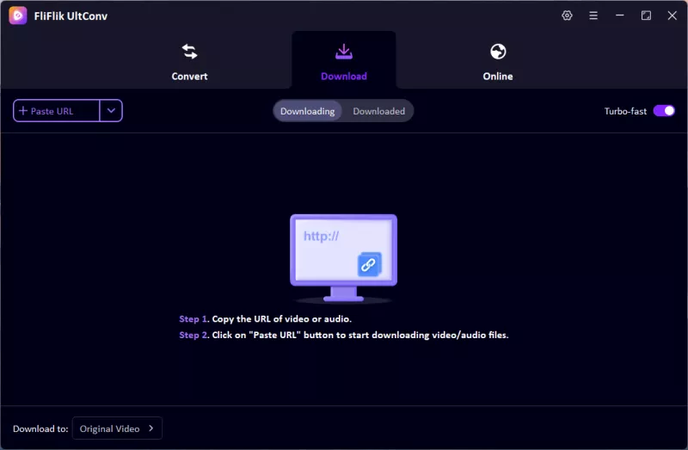
Before starting, go to the Download section and select the format you want for your video or audio. This ensures your downloaded file works on your preferred device.
-
Copy the URL of the video or audio you want to download. Return to UltConv’s Download section and paste the link to begin converting the media.

-
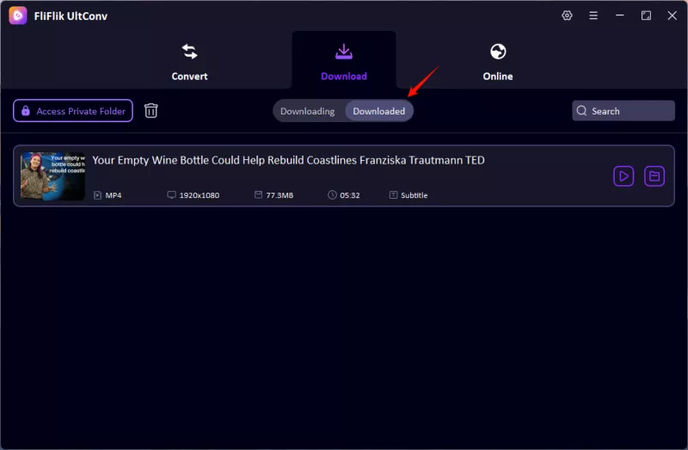
Once the download finishes, go to the Download tab to find your saved files. They’re ready to play offline anytime.


Wrapping Up
Ads are one of the biggest frustrations for streamers today. If you want to watch Paramount Plus without commercials, there are several options. Upgrading your plan helps, but ads may still appear during live TV or certain movies. Ad blockers can reduce interruptions, but results are not guaranteed. For a long-term solution, downloading content offers the most control. UltConv Video Converter stands out because it removes ads completely and allows offline viewing anytime. Choose the method that fits your viewing style and enjoy uninterrupted streaming.
 Secure Download
Secure Download
Secure Download
Hey there! I'm Clara Knight, and I'm passionate about using AI to streamline my workflow in the image watermark removal industry. So excited to empower users with clear guides and insights to conquer those pesky watermarks. Let's unleash the power of AI for watermark-free visuals!