

 8 minutes read


Want to fix YouTube videos not playing on Google Chrome? You open YouTube on Chrome only to find videos won’t play. Sometimes, you just want to watch a tutorial, music video, or livestream, but the video is not playing at all.
In this article, we’ll go over the most common causes why YouTube not playing on Chrome and provide easy-to-follow fixes so you can get back to streaming. We will cover browser settings, cache issues, extensions, and more common causes that block playback.

Part 1. Why YouTube Not Playing in Chrome?
YouTube not playing on Chrome can be a result of several different issues. There could be a number of reasons, and each situation requires a different solution. Sometimes, the problem is with your browser, but at other times, the problem could be your internet connection, device settings, or a third-party extension. Here are the main reasons behind videos not loading or not playing as they should:
1. Outdated Chrome Version
If you’re not running the latest version of Chrome, your browser may not have the functionality or security updates that are needed to play videos on YouTube. Playback may stutter, buffer indefinitely, or fail to start.
2. Slow or Unstable Internet Connection
YouTube requires a stable internet connection, especially for HD or 4K content. Intermittent or slow connections can prevent videos from loading or cause constant buffering.
3. Corrupted Cache and Cookies
Browsing data like cached files and cookies can accumulate errors over time. This corruption can interfere with YouTube’s scripts, leading to blank screens or playback errors.
4. Conflicting Extensions or Add-ons
Certain Chrome extensions, especially ad blockers, VPNs, or privacy add-ons, may block YouTube scripts or content delivery, stopping videos from playing.
5. Disabled JavaScript
YouTube relies heavily on JavaScript to load videos and player controls. If JavaScript is disabled in Chrome, videos will fail to play entirely.
6. Hardware Acceleration Issues
Chrome uses hardware acceleration to improve performance, but sometimes it conflicts with your graphics drivers. This can cause freezing, stuttering, or failure to play videos.
Part 2. How to Fix YouTube Videos Not Playing on Chrome Browser?
Often, the solution is simpler than you might think. Following the right steps can quickly get your videos streaming again. Here’s a detailed guide to troubleshoot and resolve the problem.
Fix 1. Check Internet Connection
A slow or unstable internet connection is often the main reason videos fail to load. Test your Wi-Fi or wired connection speed, restart your router if necessary, and ensure you have a stable connection suitable for streaming, especially for HD or 4K content.
Fix 2. Check the YouTube Server Status
Sometimes the issue isn’t on your end. YouTube servers may be down temporarily, causing videos not to play. Visit websites like DownDetector to see if other users are reporting issues, or check YouTube’s official social media for outage announcements.

Fix 3. Clear Chrome Browser Cache and Update
Over time, cache and cookies can become corrupted and interfere with video playback. Clear your browsing data in Chrome’s settings, including cached images and cookies. Also, make sure Chrome is updated to the latest version to ensure full compatibility with YouTube.
Fix 4. Enable JavaScript
YouTube relies on JavaScript for its video player and controls. If JavaScript is disabled in Chrome, videos will not play. Go to Chrome Settings > Privacy and Security > Site Settings > JavaScript, and make sure it is allowed.
Fix 5. Turn Off Hardware Acceleration and Extensions
Some graphics cards or drivers may conflict with Chrome’s hardware acceleration. Disable it in Settings > System > Use Hardware Acceleration When Available. Also, temporarily disable extensions like ad blockers or VPNs that could interfere with YouTube scripts.

Fix 6. Uninstall and Reinstall Chrome
If the problem persists, Chrome installation files might be corrupted. Uninstall Chrome completely, remove leftover files, and reinstall the latest version. This ensures you have a fresh setup with default settings optimized for YouTube playback.

Fix 7. Restart Your PC
Sometimes a simple restart can solve software conflicts, memory issues, or temporary glitches affecting Chrome. Restart your computer to refresh system resources and try playing YouTube videos again.
Bonus Tip. No More Playback Errors: Best YouTube Video Downloader Recommended!
If you’ve ever opened YouTube on Chrome and the video just sits there spinning, freezing, or refusing to load, you know exactly how annoying it is. The easy way around all that drama is to skip the browser struggles altogether and download the videos you want to watch. With a solid downloader, you can save them once and play them anytime, no lag, no errors, no waiting.
FliFlik UltConv Video Downloader makes all those playback headaches disappear. It works with more than 10,000 sites like YouTube, TikTok, Instagram, and Facebook, and lets you save videos in HD, 2K, 4K, or even 8K. You can convert videos or audio into MP4, MP3, WAV, and over a hundred other formats, and even download entire playlists or channels in one shot. Everything can be stored in a private folder for extra security. With UltConv video downloader, you skip the buffering and errors and watch your videos whenever you want, without relying on a stable connection.

- Download videos from over 10,000 websites including YouTube, TikTok, Instagram, and Facebook
- Convert videos to MP4, MP3, WAV, and 100+ formats without losing quality
- Batch download entire playlists, channels, or albums in one click
- Save videos in HD, 2K, 4K, and even 8K resolutions for offline viewing
- Private folder option keeps your downloads secure and hidden from others
▼ How to Convert YouTube to MP4 with FliFlik UltConv Video Downloader?
First, download and install FliFlik UltConv Video Downloader on your computer. After installation, follow these steps to save any YouTube video as an MP4 file.
 Secure Download
Secure Download
Secure Download
-
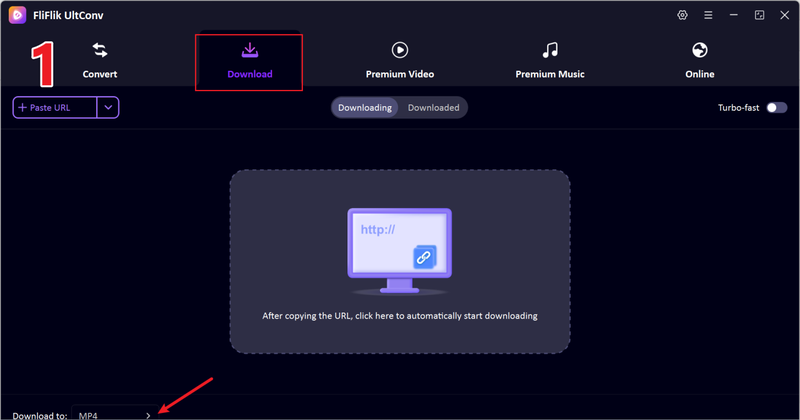
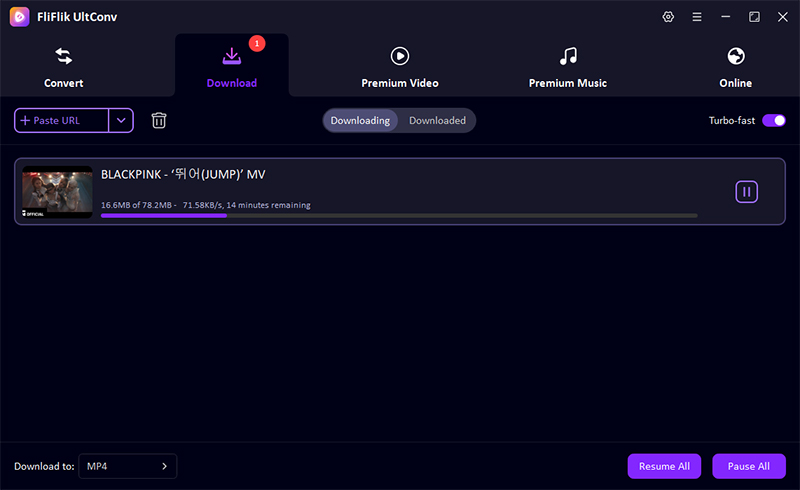
Open UltConv Video Downloader and go to the Download tab. Click the “Download to” button at the bottom to start the process.
-
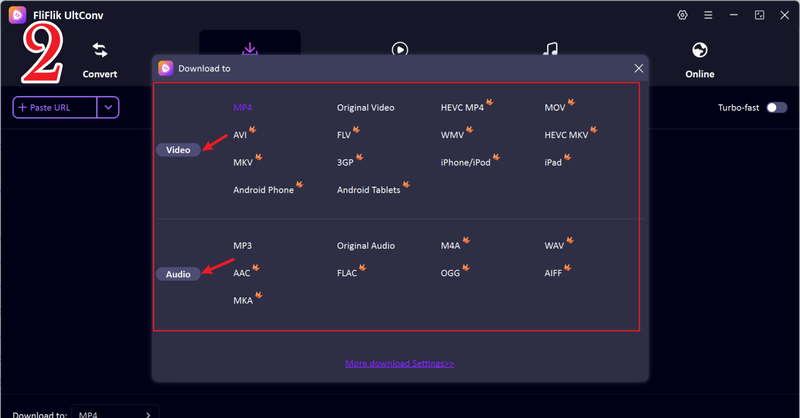
Select MP4 as the output format so your downloaded videos can play on any device without compatibility issues.
-
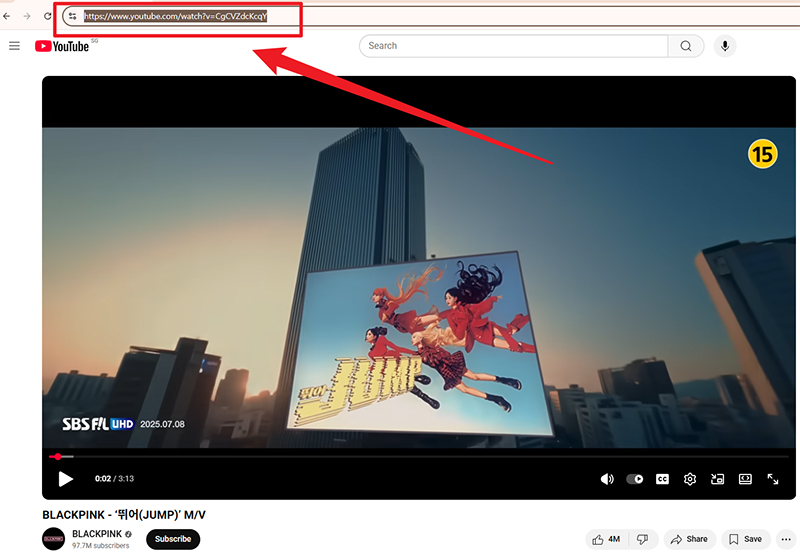
Open YouTube in your browser and copy the URL of the video you want to download.
-
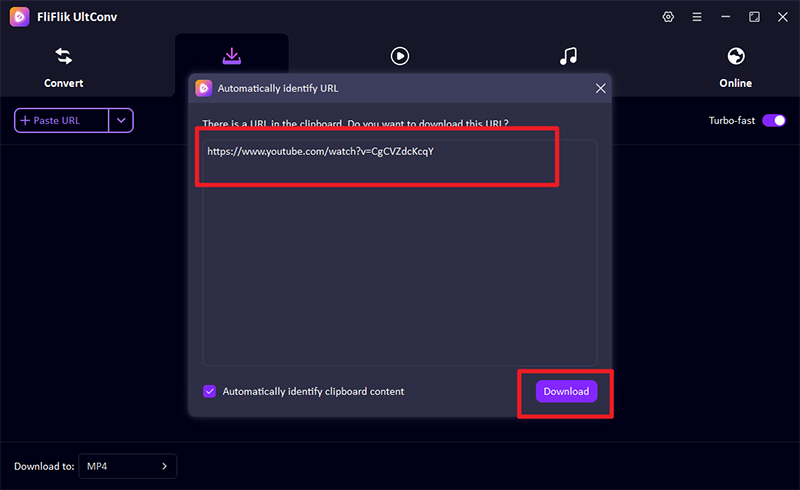
Go back to UltConv. If the software detects the link automatically, click “Download” to start saving the video immediately.
-
If the link isn’t detected automatically, paste it manually into the search box and press “Download” to begin.


FAQs
Q1. Why is YouTube not playing on Chrome?
YouTube may not play on Chrome due to slow internet, an outdated browser version, a corrupted cache, disabled JavaScript, or conflicting extensions.
Q2. How do I refresh YouTube on Chrome Browser?
You can refresh YouTube by pressing the F5 key, clicking the reload icon in the browser, or clearing cache and cookies to ensure the page loads properly.
Q3. Can I download YouTube videos with a Chrome extension?
Yes, some Chrome extensions allow video downloads, but many are restricted or unsafe. Using a dedicated tool like FliFlik UltConv Video Downloader is the best option to ensure safe, high-quality downloads without restrictions.
Conclusion
YouTube not playing on Chrome can happen because of a bad connection, old settings, or conflicts with some extensions. Using those fixes we just covered should get your video playback smooth again. But if you want to skip streaming entirely and watch offline, FliFlik UltConv Video Downloader is a great solution. It lets you download videos in all kinds of formats and high resolutions, fast and securely. That way, you won’t ever have to worry about buffering or interruptions again.
Secure Download
Secure Download
Hello, I research and introduce useful solutions for AI videos, images, and audio tips in our daily life. If you learn these things, you can easily deal with the problems of the new era.

