7 minutes read


Many people fall asleep listening to music. It lets you calm down, refresh, and fall asleep without having to stare at the screen. But Apple makes the Apple Music sleep timer function very complicated, which is why many users end up letting songs play all night without realizing there’s a better option available. This will drain your phone battery, use your data and interrupt your sleep.
The good thing is that you do not require any additional applications or complex settings. In this article, we will show you how to set an Apple Music Sleep timer step by step in 2026. Plus, we will also give you a bonus tip to make your bedtime listening more convenient and hassle-free.

Part 1. Does Apple Music Have a Sleep Timer?
Yes, but not in the way most people expect. If you’re wondering if Apple Music have sleep timer, the timer isn’t built directly inside the Apple Music app itself. Instead, Apple uses the built-in Clock app on the iPhone to handle this feature.
That means you can still set a sleep timer for Apple Music without downloading anything extra. Once the timer ends, your music stops playing automatically. It’s a simple workaround, and it works reliably in 2026, even though it’s a bit hidden if you don’t know where to look.
Part 2. How to Set a Sleep Timer on Apple Music?
A sleep timer lets Apple Music stop playing automatically after a set time, so your music doesn’t run all night. There are two easy ways to do this on an iPhone. One uses the Clock app, which is the quickest option. The other uses Shortcuts if you want more control and automation.
Method 1: Use the Clock App (Quick and Simple)
This is the most direct way to set an Apple Music sleep timer. Here is how to do it;
- Step 1: Open the Apple Music app and start playing the songs or playlist you want to fall asleep to.\
- Step 2: Open the Clock app and tap the Timer tab at the bottom.
- Step 3: Set how long you want the music to play.
- Step 4: Tap When Timer Ends, scroll down, and select Stop Playing.
-
Step 5:
Tap Set, then start the timer.
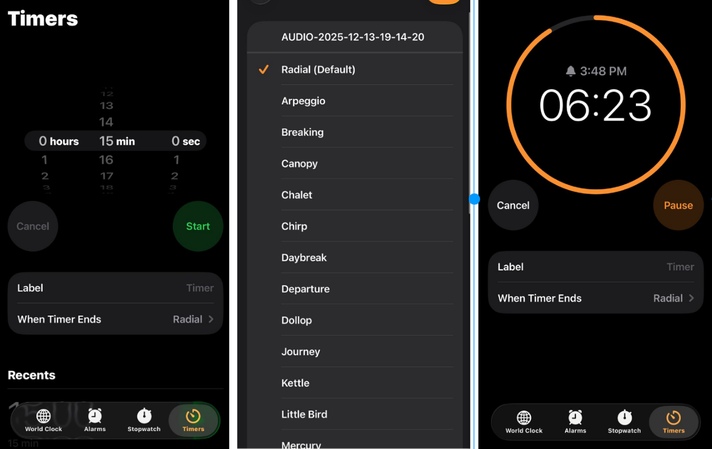
Once the timer ends, Apple Music will stop automatically.

Method 2: Schedule a Sleep Timer Using Shortcuts
If you want Apple Music to pause at a specific time every night, Shortcuts is a better option.
- Step 1: Open the Shortcuts app and tap Automation at the bottom.
- Step 2: Tap the + icon and choose Time of Day.
- Step 3: Pick the time you want Apple Music to stop and set how often it repeats. Tap Next.
- Step 4: Tap New Blank Automation, then Add Action, and search for Play/Pause.
-
Step 5:
Select Pause, then tap Done.
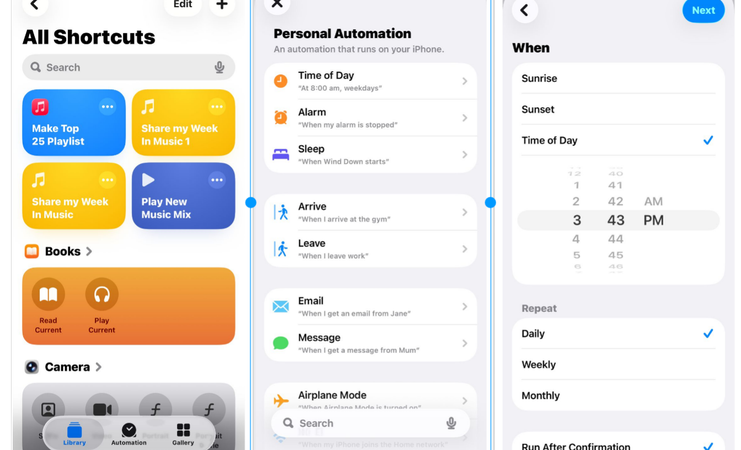

Now Apple Music will stop playing automatically at your chosen time, no manual setup needed. Remember, the two built-in methods for setting a sleep timer are only available to Apple Music paid subscribers. Once your subscription ends, you lose access to your playlists and downloaded songs. That’s not ideal if you rely on calming music to fall asleep every night. So what if you want to keep listening without limits, internet worries, or subscription pressure? We will discuss this next.
Bonus: How to Download Sleep Playlist for Offline Listening
To enjoy your sleep playlists anytime, without restrictions, we recommend using FliFlik UltConv Apple Music Converter . UltConv Apple Music Converter is a powerful and flexible tool designed for users who want full control over their Apple Music library. It allows you to download your favorite sleep playlists directly to your device and convert them into widely supported audio formats like MP3, AAC, WAV, FLAC, M4A, and AIFF.
UltConv Apple Music Converter preserves all ID3 tags, including song titles, artists, album names, and artwork, keeping your music library organized. Beyond Apple Music, it also supports over 10,000 other streaming platforms such as Spotify, Deezer, TIDAL, SoundCloud, and Napster, making it a reliable solution for downloading music from multiple sources. With batch downloads, lossless audio quality up to 320 Kbps, and fast download speeds, your bedtime music is always ready, high-quality, and offline whenever you need it.

- Support for 10,000+ streaming music sites, including Spotify, Apple Music, Deezer, TIDAL, SoundCloud, Napster, MixCloud, and more
- Download Apple Music sleep playlists and individual songs for offline listening
- Convert music to MP3, AAC, WAV, FLAC, M4A, AIFF, and 100+ other formats
- Preserve original audio quality for relaxing playback
- Keep all ID3 tags, including song title, artist, album, and artwork
- Batch download full playlists, albums, or entire libraries
▼ How to Download Apple Music to MP3 with UltConv Apple Music Converter?
Follow these steps to save all your Apple Music songs to MP3 or other formats using UltConv Apple Music Converter:
-
Go to UltConv’s official website, download the Music Converter for Windows or Mac, and install it on your computer.
FREE DOWNLOAD![secure download]() Secure Download
FREE DOWNLOAD
Secure Download
FREE DOWNLOAD![secure download]() Secure Download
Secure Download
-
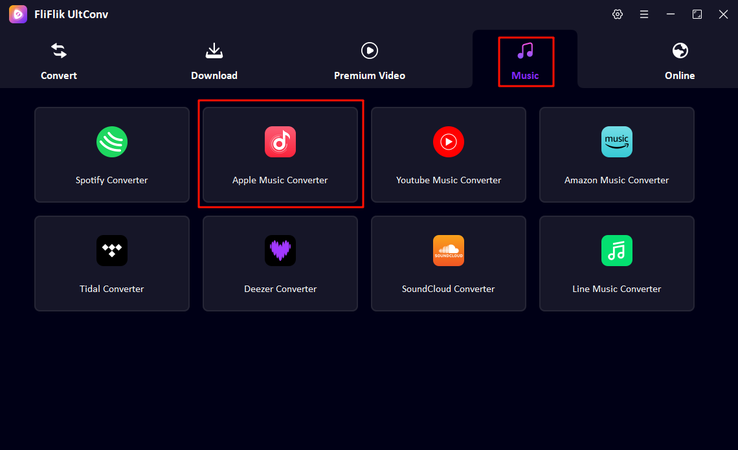
Open UltConv, click on Music on the home page, and then select Apple Music Converter from the list.
-
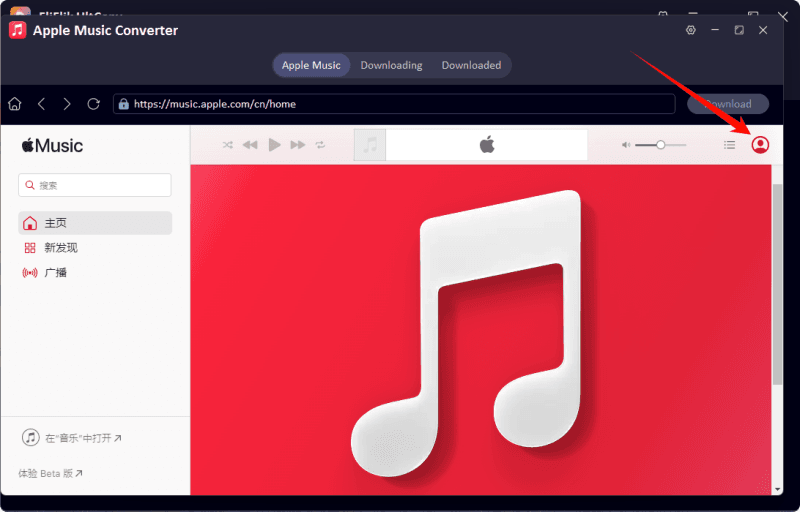
Next, sign in with your Apple ID. Once logged in, your Apple Music library will appear inside UltConv.
-
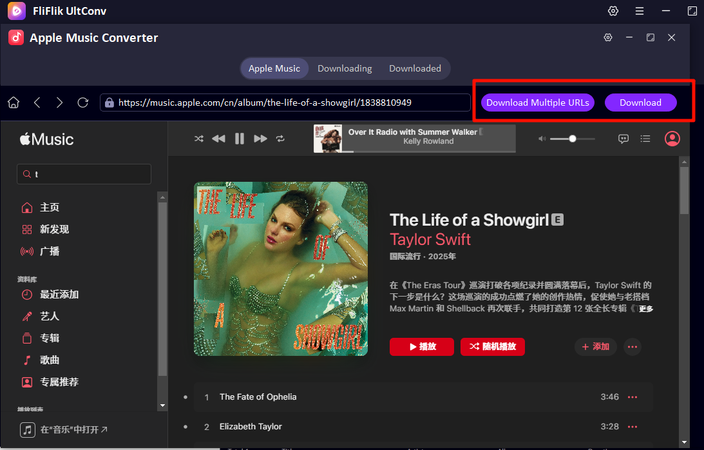
Browse your library, select the songs, albums, or playlists you want to download, and click the Download button.
-
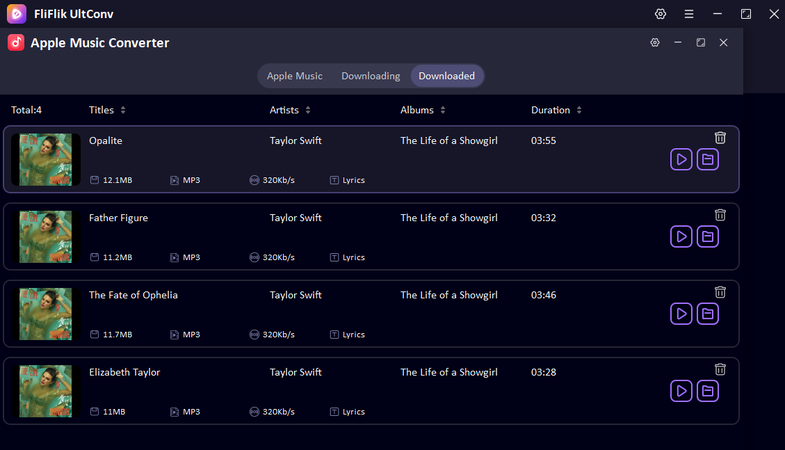
Your selected tracks will start downloading. You can track progress in the Downloading tab. Once finished, your songs will appear as DRM-free MP3 files in 320kbps, even with lyrics!


Final Words
No doubt, using an Apple Music sleep timer is a simple way to enjoy music as you drift off without worrying about it playing all night. While Apple Music offers built-in timer options for subscribers, access ends when your subscription does, limiting your offline listening. For a more flexible solution, FliFlik UltConv Apple Music Converter lets you download your favorite sleep playlists and songs in high-quality formats like MP3, AAC, or FLAC, with all metadata preserved. You can listen anytime, anywhere, without internet, ads, or subscription restrictions. If you want uninterrupted bedtime music and the freedom to enjoy your playlists offline, try FliFlik UltConv Apple Music Converter today. It ensures your music is always ready when you need it.
 Secure Download
Secure Download
Secure Download
FAQs
Q1. Is there a sleep timer on Apple Music?
Yes, Apple Music has a sleep timer, but it is only available through the iPhone Clock app for paid subscribers.
Q2. Can you make Apple Music stop playing after a certain time?
Yes, by using the sleep timer via the Clock app or setting up an automation in Shortcuts, Apple Music can stop playing automatically.
Hey there! I am Maxwell Clark. I'm always looking for new tech tools that make a difference, from making visuals and audio better to making workflows better. I'm going to share tips and tricks for using AI tools for videos, audio, and images. I'm excited to help you navigate the digital world more efficiently and creatively!