8 minutes read


Even the best songs can fall flat if your equalizer isn’t dialed in. That’s where the best Spotify equalizer settings make a huge difference. Just a few tweaks tighten up the bass, bring out the vocals, and add a little punch, and suddenly your favorite tracks sound brand new. But here’s the catch: there’s no magic preset that works for everything. Hip-hop needs something different than rock, and podcasts sound better with a totally different setup. Your headphones play a part, too. So, instead of just rolling with Spotify’s defaults, it’s worth learning which EQ settings actually match your style. In this article, we’ll walk through the best equalizer setups for Spotify, what each slider really does, and how to shape your sound so it feels just right.

Part 1. How to Adjust Spotify Equalizer Settings on Different Devices
An equalizer lets you control how different sound frequencies behave. Bass, mids, and treble can all be boosted or reduced to match what you’re listening to. Spotify makes this fairly simple, but the steps vary slightly depending on your device.
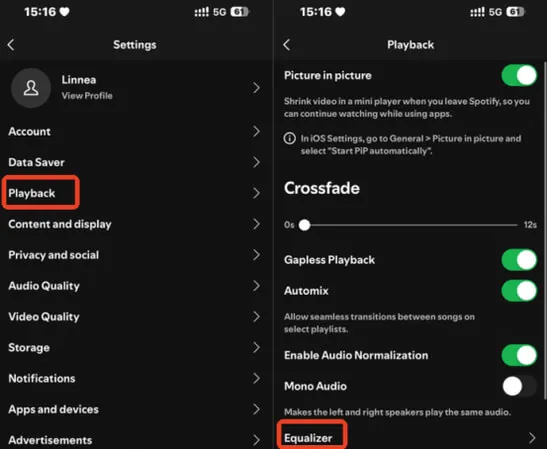
1. Spotify EQ Settings on iOS
- Step 1: Open Spotify and tap your profile icon.
- Step 2: Select Settings and Privacy.
-
Step 3:
Tap
Playback, then choose
Equalizer.
-
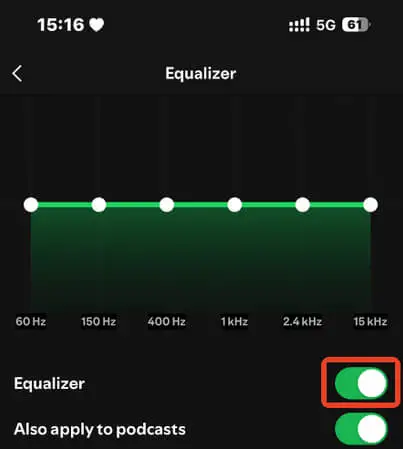
Step 4:
Turn the equalizer on, and select a preset or adjust the sliders manually.


2. Spotify Equalizer Settings on Android
Android uses your phone’s system equalizer instead of a built-in Spotify panel.
- Step 1: Open Spotify on your Android device.
- Step 2: Tap the Home icon.
- Step 3: Tap the gear icon in the top-right corner to open Settings.
- Step 4: Scroll down and tap Equalizer.
You’ll be redirected to your device’s system equalizer, where you can choose presets like Rock, Pop, Jazz, or manually adjust bass, mids, and treble. The layout and available presets depend on your phone model and Android version. Some devices require enabling the equalizer in system settings first.
3. Spotify Equalizer Settings on Desktop (Windows & Mac)
- Step 1: Open Spotify on Windows or Mac.
- Step 2: Click your profile icon and select Settings.
- Step 3: Scroll down to the Playback section.
- Step 4: Open Equalizer.
-
Step 5:
Adjust the
frequency sliders
to match your listening preference.


Once you know these steps, tweaking your Spotify sound becomes quick and effortless.
4. Spotify Equalizer Settings on Web Player
If you’re using Spotify’s Web Player, this is where things change. The Web Player does not include a built-in equalizer like the mobile or desktop apps. That’s why you won’t see EQ sliders anywhere in the settings.
- Step 1: Open Spotify Web Player in your browser.
- Step 2: Access your computer’s system sound settings or one of the best Spotify equalizers, like Equalizer APO.
- Step 3: Adjust the audio using a system-wide equalizer or browser extension.
On Windows, you can use Windows Sound Settings or tools like Equalizer APO. On Mac, apps such as eqMac offer similar frequency control. Keep in mind, these adjustments apply system-wide, not just to Spotify. The Web Player is a lightweight, browser-based version of Spotify, so advanced features like a built-in EQ or crossfade are limited. If you want full control over sound quality, the dedicated desktop app is still the better option.
Part 2. Best Spotify Equalizer Settings by Different Music Genre

There’s no universal EQ that works for everything. Different genres are built around different frequency ranges. That’s why dialing in the best equalizer settings for Spotify depends on what you’re listening to. Below are genre-specific presets you can use as a starting point, then tweak based on your headphones or speakers.
| Music Genre | Best For | Suggested Equalizer Settings |
|---|---|---|
| Hip-Hop & R&B | Heavy bass, punchy kicks, clear vocals, and sharp hi-hats |
|
| Electronic / EDM | Powerful sub-bass, wide soundstage, and energetic drops without distortion |
|
| Rock & Metal | Clear guitars, strong drums, and vocals that cut through dense mixes |
|
| Pop (Modern) | Clean vocals, controlled bass, and a bright, polished sound without harshness |
|
| Classical & Jazz | Natural dynamics, instrument separation, and a wide, realistic soundstage |
|
| Acoustic/Singer-Songwriter | Intimate vocals, natural guitar tone, and emotional clarity |
|
Part 3. Best Spotify Equalizer Settings for Specific Players/Devices
Your gear matters as much as the music. The same track can sound tight on headphones and muddy in a car. That’s why the best equalizer settings Spotify offers should change based on what you’re listening through. Use the table below as a clean starting point, then fine-tune by ear.
| Device/Player | Best For | Suggested Equalizer Settings |
|---|---|---|
| Professional Studio Monitors / Neutral Speakers | Flat, accurate sound with no color added |
|
| Headphones (AirPods / Sony / Bose) | Clear vocals, controlled bass, reduced harshness |
|
| Bluetooth Speaker | Strong bass and clarity at low volumes |
|
| Car Audio Systems | Balanced sound over road noise |
|
| Desktop Computer Speakers | Fuller sound from small speakers |
|
Part 4. Best Way to Download High-Quality Spotify Music
Streaming music on Spotify is convenient, but it can be frustrating when you want to listen offline or save your favorite playlists without a Premium account. That’s where FliFlik UltConv Spotify Downloader comes in. This tool makes it easy to download songs, albums, playlists, podcasts, and even audiobooks directly from Spotify. Whether you’re on a laptop, phone, or other device, FliFlik UltConv Spotify Downloader ensures your music is always accessible, with no limits or interruptions.
FliFlik UltConv Spotify Downloader can save tracks in multiple formats like MP3, FLAC, M4A, WAV, and AAC, all with high-quality sound up to 320 Kbps. The tool also preserves all ID3 tags and metadata, including artist names, album artwork, and track info, keeping your library neat and organized. With batch downloads, 10X super-fast conversion speeds, and the ability to save music without a Spotify Premium account.

- Supports 10,000+ streaming music platforms, including Apple Music, SoundCloud, Deezer, and TIDAL
- Download Spotify songs, albums, artists, podcasts, audiobooks, and playlists
- Convert Spotify tracks to MP3, AAC, WAV, FLAC, M4A, and 100+ more.
- Enjoy lossless audio up to 320 Kbps for superior sound quality
- Preserve all ID3 tags and metadata, including album artwork and track info
- No Spotify Premium account required
- Batch download playlists, albums, or entire libraries at high speed
▼ Steps to Download Spotify Songs with UltConv Spotify Downloader:
-
Download and install UltConv Spotify Downloader on your Windows or Mac computer. After installation, open the program to begin.
FREE DOWNLOAD![secure download]() Secure Download
FREE DOWNLOAD
Secure Download
FREE DOWNLOAD![secure download]() Secure Download
Secure Download
-
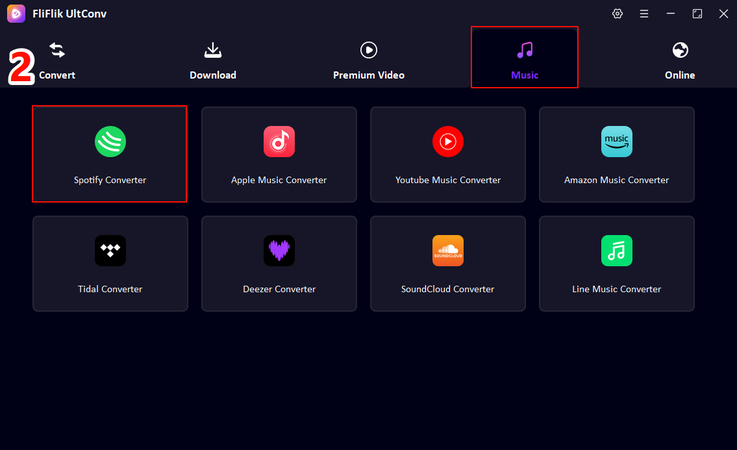
In the UltConv interface, go to the Music section and select Spotify Music Converter to get started.
-
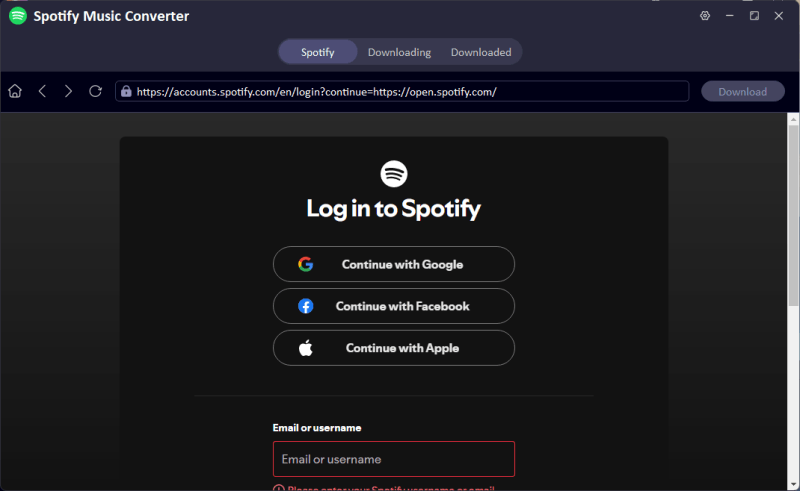
Log in to your Spotify account directly through UltConv. A premium subscription isn’t required; free accounts work perfectly.
-
Browse your Spotify library and pick the songs, albums, or playlists you want to download. Click the Download button in the upper right corner, and UltConv will convert them into your preferred format, such as MP3, FLAC, or WAV.
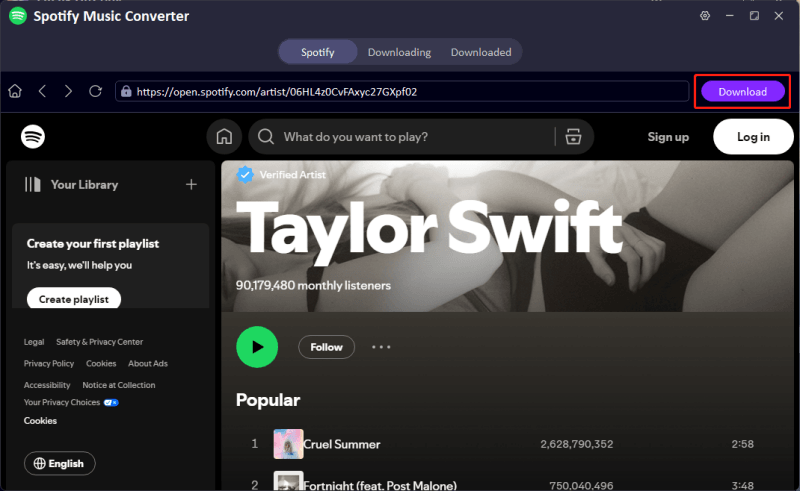
-
After the conversion is complete, visit the Downloaded tab. Your music files are ready to play offline, complete with all metadata and album artwork.
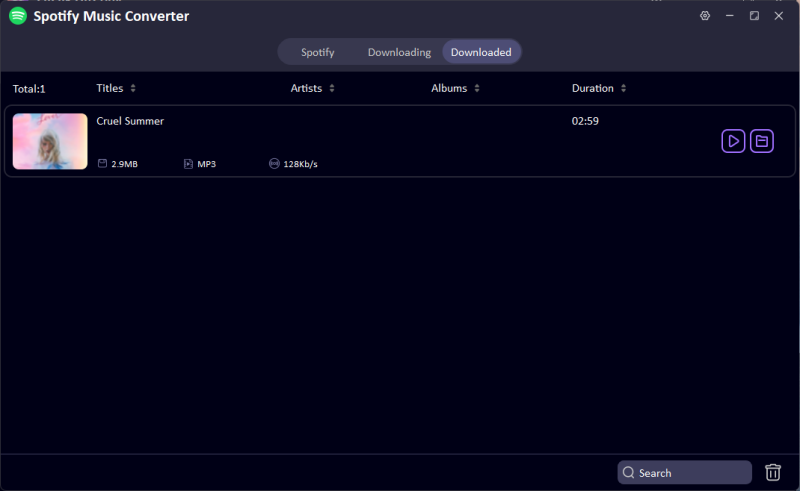


With UltConv, you can save Spotify tracks directly to your computer, bypassing streaming limits and allowing you to enjoy your favorite music anytime, anywhere.
Final Words
Finding the best Spotify equalizer settings can completely transform how your favorite tracks sound, whether you’re into hip-hop, rock, classical, or podcasts. Tweaking the EQ to match your genre, device, or listening environment brings out details you might have missed and makes every song more enjoyable. But great sound is only part of the experience; having the freedom to listen offline takes it a step further. That’s where FliFlik UltConv Spotify Downloader comes in. With UltConv Spotify Downloader, you can download songs, playlists, albums, and even podcasts in high quality while keeping all metadata intact. Whether you want to enjoy music on your computer, phone, or car, UltConv Spotify Downloader makes it effortless. Take control of your Spotify library today and pair it with the perfect EQ settings for the ultimate listening experience.
 Secure Download
Secure Download
Secure Download
Hey there! I am Maxwell Clark. I'm always looking for new tech tools that make a difference, from making visuals and audio better to making workflows better. I'm going to share tips and tricks for using AI tools for videos, audio, and images. I'm excited to help you navigate the digital world more efficiently and creatively!