

 9 minutes read


AAC (Advanced Audio Coding) is a widely used audio format supported by many streaming platforms and mobile devices. It delivers good sound quality while keeping file sizes relatively small, which is why it’s widely used for music, videos, and online media.
Since AAC isn’t universally compatible, many users convert AAC to MP3 to ensure their audio plays seamlessly on all devices. In this article, we’ll introduce several easy ways to convert AAC audio files to MP3 on different devices, including desktop software, free online tools, and mobile apps.

Part 1. Why Convert AAC to MP3?
Both AAC and MP3 are compressed audio formats that strike a balance between file size and sound quality. As a newer and more efficient format, AAC is frequently adopted by streaming services to deliver exceptional audio quality at lower bitrates. Meanwhile, MP3 remains the industry standard, offering near-universal compatibility with virtually all devices and players.
Due to this extensive support, many users convert AAC files to MP3 to ensure seamless playback across any system. The following comparison highlights key technical differences between these two formats.
| Feature | AAC | MP3 |
|---|---|---|
| Sound Quality | Better quality at the same bitrate | Good quality but slightly less efficient |
| Compatibility | Supported on most modern devices | Supported on almost all devices and players |
| Efficiency | More efficient compression | Larger file size at the same quality |
| Best Use Case | Streaming services and mobile apps | Ultimate compatibility |
Part 2. Best AAC to MP3 Converter on Windows & Mac
FliFlik UltConv Video Converter is our first recommendation if you want to convert your AAC files to MP3. This tool is designed to make media conversion simple, even for beginners. It works on both Windows and Mac and supports a wide range of video and audio formats, including MP3, AAC, MP4, MOV, MKV, 100+ more format.
The tool is especially useful when you need to convert AAC to MP3 quickly while keeping good audio quality. Besides basic conversion, it also allows users to extract audio from videos, convert large media files, and process multiple files at the same time. Because of its simple interface and fast speed, many users prefer it when converting music or audio tracks for different devices.

- Supports converting audio and video to 100+ formats, including MP3, AAC, WAV, FLAC, and MP4
- Ultra-fast conversion speed for large files, including 4K and 8K videos
- Batch conversion allows multiple files to be converted at once
- Works smoothly on Windows and Mac devices
- Extracts audio from videos without losing quality
▼ Steps to Download YouTube Music to MP3 Using UltConv Video Converter:
-
Download and install FliFlik UltConv Video Downloader on your computer. Launch the program, open the Download tab, and click Download at the bottom to choose your video format.
FREE DOWNLOAD![secure download]() Secure Download
FREE DOWNLOAD
Secure Download
FREE DOWNLOAD![secure download]() Secure Download
Secure Download
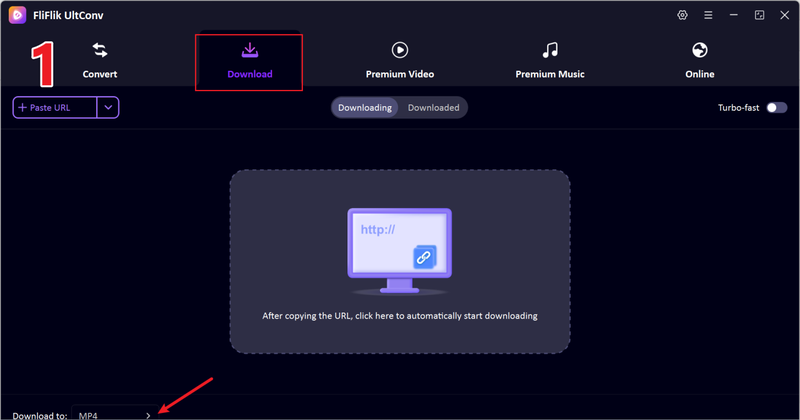
-
Choose the output format you want. If you only need the audio, select MP3 from the format list.
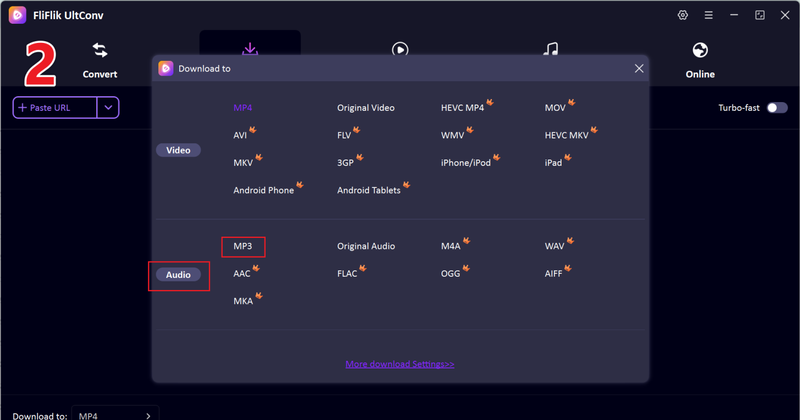
-
Go to YouTube, open the video or playlist you want, click Share, and copy the link.
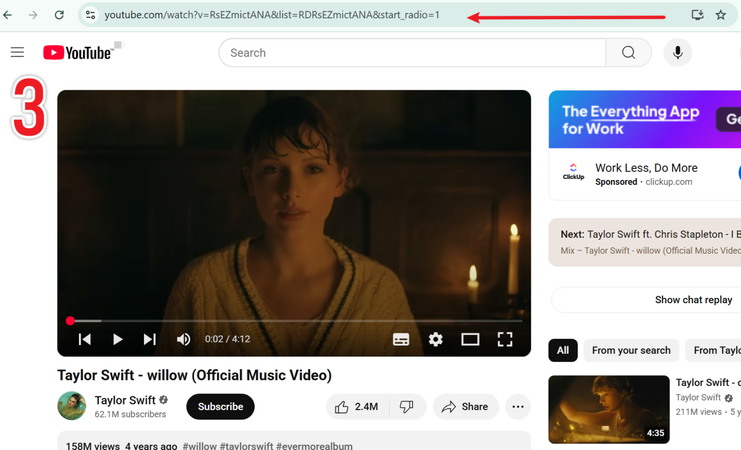
-
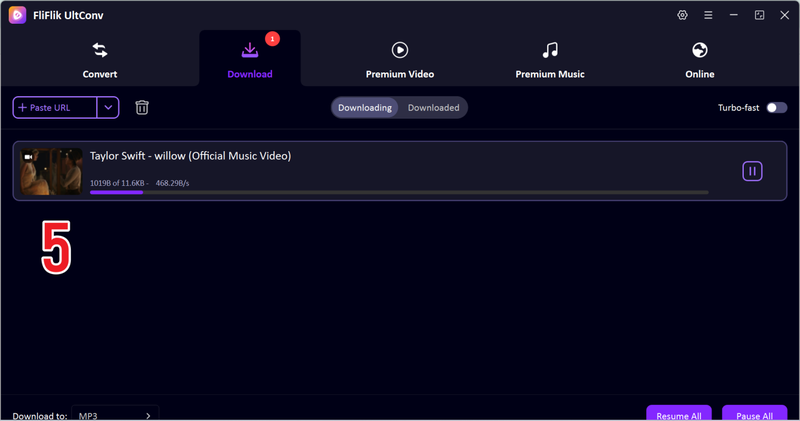
Return to UltConv. In most cases, the program will detect the copied link automatically and show a pop-up window. Click Download to start saving the file.
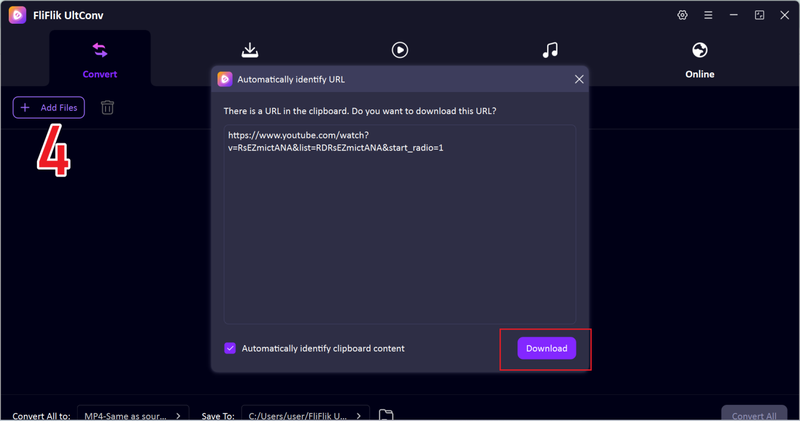
-
If the pop-up window does not appear, simply paste the copied YouTube link into the URL box manually and click Download to begin.


Part 3. 3 Online Free Tools to Convert AAC to MP3
1. CloudConvert

CloudConvert is a well-known online file conversion platform that supports many file types, including audio, video, images, documents, and archives. It allows users to convert AAC audio files to MP3 without installing any programs. The interface is simple and clean, making the process easy even for first-time users. CloudConvert also supports files from cloud storage services like Google Drive and Dropbox.
2. FreeConvert

FreeConvert is another popular web-based converter designed to handle different types of media files. It supports a wide range of audio formats, allowing users to easily convert AAC to MP3 with just a few clicks. The platform also provides basic settings like adjusting audio quality and file size. Because it runs completely in the browser, it works on Windows, Mac, and even mobile devices.
3. Zamzar

Zamzar is one of the oldest and most trusted online file conversion services available. It supports thousands of file format conversions, including converting AAC audio files to MP3. The process is straightforward: upload the AAC file, choose MP3 as the output format, and download the converted file when it’s ready. Zamzar is often used by people who need a quick and reliable solution without installing additional software.
Part 4. How to Convert AAC to MP3 on Mobile
If you prefer converting files directly on your phone, several mobile apps can help you convert AAC audio files to MP3 quickly. Below are some reliable mobile tools you can use on iPhone and Android devices.
1. Media Converter – Video to MP3

Media Converter – Video to MP3 is a simple iOS app that allows users to convert different media formats directly on their iPhone or iPad. It supports both video and audio conversion, making it a convenient option for turning an AAC audio file to MP3 without needing a computer. The app lets you import files from your device, cloud storage, or other apps, then quickly convert them into formats like MP3, AAC, WAV, and more. Because of its easy interface and flexible file import options, it’s a practical tool for users who want to convert audio files while on the go.
2. The Video Converter

The Video Converter is another popular iOS app that helps users convert media files into different formats, including converting AAC to MP3. The app supports a wide range of audio and video formats and works by uploading the file to a secure cloud server where the conversion happens quickly. Once the process is finished, you can download the converted MP3 file directly to your device. Its clean interface and simple conversion process make it a good option for users who want a quick and reliable mobile solution.
3. Video Converter, Compressor

Video Converter, Compressor is an Android app designed for users who want to convert, compress, or manage media files directly on their phones. It supports many audio formats, allowing you to easily convert AAC audio files to MP3 in just a few steps. The app also provides additional features like video compression, trimming, and resolution adjustments. With its all-in-one design and fast processing speed, it’s a useful option for Android users who regularly work with different audio formats.
FAQs
Q1. Can I convert AAC to MP3?
Yes. Converting an AAC file to MP3 is very simple. You can use desktop software like UltConv Video Converter only require you to upload the AAC file, choose MP3 as the output format, and start the conversion.
Q2. How to convert an AAC audio file to MP3 for free?
You can use online tools like CloudConvert, FreeConvert, or Zamzar if you want a quick solution without installing software. Another option is using a desktop program like FliFlik UltConv Video Converter, which can convert files faster and also supports batch conversion.
Q3. How do I convert an AAC file to MP3 on my phone?
For example, apps like Media Converter Video to MP3, The Video Converter, or Video Converter Compressor allow you to import your AAC file, select MP3 as the output format, and start the conversion within the app.
Conclusion
Both AAC and MP3 are popular, but MP3’s universal compatibility makes it the preferred choice for seamless sharing across all devices. For quick conversion tasks, online tools or mobile apps are convenient, but desktop converters offer faster speeds and more precise control.
FliFlik UltConv Video Converter is a highly practical desktop converter that supports batch processing and multiple formats, and boasts a clean and user-friendly interface. It’s a reliable and efficient long-term solution for users who frequently need to process audio or video files.
 Secure Download
Secure Download
Secure Download
Hello, I research and introduce useful solutions for AI videos, images, and audio tips in our daily life. If you learn these things, you can easily deal with the problems of the new era.

