6 minutes read


Downloading songs from YouTube and saving them on a USB sounds simple, but many people quickly realize it’s not that straightforward. You can easily watch music on YouTube online, yet moving that music to a USB drive for your car, speakers, or offline listening takes a few extra steps.
Maybe you want to play your favorite songs in your car. Maybe your TV or sound system only reads music from a USB stick. Whatever the reason, learning how to download music from YouTube to USB can make listening much easier. You can’t copy music directly from YouTube to a USB drive in one click. First, you need to download the music to your computer. After that, you move the file to the USB drive. In this article, we’ll walk through the easiest methods step by step so you can save your favorite YouTube music to a USB in just a few minutes.

Part 1. Can I Download YouTube Music to My USB Directly?
Short answer: No. Even if you subscribe to YouTube Music Premium, you still can’t download songs directly to a USB drive. Here’s why: When you download music from YouTube Music, the files are not saved as normal MP3 songs. Instead, they are stored in a protected format designed only for the app itself. A few things are happening behind the scenes:
- Encrypted AAC format : The audio is saved in an encrypted AAC format instead of a standard MP3 file.
- DRM protection : The downloads are locked with Digital Rights Management, which prevents copying or sharing the files.
- Hidden storage : The music files are kept in hidden folders inside the app; you won’t find a single .mp3 or .m4a file in your device’s file manager that you can simply click and play.
- Encrypted cache data : They are stored as temporary encrypted cache data within the app’s internal storage.
What this really means is simple. Even though the music is downloaded, you can only play it inside the app, not move it to other devices. So if you’re wondering how do I download music from YouTube to my USB, the solution is a bit different. First, the YouTube music needs to be converted into a normal audio file, and the DRM protection removed. After that, you can easily transfer the music file to your USB drive just like any other song.
Part 2. How to Download Music from YouTube [No Premium Needed]
If you want to move songs to a USB drive, the first step is downloading the music as a normal audio file on your computer. Once the song is saved as an MP3 or another common format, transferring it to a USB drive becomes very easy. One simple tool that helps with this is FliFlik UltConv YouTube Music Downloader. It works as a YouTube music converter to USB, letting you download songs and save them as regular audio files that can be transferred anywhere, including a USB drive. These files can then be played anywhere, such as your car stereo, smart TV, speakers, or a USB drive.
What makes FliFlik UltConv YouTube Music Downloader useful is that it does more than simple downloading. It supports saving videos and music from 10,000+ websites, converts them into 100+ formats, and keeps the original audio quality. You can also download full playlists or albums in one click, which saves a lot of time if you want to build a music collection quickly. Another helpful thing is that the too l removes DRM restrictions from services like Spotify, Apple Music, and YouTube Music. That means the music becomes a normal file you can move, copy, or store on a USB drive without being locked inside an app.

- Download videos and music from 10,000+ websites with one click
- Convert YouTube music to MP3 and 100+ formats
- Download playlists, channels, and albums in one go
- Convert video to audio without losing quality
- Save music in 320kbps high‑quality audio
- Download videos in 4K, 2K, and 1080p resolution
▼ How to Download YouTube Music to MP3 with UltConv YouTube Music Downloader?
Downloading music with FliFlik UltConv is very simple. Just follow these steps.
-
Download and install FliFlik UltConv on your Windows or Mac computer. Once the installation finishes, open the program.
FREE DOWNLOAD![secure download]() Secure Download
FREE DOWNLOAD
Secure Download
FREE DOWNLOAD![secure download]() Secure Download
Secure Download
-
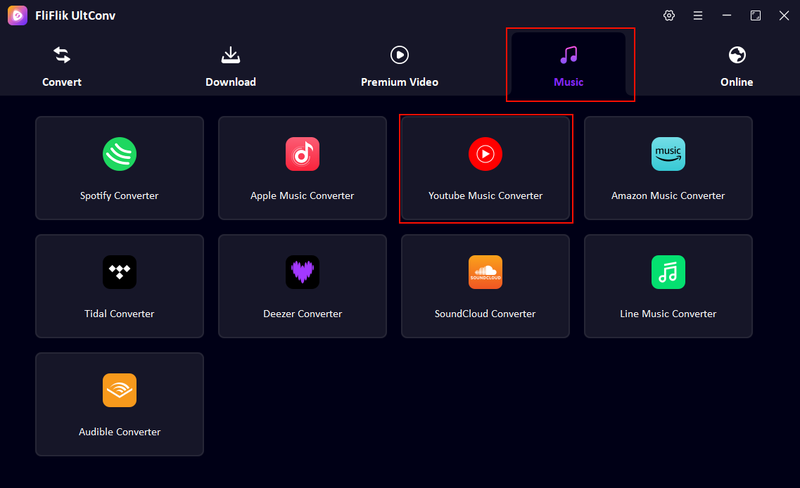
Open UltConv and launch the Music tab; click the YouTube Music Converter icon to open its official website with UltConv’s built-in browser.
-
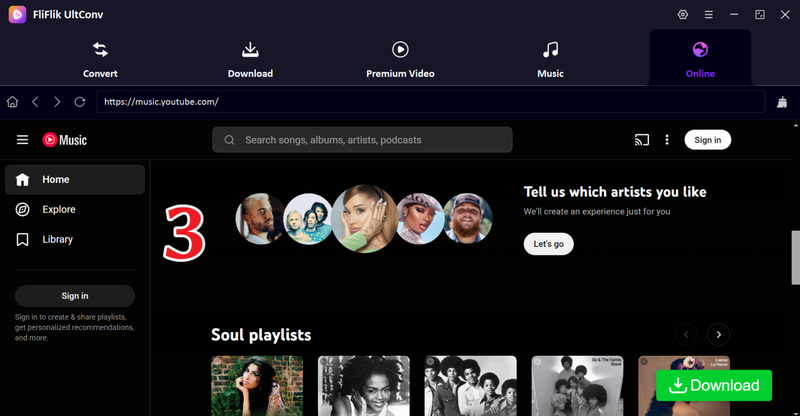
The website will open inside UltConv’s built-in browser, allowing you to browse and find the music you want directly within the software. You can also log into your account.
-
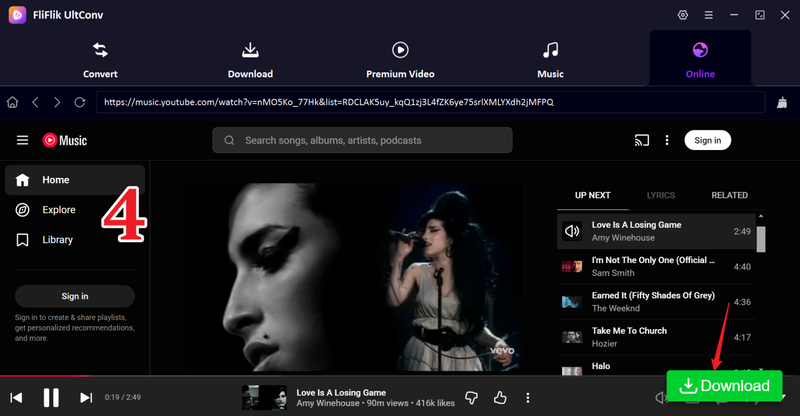
Play the music video you want to save, then click the green Download button.
-
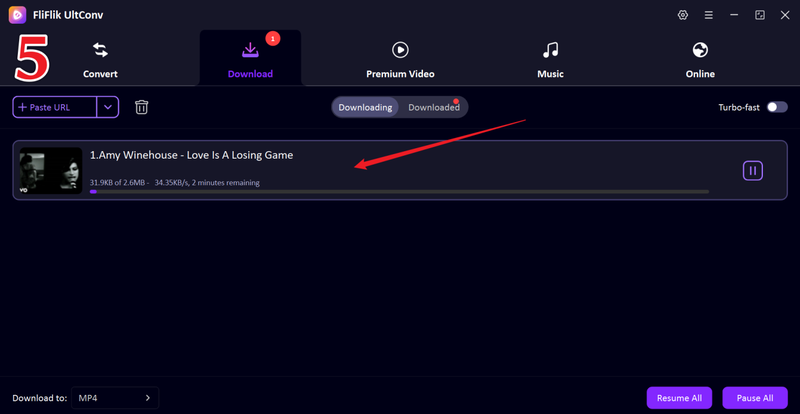
UltConv will start downloading the music immediately. When the download is finished, go to the Downloaded section to find your audio file.


Part 3. How to Transfer Youtube Music onto USB
Tool Required: A USB drive
Once you download the songs from YouTube as MP3 files, moving them to a USB drive is very simple. This step works almost the same on both Windows and Mac. Here’s how to transfer YouTube music to a flash drive.
- Step 1: Plug your USB flash drive into a USB port on your computer. After a few seconds, it will appear in File Explorer under “This PC” or “My Computer.”
-
Step 2:
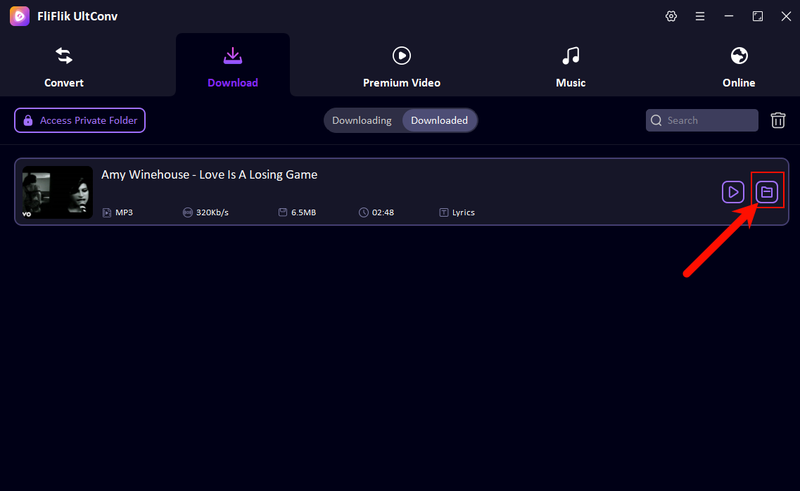
Next, click the “folder” icon to go to the folder where your downloaded music files are saved. If you downloaded music from YouTube, the files are usually inside the Downloads or Music folder on your computer.
-
Step 3:
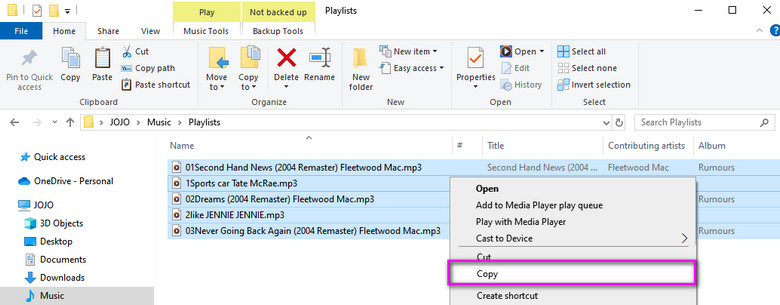
Select the songs you want to move to the USB drive. Hold
Ctrl
and click multiple files to select several songs. Press Ctrl + A to select all files in the folder. After selecting them, right-click and choose Copy.
- Step 4: Open your USB drive folder. Right-click inside the folder and choose Paste. Your songs will now start transferring to the USB drive.
-
Step 5:
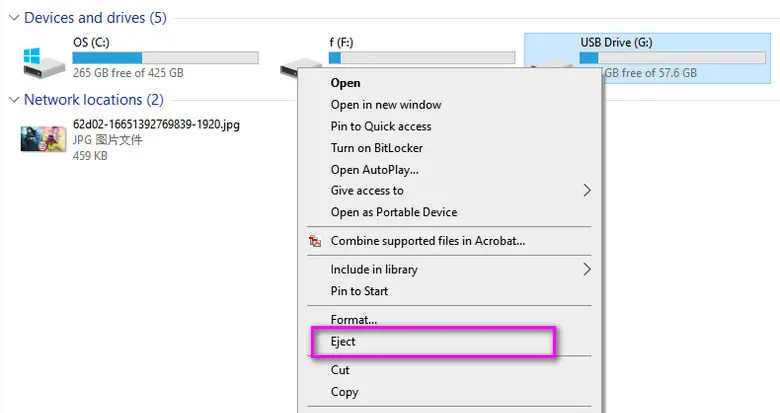
After the transfer finishes, right-click the USB drive and choose
Eject. Wait for the confirmation message before removing the USB drive from your computer.


Now your songs are saved on the USB drive and ready to play on your car stereo, speakers, or other devices.
Final Words
Downloading songs for offline listening doesn’t have to be complicated. Once you understand the process, the question of how to download music from YouTube to a USB becomes pretty simple. First, download the music as a normal audio file on your computer. Then move that file to your USB drive. The biggest hurdle is that music from YouTube Music is usually locked inside the app, which means you can’t copy it directly. That’s why using a converter tool makes things much easier. A tool like FliFlik UltConv YouTube Music Downloader helps you download and convert YouTube music into MP3 files quickly so you can store them on a USB drive, play them in your car, or keep them for offline listening anytime. If you want a fast and simple way to build your offline music collection, it’s definitely worth trying.
 Secure Download
Secure Download
Secure Download
FAQs
Q1. Can I download MP3s from YouTube Music?
Not directly from YouTube Music. The app only allows downloads for offline listening inside the app, and the files are encrypted. To get MP3 files, you need a YouTube music converter like UltConv YouTube Music Converter that downloads and converts the music into a standard audio format.
Q2. How to download music from YouTube Music to SD card?
If you want normal MP3 files on the SD card, you’ll need to download the music to your computer first and then copy the files to the SD card. Using a professional YouTube Music Download like UltConv will make it easy.
Q3. Can I download a song from YouTube Music to my computer?
The official YouTube Music app does not provide a direct option to download songs to a computer as audio files. To save music on your computer, you need a downloader tool like UltConv YouTube Music downloader that converts the YouTube music video into a format like MP3, WAV, or FLAC.
Hey there! I am Maxwell Clark. I'm always looking for new tech tools that make a difference, from making visuals and audio better to making workflows better. I'm going to share tips and tricks for using AI tools for videos, audio, and images. I'm excited to help you navigate the digital world more efficiently and creatively!