8 minutes read


Spotify is used by millions of people to stream music on computers and mobile devices. The free version includes advertisements and some playback limits. Because of this, modified versions of the app are sometimes used by people who want fewer restrictions. SpotX is one of those modifications. It changes the Spotify desktop client and removes certain limits found in the standard version. The tool is shared online and installed from third-party sources instead of the official Spotify website.
This leads many users to ask one question: Is SpotX safe to use? Since the tool is not released by Spotify, its safety and reliability should be examined before installation. In this article, we will review how SpotX works, how it is downloaded, and what risks may be involved.

Part 1. What is SpotX?
SpotX is a patching tool designed for the desktop version of Spotify. It is not developed or approved by Spotify. It modifies the official Spotify client to remove advertisements and enable some hidden features. The project is shared through SpotX GitHub, where the installation scripts and code can be reviewed.
SpotX works by patching the Spotify desktop application after installation. It changes parts of the client to block advertising elements and adjust certain settings. Versions also exist for macOS and Linux through spotx-bash, which uses a command script to apply similar modifications.

- Blocks audio, banner, and video ads in the Spotify client
- Hides podcasts, episodes, and audiobooks from the home screen
- Enables developer mode and experimental Spotify features
- Disables analytics and certain background logging
- Prevents automatic Spotify client updates if enabled
- Allows interface changes such as custom themes and layouts
Part 2. Is SpotX Safe?
The safety of SpotX is often discussed in the project community and GitHub discussions. According to the project documentation, the script mainly changes the desktop Spotify client to block ads and enable features already present in the software. The code is public, so it can be reviewed by users and developers. The developers state that the script does not collect user data and focuses only on modifying the local Spotify client. However, the project also warns that users should review Spotify’s terms before using such modifications. Several points are commonly mentioned in safety discussions on GitHub. Below are some main points we noted:
- SpotX modifies the Spotify desktop app rather than the user account.
- The project code is open on SpotX GitHub, which allows transparency.
- Using modified clients may break Spotify’s terms of service.
- Some security tools may flag the installer because it patches software files.
It is also important to understand that SpotX is not an official Spotify tool. Modified clients can carry risks if downloaded from untrusted sources. This concern also applies to related builds such as Spotx Android versions shared outside the official project or unofficial ports like SpotX Mac scripts.
SpotX itself is designed as a simple patch script, and no major security issues are widely reported in the official repository. However, it still modifies a commercial application. Because of that, it may violate Spotify’s rules and can be flagged by security software. For this reason, SpotX should only be downloaded from its official repository, and users should understand the risks before installing it.
Part 3. How to Download & Use SpotX to Block Spotify Ads
If you want to try SpotX, download and remove adverts from the desktop version of Spotify, the process is quite direct. SpotX works by patching the Spotify desktop client on Windows. Once the script runs, the changes are applied automatically. Before starting, make sure your computer meets a few basic requirements.
▼ Requirements Before Installing SpotX
- Windows PC: Windows 7, 8, 10, or 11 is required.
- Official Spotify Desktop App: Install the version from the Spotify website. The Microsoft Store version is not supported.
- Internet Connection: A stable connection is required during installation.
- PowerShell: Version 5 or higher is recommended.
If the Microsoft Store version of Spotify is installed, remove it first. Press Win + R, type appwiz.cpl, and uninstall Spotify from the list. After that, download the desktop version from the official Spotify site.
▼ Steps to Install and Use SpotX
- Step 1: Open your browser and go to the SpotX project page on GitHub.
-
Step 2:
Scroll down the page until you see the
Fast Installation / Update
section.
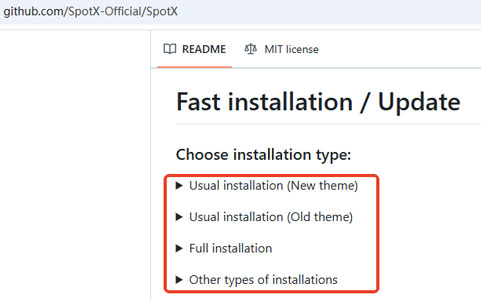
- Step 3: Choose one of the installation options shown there. Copy or download the script provided on the page.
- Step 4: Run the script on your computer. A PowerShell window will open and apply the SpotX patch to the Spotify desktop client.
- Step 5: When the script finishes, Spotify will open. You can start playing music, and the adverts should no longer appear.

Bonus: How to Download Ad-Free Spotify Music
If you want to keep your favourite songs from Spotify and listen without ads or internet limits, a dedicated downloader can help. FliFlik UltConv Spotify Downloader is built for this purpose. It allows you to download Spotify tracks directly to your computer and save them as regular audio files.
UltConv Spotify Downloader focuses on simple downloading and flexible format support. You can save songs, albums, playlists, podcasts, or even full artist libraries in one place. Also, UltConv Spotify Downloader converts Spotify music into common formats like MP3 or FLAC, so the files work on many devices such as phones, MP3 players, and media players. It also keeps the original audio quality and preserves song details like artist name, album title, and cover art. This makes it easier to build a clean offline music library.

- Download Spotify songs, albums, playlists, podcasts, and artists
- Convert Spotify music to MP3, AAC, WAV, FLAC, and M4A
- Save audio with quality up to 320 kbps MP3
- Keep ID3 tags such as artist, title, and album artwork
- Batch download playlists, albums, and artist libraries
- Supports music from multiple streaming platforms, including SoundCloud and Apple Music
▼ Steps to Download Spotify Songs with UltConv Spotify Downloader
-
Download and install FliFlik UltConv Spotify Downloader on your computer. Open the program after the installation finishes.
FREE DOWNLOAD![secure download]() Secure Download
FREE DOWNLOAD
Secure Download
FREE DOWNLOAD![secure download]() Secure Download
Secure Download
-
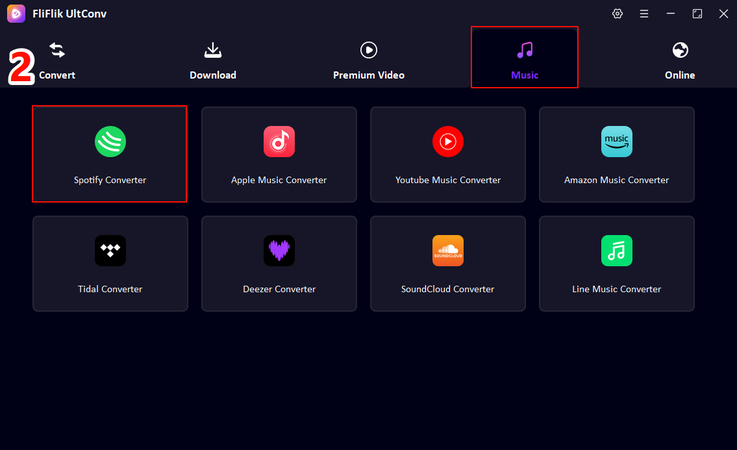
In the main interface, open the Music section and choose the Spotify Music Converter.
-
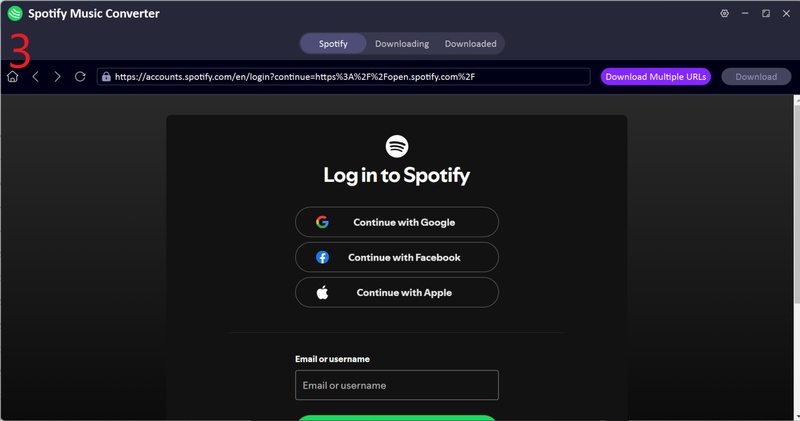
Sign in to your Spotify account through the built-in web player. Both free and Premium accounts can be used.
-
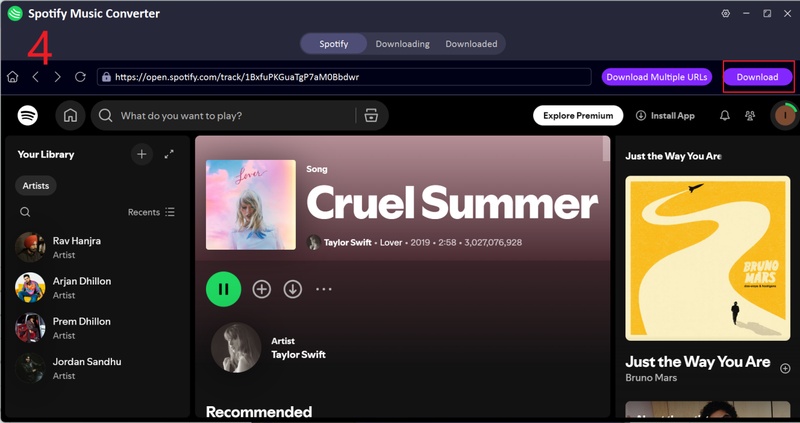
Browse your Spotify library and open the song, album, or playlist you want to save. Start the download process from the converter.
-
When the conversion finishes, open the Downloaded section to find your saved music files with album artwork and ID3 tag details.
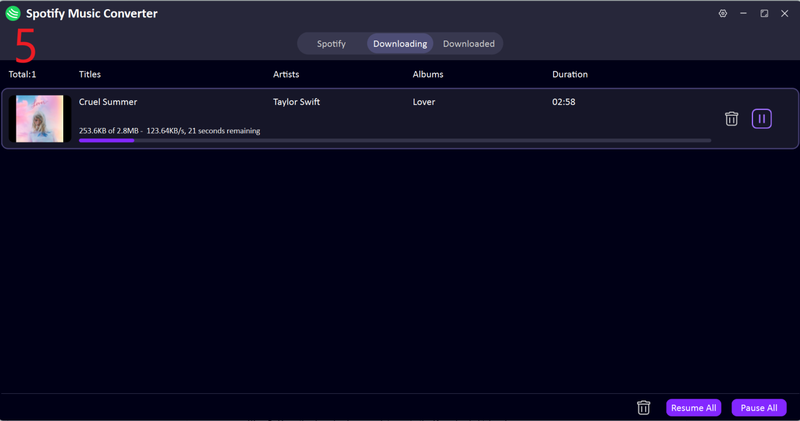
With UltConv Spotify Downloader, your favourite Spotify tracks can be stored on your computer for offline listening without adverts or playback limits.


Final Words
This article looked at SpotX, how it works, and the main question many users ask: Is SpotX safe? SpotX can block ads on the desktop version of Spotify, but it is still a third‑party modification. It changes the official Spotify client, so it may not work with every update, and it is not supported by Spotify. If you want a simpler and more reliable way to enjoy music without ads, downloading your tracks can be a better choice. FliFlik UltConv Spotify Converter is a strong option for this. It lets you download Spotify songs, albums, and playlists and convert them to formats like MP3 for offline listening. With UltConv Spotify Converter, your music can be saved on your device and played anytime without ads or streaming limits.
 Secure Download
Secure Download
Secure Download
Hey there! I am Maxwell Clark. I'm always looking for new tech tools that make a difference, from making visuals and audio better to making workflows better. I'm going to share tips and tricks for using AI tools for videos, audio, and images. I'm excited to help you navigate the digital world more efficiently and creatively!