

 By
By  5 minutes read


If TIDAL isn’t working properly and interrupts your music playback, the solution is usually much simpler than you think. In most cases, the trouble comes from a weak connection, an outdated app version, cached data, device software issues, or a temporary service problem — all of which align with TIDAL’s own troubleshooting guidance.
Maybe the app won’t open. Maybe songs keep buffering. Maybe TIDAL Connect stops working right when you’re ready to listen. The good news is that most of these problems can be sorted out in a few minutes. This guide walks you through the usual causes, the best fixes, and one practical way to keep your music available offline.

Part 1. Why Is TIDAL Not Working?
TIDAL usually stops working when the app fails to connect properly with your internet, your device, or TIDAL’s servers. TIDAL’s own help pages point to the same culprits: update the app, force-close it, clear the cache, reinstall if needed, and check your playback settings.
The app itself may not be broken. It may simply be stuck between a weak signal, an expired login session, cluttered app data, or a setting that changed quietly in the background.
Common Reasons Behind TIDAL Problems
- Weak or unstable internet connection
- Outdated TIDAL app version
- Corrupted or excessive app cache
- Device software problems
- TIDAL server or service outage
- Login or account sync issues
- Incorrect audio output selected on desktop
- Bluetooth or car connection conflict
Part 2. How to Quickly Fix TIDAL Not Working (Loading)?
Before jumping to drastic measures like reinstalling the app, start with the basics. A shaky Wi-Fi connection causes more streaming problems than most people realize — and it’s a lot easier to fix. Work through the steps below in order. In most cases, one of the first few fixes will get TIDAL back up and running.
Fix 1: Check Your Internet Connection
To stream, sync, and load playlists, TIDAL needs a stable connection. The official playback guide recommends checking your connection first — reconnect to your network, or switch between Wi-Fi and mobile data to see if that makes a difference.
Open another app or website and check whether it loads normally. If everything is slow, restart your router or connect to a different network. A weak signal is often the real culprit, not the app itself.
Fix 2: Update the TIDAL App
Running an outdated version of TIDAL is a surprisingly common cause of crashes, sign-in failures, and broken playback. Bugs that frustrated users weeks ago may already be fixed in the latest release — you just haven’t downloaded the patch yet.
Head to the App Store, Google Play, or your desktop app source and install any available updates. If TIDAL stopped working right after a phone or OS update, this should be your very first move.
Fix 3: Force-Close and Restart TIDAL
Sometimes the app freezes partway through a process. Force-closing and restarting it can clear temporary glitches — TIDAL highlights this in its basic troubleshooting guide.
On iPhone or Android, swipe the app away from your recent apps and reopen it. On desktop, fully quit the app, wait a couple of seconds, and relaunch. It’s a simple fix, but it often works when no error message explains what went wrong.
Fix 4: Clear the TIDAL App Cache
Cache files help the app load faster, but old or corrupted cache can cause lag, crashes, or unusual playback behavior. TIDAL’s troubleshooting pages include cache clearing as one of their standard recommendations.
▼ Steps to Clear the TIDAL App Cache:
-
Android: Go to Settings > Apps > TIDAL, then tap Clear Cache from the storage section.
-
iPhone: iOS doesn’t offer a direct cache button. Offloading or reinstalling the app achieves the same result.
-
Desktop (PC/Mac): Use TIDAL’s built-in option to clear app cache or reset app data, which you’ll find referenced in their official playback troubleshooting guide.
Fix 5: Uninstall and Reinstall TIDAL
If the app still misbehaves after a restart and update, reinstalling can clear deeper problems. TIDAL’s support pages for both general issues and app launch failures include this as a standard step.
Before removing the app, confirm you have your login details to hand. Then uninstall it, restart your device, and install a fresh copy. It’s a clean reset, and it often works better than expected.
Fix 6: Check TIDAL’s Service Status
Sometimes the problem is not on your side at all. If TIDAL is experiencing a wider outage, no amount of app tweaking will help. Visit the official TIDAL Support page to check whether a service issue has been reported. If there is an active outage, the best option is simply to wait it out.
Fix 7: Check for System Updates
Your phone, tablet, or computer may also need a software update. TIDAL’s support page for app launch issues advises keeping your device’s operating system current, since outdated system software can interfere with app performance.
Go to your device settings, check for pending updates, install them, restart, and test TIDAL again. This is especially worth trying if the app stopped working after a long gap without system updates.
Fix 8: Contact TIDAL Support
If none of the above steps resolve the issue, it’s time to contact TIDAL directly. Their help center covers account issues, playback problems, and device-specific errors.
When you reach out, include your device model, app version, operating system, and a brief description of what happens. A clear, specific report will typically get you a faster, more useful response.
Part 3: Bonus: Download TIDAL Songs for Offline Listening Without a Subscription
If TIDAL keeps acting up and you’re tired of waiting for fixes, there’s a more permanent workaround: download your music directly to your device. That way, playback is never at the mercy of the app, your connection, or the next software update.
UltConv Tidal Music Downloader is our top recommendation — a powerful media downloader that supports over 1,000 websites. It’s not just a simple music scraping tool; you can download Tidal songs, albums, and playlists with just a few clicks, completely eliminating technical complexity. For music enthusiasts, it supports high-fidelity formats like FLAC, allowing every detail to be fully preserved. Additionally, UltConv comes with a built-in browser that allows for smooth browsing on both Windows and Mac, perfectly balancing high-end performance with user-friendliness.

- Works with over 10,000 sites — including TIDAL, Spotify, YouTube, and many more
- Supports output in FLAC, MP3, WAV, AAC, AIFF, plus 100+ other audio formats
- Download entire playlists, albums, or multiple tracks in one batch
- Built-in browser lets you search and grab music directly within the app
- Preserves original quality with lossless FLAC downloads and up to 320kbps MP3
- Download Music from Tidal Permanently with UltConv
▼ How to Download Music from Tidal Permanently with UltConv
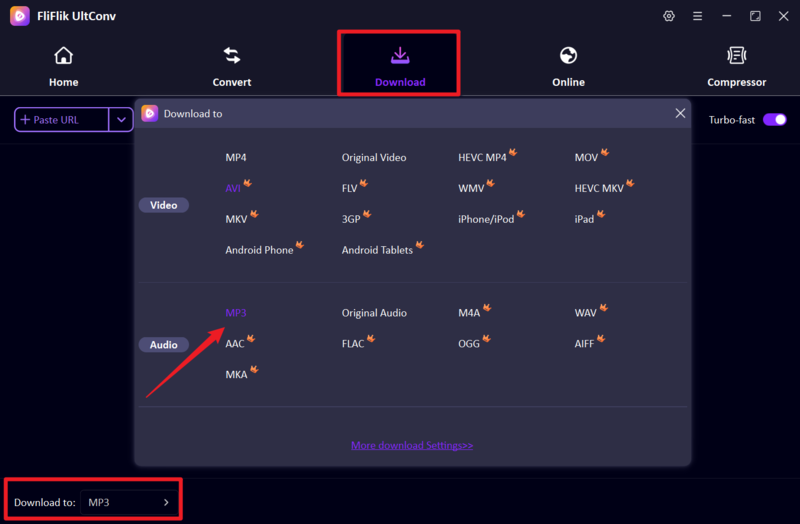
Launch the app and go to the Download section. Then click the Download to button in the lower-left corner. When the output format window appears, select MP3 or FLAC.
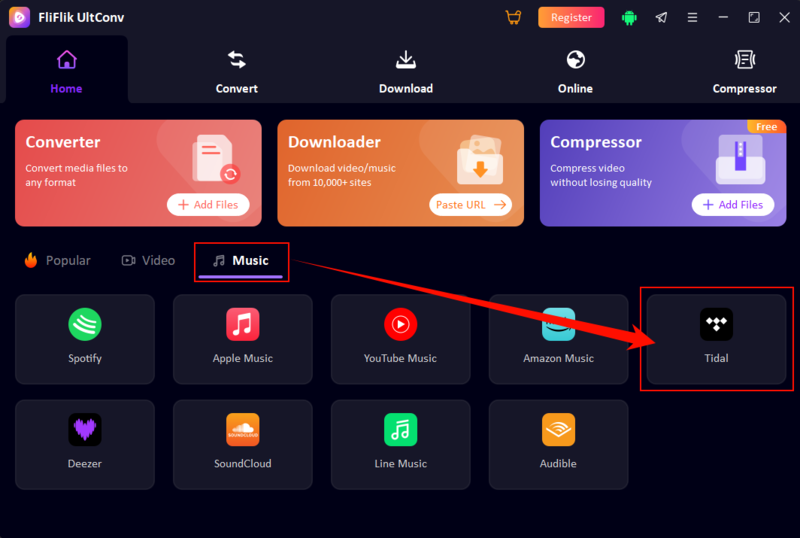
Return to the Home page, locate Tidal under the Music section, and click to enter the website.
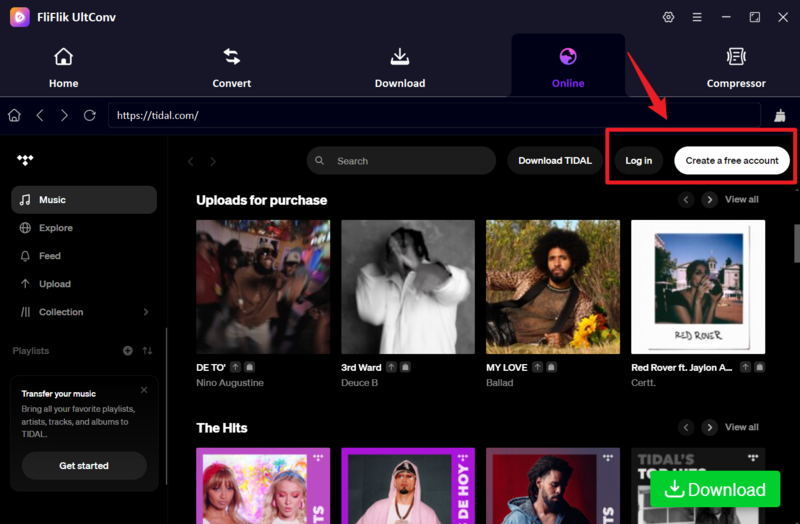
On the Tidal website, click Log In and enter your credentials. If you don’t have an account yet, sign up first.
Find the track or playlist you want to download, then simply click the Download button in the lower-right corner (as shown in the image).
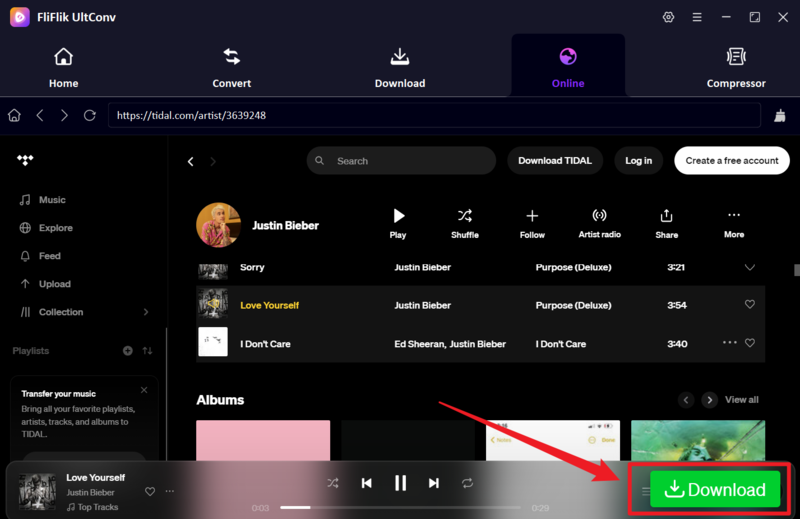
Once the download starts, do not pause the process. After a few minutes, you can listen to your music offline by clicking the Play button in the Downloaded section. You can also check the local file path to see where your music is saved.
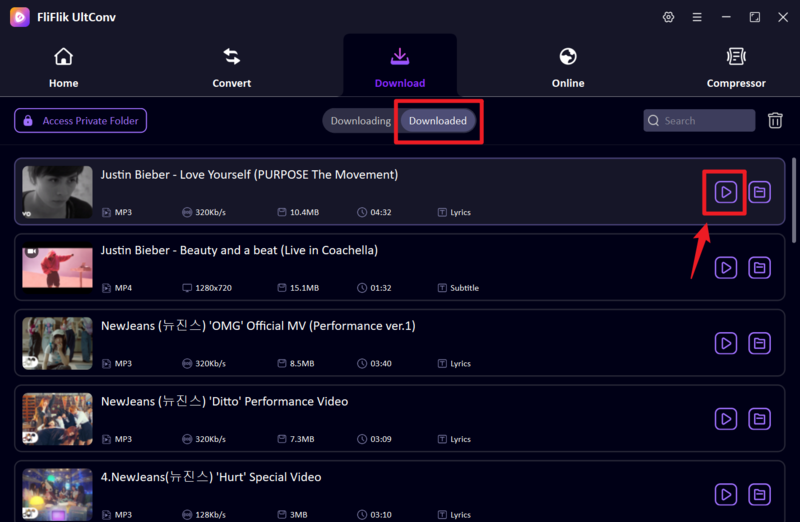
If you’re looking for a simpler way to download TIDAL music, UltConv makes the process fast and straightforward. Just follow these steps on your Windows or Mac computer.
 Secure Download
Secure Download
Secure Download


Part 4: FAQs
Q1. Why does TIDAL keep crashing when I open it?
TIDAL can crash for several reasons, including an outdated app version, a corrupted cache, insufficient device storage, or a software conflict with your operating system. TIDAL’s troubleshooting guide recommends updating the app first, then force-closing it, clearing the cache, and reinstalling if the problem continues.
Q2. Why is there no sound when I play TIDAL on my computer?
If a track appears to be playing but you hear nothing, your computer may be routing audio to the wrong output device. Check your system volume, confirm the correct audio output is selected in TIDAL’s settings, update your audio drivers, and test with a different device to rule out a hardware issue.
Q3. Why is TIDAL silent when I use Android Auto in my car?
Car playback problems usually stem from connection authorization issues, a faulty cable, incorrect audio output selection, or a TIDAL Connect conflict. Try reconnecting your phone, reopening TIDAL, and verifying your vehicle’s audio settings. If TIDAL Connect is not working, restart both devices and test the connection again.
Part 5: Wrapping Up
If TIDAL has been interrupting your listening, start with the basics: check your internet, update the app, restart it, clear the cache, and reinstall if needed. These are the exact first steps TIDAL directs users to in its own support guides, and they resolve the vast majority of issues.
If the problem keeps coming back, check the official TIDAL Support page for service status and make sure your device software is up to date. For persistent streaming issues, keeping a local copy of your most-listened-to music is the most reliable long-term solution — and that’s where UltConv TIDAL Music Converter can help. It lets you download your favorite tracks and playlists directly to your computer, so a weak signal or a crashing app never has to stop your music again.
