

 By
By  5 minutes read


First, you need to know: Netflix has stopped supporting video downloads through its laptop app. Offline downloads are now only available on Android, iOS, Amazon Fire tablets, and Chromebooks. So what can you do if you want to download Netflix movies on a Windows or Mac laptop and keep them forever?
In this guide, we will show you how to download movie from Netflix app or third-party downloader to download Netflix movies/shows on laptop with ease.
Part 1. Can You Download Netflix Movies on Laptop?

Yes, but not via official Netflix apps on Windows or Mac anymore—the desktop download feature was discontinued. The only official way is using the Netflix mobile app (iOS/Android). The Netflix mobile app includes a built-in download feature that lets you save shows and movies for offline viewing.
How to Download Netflix Videos on Mobile (Android & iOS)
Step 1: Launch the Netflix app on your Android or iOS device and log into your account.
Step 2: Find the TV show or movie you’d like to save – you can browse or use the search function.
Step 3: Tap the download icon (downward arrow) next to the title or episode to start saving the video to your device.
Step 4: After the download finishes, go to the “Downloads” tab (located at the bottom of the screen) to watch your saved content offline.

 Notes
Notes
- Not all content is downloadable – Some movies and shows are restricted.
- DRM encrypted – Videos can only be played inside the Netflix app.
- Expiration – Downloads expire after 48 hours of viewing.
- No transfer – You cannot move downloaded videos to a laptop.
For permanent, transferable MP4/MKV saves on your laptop, Ultconv Video Converter is the reliable desktop solution – it bypasses DRM, batch-downloads any Netflix title, and stores videos as standard files.
Part 2. [Best Option] How to Download Netflix Video on Laptop
UltConv Video Converter is a powerful desktop program that lets you download videos from Netflix and other streaming sites. It can capture video streams, bypass DRM protection, and download movies and shows from Netflix as standard MP4 or MKV files on your laptop. You can also batch download entire Netflix series with just one click.

- Convert Netflix content to MP4 in 1080p/4K quality.
- Remove Netflix DRM for playback on any device, anytime.
- Preserve multi-language audio tracks and multilingual subtitles.
- One-click bulk download of full Netflix TV series seasons.
- Support video conversion from 10,000+ sites (YouTube, OnlyFans, X/Twitter, etc.)
How to Download Shows/Movie from Netflix on Windows/Mac?
-
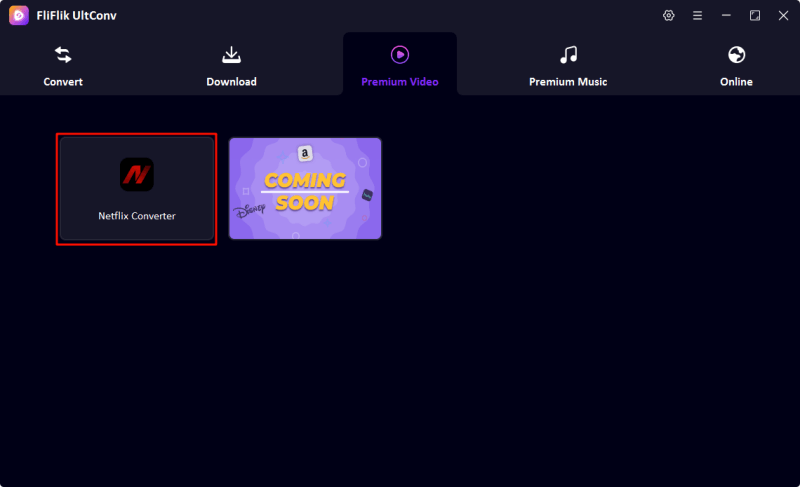
Step 1: Open the software homepage and click the Netflix icon in the Popular or Video section; or enter the Netflix URL in the Online interface.
-
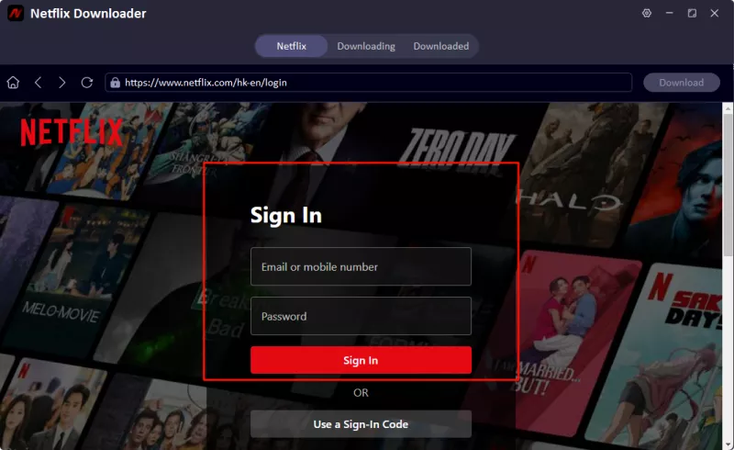
Step 2: Input your Netflix login details to access your account.
-
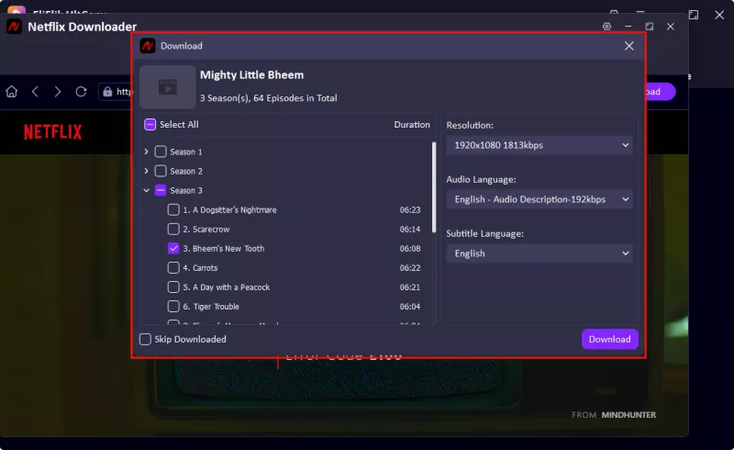
Step 3: Look through the movies, TV shows, or episodes you wish to save. Select the Download button and choose specific episodes if necessary. You can also customize preferences such as video quality, audio language, and subtitles before beginning the download.
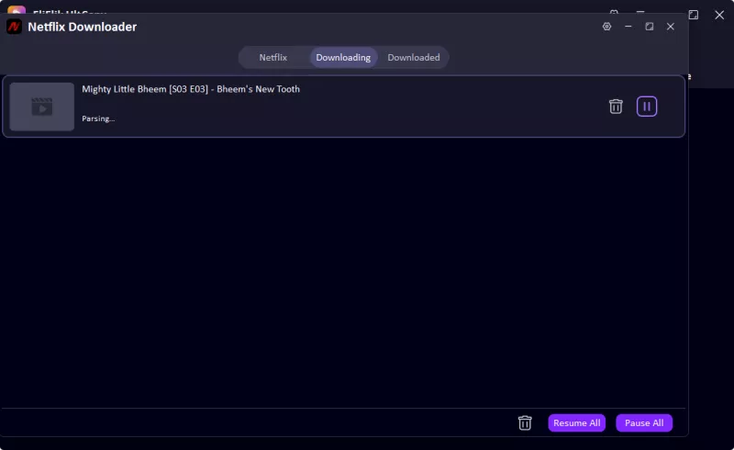
Step 4: When you’ve finished configuring everything, select the Download button — the video will then be saved to your device in MP4 format for anytime offline viewing.


Part 3. Other Tips to Download Netflix Videos on Laptop Mac
The steps above show you the easiest and most reliable way to download Netflix videos using UltConv Video Converter. But if you’re unable to use a dedicated downloader for any reason, you can try screen recording while playing Netflix using free tools like FliFlik online screen recorder . However, these methods are time‑consuming, yield lower quality, and lack the reliability of direct downloading.

How to Record Netflix Videos on Laptop Mac?
-
Step 1: Open Netflix in your browser.
-
Step 2: Record using FliFlik online screen recorder or QuickTime Player (pre-installed on macOS).
-
Step 3: Play the movie from start to finish.
-
Step 4: Stop recording and save the file.
Downsides of Screen Recording
- A 2-hour movie takes 2 hours to record.
- Quality is lower (screen recording loses details).
- Subtitles are hard to capture.
- Netflix may show a black screen if hardware acceleration is on.
Comparison—Which is The Best Netlix Downloader
| Feature | Official App | Screen Recording | Ultconv Netflix Downloader |
|---|---|---|---|
| Support Systems | Android & iPhone | Windows | Windows/Mac / Android |
| Permanent save | ❌ No (expires) | ✅ Yes | ✅ Yes |
| Video quality | Up to 1080p | Poor | Original, 1080p, HD,4K |
| Save as multiple formats | ❌ No | ✅ Yes (but large file) | ✅ Yes, up to 100+ formats |
| Subtitles included | ✅ Yes | Hard | ✅ Yes |
| Batch download | ❌ No | ❌ No | ✅ Yes (entire seasons) |
| Transfer to other devices | ❌ No | ✅ Yes | ✅ Yes |
| Speed | N/A | Real-time (slow) | Fast (10x faster) |
Winner: Ultconv Video Converter gives you permanent, high-quality MP4 files on your laptop – something no other method can do.
FAQ About Downloading Netflix Videos
Q1. What video quality can I get with Ultconv Netflix Downloader?
Ultconv Netflix Downloader allows you to download Netflix videos in up to 1080p Full HD quality, preserving the original streaming bitrate and audio tracks.
Q2. Is Ultconv Netflix Downloader safe to download and install?
Yes. It is a legitimate software tool that undergoes regular security scans and contains no malware, adware, or viruses. Always download it from the official website to ensure you get the genuine, safe version.
Q3. Do downloaded Netflix videos expire with Ultconv Netflix Downloader?
No. Unlike official Netflix downloads that expire after 48 hours or 30 days, videos downloaded with Ultconv Netflix Downloader are saved as permanent MP4 files with no DRM protection. You can keep them on your laptop forever, even after canceling your Netflix subscription.
Conclusion
Netflix no longer allows laptop downloads officially. Screen recording have major limits — expired files, poor quality, or large file.With Ultconv Video Converter, you can permanently download Netflix movies as 1080p MP4 files, keep subtitles and audio tracks, and even batch download entire seasons. That said, always remember to use such tools responsibly and respect Netflix’s terms of service – downloaded content should be for personal offline viewing only.
 Secure Download
Secure Download
Secure Download