9 minutes read


People talk about AudiCable Qobuz Playlist Converter like it’s the answer to saving your Qobuz playlists offline. On the surface, it seems easy enough to just convert your Qobuz tracks to regular audio files and stash them on your device. But anyone who’s actually tried it knows it’s not always that straightforward. Sound quality matters. You want files that actually work, formats that fit your needs, downloads that don’t drag, and playlists that transfer without glitches.
This article takes a clear look at AudiCable Qobuz Playlist Converter. What it does well. Where it falls short. And what you should know before using it. We’ll also cover a stronger alternative for users who want lossless quality, stable playlist downloads, and fewer limits. No fluff. Just practical details to help you decide what works best for your setup.

Part 1. What is AudiCable Qobuz Playlist Converter?

AudiCable Qobuz Playlist Converter is part of the AudiCable streaming audio recorder tool that focuses on extracting music from services like Qobuz and saving it as local audio files on your computer. It doesn’t just grab single tracks; it can process entire playlists and albums from Qobuz so you can listen offline when you’re away from the internet. The tool works by connecting to the Qobuz web player, logging in with your account, and then recording the playlist while preserving sound quality and tags.
Part 2. How Does AudiCable Work?
Here’s the simple, start-to-finish flow for using AudiCable Qobuz playlist converter to pc download. No guesswork. Just follow the steps.
-
Step 1: Open AudiCable and look at the start-up interface. Click Add Other Source under the Music tab. Enter Qobuz as the platform name and paste the official website URL. Confirm the addition, then click the Qobuz icon and log in to your account through the built-in web player.
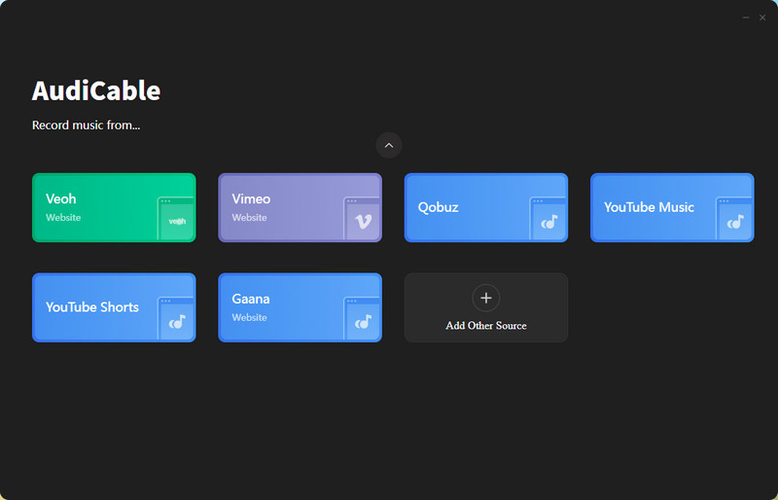
- Step 2: After logging in, Qobuz opens inside Audicable. You can browse playlists, albums, or tracks directly from the web player, just like using Qobuz in a normal browser.
-
Step 3:
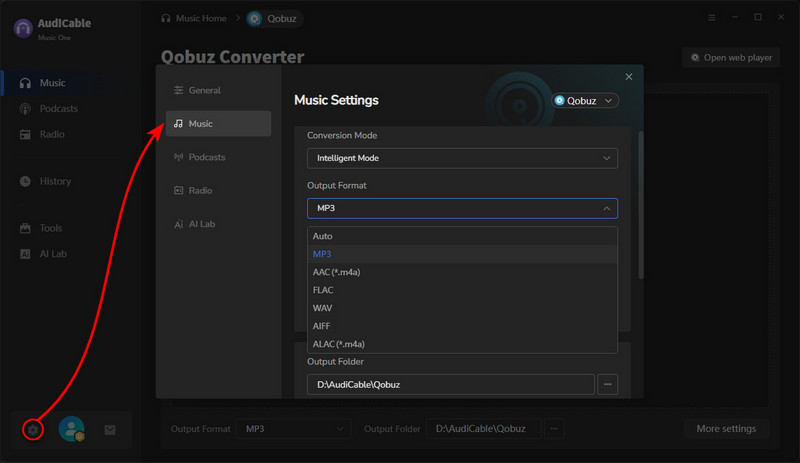
Click Settings in the bottom left corner of AudiCable. From there, select your output format, audio quality, bitrate, and other preferences. This step controls how your Qobuz music will be saved on your PC.
-
Step 4:
Open the playlist you want to download and click Click to Start. AudiCable will begin recording the music while the playlist plays, automatically capturing each track without manual saving.
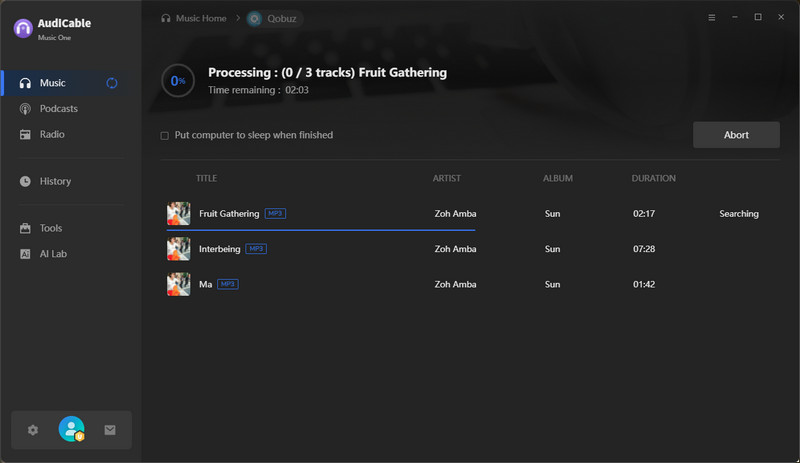
- Step 5: Once the recording finishes, click Stop. Go to the Recorded tab to view all converted Qobuz tracks. Click the folder icon next to any song to open the download location on your computer.


Part 3. What Are AudiCable Users’ Reviews?
When reviewing the AudiCable Audio Recorder, real user feedback matters more than feature lists. To understand how AudiCable performs in everyday use, I checked Trustpilot, a platform where verified users share honest experiences.

Based on 23 reviews, AudiCable holds an overall rating of 4.0 out of 5. Most users report a positive experience. The main complaints are not about performance but about billing and refunds. Here’s what users generally like and dislike.
What Users Like
Most 5-star reviews focus on reliability and sound quality.
- Fast support response: Several users mention that technical issues were resolved quickly after contacting support.
- Good audio quality: Downloaded tracks retain clear sound, which matters to users who care about music quality.
- Cost savings: Users like being able to keep their music without paying for a long-term streaming subscription.
What Users Dislike
Negative feedback is mostly related to payments, not the software itself.
- Auto-renewal confusion: Some users were charged again after their plan renewed automatically. Auto-renewal is enabled by default, and users who missed this detail were caught off guard.
- Refund delays: Refund requests must be handled by email. Some users found this slow or inconvenient, which led to frustration.
Overall, the reviews suggest that AudiCable works as intended, but users should pay close attention to subscription terms and refund policies before purchasing.
Part 4. Best AudiCable Qobuz Playlist Converter Alternative
FliFlik UltConv Qobuz Converter is a practical alternative to AudiCable Qobuz Playlist Converter if you want more control over how you download and store Qobuz music. It focuses on real downloads, not screen recordings, so audio quality stays intact. You can save full playlists, albums, or single tracks in formats like MP3, FLAC, WAV, and M4A, with output quality reaching up to lossless levels. The software also keeps all ID3 tags, so artist names, album info, and cover art stay clean and organized.
What makes UltConv Qobuz Converter stand out is its wide platform support. Beyond Qobuz, it works with 10,000+ platforms like Spotify, Apple Music, Deezer, TIDAL, SoundCloud, and many more. Batch downloads are supported, which means you can grab entire playlists or libraries in one go. It’s built for users who care about format flexibility, sound quality, and managing large music collections without friction.

- Download Qobuz playlists, albums, and tracks in bulk
- Supports MP3, FLAC, WAV, AAC, M4A, and 100+ formats
- Up to lossless audio quality and 320 Kbps MP3
- Preserves full ID3 tags and metadata
- Works across 10,000+ Streaming platforms
- Fast batch downloads with stable performance
▼ Steps to Convert Qobuz Music to MP3 with UltConv Qobuz Converter
FliFlik UltConv works on both Windows and Mac and lets you download Qobuz tracks, albums, or playlists in high quality. After installing the software, you can save Qobuz music to your computer in just a few simple actions.
 Secure Download
Secure Download
Secure Download
-
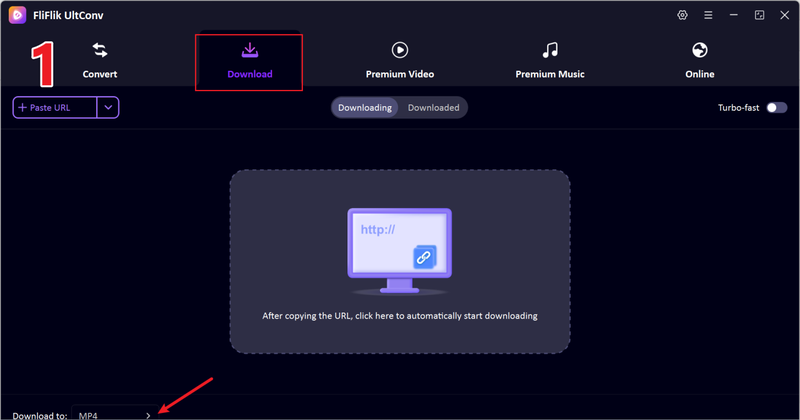
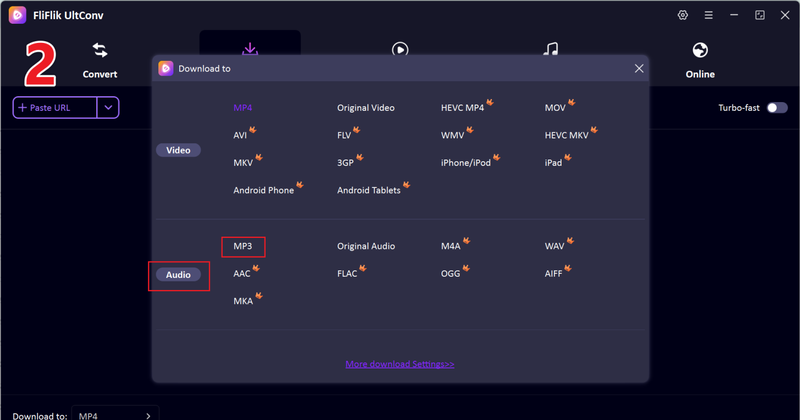
Open FliFlik UltConv and switch to the Download section. From the bottom panel, click Download to set up your format.
-
Choose your preferred output format for Qobuz music, such as MP3, FLAC, WAV, or M4A, depending on your quality needs.
-
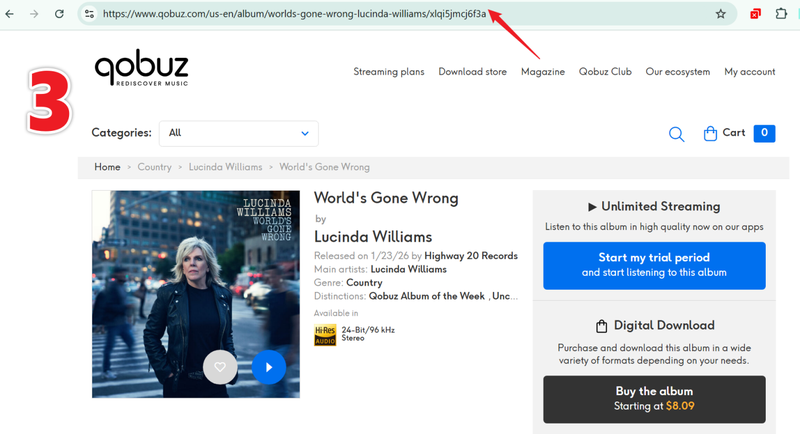
Open Qobuz in your web browser, find the track, album, or playlist you want, and copy its URL.
-
Return to UltConv, paste the Qobuz URL directly into the input box, and click Download to begin manually. After a few seconds of waiting, the Qobuz track is downloaded as 320 kbps MP3 files to your device directly.
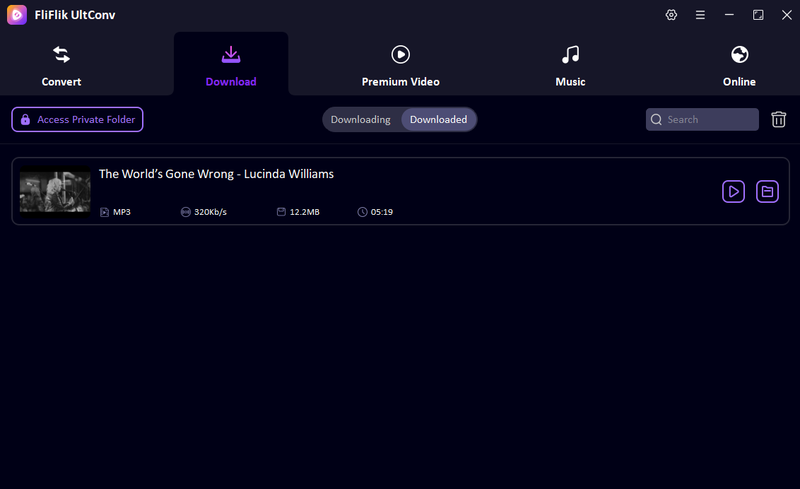


Once the process finishes, your Qobuz music will be stored locally in the selected format. You can play it offline anytime, with no buffering and no internet connection required.
Part 5. UltConv vs. AudiCable
Before choosing between AudiCable and UltConv Qobuz Converter, it helps to see them side by side. On the surface, both tools promise offline Qobuz downloads and DRM removal, but the way they handle speed, quality, and workflow is very different. One focuses on recording music as it plays, while the other is built around direct downloading and batch processing. The comparison below breaks down where each tool stands so you can quickly see which one fits your needs better.
| Feature | FliFlik UltConv Qobuz Converter | AudiCable Qobuz Playlist Converter |
|---|---|---|
| Support Platform | Support 10,000+ Streaming Music Sites | Qobuz |
| Download Speed | 10X Faster (direct download engine) | 1X (records while playing) |
| Batch Download | Yes (multiple playlists/albums) | Limited (one playlist at a time) |
| Max Quality | Up to original or lossless | Matches source quality |
| Output Format | 100+ Formats, MP3, WAV, FLAC, AAC, M4A, AIFF | MP3, WAV, FLAC, AAC, ALAC, AIFF |
| DRM Removal | Yes (direct save with tags) | Yes (records unprotected stream) |
Wrapping up
If you’re looking to save Qobuz playlists for offline listening, the AudiCable Qobuz playlist Converter can do the job, but it’s more like recording music as it plays, which can be slower and less flexible. FliFlik UltConv Qobuz Converter offers a more complete solution: it supports multiple output formats, high-quality audio up to 320 Kbps, batch downloads, and preserves ID3 tags for easy organization. It works across Windows and Mac, making it easier to manage your entire music library in one place. For anyone serious about downloading and converting Qobuz playlists efficiently, UltConv provides faster downloads, broader platform support, and full control over quality and format. Try FliFlik UltConv Qobuz Converter today to save your favorite tracks and playlists effortlessly, and enjoy them anytime, anywhere without restrictions.
Secure Download
Secure Download
FAQs
Q1. How do I export a playlist from Qobuz?
To export a playlist, you can use a music converter like FliFlik UltConv Qobuz Converter. Open the converter, paste the URL of the playlist you want, choose your output format and quality, and start the download. The playlist will be saved on your device for offline listening.
Q2. Can I download music from Qobuz without a subscription?
Officially, Qobuz requires a subscription to download music. However, tools like FliFlik UltConv Qobuz Converter let you record and convert songs from the Qobuz web player to MP3 or other formats without needing a paid subscription, giving you offline access to your favorite tracks.
Hey there! I am Maxwell Clark. I'm always looking for new tech tools that make a difference, from making visuals and audio better to making workflows better. I'm going to share tips and tricks for using AI tools for videos, audio, and images. I'm excited to help you navigate the digital world more efficiently and creatively!