

 8 minutes read


BeeTV has been increasingly unreliable lately, often frustrating users with “no data available” errors, endless loading screens, or random crashes. Even when the app stays open, many find that the links simply refuse to play. If you have been searching for solutions to BeeTV not working, you are certainly not alone in facing these issues.
In this article, we’ll break down why BeeTV fails and provide seven proven solutions to get it running again, plus a quick tip for downloading videos from alternative apps just in case you need a Plan B.

Part 1. What Is BeeTV?

BeeTV is an app designed for streaming movies and TV shows on-demand. It’s popular because it lets you access a huge library of content without needing a subscription or cable. You can search for your favorite shows, explore trending movies, and even stream in different qualities depending on your device. Essentially, it acts like a hub for free entertainment, pulling together links from various sources so you don’t have to hunt for them yourself. While it’s not officially available on app stores, users download it as an APK, which makes it easy to install on Android devices, Fire TVs, or even your PC with an emulator.
Part 2. Why Is BeeTV Not Working?
Even though BeeTV is convenient, it sometimes stops working. If you’re seeing “no data available” or links failing to play, there are usually a few common reasons behind it:
- Outdated App Version : Older versions may not support newer streaming sources or fixes, so updating often solves many problems.
- Server Issues : BeeTV relies on external sources. If those servers are down, links won’t load.
- Poor Internet Connection : Streaming requires a stable connection; slow speeds can prevent videos from loading.
- Blocked or Restricted Content : Some links may be geo-restricted or blocked by ISPs.
- Corrupted Cache or Data : Over time, stored data can get corrupted, causing freezes, crashes, or empty screens.
Part 3. 7 Proven Fixes for BeeTV Not Working Issues
If BeeTV isn’t loading or showing “no data available,” don’t panic. Most issues have simple solutions. Let’s break down the most effective fixes one by one.
1. Update the App
Sometimes the simplest fix is the most overlooked. BeeTV updates regularly to fix bugs and improve streaming sources. If you’re using an old version, certain links or features might stop working. Head to the official BeeTV site or your trusted APK source and download the latest version. Once updated, many loading or playback problems disappear instantly.
2. Clear Cache & Data
Over time, BeeTV stores temporary files to speed up your experience. But this cache can get corrupted, leading to crashes or empty screens. Clearing cache and data can refresh the app. On Android, go to Settings > Apps > BeeTV > Storage > Clear Cache/Clear Data. Don’t worry—your app will reset, but it often fixes persistent glitches.
3. Check Internet Connection
A weak or unstable internet connection can prevent videos from loading. Even if other apps work fine, streaming high-quality video demands consistent speed. Try switching between Wi-Fi and mobile data, restarting your router, or running a speed test. Ideally, you want at least 5 Mbps for HD streaming.
4. Choose a Secure VPN
Some content in BeeTV is geo-restricted. If a video won’t play, your location might be the reason. Using a reliable VPN lets you bypass these blocks safely. Make sure you pick a VPN that doesn’t slow your connection too much, otherwise streaming will buffer endlessly.
5. Change Your Video Player
BeeTV supports multiple video players like VLC or MX Player. Sometimes the default player struggles with certain streams, causing errors or playback failure. Switching to a different player can solve these problems instantly. You can change the default player in BeeTV settings under Player Selection.
Extra Tip. How to Download Video from BeeTV Alternatives
If BeeTV isn’t working or you want to save your favorite shows offline, FliFlik UltConv Video Downloader is one of the most versatile tools you can use. It’s not just for a few websites; it supports over 10,000 platforms, including big names like YouTube, Netflix, Twitch, TikTok, and Vimeo. That means whether you want movies, TV episodes, live streams, or music videos, UltConv Video Downloader has you covered.
What really sets it apart is its format and quality support. You can download in over 100 different formats, including MP4, MP3, WAV, AAC, FLAC, and more. It even supports high resolutions like 720p, 1080p, 2K, 4K, and 8K for videos, and up to 320kbps for audio, so you never have to compromise on quality. You can also download entire playlists, channels, or albums in one go, making it perfect for binge-watching or music collections.

- Download videos and music from 10,000+ websites, YouTube, TikTok, Instagram, etc
- Save playlists, albums, or channels in one click
- Convert videos to MP4, MP3, WAV, and 100+ more
- Download in HD, 2K, 4K, or 8K without losing quality
- Remove DRM from Spotify, Apple Music, and other platforms
- Download live streams in real-time from sites like Twitch or TikTok
▼ How to Convert BeeTV Videos to MP4 with FliFlik UltConv Video Downloader?
FliFlik UltConv Video Downloader works on both Windows and Mac, making it simple to save YouTube videos in high quality. Once installed, you can get your favorite videos as MP4 files in just a few straightforward steps.
-
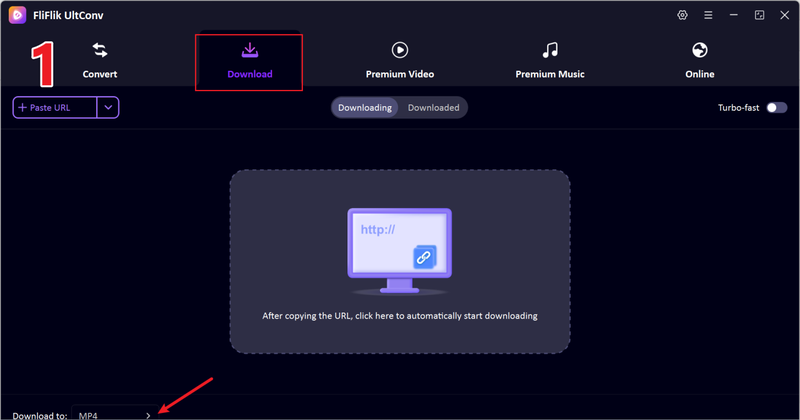
Open UltConv Video Downloader, then navigate to the Download tab at the bottom of the screen to start the process.
FREE DOWNLOAD![secure download]() Secure Download
FREE DOWNLOAD
Secure Download
FREE DOWNLOAD![secure download]() Secure Download
Secure Download
-
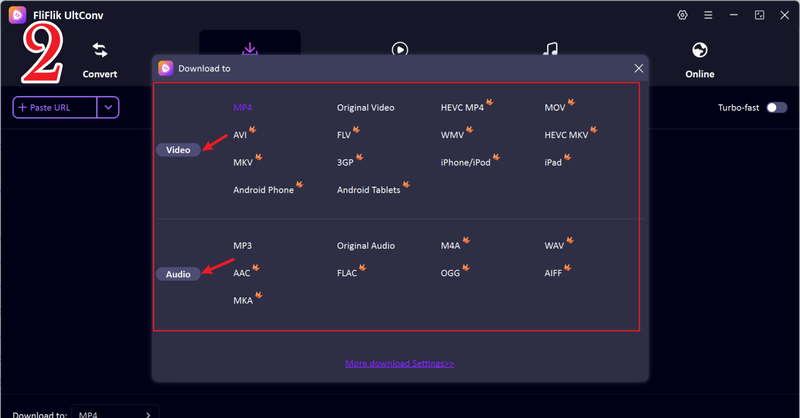
Select MP4 (or any other supported format) as the output for your video.
-
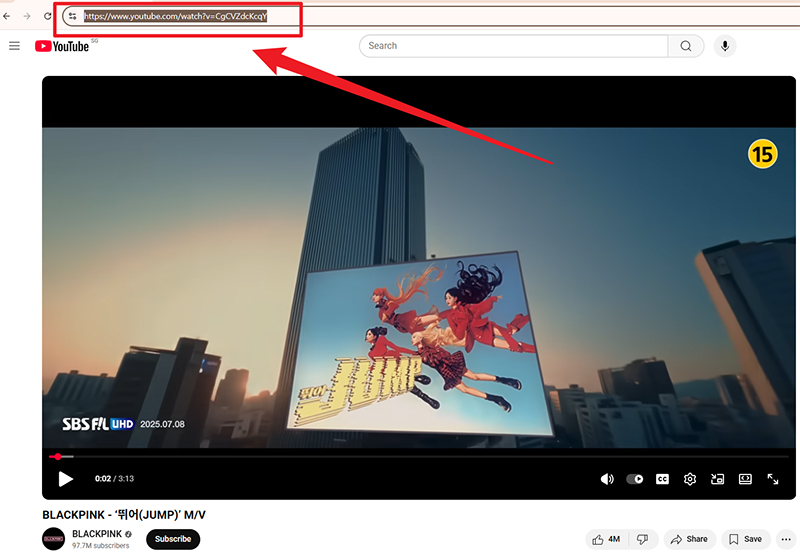
Open BeeTV and find the video you want to download, and copy its link. Return to UltConv.
-
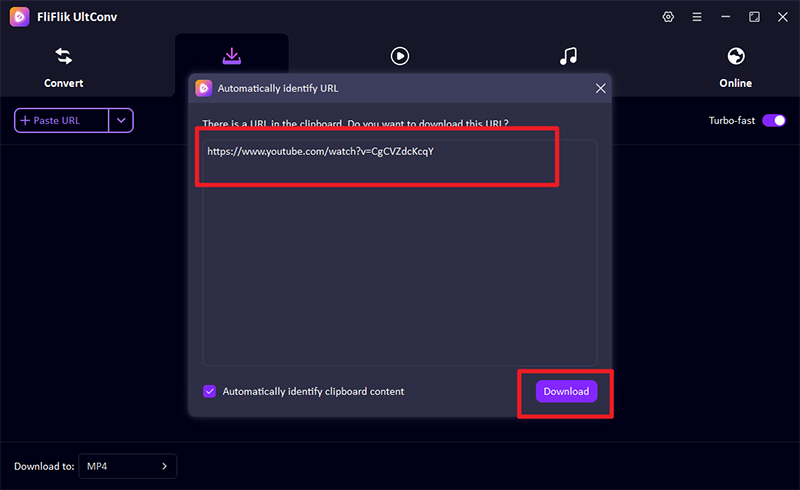
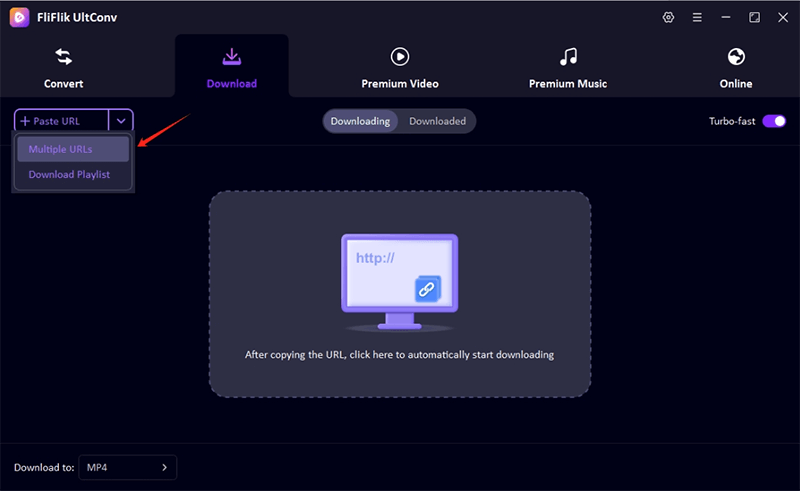
UltConv should detect the link automatically and show a pop-up window. Click Download to start saving the audio.
-
If the pop-up doesn’t appear, paste the copied BeeTV link manually into the URL box and click Download to complete the process.
-
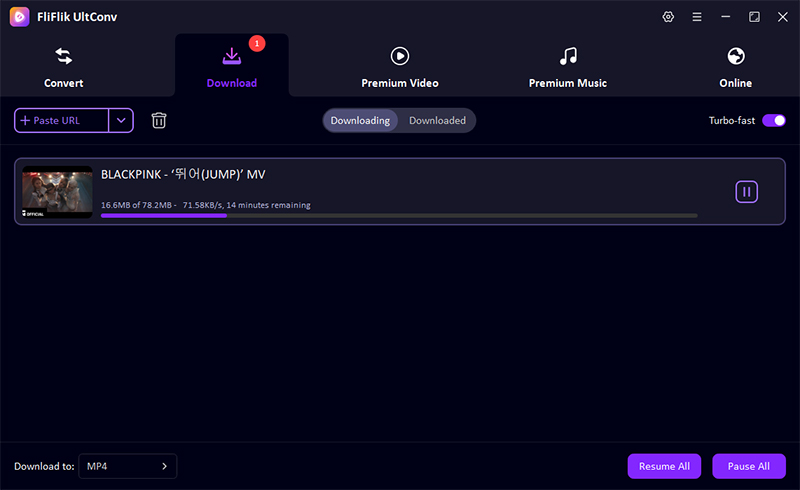
The download process will begin immediately, and once done, your songs will be saved in your device.


FAQs
Q1. Is BeeTV Safe to Use?
BeeTV itself doesn’t host content it pulls links from third-party sources. That means while the app is generally safe to install, some of the streams may carry risks like malware or intrusive ads. Always download the app from a trusted source, avoid suspicious links, and consider using a VPN or ad blocker to protect your privacy.
Q2. What is the Best Alternative to BeeTV?
If BeeTV isn’t working or you want a backup, apps like Cinema HD, TeaTV, or FliFlik UltConv Video Downloader are popular choices. FliFlik UltConv Video Downloader goes a step further by letting you download videos and music from thousands of websites for offline viewing.
Conclusion
BeeTV is convenient for free streaming, but glitches like “no data available” or crashing links are common. Most problems have simple solutions, such as updating the app, clearing cache, checking your connection, or switching video players, which usually does the trick.
For those times when BeeTV just won’t cooperate, using alternatives like FliFlik UltConv Video Downloader ensures you can still watch your favorite content offline in high quality. With the right fixes and tools, you’ll never have to miss a movie, show, or live stream again.
 Secure Download
Secure Download
Secure Download
Hello, I research and introduce useful solutions for AI videos, images, and audio tips in our daily life. If you learn these things, you can easily deal with the problems of the new era.

