

 8 minutes read


Behance has become one of the most popular places for designers, illustrators, photographers, and creative professionals to showcase their work. The platform inspires millions of creators with high-quality visual projects, design, and video. In many cases, users want to save a design for inspiration, reference, or offline viewing, yet the platform doesn’t always provide a simple download option.
In this article, we will share the best Behance Downloader and tools you can use on Windows, Mac, and online. We will also show you which tools work best and how to use them step by step.

Part 1. Can I Download Video and Image from Behance Directly?
No. In most cases, Behance does not provide a direct way to download videos or full‑resolution images from other people’s projects. Many works are protected by copyright, especially those labeled with All Rights Reserved, so the platform limits downloading by default. If the project belongs to you, you can access and download the original files through the project editor. Here are a few common reasons why downloading directly from Behance can be difficult:
- No built-in download option for most projects: Many images and videos are displayed in a viewing format, which means there isn’t always a visible download button.
- Content is protected to respect creators’ rights: Behance hosts work from designers and artists worldwide, so limiting downloads helps protect their original creations.
- Videos are embedded rather than downloadable: Some Behance projects include embedded videos, which can’t be saved directly from the page.
- Files are optimized for viewing, not downloading: Images are often compressed or displayed in web format, making it harder to save the original version.
Part 2. Best Behance Image & Video Downloader on Windows & Mac
Instead of relying on unstable web tools, FliFlik UltConv Video Downloader lets you download videos and media files from thousands of websites with better speed and control. For example, if you find a video project on Behance that you want to save for offline viewing or reference, UltConv Video Downloader allows you to download it and convert it into common formats like MP4/MKV. The process is simple, and the software keeps the original video quality, like 4K, 2K, 1080p, and audio in 320kbps, so the content looks just as sharp offline.
Besides Behance videos, UltConv supports downloading media from more than 10,000+ websites, making it useful for saving tutorials, design references, or creative inspiration from many platforms.

- Supports YouTube, TikTok, Vimeo, etc for downloading videos and music.
- Supports YouTube, TikTok, Vimeo, etc for downloading videos and music.
- Save videos and music in MP4, MP3, and 100+ other formats
- Download playlists, channels, and albums from supported streaming platforms
- Convert video to audio formats like MP3 without losing quality
- Download media in HD quality up to 4K, with audio up to 320kbps
▼ How to Download Behance Video to MP4 with FliFlik UltConv Video Downloader?
Downloading a video project from Behance is simple with FliFlik UltConv Video Downloader. Once the software is installed on your computer, follow these steps to save the video in MP4 format.
 Secure Download
Secure Download
Secure Download
-
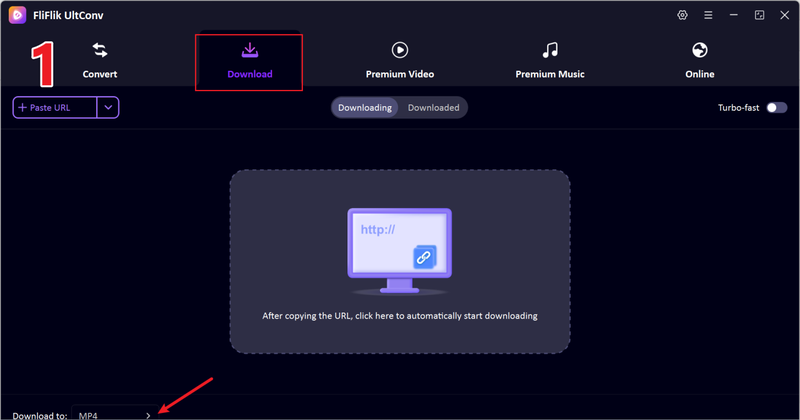
Launch UltConv on your computer and open the Download to option in the main interface.
-
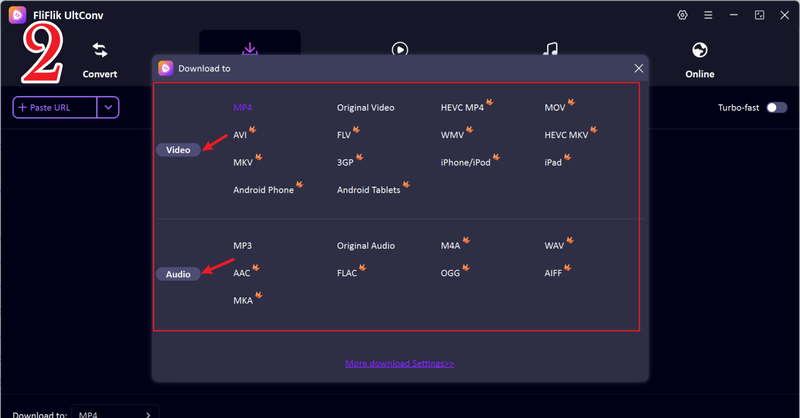
Select MP4 as the output format so the Behance video will be saved in a widely supported format.
-
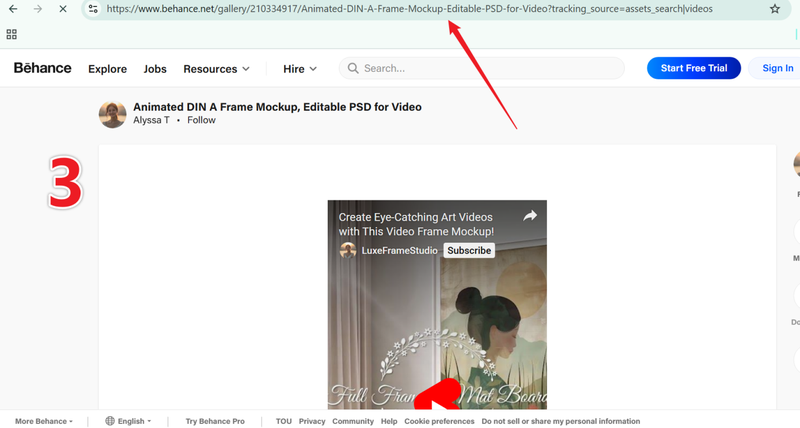
Go to Behance and open the project that contains the video you want to download. Copy the video or project URL from the browser address bar.
-
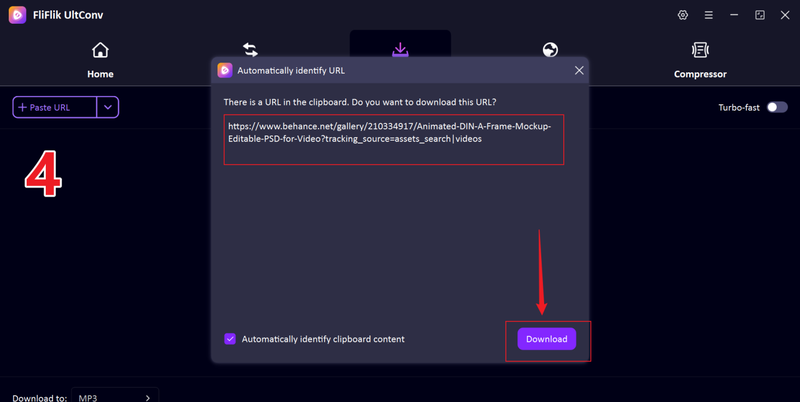
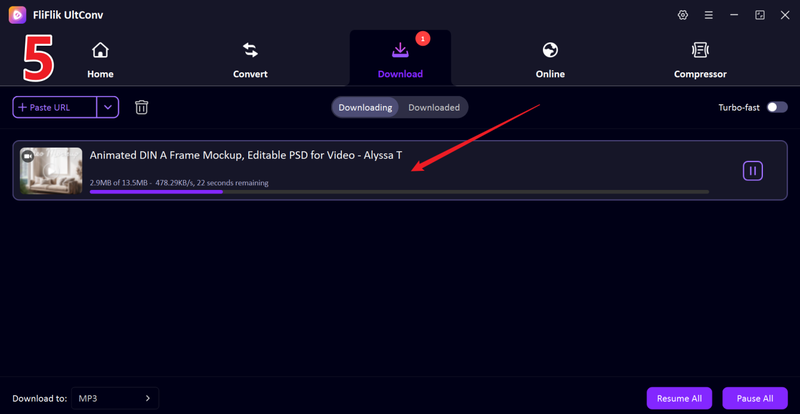
Once copied, the tool will automatically show you a popup window with a Download button, just click that.
-
If the tool does not automatically show you a download Pop-up, just manually paste the link and click the Download button, and wait for the process to finish. The video will be saved to your default folder in MP4 format for offline viewing.


Part 3. Online Free Locoloader Behance Downloader
If you prefer not to install software, Locoloader is a convenient online Behance downloader that works directly in your browser. The tool allows users to download images or videos from a Behance project simply by pasting the project URL into the website. It’s lightweight, free to use, and works on most devices, including Windows, Mac, tablets, and smartphones.
▼ Steps to Download Behance Images and Videos with Locoloader
- Step 1: Open Behance and find the project that contains the image or video you want to save. Copy the project URL from the browser address bar.
- Step 2: Visit the Locoloader Behance Downloader page in your browser. You will see an input box where you can paste the project link.
-
Step 3:
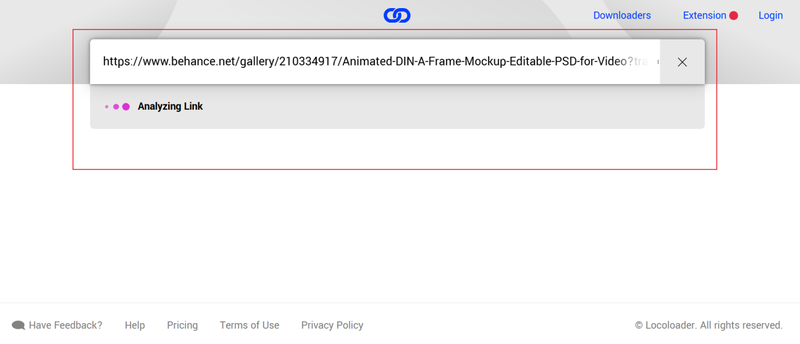
Paste the copied Behance project URL into the input field and start the extraction process. The tool will scan the project and detect available images or videos.
-
Step 4:
After the media files appear, click the download button under the image or video you want to save to your device.
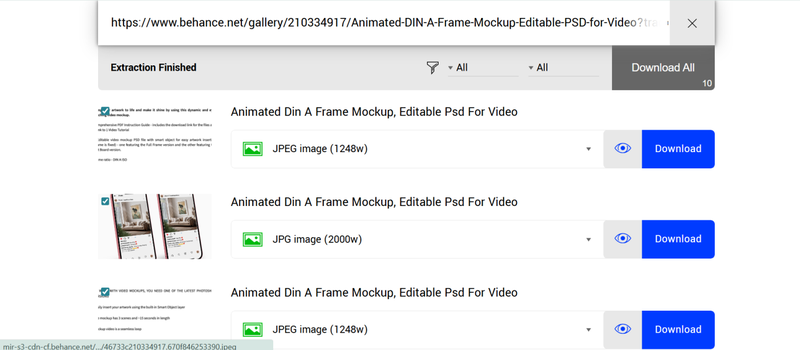


This method is quick and convenient for occasional downloads, especially if you only need to save a few Behance images or videos without installing extra software.
Part 3. Behance Saver Chrome Extension
If you frequently browse projects on Behance and want a quick way to save images, the Behance Saver Chrome Extension can be a handy solution. This lightweight browser extension adds a simple download function directly inside your browser, allowing users to save images from Behance projects with minimal effort. Once installed, the extension works automatically when you open a Behance project page. It detects the images on the page and allows you to download them in the highest available screen resolution, which is helpful if you want to collect design inspiration or keep references for later.
▼ Steps to Download Behance Images with the Behance Saver Extension
-
Step 1:
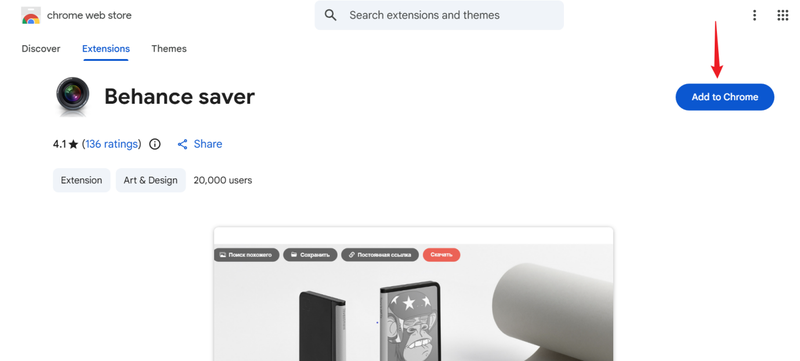
Open the Chrome Web Store page for Behance Saver and click
Add to Chrome
to install the extension in your browser.
- Step 2: After installation, open a project page on Behance that contains the images you want to save.
- Step 3: Refresh the page if necessary and activate the extension. It will detect the images available on the page and display download options.
- Step 4: Click the download button provided by the extension to save the image to your device.

This method is useful for quickly saving images without leaving the Behance page, especially if you regularly collect creative references from different projects.
FAQs
Q1. How to download Behance images online for free?
You can download images from Behance using Locoloader Behance Downloader. Open the Behance project that contains the image you want, copy the project URL, and paste it into an online downloader such as Locoloader.
Q2. Is it legal to download a Behance project as a PDF for free?
Many Behance projects are protected by copyright, meaning the original creator owns the rights to the content. Downloading a project for personal inspiration or offline viewing may be acceptable in some cases, but redistributing, selling, or using the work commercially without permission can violate copyright rules.
Q3. Is using a Behance downloader safe?
In general, it can be safe if you use trusted tools or well‑known software like FliFlik UltConv Video Downloader. Some online downloaders may contain ads or redirect links, so it’s important to choose reliable platforms and avoid suspicious websites.
Conclusion
In this article, we looked at several Behance downloader to download Behance videos. Desktop software like FliFlik UltConv Video Downloader offers a stable and feature‑rich solution for saving videos and converting them to formats like MP4. Meanwhile, online tools such as Locoloader and browser extensions like Behance Saver provide quick options for downloading images without installing large programs. If you want speed and reliability, UltConv is usually the best option for quick downloads.
Secure Download
Secure Download
Hello, I research and introduce useful solutions for AI videos, images, and audio tips in our daily life. If you learn these things, you can easily deal with the problems of the new era.

