

 7 minutes read


In the age of streaming and downloads, DVDs seem out of place. Most new devices no longer even come with optical drives, so if you really want to watch movies, you need to convert dvd to MP4 format. It’s compatible with almost all devices—phones, laptops, or TV, making your movie library easier to store and more convenient to watch.
In this article, we’ll walk you through how to convert DVD to MP4 using reliable tools on Windows and Mac. You’ll see a quick comparison of popular converters, learn which option works best for different needs, and follow simple steps to turn DVDs into MP4 files without quality loss.

Part 1. Quick Comparison of DVD to MP4 Converter
Before we get into the details, here’s a quick comparison of the top DVD to MP4 converters. This shows the differences in speed, output quality, and system compatibility at a glance.
| Tool | Price | Ripping Time | Max Resolution | Output Format | System | Best For |
|---|---|---|---|---|---|---|
| FliFlik UltConv Video Downloader | Paid (trial/free options) | Fast | Up to 8K (video download) | MP4, MP3,100+ formats | Windows, Mac | Best for easy MP4 downloads and conversions from web sources |
| HandBrake | Free | Medium | Up to source DVD resolution | MP4, MKV | Windows, macOS, Linux | Best for free, customizable DVD to MP4 conversion |
| Freemake Video Converter | Free | Medium | Standard DVD resolutions | MP4 | Windows/Mac | Best simple, lightweight freeware option for basic DVD ripping |
| VLC Media Player | Free | Slow‑Medium | Standard DVD resolutions | MP4, AVI, MKV, more | Windows, macOS, Linux | Best for quick basic conversions in a media player interface |
Part 2. Convert DVD to MP4 on Windows & Mac (Top Pick)
Our top recommendation is FliFlik UltConv Video Downloader. It’s a reliable all-in-one solution for Windows and Mac users who need high-quality MP4 files that play smoothly on any device. Its operation is incredibly simple, allowing you to easily save and convert videos without losing any detail.
UltConv stands out for its powerful features — it supports over 10,000 websites, such as YouTube, Netflix, Bilibili, Hulu, Disney and more, and various resolutions from 720p to 8K. Designed for efficiency, it offers batch processing and playlist downloading capabilities, allowing you to manage multiple files simultaneously. If you’re looking for a fast and simple way to get crisp MP4 videos, this is definitely a great option.

- Download videos from 10,000+ sites and save them directly to MP4
- Batch download videos and music to MP4, MP3, and over 100+ formats.
- Support for HD, 1080p, 2K, 4K, and up to 8K resolution
- Convert video to audio formats without quality loss
- Built-in browser for easy discovery and downloading
▼ Steps to Convert YouTube to MP4 with FliFlik UltConv Video Downloader
-
Download and install FliFlik UltConv Video Downloader on your Mac or Windows.
FREE DOWNLOAD![secure download]() Secure Download
FREE DOWNLOAD
Secure Download
FREE DOWNLOAD![secure download]() Secure Download
Secure Download
-
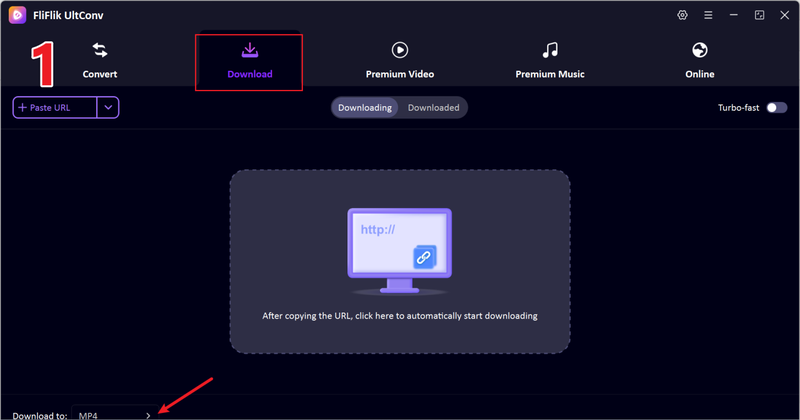
Open UltConv Video Downloader and go to the Download section. Click the Download to button at the bottom to get started.
-
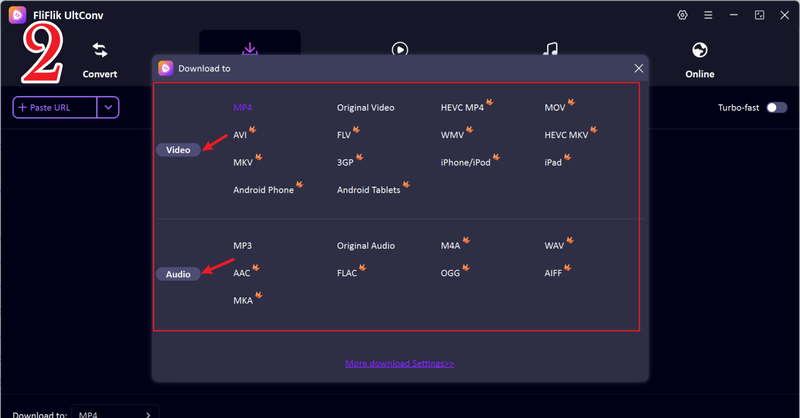
Choose MP4 as the output format for your video.
-
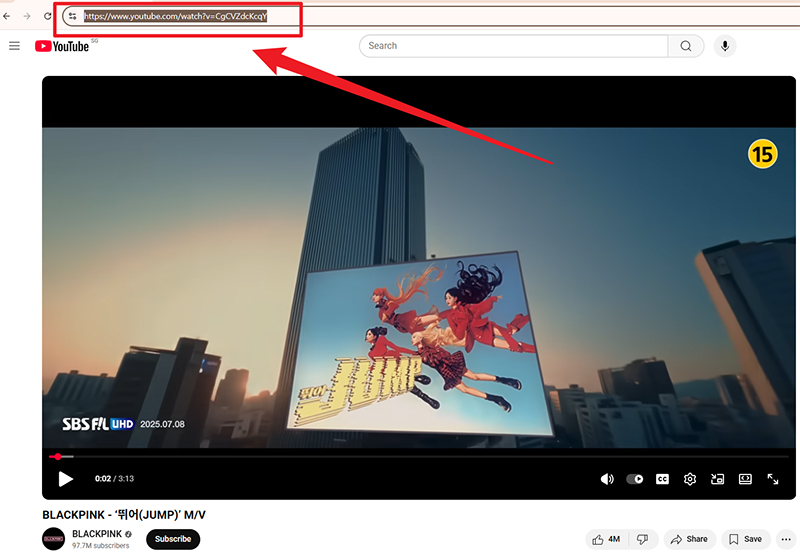
Open YouTube in your browser and copy the link of the video you want to download.
-
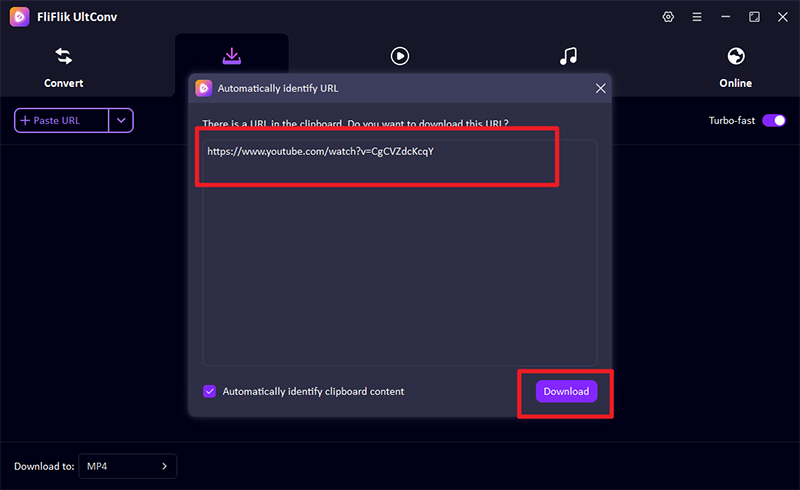
Return to UltConv. If the software automatically detects the copied link, click Download to start saving the video.
-
Please wait a few minutes; ultconv is currently downloading the target video for you. It will then be saved in the ‘downloaded’ section for your convenience.
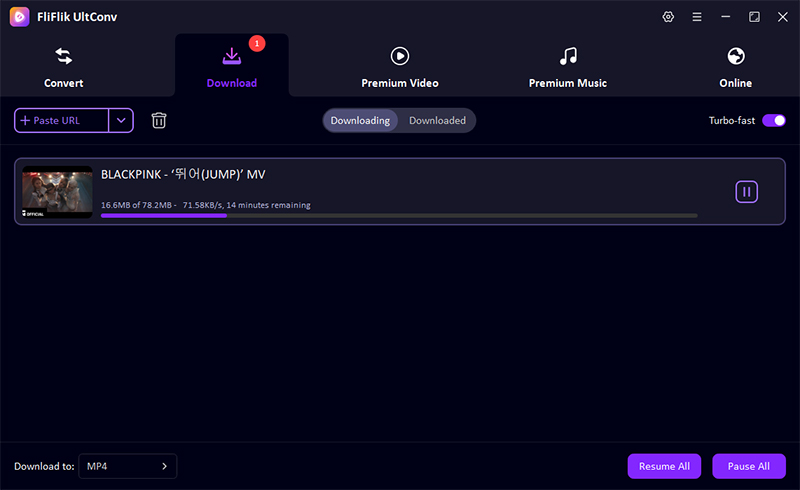


Once the download finishes, the video will be saved in your chosen format. You can watch it offline whenever you want, without buffering or internet issues.
Part 3. Using DVD to MP4 Converter HandBrake

HandBrake is one of the most trusted open-source tools for converting DVDs to MP4 on both Windows and Mac. It’s widely used because it gives you real control over output quality, file size, and device compatibility. You can choose presets for phones, tablets, or TVs, or manually adjust resolution, bitrate, frame rate, and audio tracks.
At the same time, it’s also why beginners sometimes find it confusing. For home DVDs and personal collections, HandBrake is one of the most reliable free options for converting DVD to MP4.
- Free and open-source
- High-quality MP4 output with detailed control
- Works on Windows, macOS, and Linux
- Cannot rip copy-protected DVDs on its own
- Interface may feel complex for beginners
▼ Quick Steps to Convert DVD to MP4 with HandBrake
- Step 1: Download HandBrake from the official website and install it on your computer. It works on Windows 10 and later, as well as macOS.
-
Step 2:
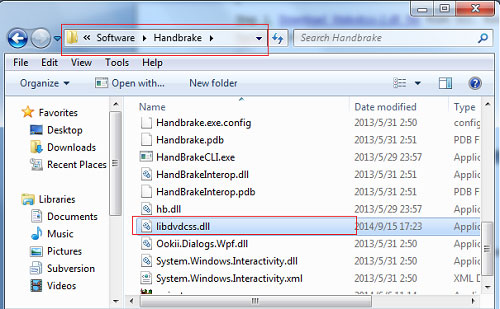
HandBrake can only read unprotected DVDs by default. If your DVD is copy protected, you need libdvdcss. Download libdvdcss from the videolan website. Copy the file
libdvdcss-2.dll
into the HandBrake program folder. You don’t need to rename the file. Restart HandBrake after copying.
-
Step 3:
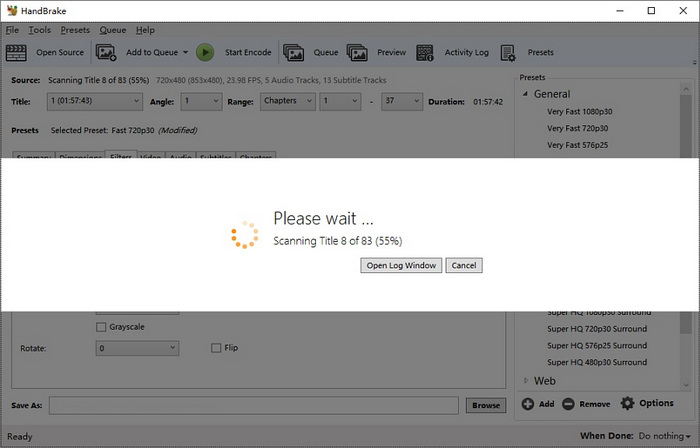
Insert your DVD and open HandBrake. Click
source selection
and choose your DVD. HandBrake will start scanning the disc automatically.
- Step 4: HandBrake usually selects the longest title, which is often the main movie. If your DVD has many titles, manually choose the correct one from the title menu.
-
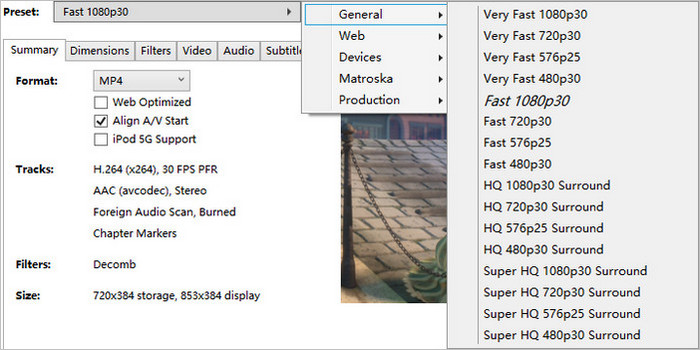
Step 5: Pick a preset from the sidebar. Keep the resolution close to the original DVD. Higher resolutions won’t improve quality and will increase file size.
-
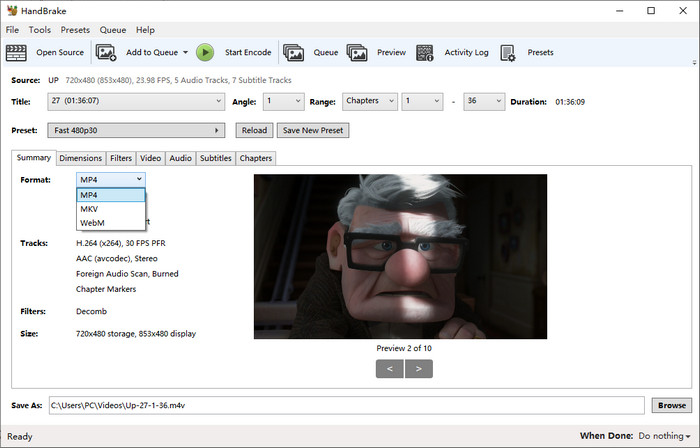
Step 6:
Open the
summary
tab. Under
format, select
mp4
as the output format.
- Step 7: Go to the video tab if you want to change settings. H.264 gives the best compatibility, while H.265 offers smaller file sizes. Enable hardware acceleration if available for faster conversion.
- Step 8: Click browse and select a folder with enough free space to store the converted mp4 file.
- Step 9: Click start encode at the top. HandBrake will begin converting the DVD to MP4, and you can track progress at the bottom of the window.


Part 4. Using DVD to MP4 Converter Freemake Video Converter

Freemake Video Converter is a popular DVD to MP4 converter designed for users who want simplicity over technical controls. It supports DVD ripping, video conversion, and basic editing, all within a clean, beginner-friendly interface. If you’re new to converting DVD to MP4 and don’t want to deal with advanced settings, Freemake keeps things straightforward.
The software supports MP4 output and works well for basic DVD conversions on Windows. You can select ready-made profiles for devices like smartphones and tablets, which saves time.
- Very easy to use
- Supports MP4 and device presets
- Good for beginners
- Free version adds watermark
- Windows only
▼ Quick Steps to Convert DVD to MP4 with Freemake Video Converter
- Step 1: First download and install Freemake Video Converter.
- Step 2: Place your dvd into the computer’s dvd drive and wait for the system to recognize it.
- Step 3: Download and launch the free dvd to mp4 ripper on your Windows 10 computer.
-
Step 4:
Select the inserted dvd as the source so the software can read and scan the disc.
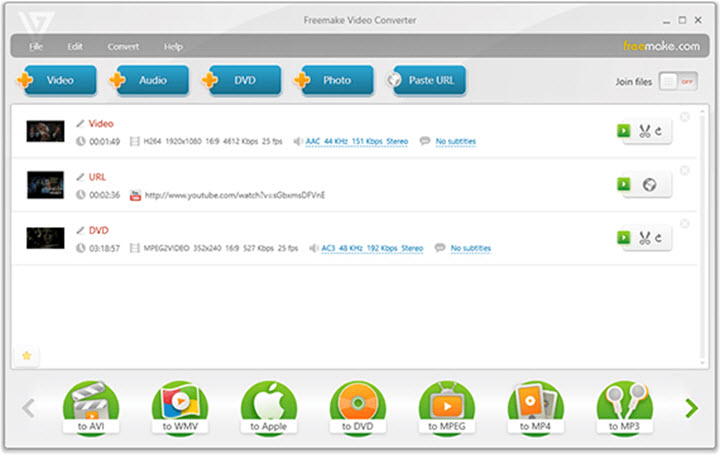
- Step 5: At the bottom of the interface, select mp4 as the output format.
- Step 6: Adjust basic settings if needed, then click convert to begin ripping the dvd to mp4.

Part 5. How to Convert DVD to MP4 with VLC Media Player

VLC Media Player is best known as a video player, but it also includes basic DVD conversion features. It works on Windows, Mac, and Linux and supports standard, unprotected DVDs. For simple DVD to MP4 tasks, VLC can be a quick and free solution. It’s best suited for users who want a no-frills method and don’t need customization or DRM handling.
- Completely free
- Works on multiple operating systems
- No extra installation needed
- Slow conversion speed
- Limited control over output quality
▼ Quick Steps to Convert DVD to MP4 with VLC
-
Step 1:
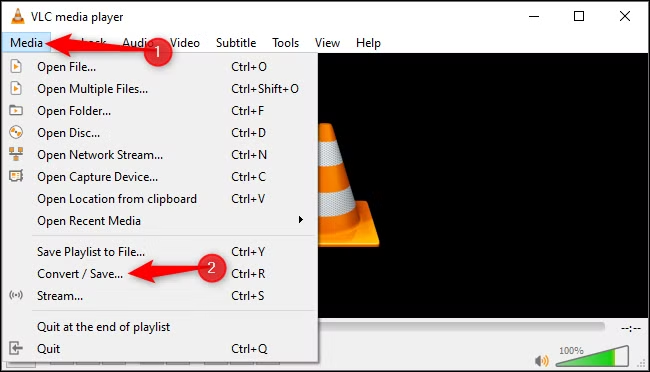
Open VLC and go to
media > convert / save. Switch to the
disc
tab, then click
browse
to select your dvd drive.
-
Step 2:
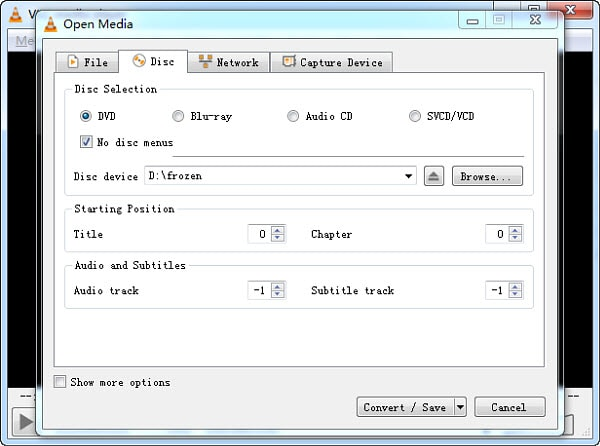
By default,
no disc menus
are selected. Keep it checked for a faster rip, or uncheck it if you want to keep the dvd menu.
- Step 3: Click convert / save to open the settings panel. Under profile, choose video h.264 + mp3 (mp4) or video h.265 + mp3 (mp4) for mp4 output.
- Step 4: Select a folder that’s easy to find, then click start. VLC will begin converting the dvd to mp4.


The VLC interface on macOS is different from Windows. If you’re using a Mac, the menu layout and steps may vary slightly.
FAQs
Q1. How can I convert DVDs to mp4 on mac?
On a Mac you can use tools like HandBrake or VLC Media Player to rip DVDs to MP4. Load the DVD in the app, choose MP4 as the output format, and start the conversion. Some DVDs are copy‑protected, in which case tools like libdvdcss (for HandBrake) or dedicated paid apps make the process easier.
Q2. How to rip DVD to MP4 on my phone?
Most phones can’t rip DVDs directly because they don’t have optical drives. Instead, rip the DVD on your computer first, save it as an MP4 file, then transfer it to your phone via USB, cloud storage, or Wi‑Fi file transfer.
Conclusion
Converting your DVDs to MP4 frees your movies from physical discs, so you can watch them on any device—phones, tablets, or TVs. While HandBrake offers deep control and VLC provides a simple free fix, there are plenty of ways to digitize your collection depending on your technical comfort level.
For a faster, all-in-one option on Windows or Mac, FliFlik UltConv Video Downloader is a great choice. It handles high-quality MP4 conversions and internet downloads with ease, helping you build a digital library that’s easy to organize and safe from the risk of scratched discs.
 Secure Download
Secure Download
Secure Download
Hello, I research and introduce useful solutions for AI videos, images, and audio tips in our daily life. If you learn these things, you can easily deal with the problems of the new era.

