

 8 minutes read


A DAV file is a proprietary video format created by DVRs and security cameras, especially from brands like Dahua. It’s designed for recording and storing surveillance footage, but it isn’t widely supported by standard video players. That makes watching or sharing DAV files a challenge. Most users need to convert DAV files to a more universal format like MP4, which works on Windows, Mac, Android, and almost any media player.
In this article, we will share everything you need to know about working with DAV files. From selecting the right media player to mastering DAV-to-MP4 conversion across desktop, web-based, and Android platforms—all for free.

Part 1. Why You Need a DAV File Player
DAV files are created by DVRs and surveillance cameras for efficient storage of surveillance footage, but standard players like Windows Media Player or VLC do not natively support this format. Without a dedicated player, you may encounter playback errors, missing audio, or even be unable to view the recording at all. Using a professional DAV player ensures stable playback and allows you to safely view or export the recording.
For greater flexibility, many users convert DAV files to MP4 format. MP4 files are smaller, easier to share, and compatible with almost all devices. Since many DAV players have built-in conversion tools, you can easily convert limited surveillance data to a universal format for easier editing and viewing.
DAV vs MP4 Comparison Table
| Feature | DAV File | MP4 File |
|---|---|---|
| Created By | DVR / Security cameras | Standard video formats |
| Compatibility | Limited to proprietary players | Works on almost all devices |
| File Size | Usually larger, optimized for long recordings | Compressed, smaller size |
| Editing | Difficult, requires special software | Easy with video editors |
| Sharing / Streaming | Not ideal for sharing online | Easy to share or stream |
| Video Quality | High, may include special encoding | High, widely compatible |
| Use Case | Surveillance footage | General viewing, sharing, editing |
Part 2. Best Desktop Tool to Convert DAV to MP4 on PC
Converting DAV files on a computer is often difficult due to limitations of standard converters in terms of high resolution and file size. FliFlik UltConv Video Downloader simplifies this process; it’s a powerful local converter. Originally designed for downloading videos from platforms like YouTube or TikTok, UltConv easily converts DAV files to high-quality MP4 format, ensuring your surveillance footage is viewable and shareable without loss of detail.
More than just a converter, UltConv is a comprehensive media tool supporting batch processing and resolutions up to 8K. It also features advanced functions such as DRM removal, audio extraction, and live recording. With a built-in browser and secure file management, UltConv provides a fast and reliable solution for anyone needing professional-grade video conversion and downloading.

- Download videos from 10,000+ websites with one click.
- Convert videos to MP4, MP3, and over 100 other formats.
- Batch download multiple videos or audio files simultaneously.
- Preserve high-quality video up to 8K and audio in 320kbps.
- Convert video to audio without losing quality.
- Remove DRM from Spotify and Apple Music.
- Built-in browser for exploring and downloading content.
- Private folder to secure downloads with a password.
▼ How to Convert DAV to MP4 with FliFlik UltConv Video Downloader?
-
Go to the official FliFlik UltConv website and download the Windows or Mac version. Follow the prompts to complete the installation.
FREE DOWNLOAD![secure download]() Secure Download
FREE DOWNLOAD
Secure Download
FREE DOWNLOAD![secure download]() Secure Download
Secure Download
-
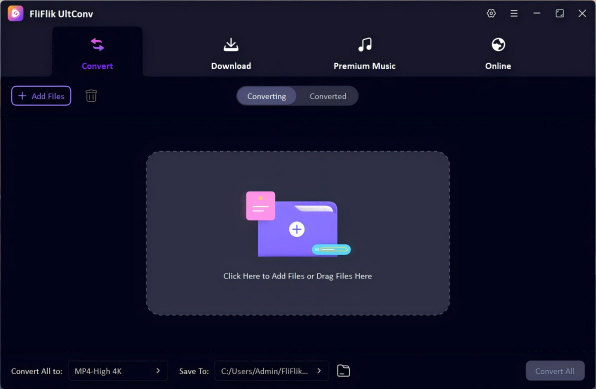
Launch the program and go to the Convert section. Click Add File or simply drag your DAV files into the window. You can add multiple files at once for batch conversion.
-
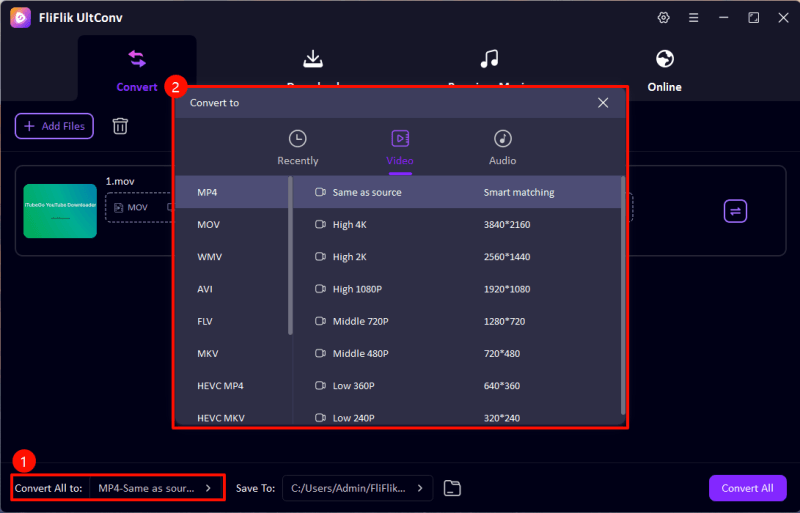
From the output format list, choose MP4. This will convert your DAV files into a widely compatible video format.
-
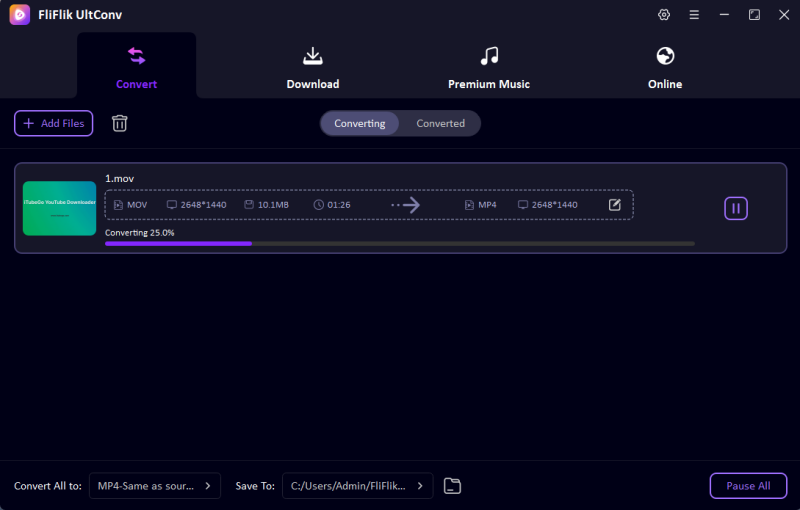
Select the folder where you want the converted MP4 files to be saved. Click Convert All to begin converting your DAV files to MP4. UltConv will process each file while keeping the original quality intact.


Part 3. How to Convert DAV to MP4 Free Online

Online-Convert.com offer a convenient, software-free way to convert DAV files directly in your browser. This is an ideal solution for users who only need to process a small number of files or cannot use desktop converters. The platform allows you to customize output settings such as resolution and bitrate, making it ideal for quick and easy adjustments.
However, these tools have some limitations in terms of internet speed and file size. Uploading and processing large surveillance recordings can take longer compared to desktop software. Despite these drawbacks, online converters remain a convenient option for processing small video clips or occasional conversion needs.
- No installation required; works in any browser.
- Customizable output settings like resolution and bitrate.
- Quick for small or medium-sized files.
- Upload and conversion speed depend on your internet connection.
- Large files may fail or take a long time to process.
▼ How to Convert DAV to MP4 with Online-Convert.com?
- Step 1: Go to Online-Convert.com DAV to MP4.
- Step 2: Click Choose File and select the DAV file from your computer. You can also drag and drop the file into the browser window.
- Step 3: You can change resolution, bitrate, or codec if needed, or leave the default settings for a standard MP4 conversion.
- Step 4: Click Start Conversion. The website will upload your DAV file, convert it to MP4, and prepare it for download.
- Step 5: Once the conversion is complete, click Download to save your MP4 file to your computer.
Part 4. How to Convert DAV to MP4 on Android?
The Dav To MP4 – CCTV DVR Converter app offers a simple way to convert surveillance footage directly on your Android device. It handles DAV files without restrictions on size or length, allowing you to transform recordings into MP4s quickly while on the go.
Once converted, you can save the MP4 files to your phone or share them instantly across social media. This makes managing and distributing your security videos seamless and efficient, all without needing a computer.
- Quickly converts DAV files to MP4 on Android
- Allows sharing of converted files to social media
- Saves converted videos directly to local storage
- Limited editing features within the app
- Conversion speed may vary depending on device performance
▼ How to Convert DAV to MP4 on Android?
- Step 1: Download Dav To MP4 – CCTV DVR Converter from the Google Play Store and install it on your Android device.
-
Step 2:
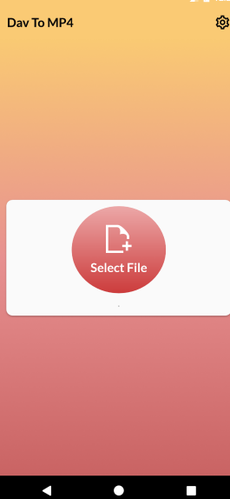
Launch the app and tap Add File. Select the DAV file you want to convert from your device’s storage.
- Step 3: Select MP4 as the target format. You can adjust basic settings like resolution if needed.
- Step 4: Tap Convert to begin. The app will process the file and create an MP4 version.
- Step 5: Once the conversion is complete, the MP4 file will be saved to your phone’s internal storage. You can now play it in any video player or share it directly on social media.

FAQs
Q1. How to convert DAV to MP4 online free?
You can use online tools likeOnline-Convert.comto convert DAV files to MP4 without installing software. Simply upload your DAV file, choose MP4 as the output format, and start the conversion. Once it’s done, download the MP4 file to your device.
Q2. What’s the main difference between DAV and MP4?
DAV is a proprietary surveillance video format, which is difficult to play and share. Converting it to MP4 format is essential for achieving universal compatibility, allowing you to easily view, edit, and play the video on any device.
Conclusion
DAV files are a proprietary format, making them difficult to share, but converting them to MP4 solves these compatibility issues. While online converters and mobile apps can offer quick alternatives for some minor tasks, desktop solutions ensure your video footage remains high-quality and easy to manage. Desktop tools like FliFlik UltConv Video Downloader strike the best balance between speed and quality, supporting batch processing and high resolution.
Whether you choose a professional desktop tool for expert results or opt for a convenient mobile app, you have the flexibility to play, share, and back up your video footage without any limitations.
 Secure Download
Secure Download
Secure Download
Hello, I research and introduce useful solutions for AI videos, images, and audio tips in our daily life. If you learn these things, you can easily deal with the problems of the new era.

